Ticket tags
Overview
A ticket tag is a label that classifies tickets visually. Each tag has a name and a background color, and the text color is set automatically from the brightness of the background color. When you apply a tag to a ticket, the tag appears as a colored badge in the Subject column of the ticket list and on the ticket detail page. Clicking a badge in the ticket list adds the tag name to the search keywords and searches the list. For how to apply tags to tickets, see the Tickets documentation.
Tag names must be unique. If you add or edit a tag with a name that already exists, the tag is not saved. Deleting a tag also removes it from every ticket it was applied to.
The Response > Ticket Tags menu is available to accounts with the Cluster Administrator, Administrator, or User role, and all three roles can view, add, edit, and delete tags.
Viewing the ticket tag list
Go to Response > Ticket Tags to view or search the ticket tag list.
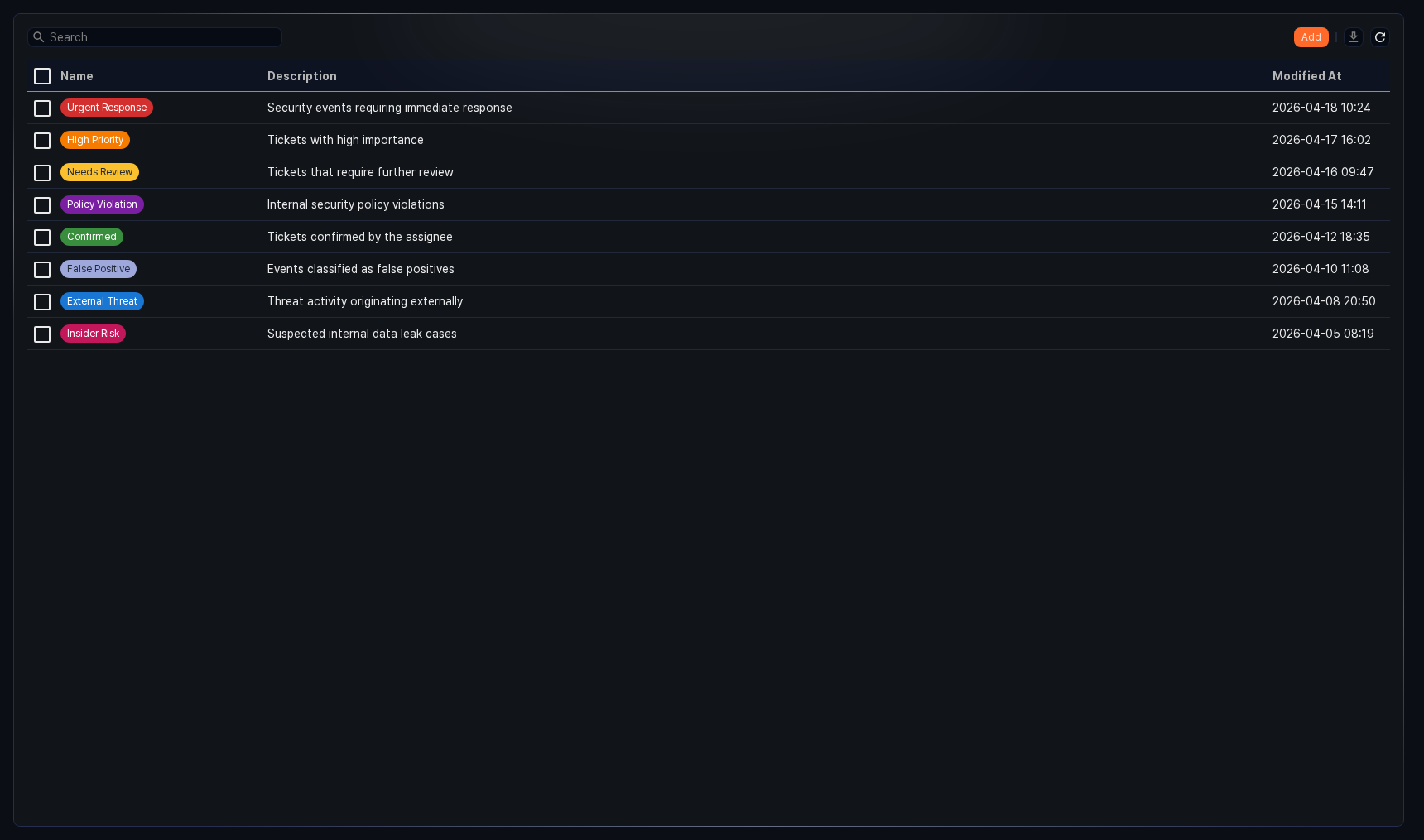
- Name: The name of the tag. Shown as a badge in the background color you set.
- Description: A description of the tag
- Modified At: The time the tag was last modified. If the tag has never been modified, the time it was added.
Each page shows 10 tags. You can change the number of items per page or move to another page at the bottom of the list.
To find a specific tag, use the search tool in the toolbar. Type a keyword and press Enter to show tags whose Name contains the keyword. Description is not searched. If you type several words separated by spaces, only tags whose Name contains all of the words are shown. The search is case-insensitive.
Downloading the list
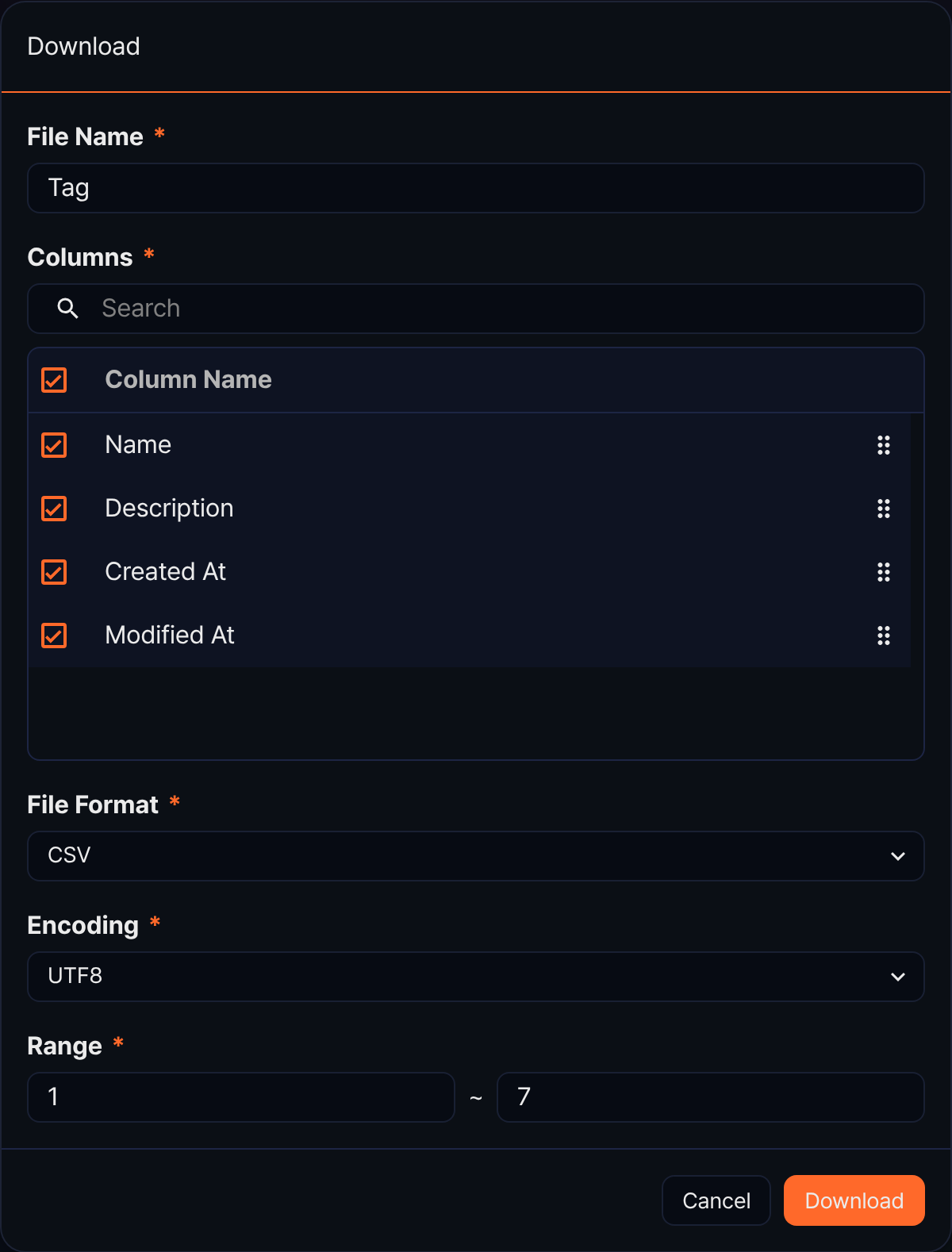
To download the ticket tag list as a file to your PC, click the download icon ( ) in the toolbar. In the Download dialog, set the File Name (default: Tag, up to 200 characters), the Columns to download (Name, Description, Created At, Modified At), the File Format, the Encoding (for CSV and JSON), and the Range (default: from the first row of the current page to the last row of the whole list), then click Download. If you have narrowed the list with a search, only the matching tags are downloaded.
The download icon is disabled when the list is empty.
Refreshing the list
To reload the ticket tag list with the latest data, click the refresh icon ( ) in the toolbar.
Adding a ticket tag
To add a ticket tag:
-
In the Response > Ticket Tags toolbar, click Add.
-
Enter the values in the Add Tag panel.
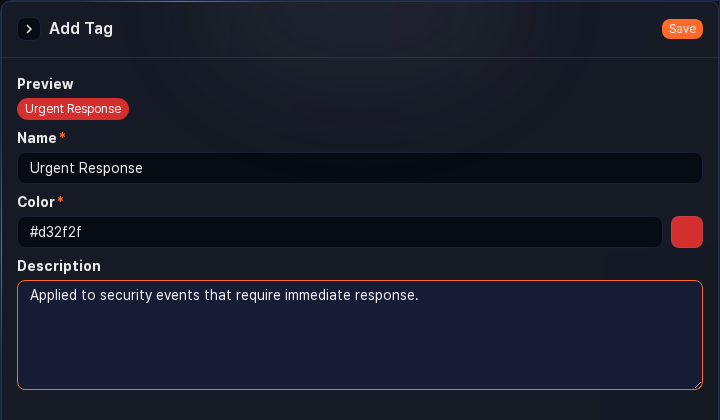
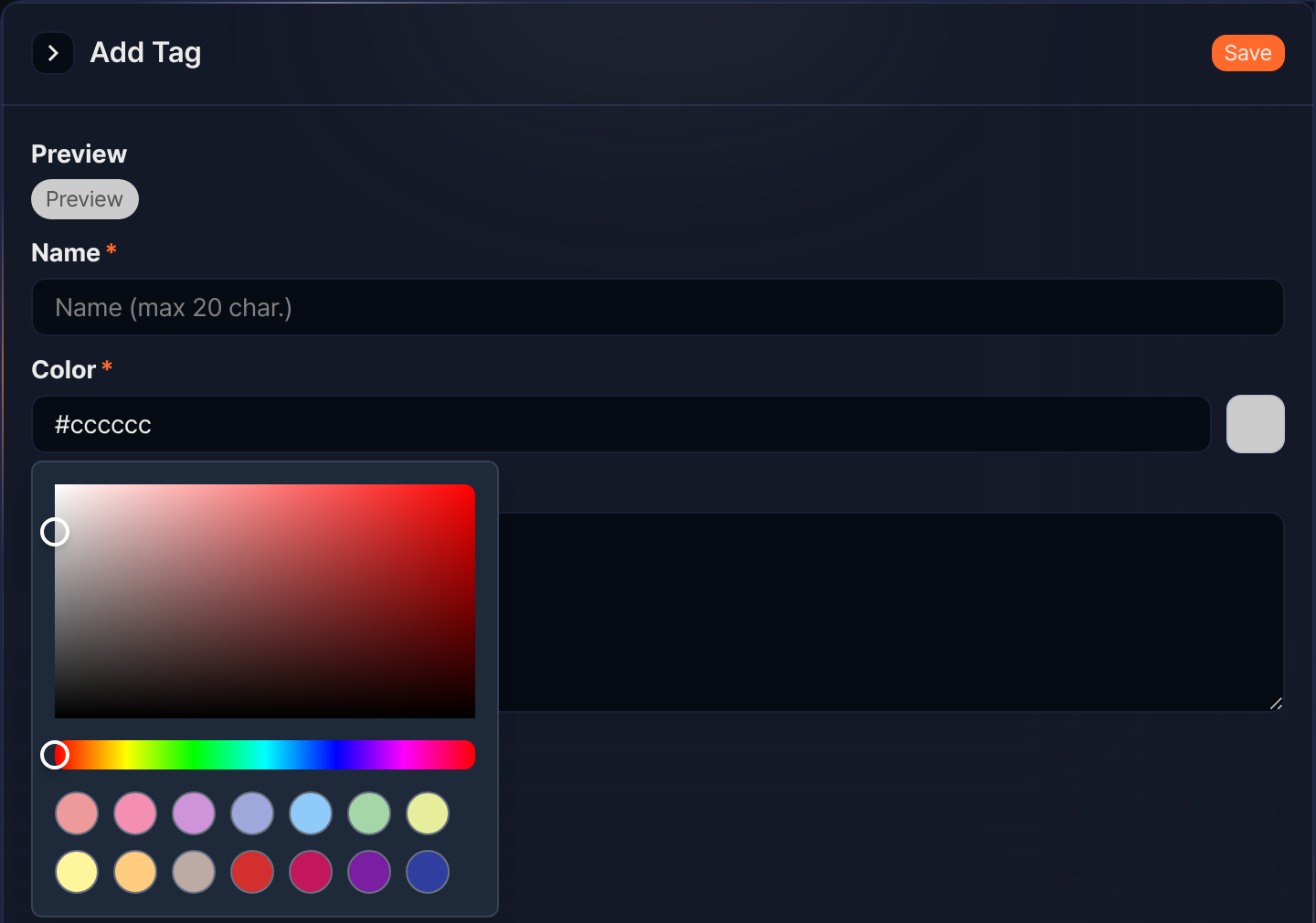
- Preview: The tag badge with the name and color you entered. Until you type a name, the badge shows the word Preview.
- Name: The name of the tag (required, up to 20 characters). A name made only of whitespace is not allowed.
- Color: The background color of the tag (required, default #cccccc). Type a hexadecimal color value or pick a color in the color picker.
- Description: A description of the tag (up to 2,000 characters)
-
Click Save.
To open the color picker, click the color swatch button to the right of the Color box. Pick brightness and saturation in the square at the top, the hue in the bar below it, and a predefined color from the 14 swatches at the bottom. The color you pick goes straight into the Color box and the Preview badge. To close the color picker, click outside it.
Editing a ticket tag
To edit a ticket tag:
- In the ticket tag list, click the row of the tag you want to edit.
- Change the name, color, or description in the Edit Tag panel, then click Save. The fields are the same as in Adding a ticket tag.
Deleting a ticket tag
To delete a ticket tag:
-
In the ticket tag list, select the checkbox to the left of the tag you want to delete. You can select several tags at once.
-
As soon as you select a tag, the search area of the toolbar is replaced by a message showing the number of selected items, along with the Delete and Deselect buttons. Click Delete.
-
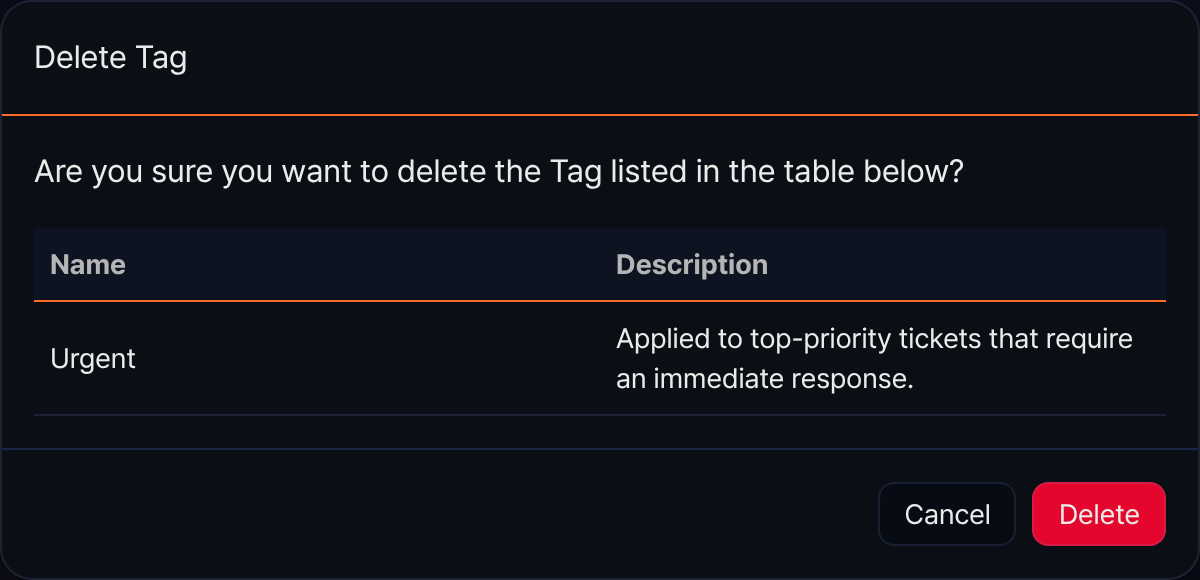
Review the name and description of the tags in the Delete Tag dialog, then click Delete.