
Dashboards
Overview
Dashboards let you visualize analysis results so you can monitor them in real time. When you install an app, the dashboards that the app provides are usually added automatically, and you can also create your own dashboards and arrange widgets around the topics you want.
You need the following permissions to use dashboards.
- Dashboard View: View dashboards that you own or that were shared with you with Allow Read.
- Dashboard Edit: Create or edit dashboards.
- Dashboard Admin: Publish dashboards. Administrator accounts can use this feature without a separate permission.
List and search dashboards
Dashboards lets you view and search the list of dashboards. You can view the dashboard list in two modes: card view and list view. Click the  /
/  buttons at the top of the list to switch between the two modes. The view mode you select is saved to your account settings and persists the next time you access the dashboards.
If no dashboards are registered, a welcome screen appears, and you can create a new dashboard directly from this screen.
Card view
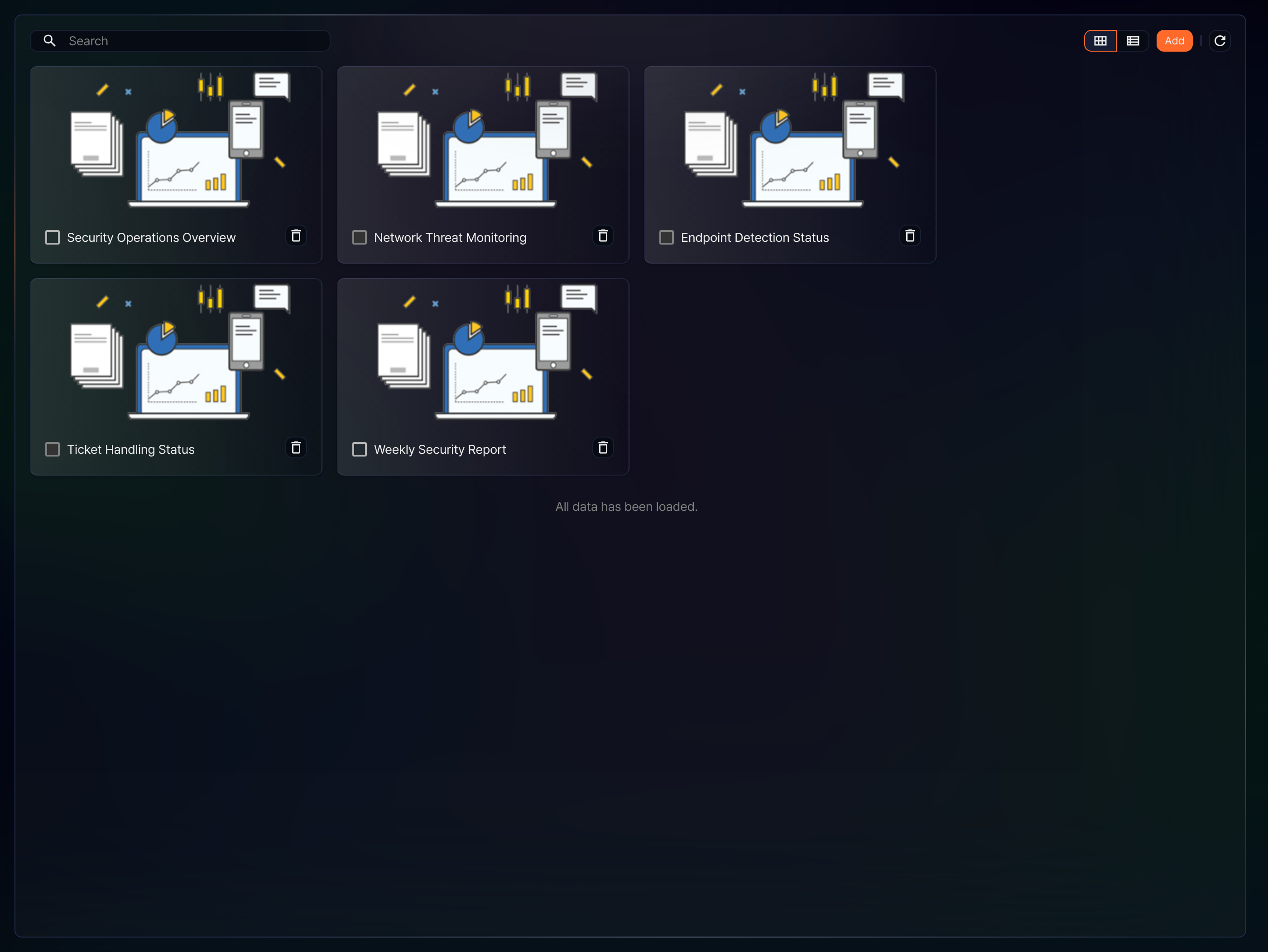
Displays dashboards as thumbnail cards. Each card shows the dashboard name and a thumbnail image. Click Load More below the list to load more dashboards, and once all dashboards are loaded, a message appears in place of the button. When no items are selected, each card shows its own delete button.
List view
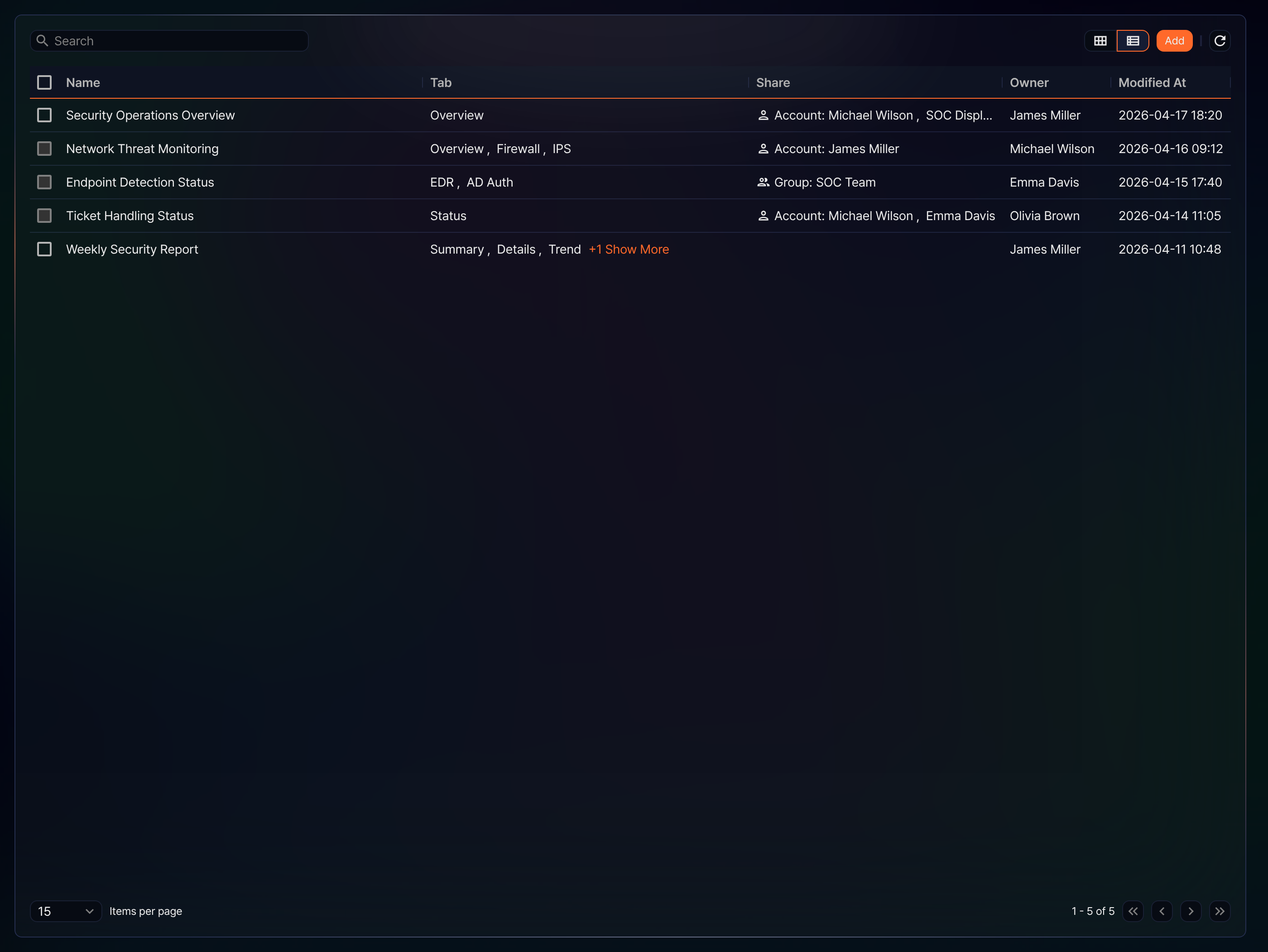
Displays dashboards as a list. The list shows the following items.
- Name: The dashboard name. Click it to view the dashboard.
- Tab: The list of tabs included in the dashboard (up to 3 shown)
- Share: The accounts and groups that the dashboard is shared with
- Owner: The dashboard owner
- Modified At: The date the dashboard was last modified (in
yyyy-MM-dd HH:mmformat)
To find a specific dashboard, enter its name in the  search box at the top of the list. Dashboards whose Name contains the word you entered are shown.
Refresh the list
To view the latest dashboard list, click  .
.
Open a dashboard
To open a dashboard, click the dashboard card in card view, or click the dashboard name in the Name column in list view.
Components
A single dashboard is made up of multiple tabs and widgets, and it provides a docking layout feature that lets you place widgets at any position and size. Once you create a widget, you can reuse it any number of times, and any change to a widget's properties is applied to every dashboard at once.
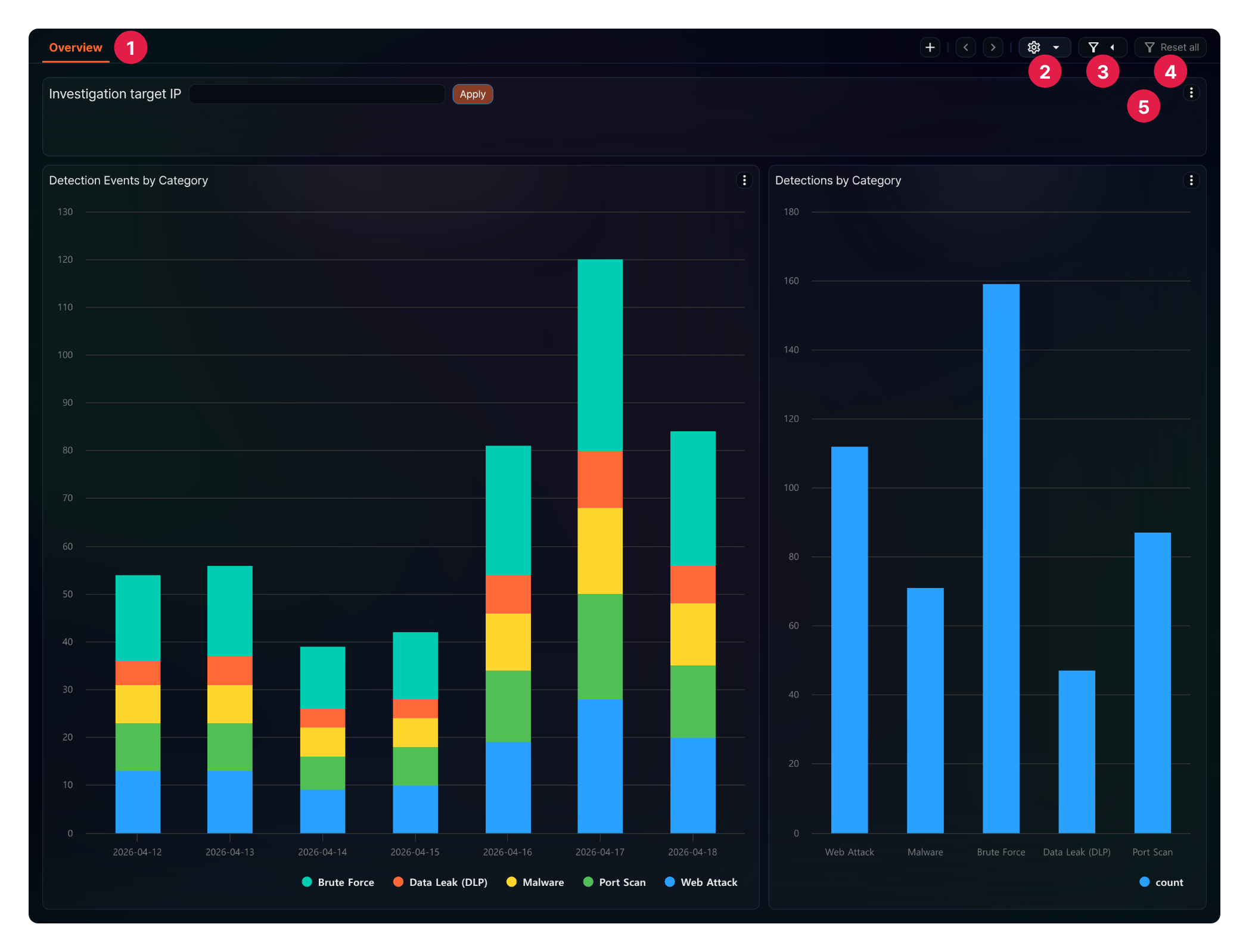
- Switch tabs: Click a tab title to switch to that tab.
 : Click this button to open the menu for managing the dashboard. For more information, see Management menu.
- Filter: Click this button to open the panel where you can set a filter for the whole dashboard, or for widgets that use the same dataset. For more information, see Manage filters.
- Reset all: Resets all added filters and user-defined variable values. The badge shows the number of added filters (regardless of whether they are enabled) plus the number of user-defined variables that have a value set. This button is hidden while the filter panel is open.
- Widget menu: Click each widget's menu button (⋮) to perform actions such as viewing basic info, refreshing, pausing, viewing the result, and expanding the widget. For more information, see Widgets and containers.
Add a dashboard
To add a dashboard,
- Click Add at the top right of the screen.
- In the New Dashboard dialog, enter a name and click OK (up to 50 characters).
The new dashboard opens with a single empty tab. Add widgets to build out the dashboard in Edit a tab mode.
Manage a dashboard
When you open a dashboard, a button appears at the top right of the tab area. Click this button to open a popover menu. Click each menu item to manage the dashboard.
Management menu
The following management features are available in the popover menu.
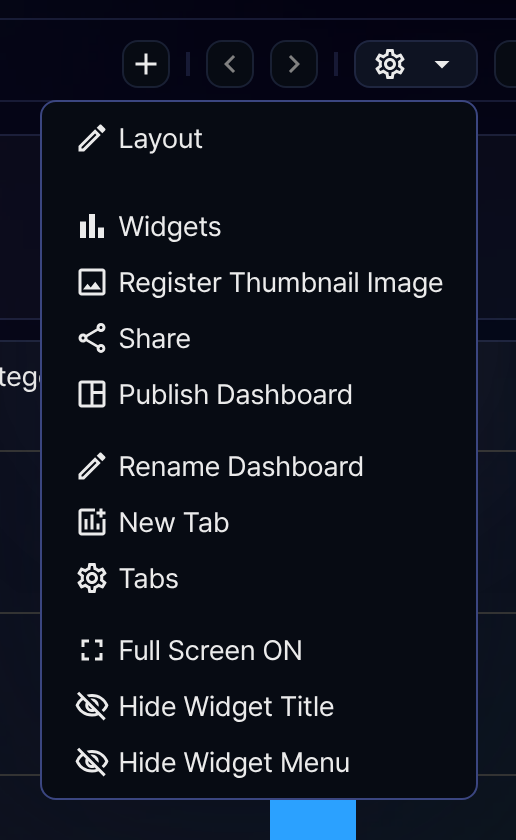
 Layout
-
Switches to a mode where you can add or delete widgets and containers on the dashboard, and change a widget's size and position. For more information, see Edit a tab.
 Widgets
-
Opens the management screen where you can create, edit, and delete widgets. For more information, see Widgets.
 Register Thumbnail Image
-
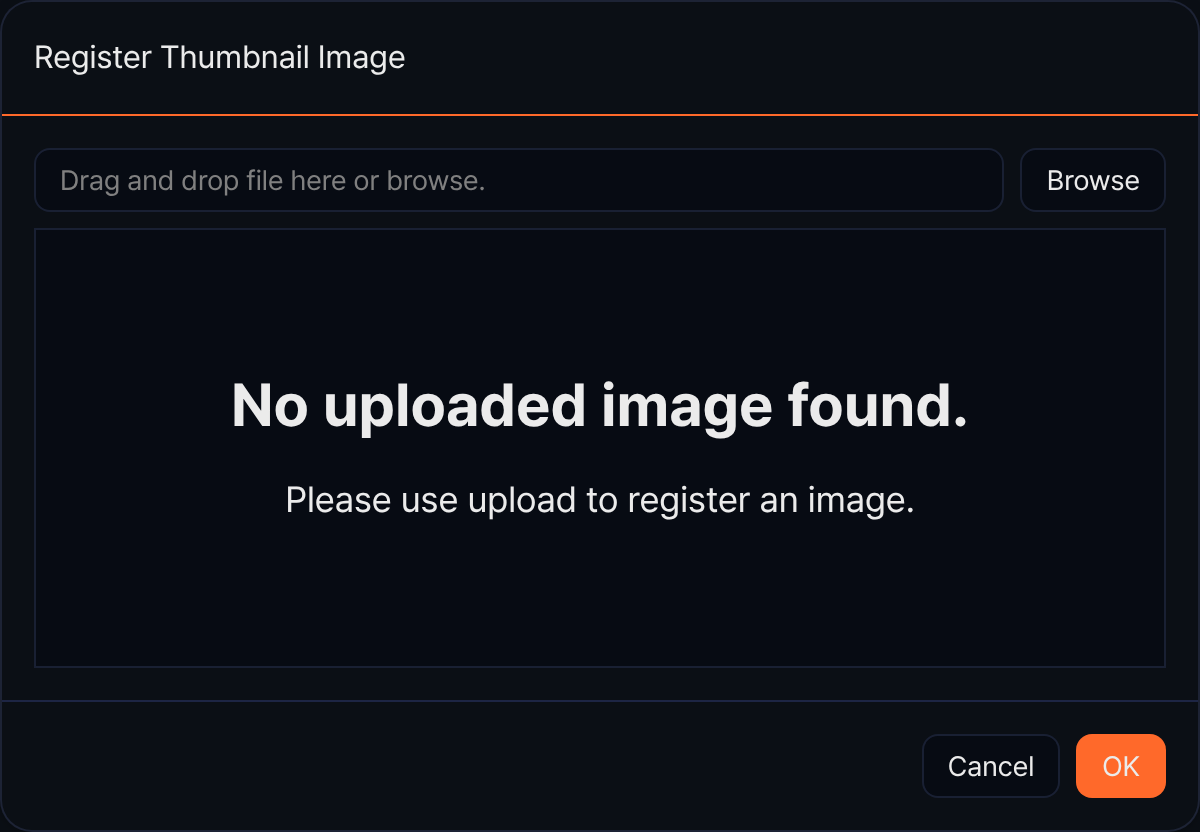
Sets the thumbnail image shown in the dashboard card view. You can upload an image file (jpg, jpeg, png) or paste an image from the clipboard. The maximum image file size is 1 MB. If an existing thumbnail is set, you can restore it to the default.
 Share
Share-
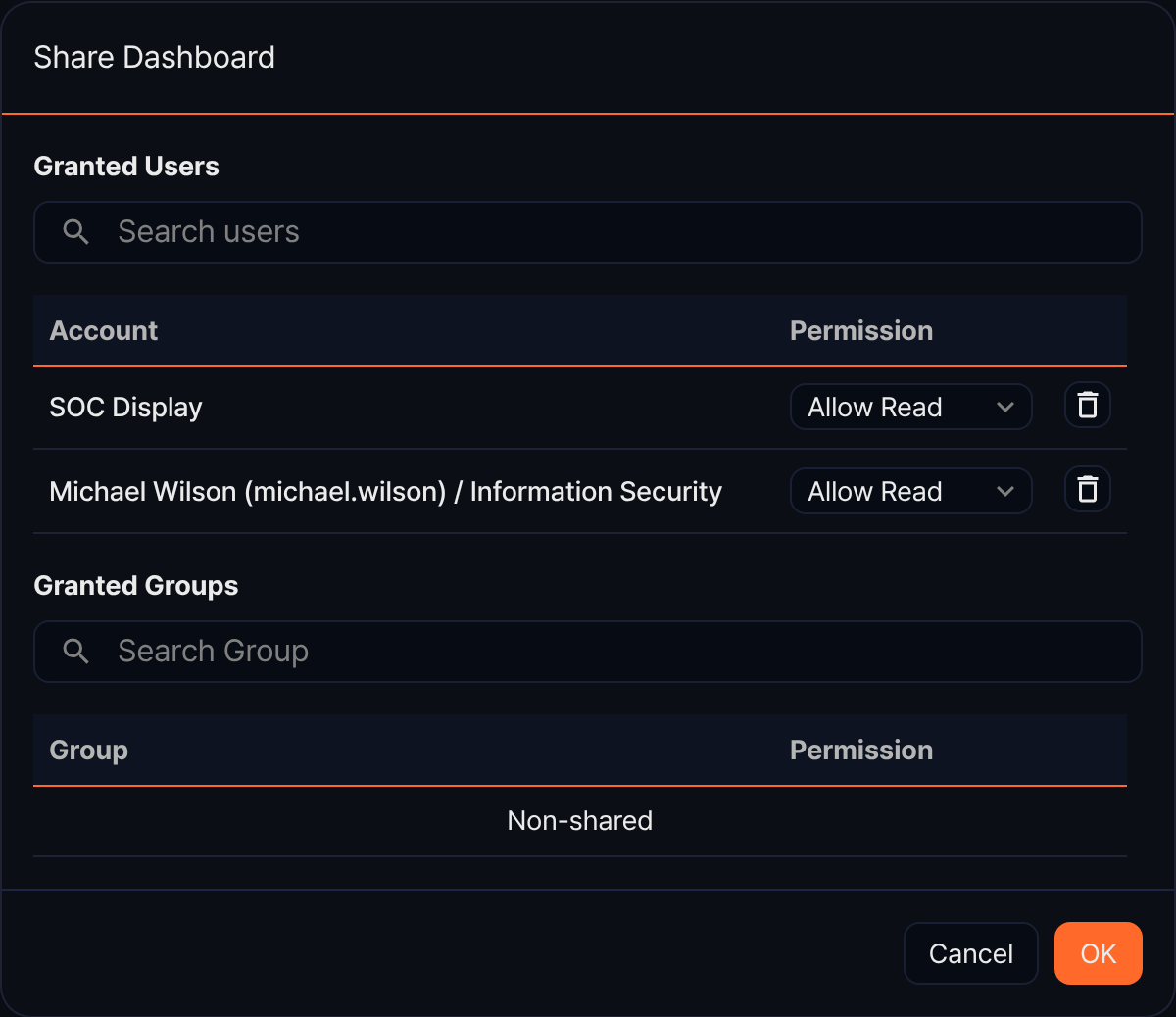
Lets you select accounts and groups to share the dashboard with. You can set Allow Read or Allow Edit for each share target. If you share with Allow Edit, the account you shared with can edit or delete the dashboard.
-
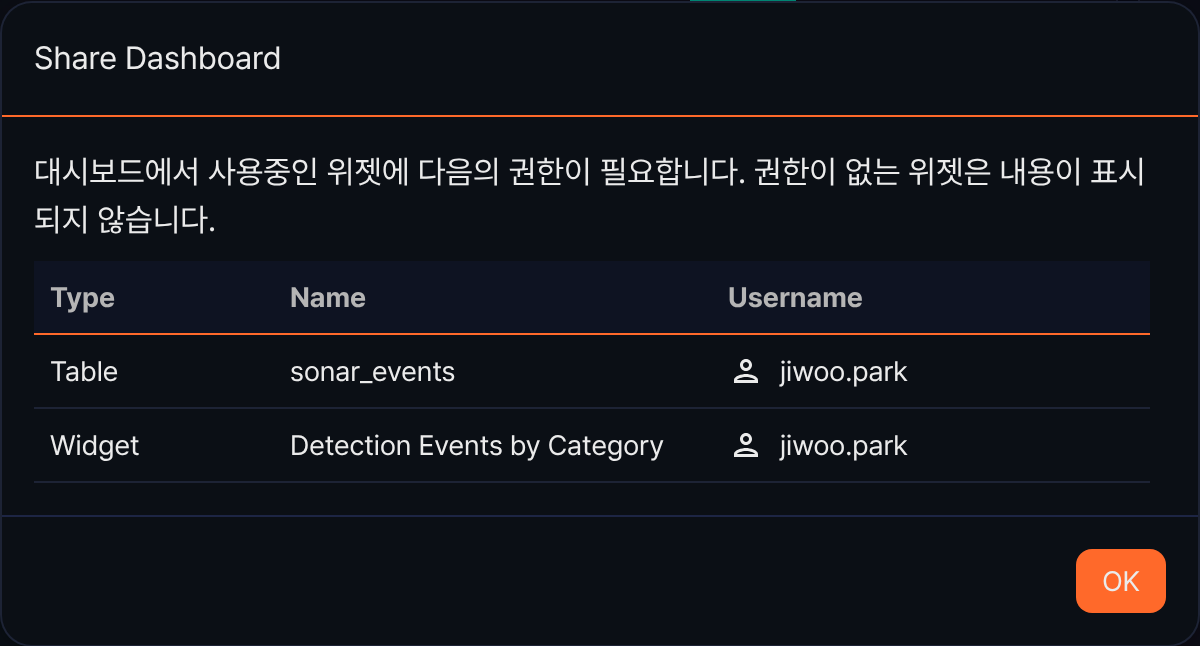
After you select the share targets and save, the system checks whether the widgets and data sources used in the dashboard are also shared. If an account has access to the dashboard but not to a widget or data source, the widget does not display correctly, so the system provides a list of the widgets and data sources the shared account does not have permission for.
 Publish Dashboard
-
Publishes the dashboard externally as read-only. This menu item is shown only to administrators who have the Dashboard Admin permission.
-
To publish a dashboard, follow these steps.
-
In the Account dropdown, select an account that has the Dashboard Viewer role. Accounts are shown in name/login format.
-
If the selected account does not have an API key, a warning appears. Click Generate API key to generate an API key for that account.
-
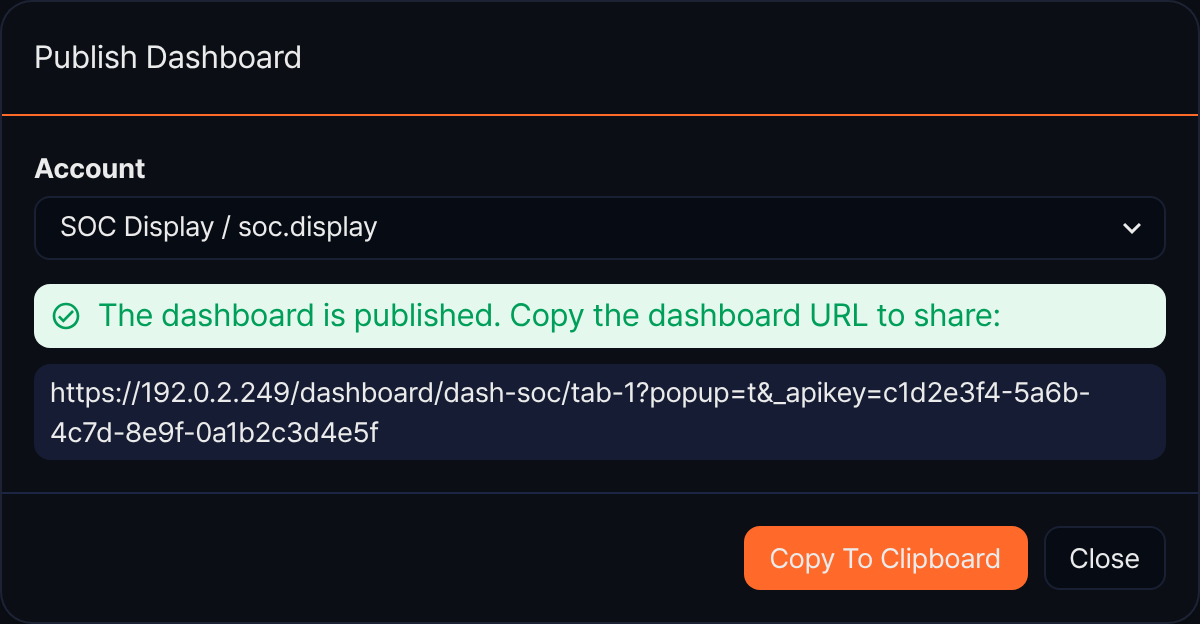
When the message "You can use this account to publish the dashboard." appears, click Next. The dashboard is shared with that account, and an access URL is generated.
-
Click Copy To Clipboard to copy the generated URL.
-
If some widgets or data sources used in the dashboard are not accessible to the account, a warning appears. Click Approved to also grant access to those resources.
-
- Rename Dashboard
-
Renames the dashboard (up to 50 characters).
 New Tab
-
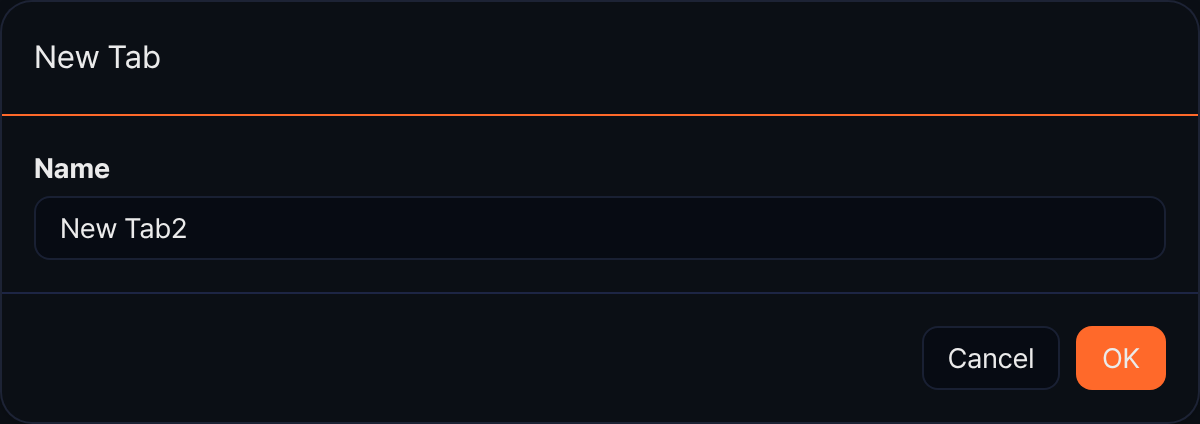
Adds a tab to the dashboard. Enter the tab name and click OK (up to 255 characters).
- Tabs
-
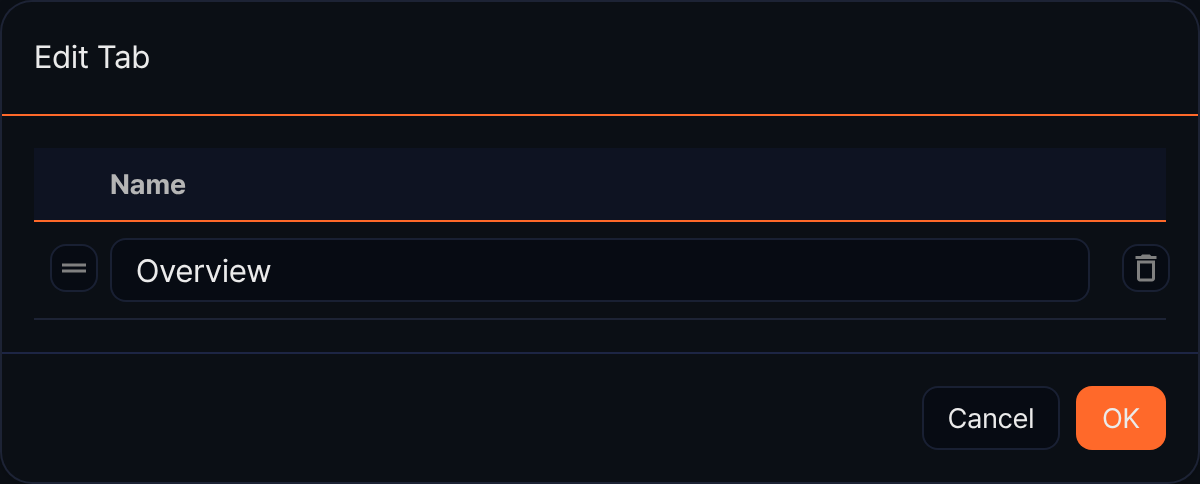
Changes the name and order of the dashboard's tabs, or deletes a tab. You can drag and drop to reorder tabs. If only one tab remains, you cannot delete it or change its order. When you finish editing, click OK to save your changes.
 Full Screen ON
-
Hides Sonar's top bar and left menu to show the dashboard in full screen. Click again while in full screen to show Full Screen OFF, which returns to the normal screen.
 /
/ Hide Widget Title/Show Widget Title
-
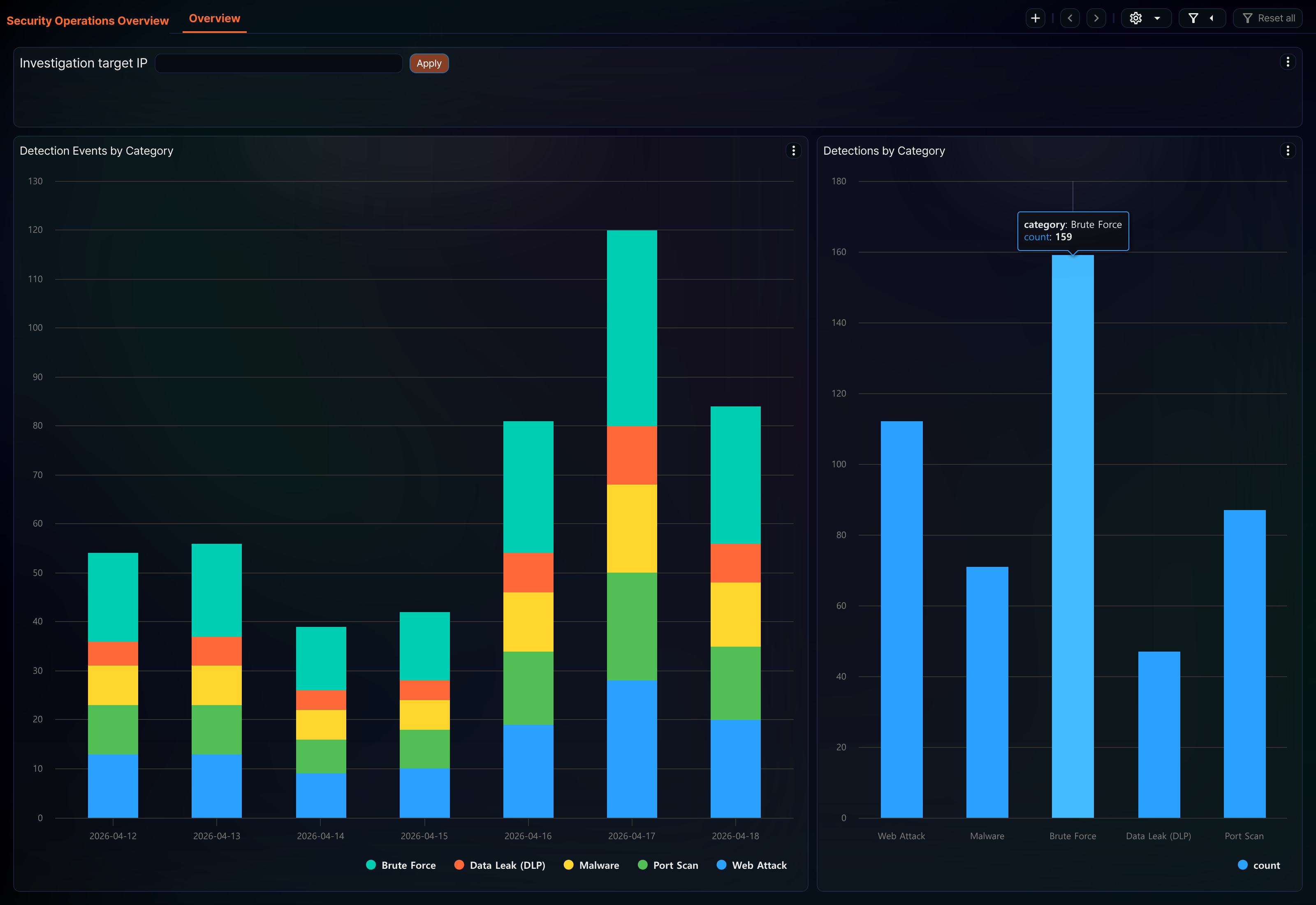
Toggles whether widget titles are shown. When titles are shown, the menu item reads
Hide Widget Title; when hidden, it reads Show Widget Title. A container's title is always shown, regardless of this option. Widget titles are shown by default.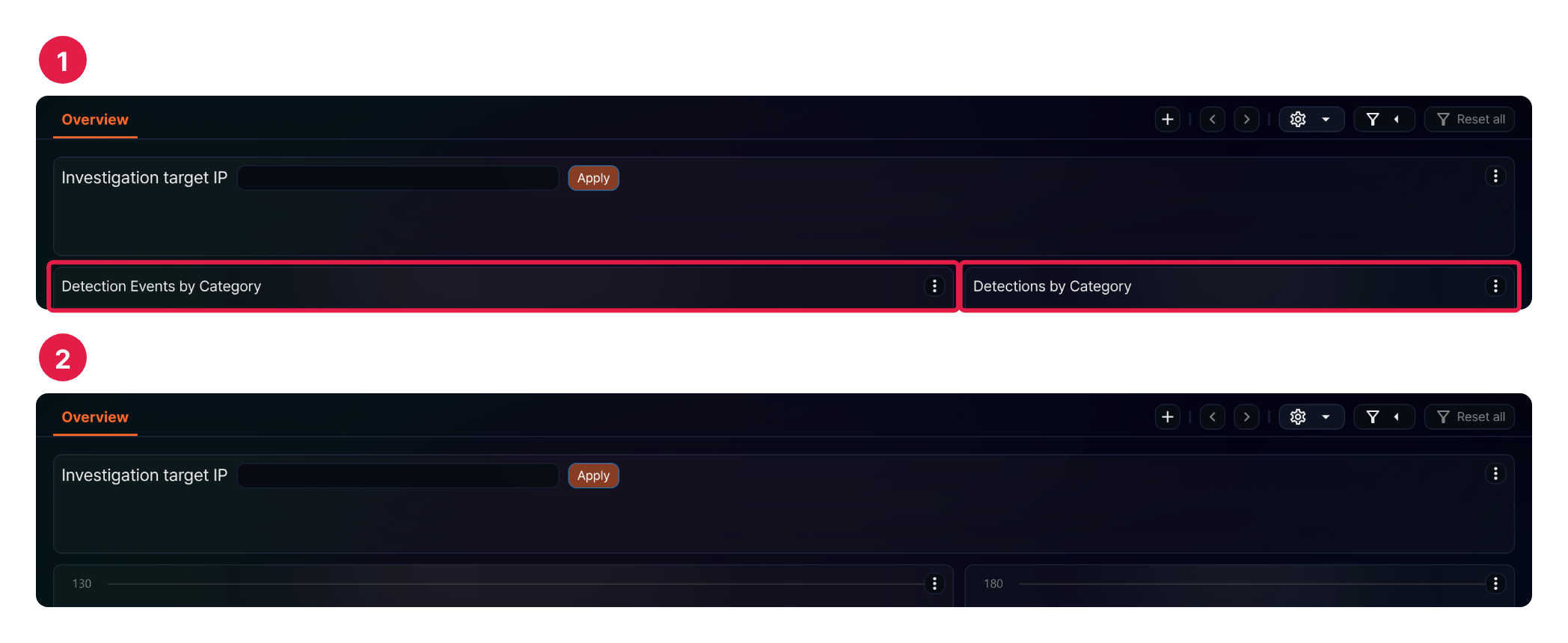
- / Hide Widget Menu/Show Widget Menu
-
Toggles whether each widget's menu button (⋮) is shown. When the menu button is shown, the menu item reads
Hide Widget Menu; when hidden, it reads Show Widget Menu. Widget menus are shown by default, but a container's menu button is always shown regardless of this option.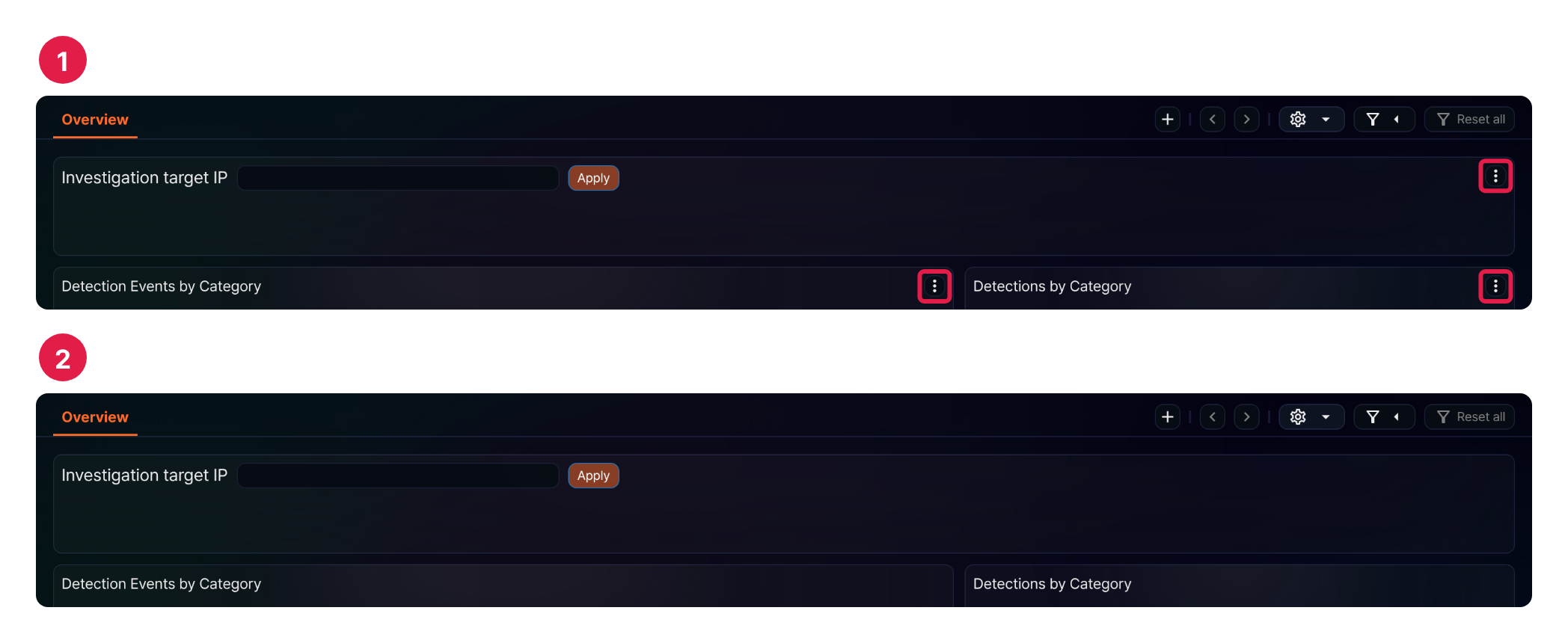
Edit a tab
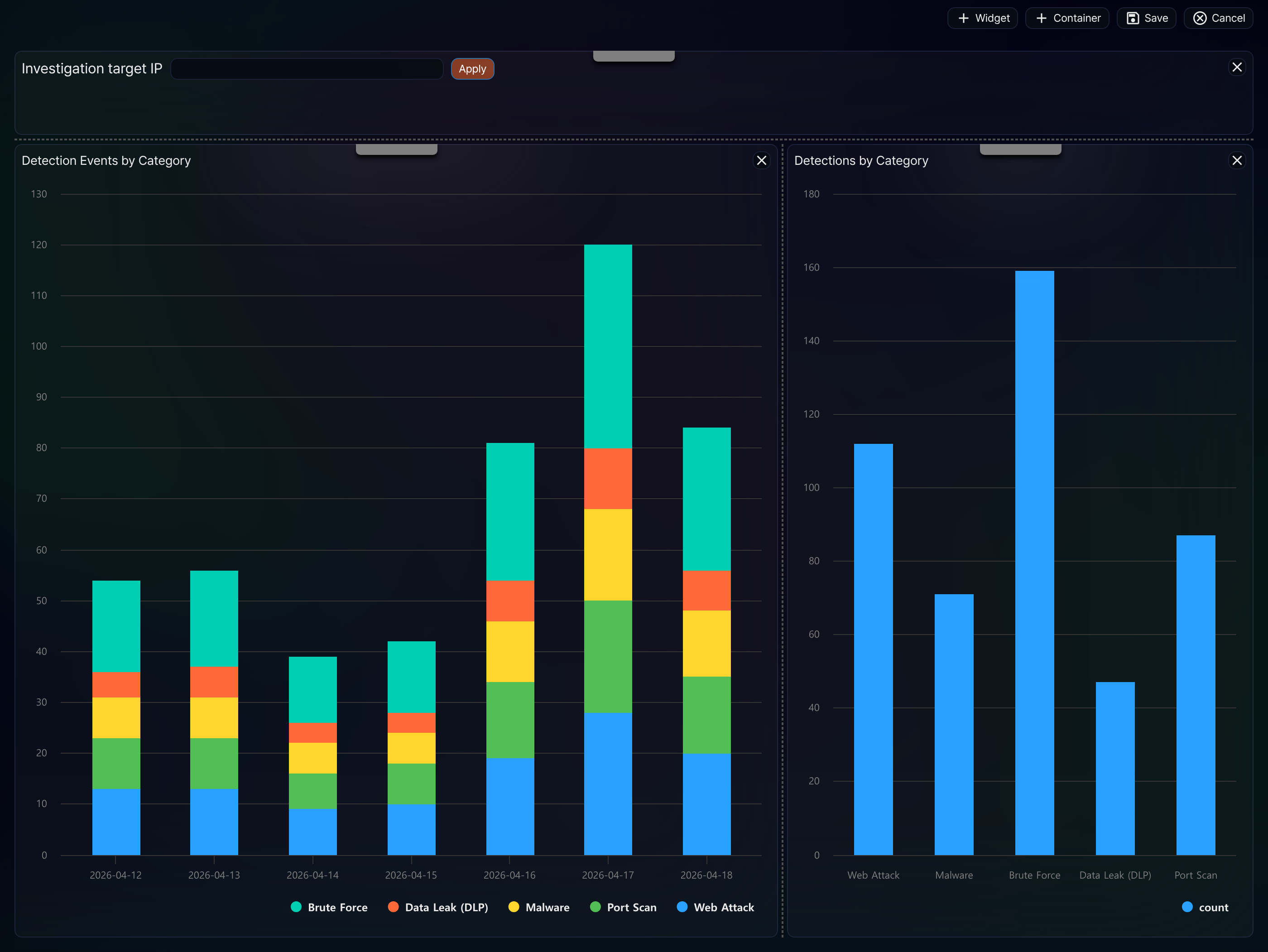
Click the button, then click Layout in the popover menu to enter a mode where you can add or delete widgets and containers on the dashboard, and change a widget's size and position, as shown below.
- Widget
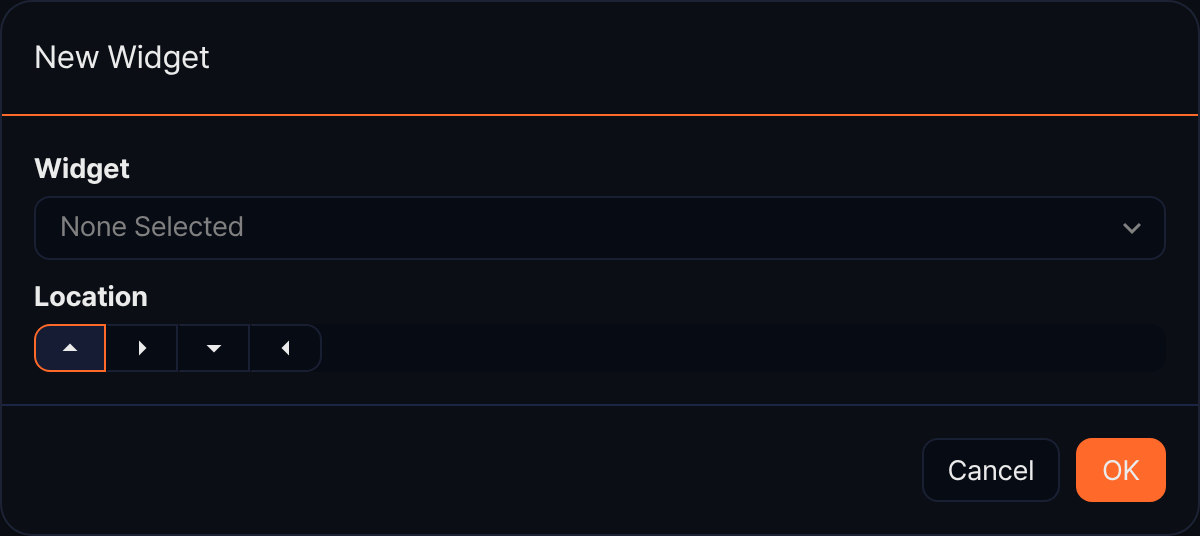
- Click the Widget button to add a widget to the dashboard. Select the widget to add from the widget list, and specify the direction to place it (up/down/left/right).
- Container
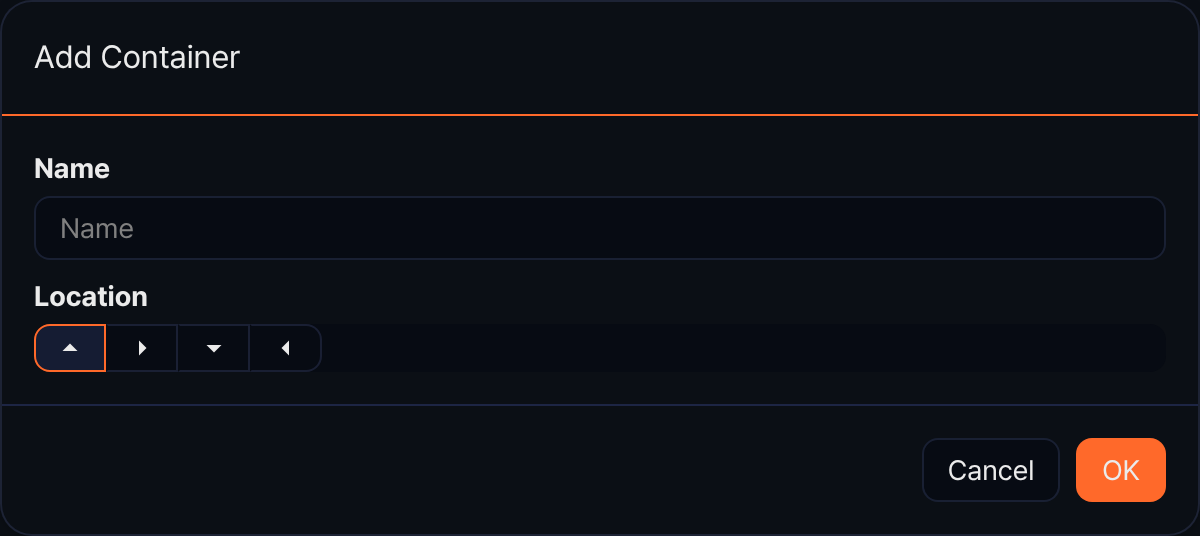
- Click the Container button to add a container that lets you group different widgets so they act as a single widget. Enter a container name and specify the direction to place it (up/down/left/right).
- Rearrange widgets
- Drag and drop the handle shown above a widget to move the widget or dashboard up, down, left, or right, or into a container. While dragging, direction indicators appear to guide where the widget will be placed.
- Adjust the splitter
- Drag the dotted line between widgets on the tab screen to resize the widgets.
- Save
- Click the Save button to save your changes and exit edit mode.
- Cancel
- Click the Cancel button to exit edit mode without saving your changes.
Widgets and containers
The widget types are the query widget, the external site widget, and the input control, and a container is a feature that lets you group different widgets so they act as a single widget.
Query widget
The query widget visualizes collected logs so security operators can immediately spot anomalies on the dashboard. Clicking or dragging a specific value or range on a chart or grid can pass a filter to other widgets or run a related query, letting you build an interactive dashboard where multiple widgets work together. For more information, see Query widget.
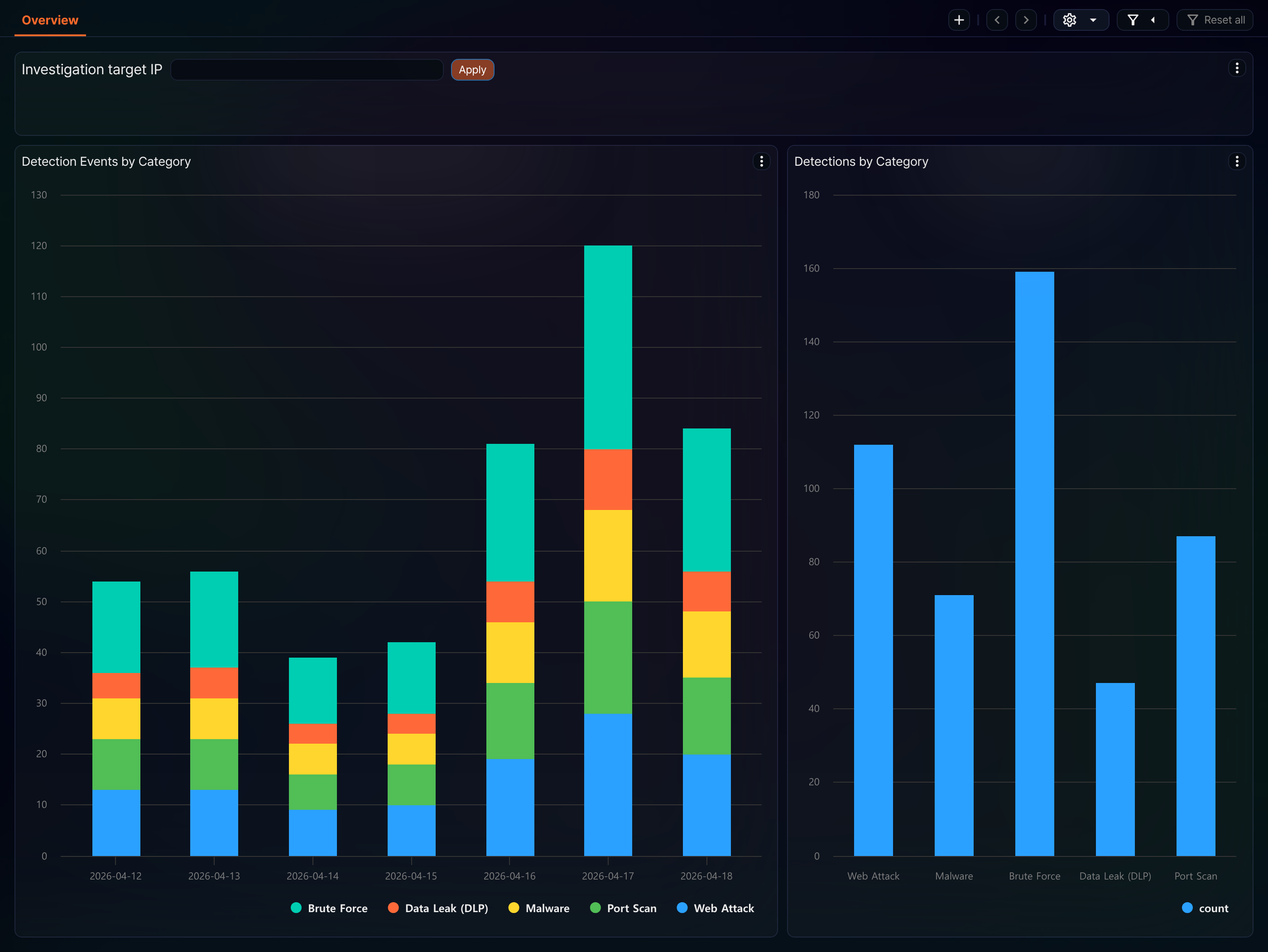
External site widget
The external site widget displays an external web page using a URL. For more information, see External site widget.
Input control
An input control is a widget that takes user input and applies a dynamic filter. Depending on the input method, you can set it up as a date, list, or text input control. For more information about input controls, see Input control, and for more information about applying dynamic filters, see Dynamic filter.
Container
A container is a feature that lets you use different widgets as if they were a single widget. In dashboard edit mode, you can add a container and place the widgets you want inside it. You can move, resize, expand, or delete multiple widgets together simply by operating a single container.
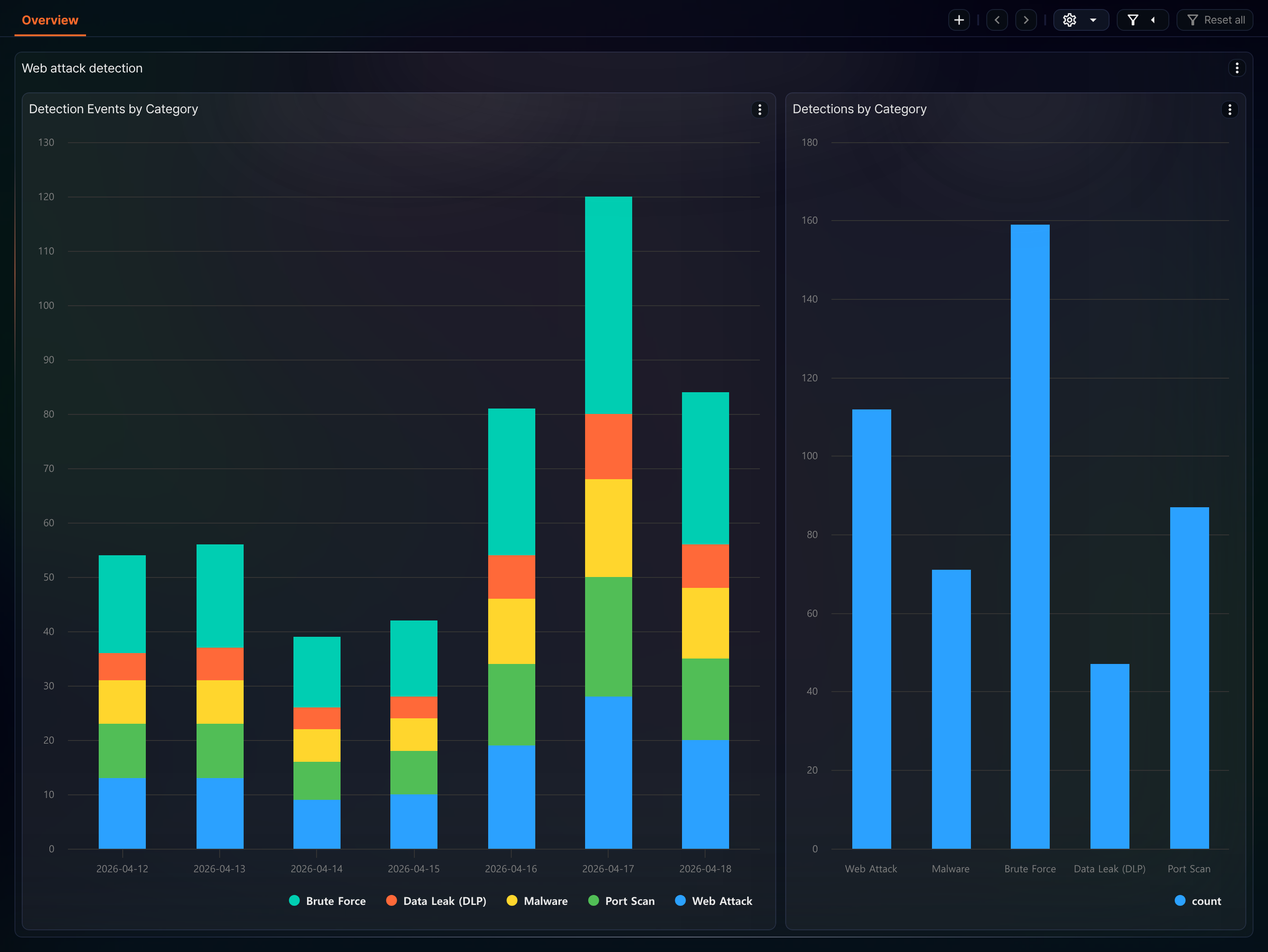
Click the container's menu button (⋮) to expand the container to full screen or shrink it back to its original size. In edit mode, you can also rename or delete the container.
Manage filters
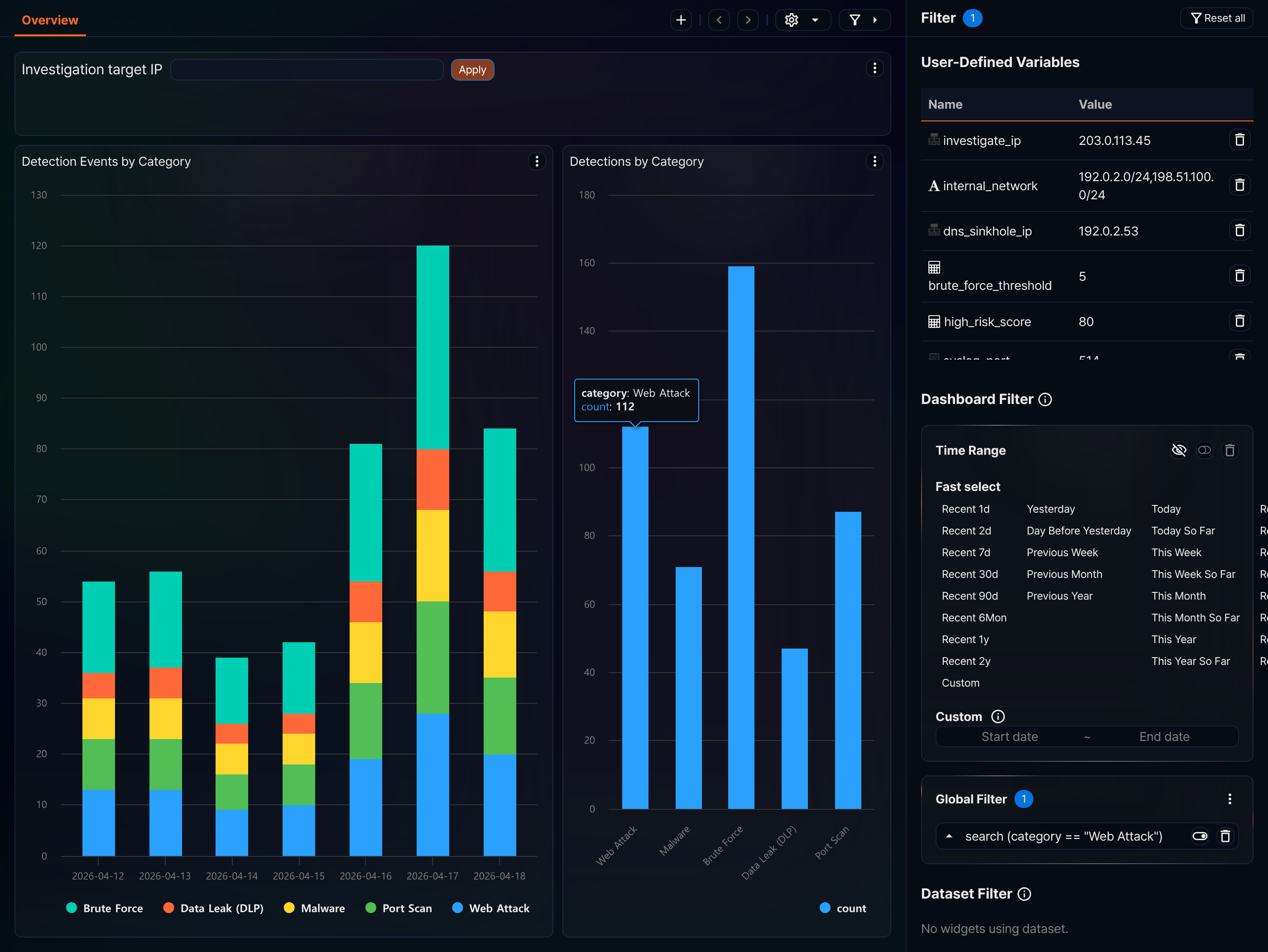
When you set a filter, a condition command is automatically added to the widgets' queries so that only data matching that condition is shown. Filters are grouped into three scopes.
- Time Range
- Inserts the
set _from=<start time>andset _to=<end time>commands before every widget's query. Use this to limit the time range. - Global Filter
- Inserts a
search <condition expression>command into every widget's query. - Dataset Filter
- Inserts a
search <condition expression>command only into widgets created from the same dataset.
Click the Filter button at the top right of the dashboard to open the panel where you can add, delete, and enable or disable filters.
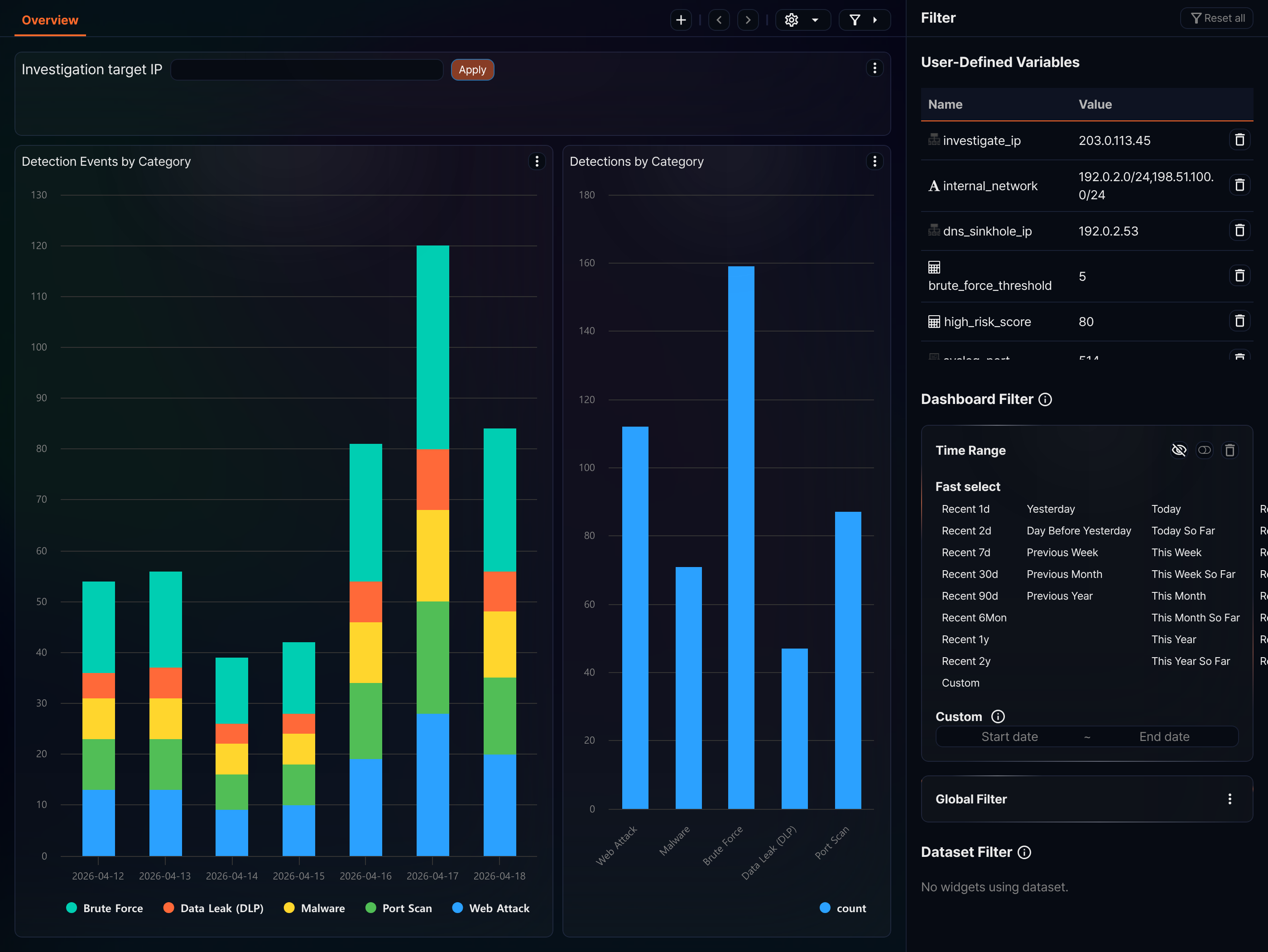
Filter panel
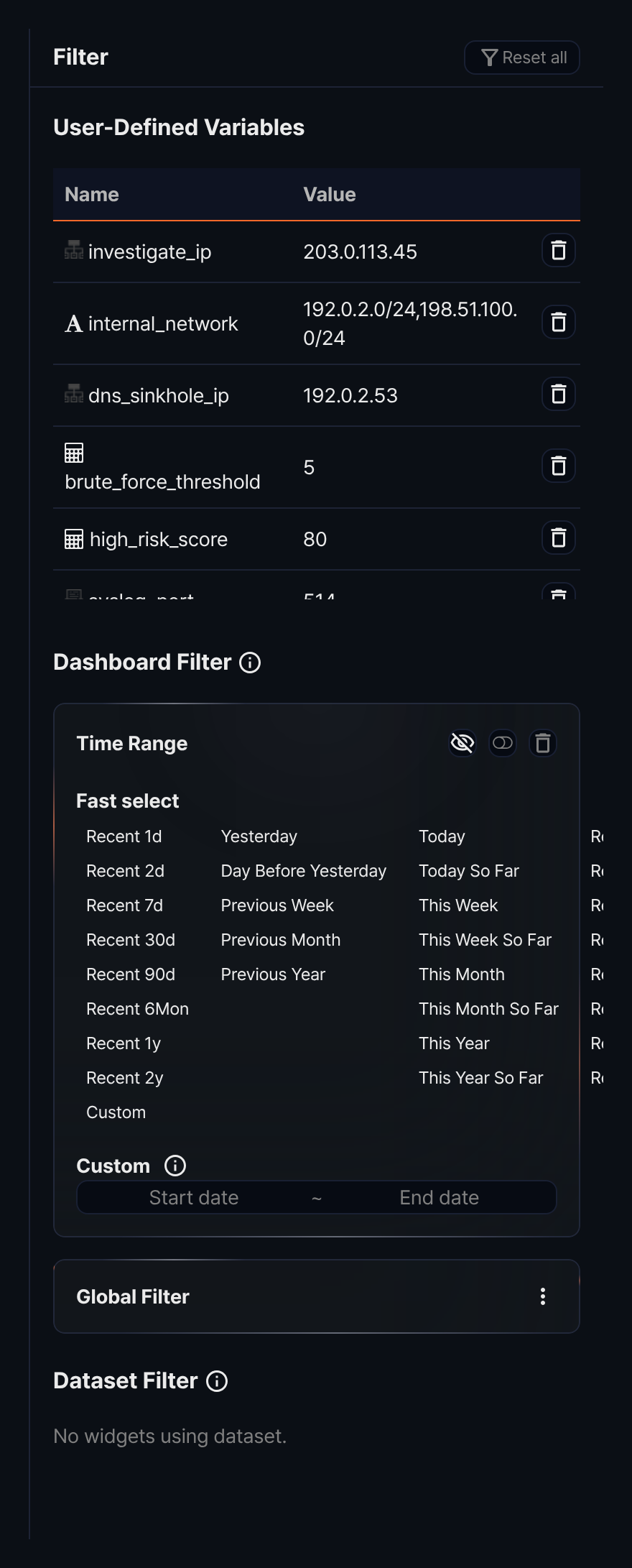
The filter panel has three sections: User-Defined Variables, Dashboard Filter, and Dataset Filter.
- User-Defined Variables
- Shows the name and value of each currently set user-defined variable. Entering a value in an input control is reflected in this list. Click the Delete button on a variable's row to reset that variable's value.
- Dashboard Filter
- Made up of two items: Time Range and Global Filter. Each filter item has an enable/disable toggle and a Delete button. You can edit the condition expression of a filter you added directly using the Edit button, but filters added by a widget event cannot be edited.
- Time Range
- Sets the query time range using the fast-select buttons or by entering dates directly. Select a period from Fast select, or click Custom to enter the start and end dates directly. Click the eye-shaped hide icon button to minimize the time range area.
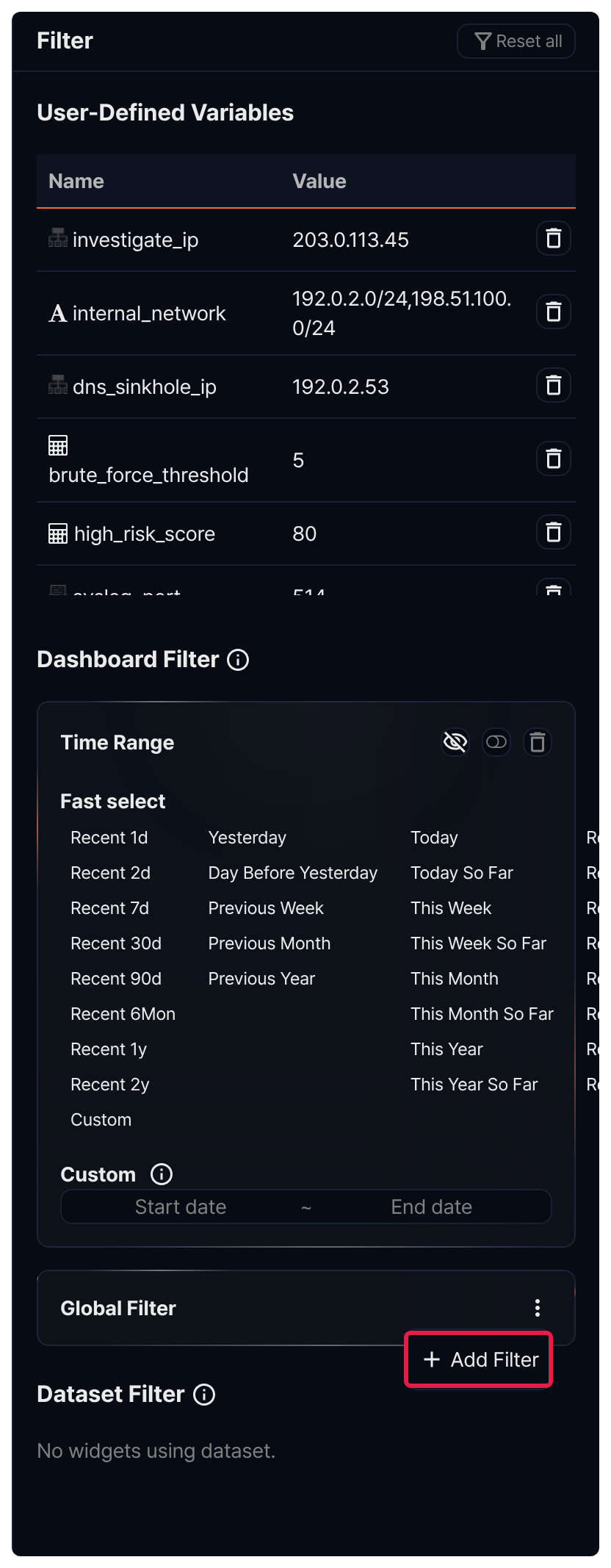
- Global Filter
- A list of
searchcondition expressions applied to every widget. Click the⋮button to perform the following actions. If there are no filters, only Add Filter is shown.- Hide Filters / Show Filters: Collapses or expands the filter list area.
- Disable All Filters / Enable All Filters: Turns all global filters off or on at once.
- Remove All Filters: Deletes all global filters.
- Add Filter: Adds a new filter condition expression.
- Dataset Filter
- A list of filters that apply only to widgets created from a specific dataset. If there are multiple datasets, you can use the search box to find the one you want. Each dataset filter is managed the same way as a global filter.
Click Reset all at the top of the panel to reset all filters and user-defined variable values.
Add a filter
You can add a filter in either of the following two ways.
Method 1 — Widget event action
When a click or drag event occurs on a widget that has a filter event configured, a filter is automatically added with the specified condition expression. For information about configuring widget events, see the event items in Query widget.
Method 2 — Add directly
In the filter panel, click the ⋮ button for the global filter or a dataset filter, then click Add Filter.
Choose one of the following three filter types.
- Single value (comparison filter)
- Specify the target field, data type, a condition based on the data type (equals, not equals, greater than or equal to, contains, and so on), and the value to compare against. What you specify is converted into a command in the form
search <field> <operator> <value>. - Range (range filter)
- Specify the target field, data type, minimum value, and maximum value. This is converted into a command in the form
search <field> >= <minimum value> and <field> <= <maximum value>. - Query (query filter)
- Enter a Logpresso query command directly. The query you enter is inserted into the widget query as-is.
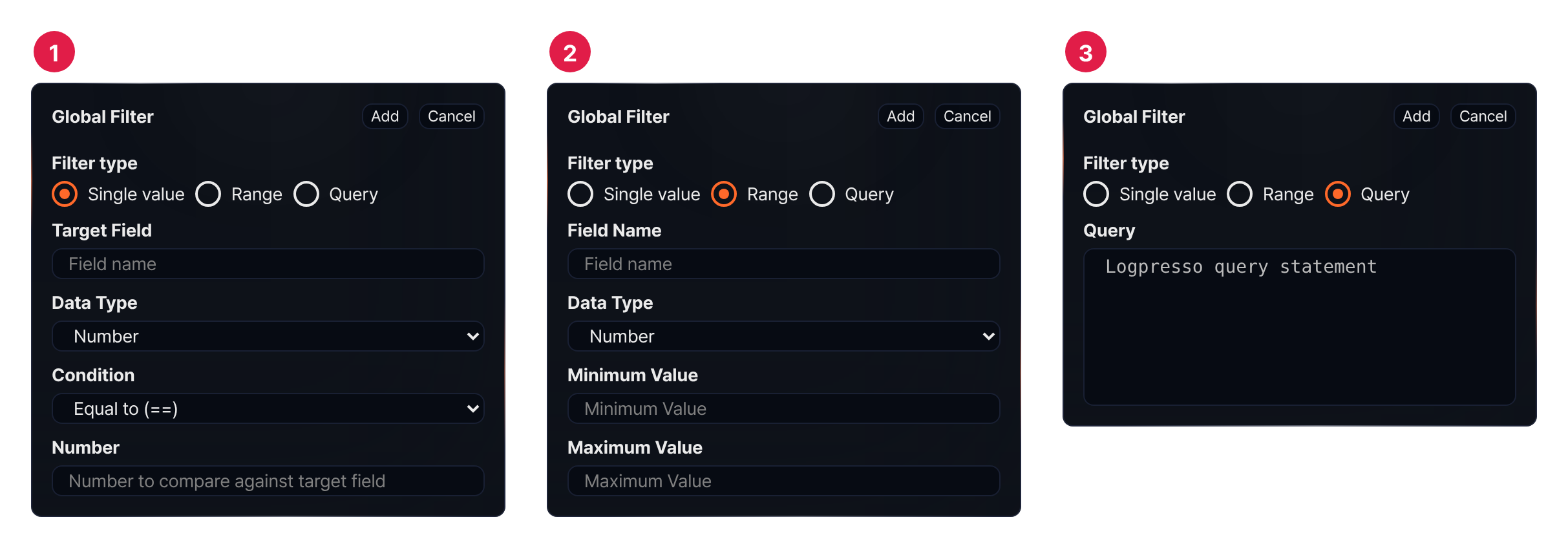
- Single value: Target field, data type, condition, and the value to compare against
- Range: Field name, data type, minimum value, and maximum value
- Query: Query
Dynamic filter
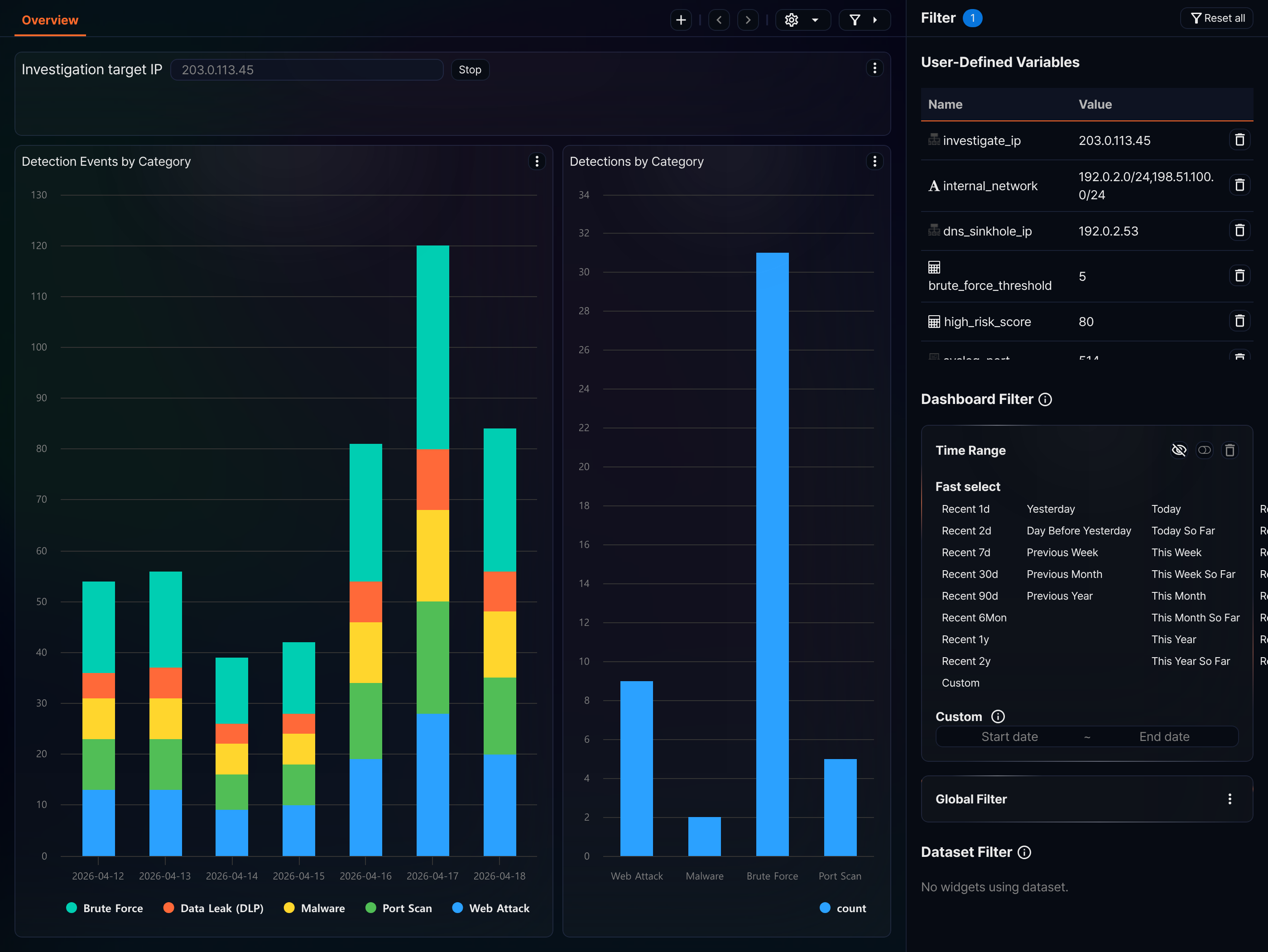
A dynamic filter combines a user-defined variable and an input control to change a filter condition in real time. When the filter is activated, the variable's value is injected into the query with a set <variable name> = <value> command.
How to set it up
-
Create a user-defined variable by following Add a variable.
-
In the widget's pivot editor, click the
+next to Input Filter and select Select Condition to Match. In the Input Filter dialog, specify the target field, the user-defined variable, and the condition, then click Add. The user-defined variable list shows only variables whose target field and data type match.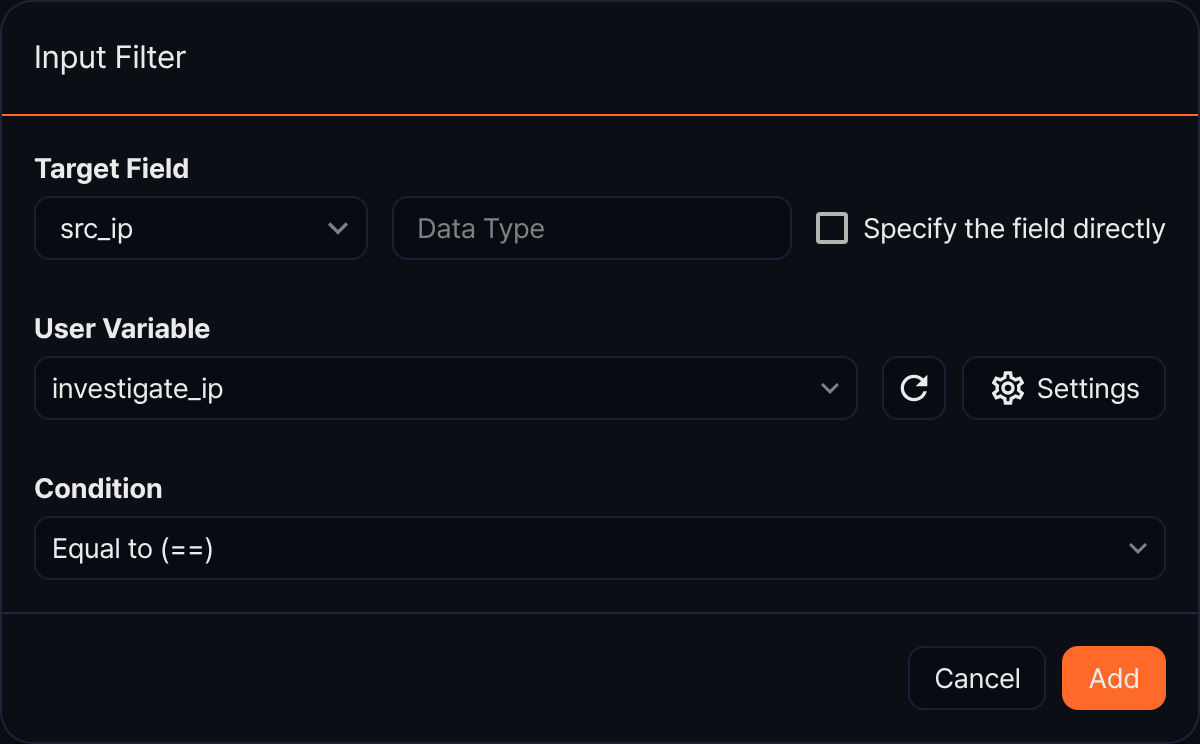
-
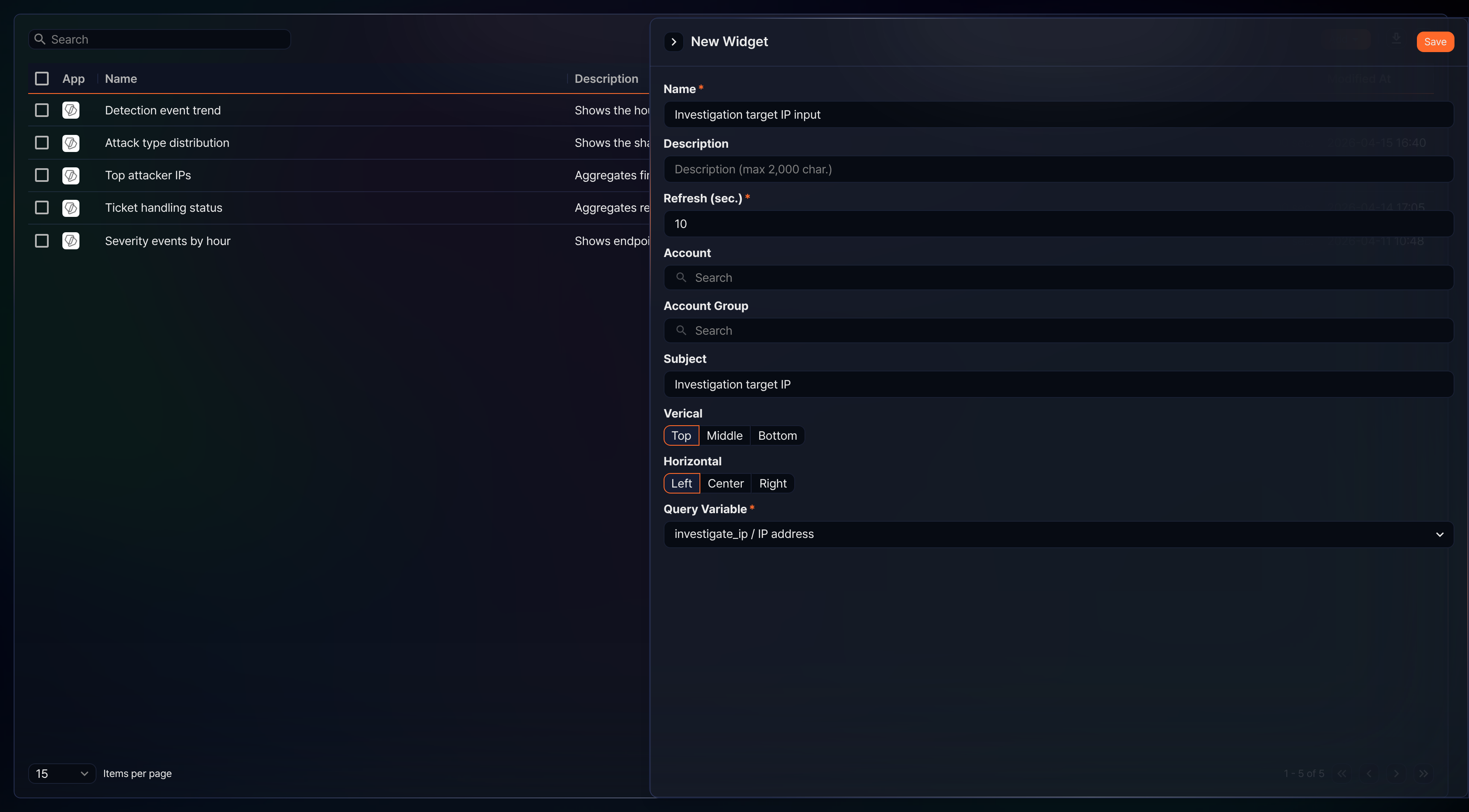
Create an input control that uses that variable as its Query Variable. For more information, see Input control.
-
In the dashboard's Edit a tab mode, place the widget that has the dynamic filter applied together with the input control.
-
Enter a value in the input control and click Apply to assign the value to the user-defined variable. You can check the assigned value in the User-Defined Variables table of the filter panel, and the button changes to Stop. Click Stop to clear the assignment.
-
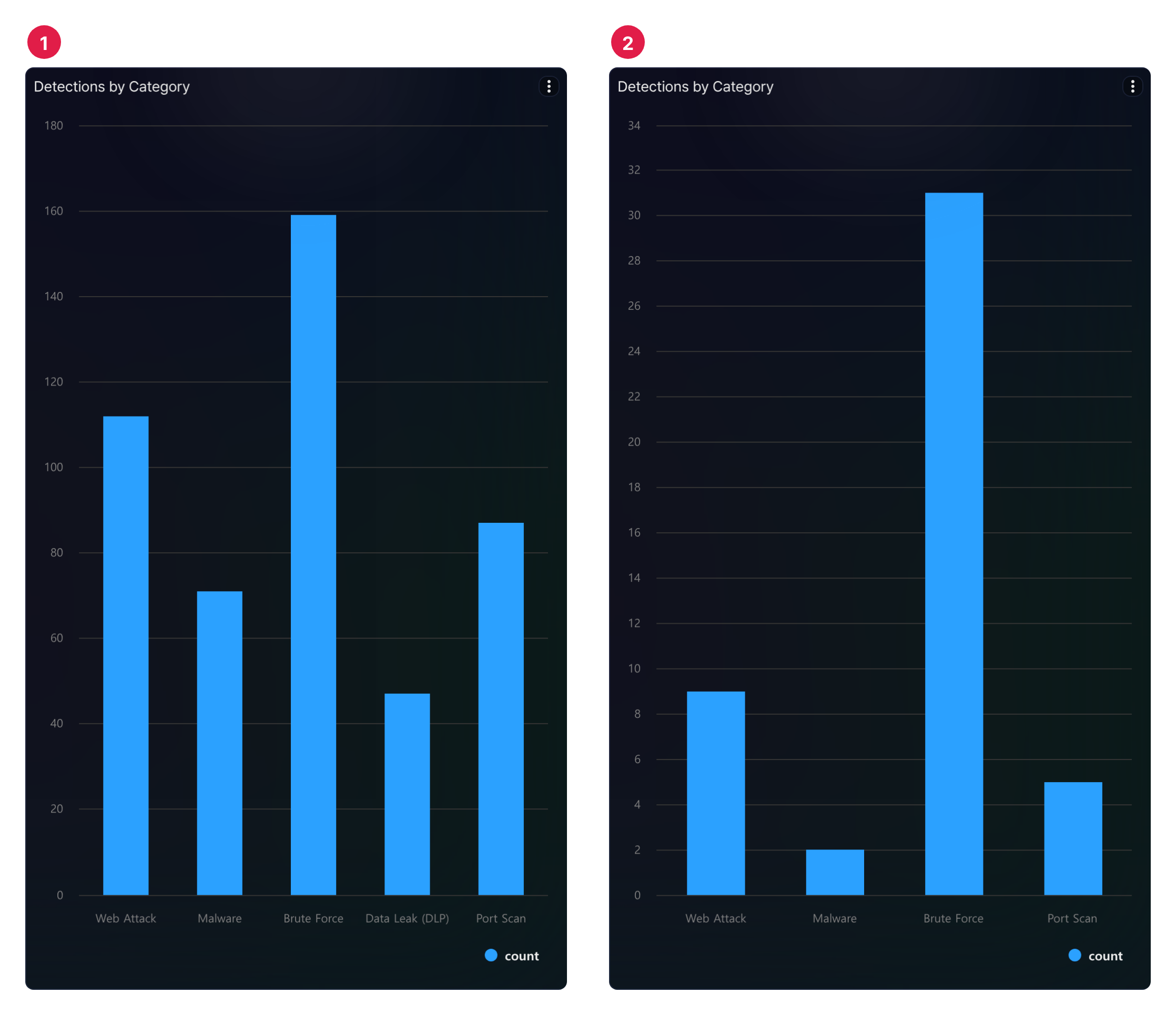
Once the value is assigned, any widget that references that variable is queried again to show the filtered result.
Delete a dashboard
To delete a dashboard,
- In the dashboard list, select the checkbox for the row of the dashboard you want to delete.
- Click Delete.
- In the Delete Dashboard dialog, check the list of dashboards to be deleted, then click Delete.
In card view, when no items are selected, you can delete an individual dashboard by clicking the delete button shown on its card.