Procedure
Overview
Procedures let you modularize a query and rerun it with different parameter values, much like stored procedures in a DBMS. They are especially useful when the same log source is reused and only one field condition changes repeatedly.
For example, if you run table *:FW_FLOW in Analysis > Queries, the firewall traffic result includes an action column. If you want to see only the sessions the firewall blocked (deny) or allowed (allow) while keeping the same base query, you can add the following search condition:
table *:FW_FLOW | search action == $("action")
Once this query is saved as a procedure, you can repeat the same analysis by entering only a different action value.
Procedures provide the following benefits.
- Improved reusability and maintainability
- Frequently used queries can be modularized as procedures, which makes them easier to reuse and manage. Users can run the required task with only the procedure name and parameter values instead of rewriting the full query.
- Improved security
- Commands that access external systems, such as dbquery, ftp, and sftp, require permission to use a connect profile. Granting that permission directly can allow arbitrary access to external systems. Because a procedure runs with the permissions of its owner rather than the caller, you can wrap a query that needs administrator privileges or an external-system operation in a procedure and expose only that limited operation, for example to run one specific external task, or to return only part of the source data or a masked form of it.
- Access to Logpresso configuration data
- Access to Logpresso system tables requires administrator privileges. If general users need limited access to configuration data, procedures can be used to expose only the required range.
Notes
Check the following points when using parameters in a procedure.
- Parameters can only be used in certain expressions such as search conditions.
- Parameters cannot be used for query command names or table names.
- These restrictions help maintain query stability and prevent injection attacks such as SQL injection.
User permissions
Users with the procedure view permission can open the procedure page, and the procedure edit permission is required to create, edit, or delete procedures. Standard users see only the procedures shared with all users, the procedures they own, and the procedures shared with them or with their account groups.
View and search the procedure list
You can view and search procedures in Analysis > Procedures.
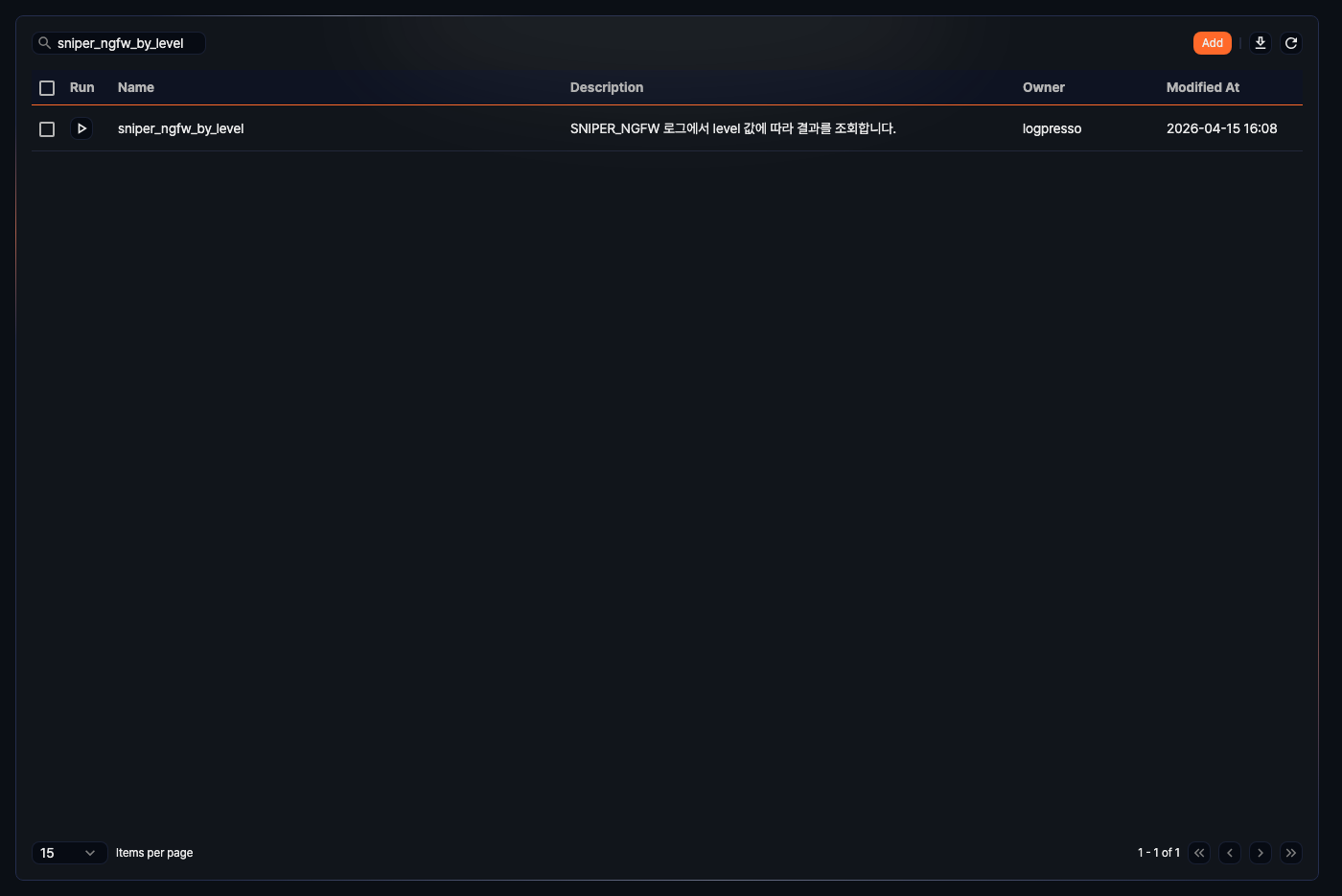
- Run: Button that runs the procedure.
- Name: Procedure name.
- Description: Procedure description.
- Owner: User account that created the procedure.
- Modified At: Time the procedure was last modified, or its creation time if it has never been modified.
To find a specific procedure, use the search box in the toolbar. The search matches keywords in Name or Description and is case-insensitive.
Click the  icon on the right side of the toolbar to open the Download Procedure List dialog and save the list under the current search condition in CSV, XML, DOCX, HTML, JSON, PDF, or HWPX format.
Create a procedure
To create a procedure:
-
Click Add in the upper-right area of the procedure list.
-
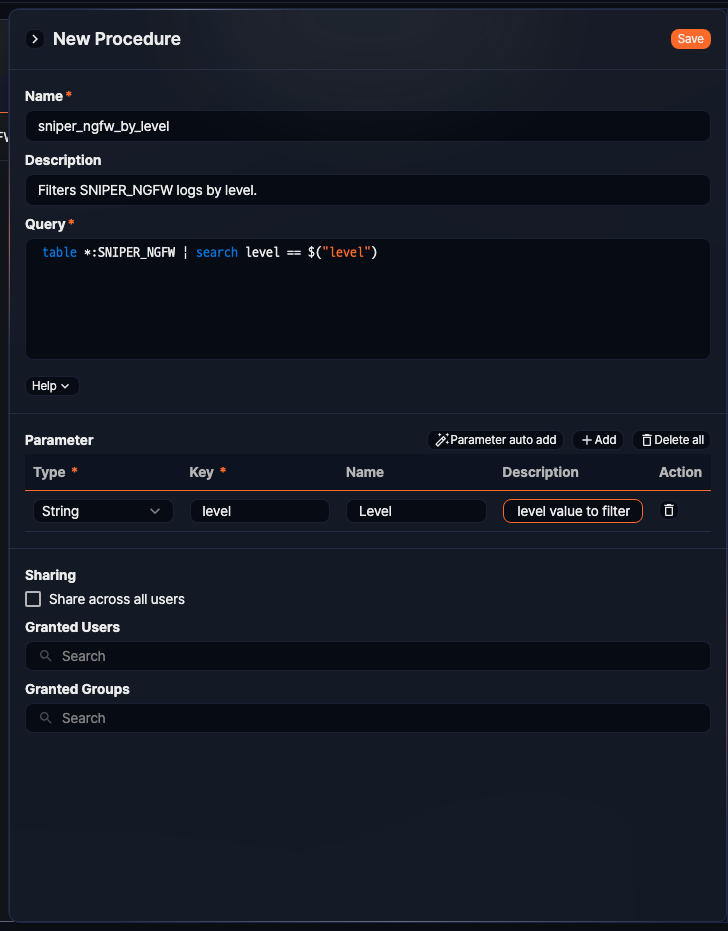
In the New Procedure panel, enter the required values and click Save.
-
Name: Enter a unique procedure name (required, up to 255 characters). Only letters, numbers, and underscores (
_) are allowed. Example:fw_flow_by_action -
Description: Enter a detailed description of the procedure (up to 2,000 characters). Example:
Returns firewall traffic sessions whose policy action (allow/deny) matches the given value. -
Query: Enter the Logpresso query to be executed by the procedure (required). Click Help to see how to reference parameters in the query. If the query starts with a command that takes a time range, such as
table, receive the range through the reserved variables_fromand_toand set the default range with thenvlfunction for when no value is passed (see Procedure query).set _from=string(nvl($("_from"), datetrunc(ago("1d"), "1d")), "yyyyMMddHHmmss") | set _to=string(nvl($("_to"), now()), "yyyyMMddHHmmss") | table from=$("_from") to=$("_to") *:FW_FLOW | search action == $("action") -
Parameter: Configure the parameters used by the query.
- Parameter auto add: If the query contains a parameter such as
$("arg1"), click this button to add it automatically. Auto-added parameters get the String type, and their name is set to the same value as the key. If the query references the reserved variables_fromand_to, they are registered as well, so for such a query use Add to register only the parameters you need. - Add: Click to add a parameter manually.
- Type: Parameter data type (required). Select one of String, Date, Datetime, Integer, Double, Boolean, and IP address.
- Key: Parameter key used in the query (required), such as
arg1 - Name: Display name shown to the user
- Description: Description of the parameter
- Action: Click the
 icon at the right side of the row to remove that parameter.
- Delete all: Removes all parameters at once. Click Delete in the Delete All Parameters dialog to confirm.
- Parameter auto add: If the query contains a parameter such as
-
Sharing: If you select the Share across all users checkbox, all users can view and run the procedure. When this checkbox is selected, the Granted Users and Granted Groups fields below are hidden.
-
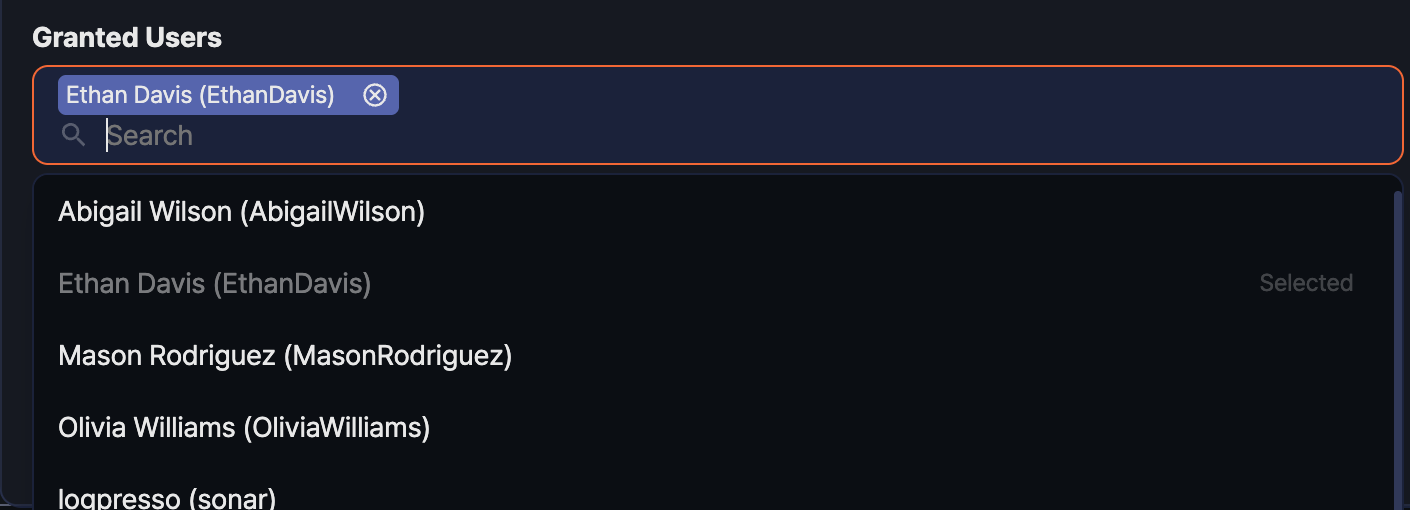
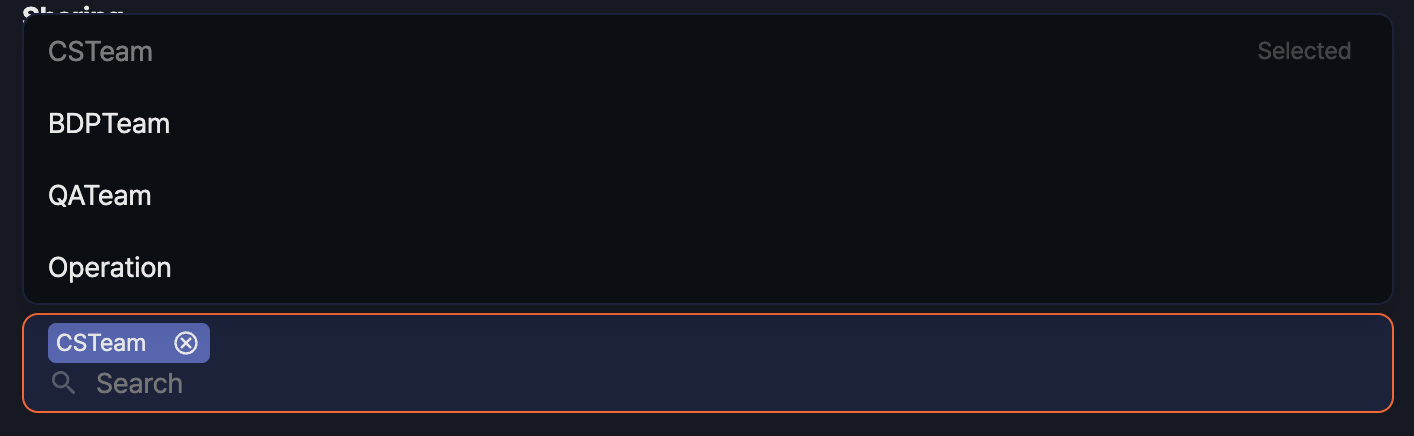
Granted Users: If sharing across all users is not enabled, click the Granted Users search field or type a keyword, then select the users who should be allowed to view and run the procedure. Users you have already added are marked Selected in the list.
-
Granted Groups: Use the Granted Groups search field to select the groups that should be allowed to view and run the procedure.
-
Because the example query references the reserved variables _from and _to, clicking Parameter auto add would register those two variables as parameters as well. They are received from the calling context rather than passed as arguments, so in this example click Add to create one row and register the action parameter directly, like this, so that its meaning is clear on the run dialog:
- Type: String
- Key:
action - Name:
Policy action - Description:
Policy action value to look up. Example: deny
Procedure query
The query defined in a procedure can reference runtime parameter values by using the $() function. The following is an example for fw_flow_by_action.
# Assume the procedure name is fw_flow_by_action.
set _from=string(nvl($("_from"), datetrunc(ago("1d"), "1d")), "yyyyMMddHHmmss")
| set _to=string(nvl($("_to"), now()), "yyyyMMddHHmmss")
| table from=$("_from") to=$("_to") *:FW_FLOW | search action == $("action")
_fromand_toare reserved variables through which dashboard date input controls and pivots pass the query period. A procedure inherits the variables of the calling query context, so a call from a dashboard widget uses the widget's period, while a call from the query screen uses the default period set withnvl(the last day). Do not register reserved variables as procedure parameters.actionis the input parameter compared with theactionfield in theFW_FLOWtable.- For example, if you pass
deny, only rows whoseactionvalue isdenyare returned.
One common mistake is assuming that $() works like a macro that substitutes raw text. In reality, $() can only be used where an expression is allowed. For example, the following query is invalid because dbquery does not accept a full SQL statement as an expression:
dbquery USERDB $("sql")
Run a procedure
There are two ways to run a procedure.
- Call it directly in a query by using the proc command.
- Click the Run button in the procedure list under Analysis > Procedures.
Run the procedure in a query
Procedures can be used in most screens that support query execution. For example, in Analysis > Queries, enter the following call to the fw_flow_by_action procedure in the query box and run it.
proc fw_flow_by_action("deny")
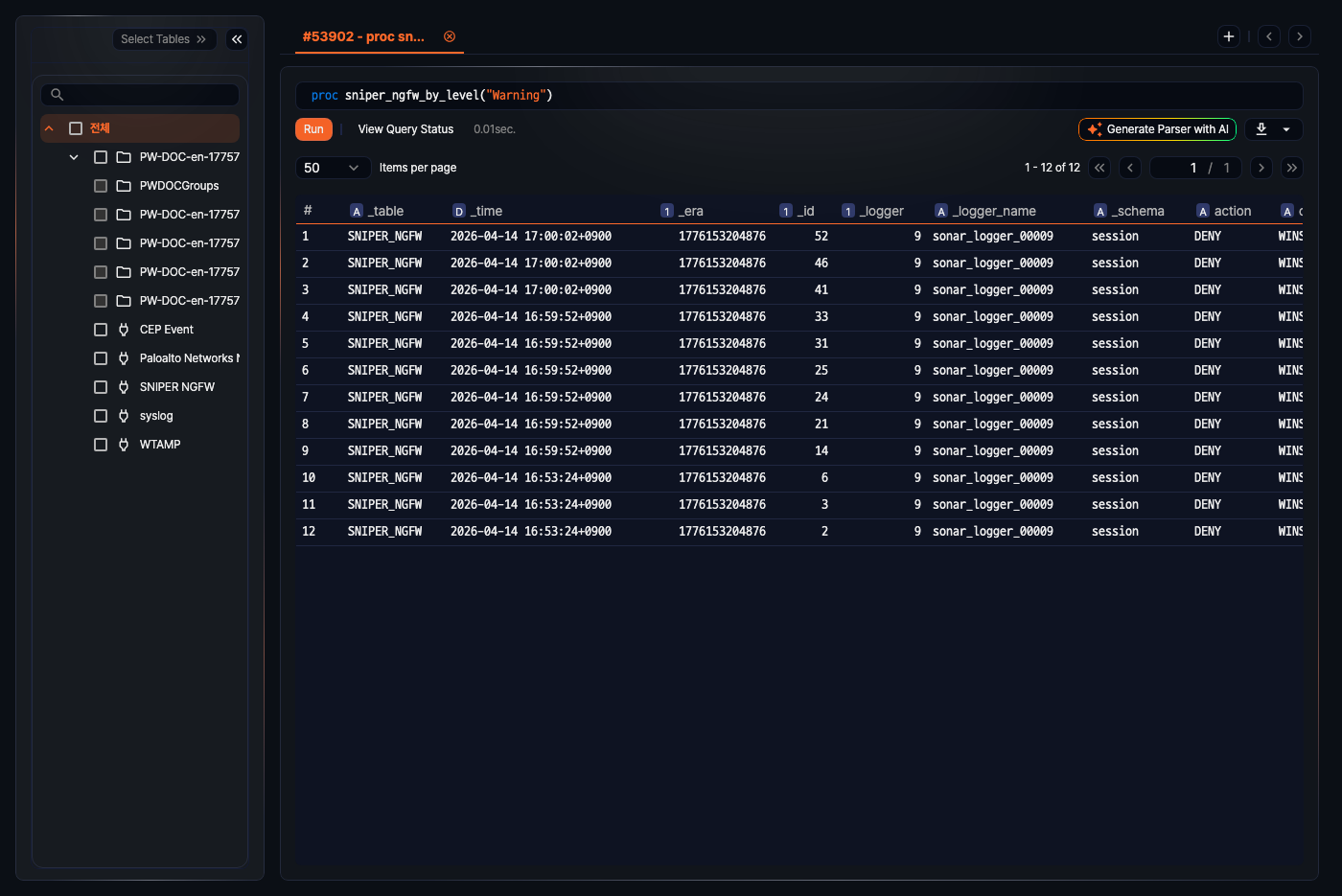
- The value inside the parentheses is passed to the
actionquery parameter. In this example it is a string, so quotation marks are included. - You can reuse the same procedure with a different value, such as
proc fw_flow_by_action("allow"). - If the procedure has no parameters, use empty parentheses such as
proc procedure_name().
Run the procedure from the procedure list
To run a procedure from the list:
-
In the procedure list, click the ▶ button in the row of the procedure you want to run.

-
In the Run Procedure dialog, enter the parameter values and click Run. The entered value must match the parameter Type. Date and datetime parameters use a date picker, integer and double parameters take a number, boolean parameters use a checkbox, and the procedure does not run if an IP address value is not in a valid format. If you leave a value empty,
nullis passed for that parameter.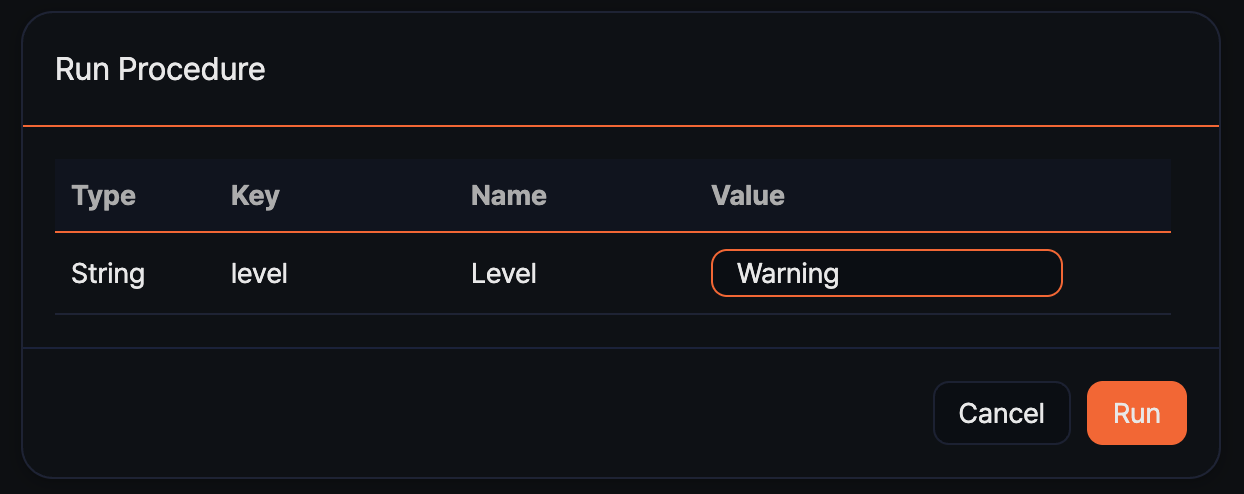
For this example procedure, you can enter:
- Type: String
- Key:
action - Name:
Policy action - Value:
deny
A procedure without parameters runs immediately without the dialog.
-
After the procedure runs, the screen moves to Analysis > Queries, and the result is displayed automatically.
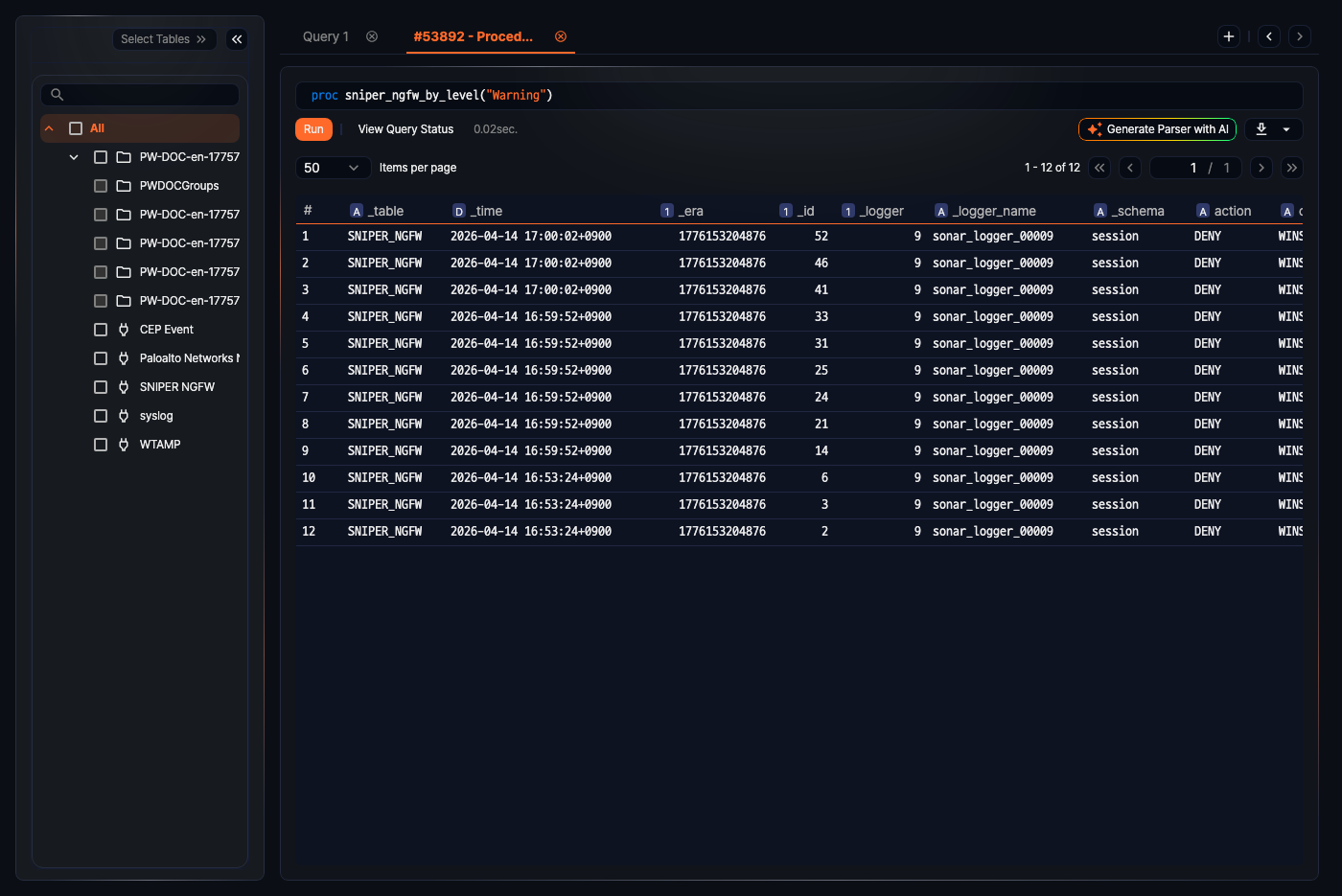
In this case, the query screen runs the procedure call in the following form:
proc fw_flow_by_action("deny")
Edit a procedure
To edit a procedure:
-
In the procedure list, click the row of the procedure you want to edit to open its detail panel.
-
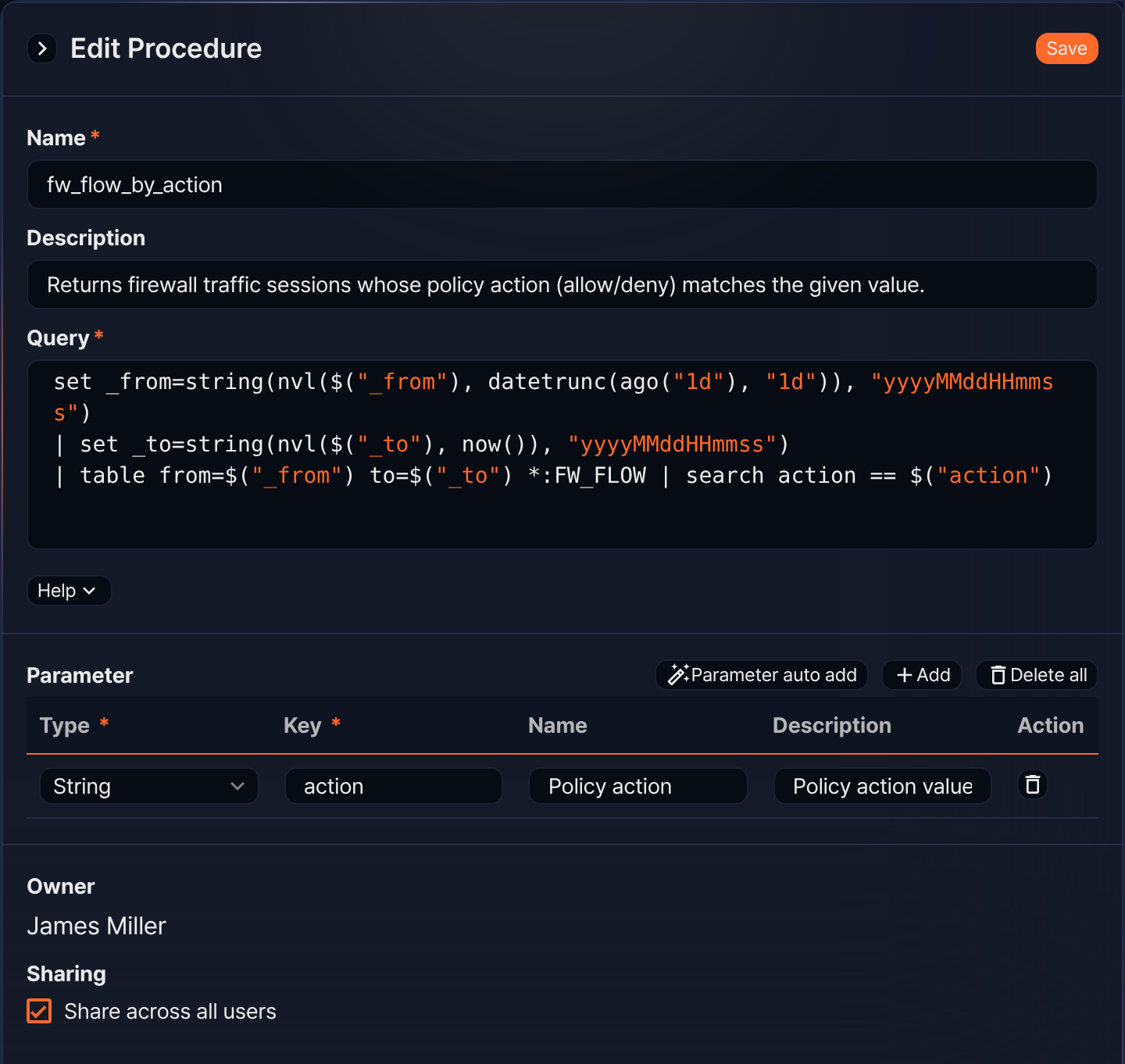
In the Edit Procedure panel, update the required values and click Save. The panel also shows the Owner who created the procedure.
-
For editable properties, refer to Create a procedure.
Delete a procedure
To delete a procedure:
-
In the procedure list, select the procedure you want to delete.
-
Click Delete in the toolbar.
-
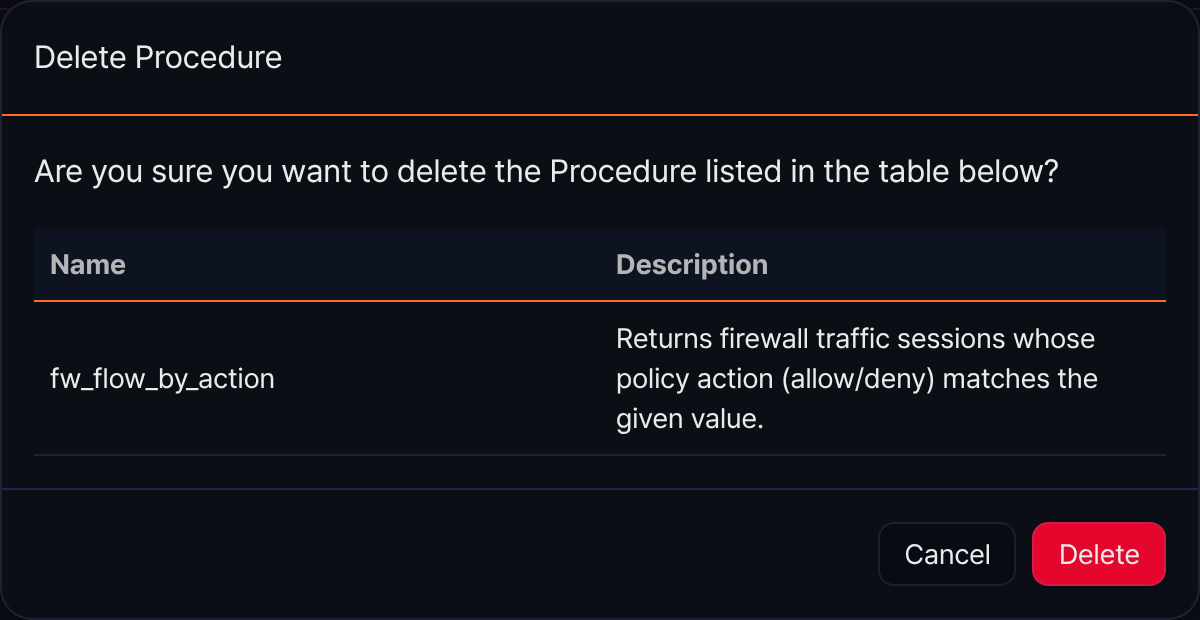
In the Delete Procedure dialog, review the name and description of the target procedure and click Delete.