
Batch rules
Overview
Batch rules run Logpresso queries or datasets on a schedule to analyze logs and table data accumulated over a period of time. Manage rules under Policies > Batch Rules. Detection results can flow into follow-up features such as Event Summary, Tickets, Explanations, and Playbooks.
While stream rules are a good fit for detections that must react immediately, batch rules are well suited to finding low-frequency attacks, anomalous behavior that spans long periods, and patterns that need to be evaluated across many logs. For example, you can use batch rules to find port scans, repeated failures, or signs of lateral movement from accumulated access or firewall logs over a given period. You can also link rules to MITRE ATT&CK techniques and tactics to manage detection objectives in a structured way.
The illustration below shows how a batch rule operates. Batch rules typically apply to data sources stored in tables.
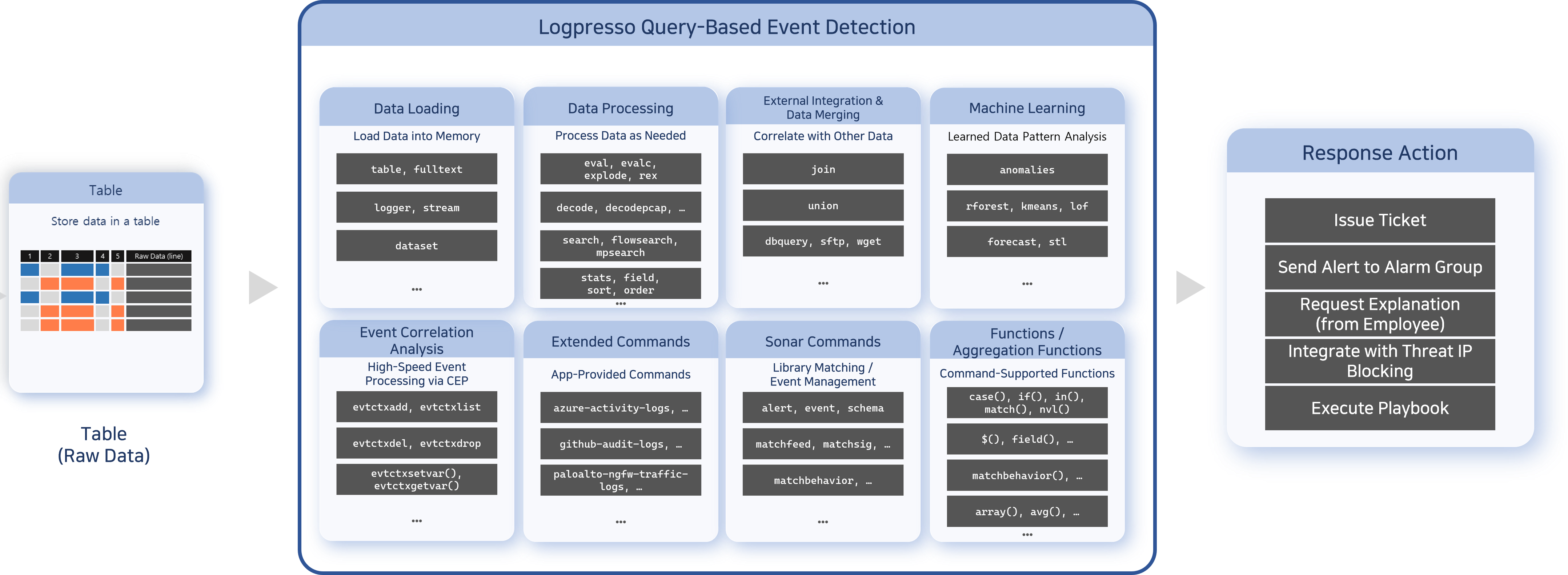
Because batch rules use Logpresso query commands and functions, you can write scenarios flexibly. For example, you can analyze the activities of specific users to predict related potential threats and detect suspicious behavior.
In most cases, batch rules issue tickets on event detection or request an explanation from the actor. Excessive ticket creation increases the workload of malware analysts and security operators, so you should minimize duplicate tickets. Logpresso Sonar consolidates events with the same content into a single ticket based on the alert message and ticket subject, or based on a specified duplicate-detection field.
Accounts with the Cluster Administrator or Administrator role can view batch rules and add, edit, delete, duplicate, and run them; restoring versions and managing exception conditions require the same permission. Accounts with the User role can only view the list and settings.
Search batch rules
You can view or search the list of batch rules in Policies > Batch Rules. The list is sorted by rule name.
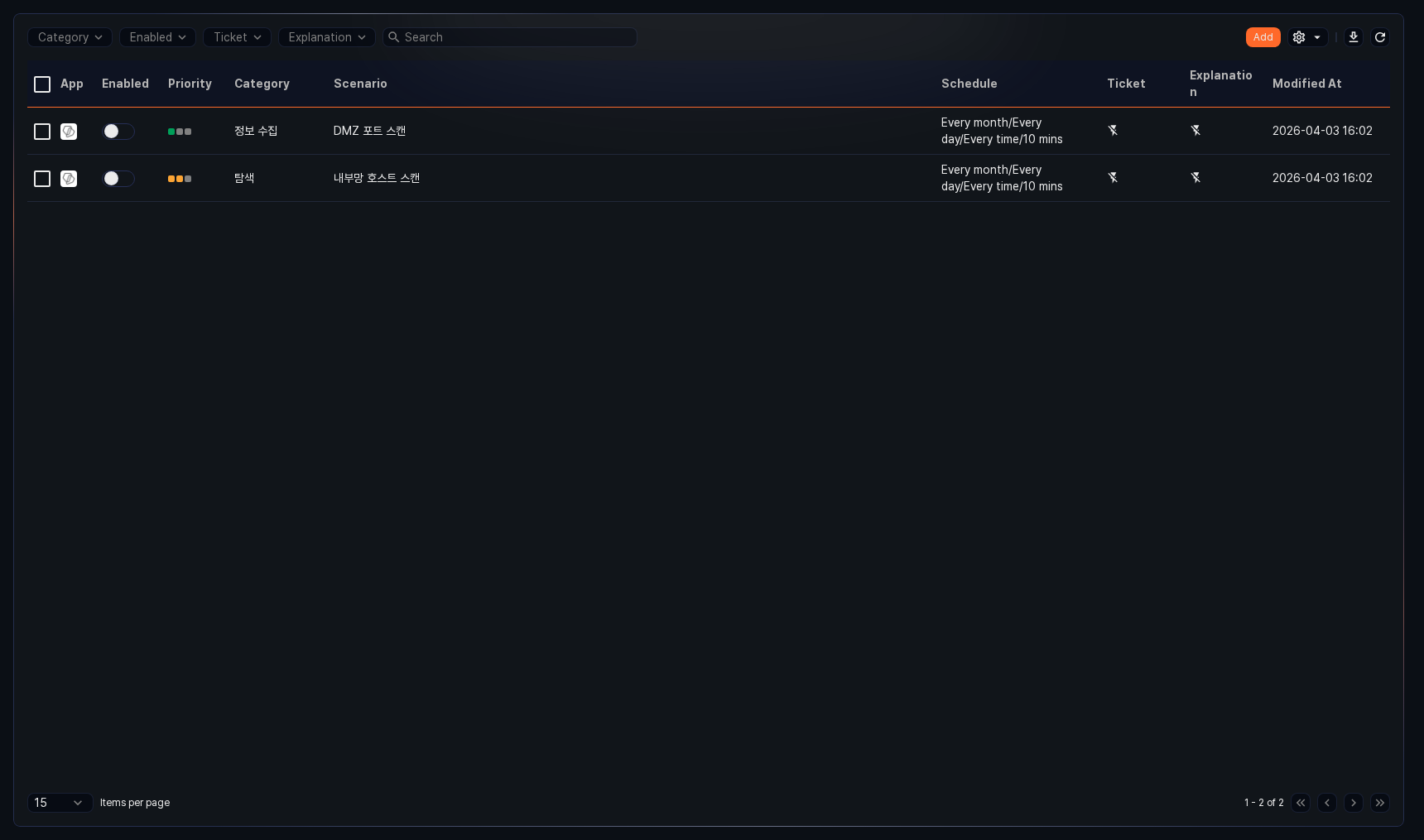
- App: Icon of the app associated with the rule. Default rules and user-added rules show the Logpresso icon, and rules installed by apps show the app icon.
- Enabled: Toggle button to enable or disable the rule (
 : enabled,
  : disabled)
 - Priority: Rule priority, shown as
 high,
high,  medium, or
  low
low - Category: Category assigned to the rule
- Scenario: Name of the batch rule
- Schedule: Execution interval of the rule
- Ticket: Whether ticket issuance is configured (
 : configured,
  : not configured)
 - Explanation: Whether explanation requests are configured (: configured, : not configured)
- Modified At: Date and time the rule was last modified (or created, if it has never been modified)
To find a specific batch rule in the list, use the search box in the toolbar. The keyword is matched against the rule name, description, and query. The subject and category name are not searched.
Use the Category, Enabled, Ticket, and Explanation drop-downs in the toolbar to narrow the list to just the rules you need. Enabled offers Enabled or Disabled, and Ticket and Explanation offer Active or Inactive.
Enable or disable a rule
To enable or disable a batch rule, click the toggle button in the Enabled column of the rule (: enabled, : disabled). Only enabled rules run on their schedule.
Download the list
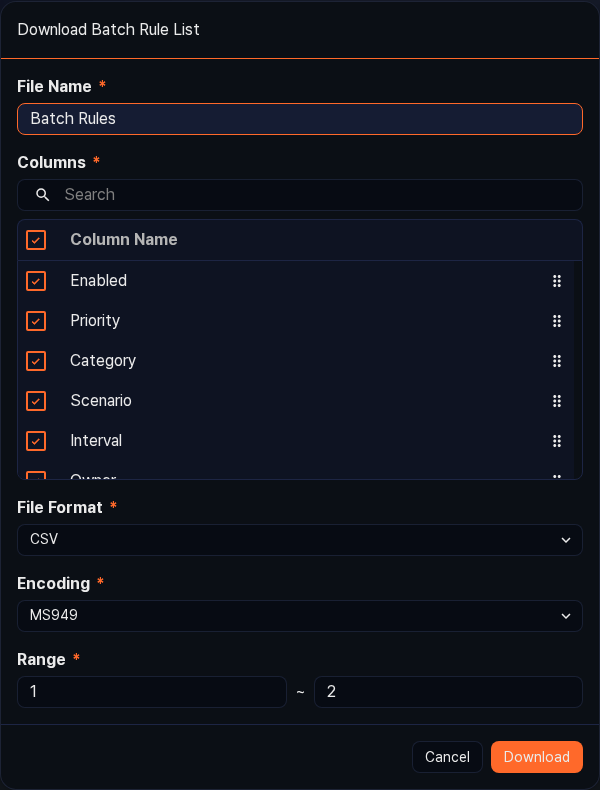
To save the list of batch rules to your local PC, click  in the toolbar, then set the file name, the columns to include, the file format, the encoding, and the range in the Download Batch Rule List dialog and click Download. The columns can include values that the list does not show, such as the subject, owner, creation date, description, assignee, explanation settings, and alarm group.
Refresh the list
To refresh the list with the latest information, click  in the toolbar.
Set acceptable risk
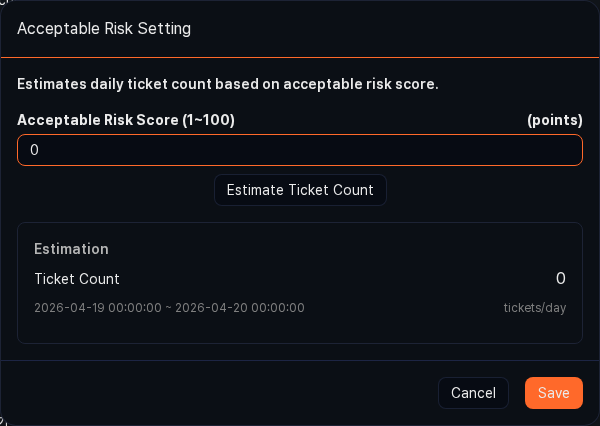
In environments where the XDR license is activated, you can set an acceptable risk score to estimate the expected number of tickets. The acceptable risk score is a single system-wide value, not a per-rule setting, and stream detection and batch detection share it.
The score works together with Ticket condition near the bottom of a rule's settings screen. A rule whose ticket condition is Occur when acceptable risk score is exceeded issues a ticket only when the risk score of a detected event exceeds the score you set here. That option also appears only when the XDR license is activated.
To set the acceptable risk score:
-
Click
 in the toolbar, then click Acceptable Risk from the menu that appears. This menu appears only when the XDR license is activated.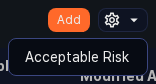
-
In the Acceptable Risk Setting dialog, enter the Acceptable Risk Score (1-100) and click Estimate Ticket Count. Estimation shows the Ticket Count for the previous day (00:00 of the previous day to 00:00 of the current day). Click Save to apply, or Cancel to discard.
Add a batch rule
To add a batch rule:
-
Go to Policies > Batch Rules and click Add in the toolbar.
-
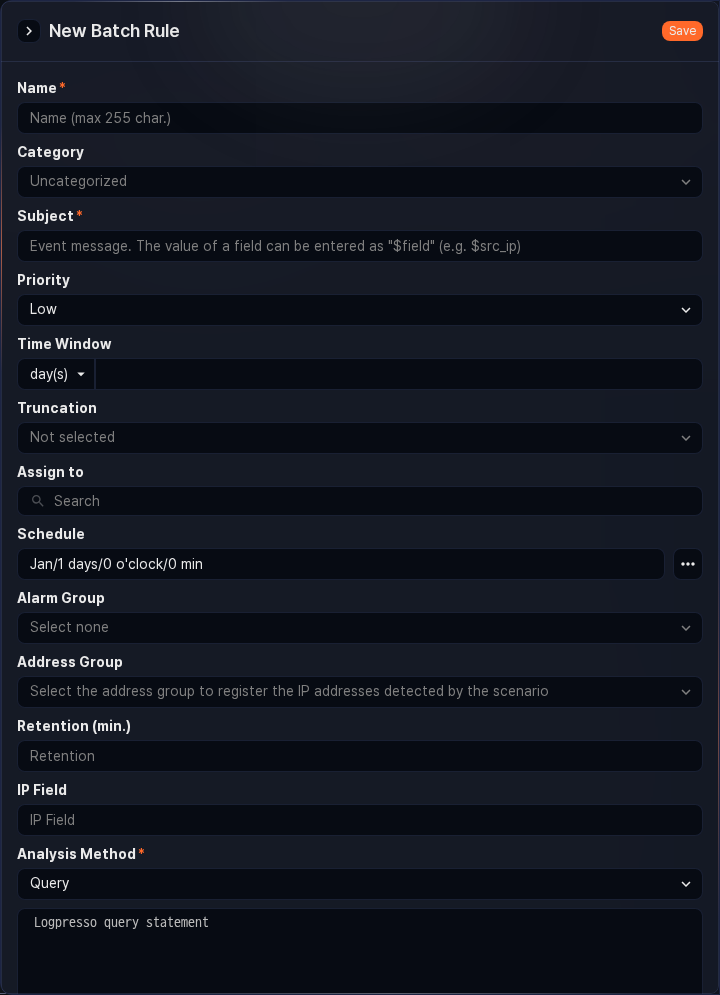
On the New Batch Rule screen, configure the common settings.
-
Name: Rule name (required, up to 255 characters). Duplicate names are not allowed.
-
Category: Rule category (default: Uncategorized). The category appears under Category in the detection list under Analysis > Event Summary. You can register the categories you need in advance in Rule Categories.
-
Subject: Title assigned to the ticket on event detection (required, up to 2,000 characters).
- If you enter a field name defined in the log schema in the
$fieldNameor$fieldName$format, the subject is generated by fetching the field value from the log that was the basis for the detection (for example,$src_ip). If the field name contains Korean characters, always use the$fieldName$format. Field names that contain non-ASCII characters other than Korean are not supported in either format, so use ASCII field names. - If Detect Duplicates on is not configured, duplicate tickets are prevented based on whether the generated subject is the same.
- If you enter a field name defined in the log schema in the
-
Priority: Priority of detected events (High, Medium, Low).
-
Time Window: Period of data to analyze. Select a time unit (seconds, minutes, hours, days) and enter a number (default: empty; default unit: day(s); maximum: 365 days). Regardless of the unit, a window longer than 365 days cannot be saved. When a time window is set, each run passes the start time calculated backward from the run time and the run time itself as the
fromandtoparameters. To apply the window, add thefrom=$("from") to=$("to")options to the command that fetches data in the query (for example,table).For example, if you set the time window to 30 days, each run of a query that starts with
table from=$("from") to=$("to") *:FW_FLOWfetches data from theFW_FLOWtable collected during the 30 days before the run time. -
Truncation: Time precision to apply to the
fromandtoparameters (default: Not selected; options: by sec., by min., by hr., by day). Time information smaller than the selected unit is discarded. If Time Window is empty, the truncation is not applied either.For example, if Time Window is 1 day, Truncation is by hr., and the rule runs at 09:07, it analyzes data from 09:00 the previous day to 09:00 on the current day.
-
Assign to: User accounts to assign the issued ticket to. Type a name in the search box to select one or more accounts. If not specified, the ticket is created without an assignee.
-
Schedule: Execution schedule of the rule (default: every January 1 at 00:00). Click the ... button to open the Task Cronizer dialog. On the Basic tab, pick a preset with the Every Min., Every Hr., Every DoM, or Every Mth. button and adjust the minute, hour, day, month, and day of week, or enter an expression in CRON syntax on the Advanced tab, then click OK.
-
Alarm Group: The alarm group to notify when a new ticket is issued.
NoteConfigure how alarms are received in the alarm group.
-
-
To separately manage the IP addresses of attackers or anomalous actors, or to forward address group information to firewalls or IPS devices, configure the following settings.
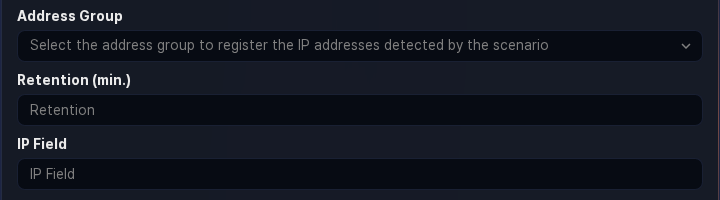
- Address Group: Address group to which the value (IP address) of the field specified as IP Field is added.
- Retention (min.): How long (in minutes) an IP address added to the Address Group is kept. When the retention period elapses, the IP address is automatically removed from the address group. If not specified, the IP address is kept permanently (range: 1-100,000,000).
- IP Field: Name of the IP address field to add to the address group on event detection. Enter an IP address field included in the query result (for example,
src_ip,dst_ip) (up to 50 characters).
For block integration with third-party security systems, see Response Targets.
-
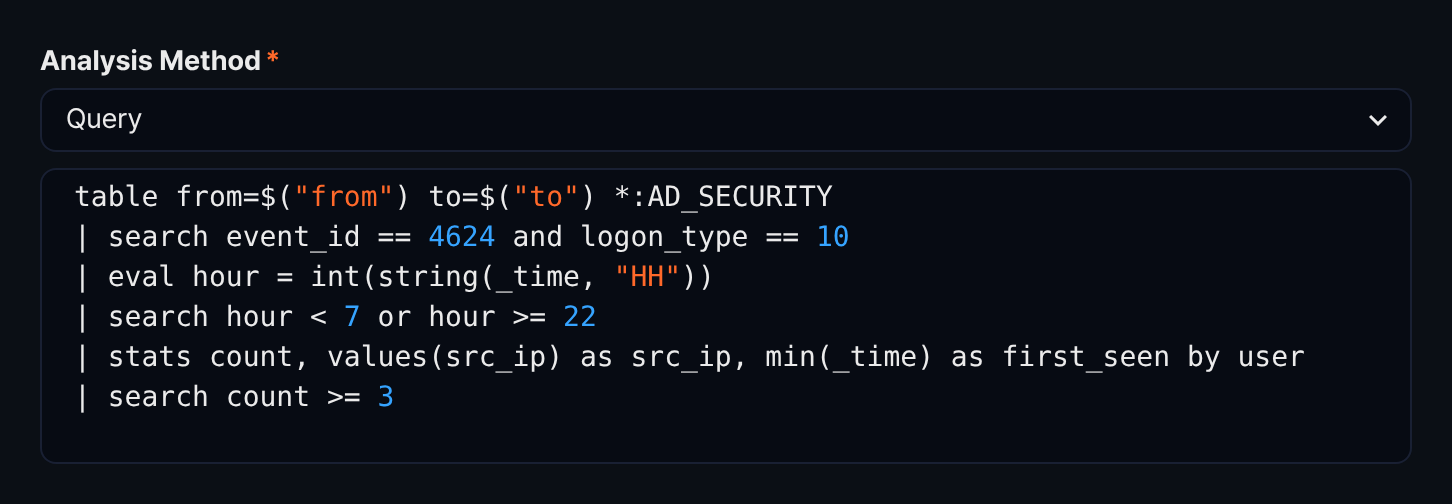
Under Analysis Method, choose how the data is analyzed on the schedule, then configure the item that appears below it (required; default: Query).
- Dataset: Select the dataset to run from the search box. The query of the selected dataset is executed.
- Query: Enter the query in the query editor (required when the analysis method is Query, up to 10,000 characters). The query is checked before saving, and a query that cannot run cannot be saved.
Each row of the query result becomes one event. The fields referenced in Subject or Detect Duplicates on, the IP Field, and the Auditee field must be present in the query result. For example, the following query aggregates, once a day, accounts that logged on three or more times through remote desktop during off-hours.
table from=$("from") to=$("to") *:AD_SECURITY | search event_id == 4624 and logon_type == 10 | eval hour = int(string(_time, "HH")) | search hour < 7 or hour >= 22 | stats count, values(src_ip) as src_ip, min(_time) as first_seen by user | search count >= 3 -
To link the batch rule to a specific app and to MITRE ATT&CK techniques and tactics, configure the following settings.
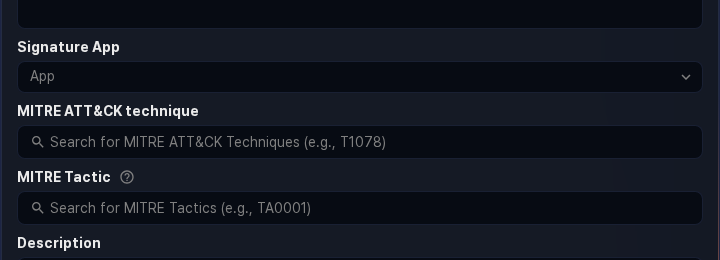
- Signature App: Determines which app's signatures to search when resolving the
signaturefield value of a detected event (selected from the installed apps). This item appears only when the XDR license is activated. - MITRE ATT&CK Technique: MITRE ATT&CK techniques the rule is intended to detect. Enter a technique ID such as
T1078or a technique name in the search box and select it from the list to add it as a tag. You can select one or more techniques. - MITRE ATT&CK Tactic: MITRE ATT&CK tactics the rule responds to. When you select a technique, the tactics it belongs to are added automatically, and you can click a tactic tag to exclude or include it again. If no technique is selected, enter a tactic ID such as
TA0001or a tactic name in the search box and select it directly. - Description: Detailed description of the rule (up to 2,000 characters).
- Signature App: Determines which app's signatures to search when resolving the
-
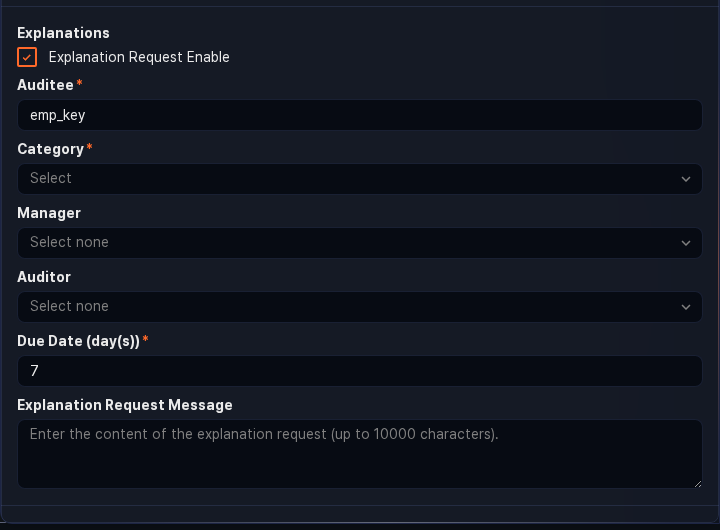
If a detected event is related to an employee in your organization, you can request an explanation from that employee. Select the Explanation Request Enable checkbox under Explanations to show the following items.
-
Auditee: Field that holds the employee ID of the explanation target (required; default:
emp_key; up to 50 characters). The query result must contain this field. If it does not, add a field to the query that converts the account or IP address into an employee ID.When a threat is detected, an explanation request email is automatically sent to the employee mapped to that employee ID. Employee information (employee ID, account, email) must be configured in advance under Users > Employees.
-
Category: Category of the explanation (required). You can register the categories you need in advance in Explanation Categories.
-
Manager, Auditor: Primary and secondary reviewers of the explanation, selected from the employee search box. If no manager is set, the auditee's superior becomes the manager, and if no superior is registered, the explanation request is not created. If no auditor is set, the explanation is closed without a secondary review. For details, see Explanations.
-
Due Date (day(s)): Deadline for submitting the explanation (required; default: 7 days; up to 255 days). After the deadline, the auditee can no longer submit an explanation.
-
Explanation Request Message: Message sent with the explanation request (up to 10,000 characters). The text is inserted where the
$user_notemacro appears in the mail or SMS template. You can include field macros such as$src_ipto convey the detection context.
-
-
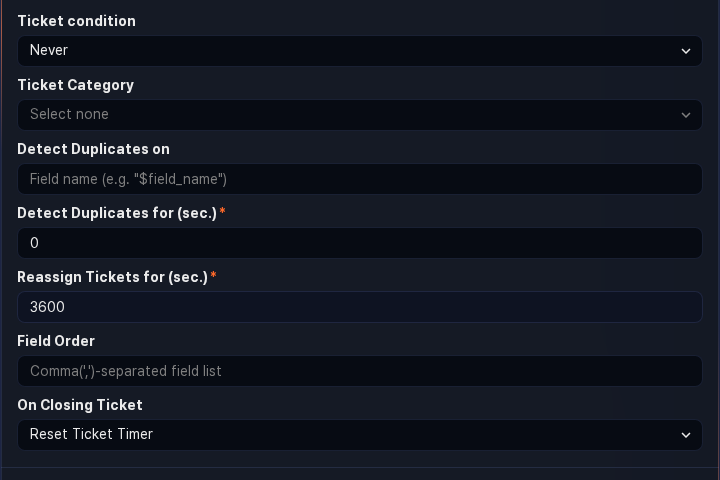
To issue a ticket on event detection, configure the following settings.
-
Ticket condition: When a ticket is issued on event detection (default: Never).
- Always: A ticket is issued every time an event is detected.
- Occur when acceptable risk score is exceeded: A ticket is issued only when the risk score of the detected event exceeds the score set in Set acceptable risk. This option appears only when the XDR license is activated.
- Never: No ticket is issued. Events are recorded only under Analysis > Event Summary.
-
Ticket Category: Ticket category that classifies the issued tickets. Required unless Ticket condition is Never, and cannot be selected when it is Never.
NoteTo let a playbook triggered by the event decide whether to create a ticket, leave the ticket condition at Never.
-
Detect Duplicates on: Names of the fields used to detect duplicate tickets, entered in the
$fieldNamemacro format and separated by commas (,) (up to 2,000 characters). If not specified, the Subject string is used as the criterion.For example, if Subject is set to
C&C server connection: $src_ip -> $dst_ipbut you want to avoid generating excessive tickets when the same host connects to different C&C servers, set Detect Duplicates on to$src_ip. -
Detect Duplicates for (sec.): Duration during which identical events are ignored after a ticket is issued (required; default: 0; range: 0 - 86,400 seconds).
- When
0: Behavior follows the Reassign Tickets for setting. - When non-zero: Identical events are ignored for the specified period and are not used as supporting data for the ticket.
- When
-
Reassign Tickets for (sec.): Duration during which no new ticket is issued for a recurring event; instead, supporting data and the occurrence count are added to the existing ticket (required; default: 3,600; range: 0 - 86,400 seconds).
- When
0: A new ticket with the same subject is created for each occurrence. - When non-zero: Only supporting data and the occurrence count are recorded in the existing ticket during the specified period.
- When
-
Field Order: Order of the fields shown in the ticket's supporting data and in the alarm mail. Enter field names separated by commas (
,) in display order (up to 2,000 characters). -
On Closing Ticket: How a ticket with Reassign Tickets for configured is handled after it is closed (default: Reset Ticket Timer).
- Keep Ticket Timer: Even after the ticket is closed, if the same threat event occurs before the merge timer expires, supporting data and the occurrence count are added to the closed ticket.
- Reset Ticket Timer: When the ticket is closed, the merge timer is treated as expired, and a new ticket is issued for the next identical threat event.
-
-
To check that the query produces the intended result before saving, use the simulation items at the bottom of the screen.
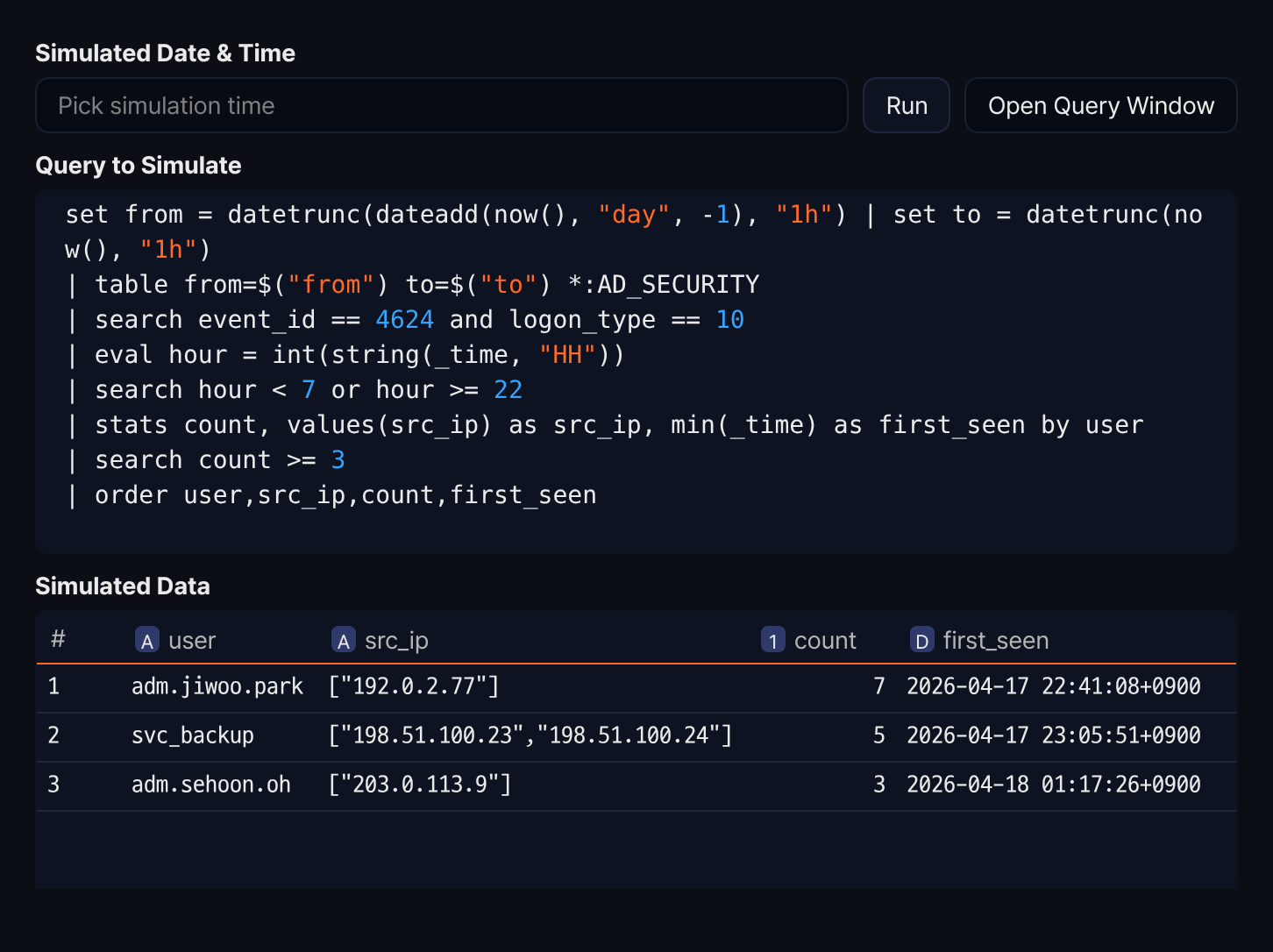
- Simulated Date & Time: Time at which the rule is assumed to run. If left empty, the current time is used.
- Run: Runs the simulated query and shows the result under Simulated Data. The query under Analysis Method must be valid to run.
- Open Query Window: Runs the simulated query on the Query screen in a new window. Like Run, it is available only when the query is valid.
- Query to Simulate: The query that actually runs. A
setcommand that assigns thefromandtovalues calculated from Time Window and Truncation is prepended, and anordercommand that sorts by Field Order is appended automatically. You cannot edit it directly. - Simulated Data: Result table of the simulated query.
The simulation only shows results; it does not create events or tickets.
-
After verifying that the entered properties are correct, click Save. The new rule is saved in the enabled state.
Duplicate a batch rule
To duplicate an existing batch rule:
- In the batch rule list, select the checkbox of the rule you want to duplicate. The action menu appears in the toolbar.
- Click Duplicate in the toolbar.
- In the Clone Scenario dialog, review the selected rules and click Duplicate. To cancel, click Cancel.
- A rule named original rule name의 사본 is added in the disabled state. The server builds this suffix, so it appears in Korean in the English console. If a rule with that name already exists, a number such as (2) is appended to the name.
Edit a batch rule
To edit a batch rule:
- In the batch rule list, click the name of the batch rule you want to edit.
- On the Settings tab of the Edit Batch Rule screen, update the information and click Save. For descriptions of the editable properties, see Add a batch rule.
Besides Settings, the edit screen has the Version history and Exception Conditions tabs. If you move to another tab with unsaved changes, a dialog asks whether to discard them.
Run a batch rule
To run a batch rule immediately without waiting for its schedule:
- In the batch rule list, select the checkbox of the rule you want to run.
- The action menu appears in the toolbar. Click Run Now.
- In the Run Batch Rule dialog, review the selected rules and click Run.
- If the rule detects events, you can check the results under Response > Tickets and Analysis > Event Summary.
View batch rule version history
A new version is automatically created each time you add or edit a batch rule. On the Version history tab of the edit screen, you can review past versions and restore a specific version or duplicate it as a separate rule.
-
In the batch rule list, click the name of the rule whose version history you want to review.
-
Click the Version history tab at the top of the edit screen. Cards are listed from the most recent version in reverse chronological order. Cards load 10 at a time; if there are more, click Load More below the list.
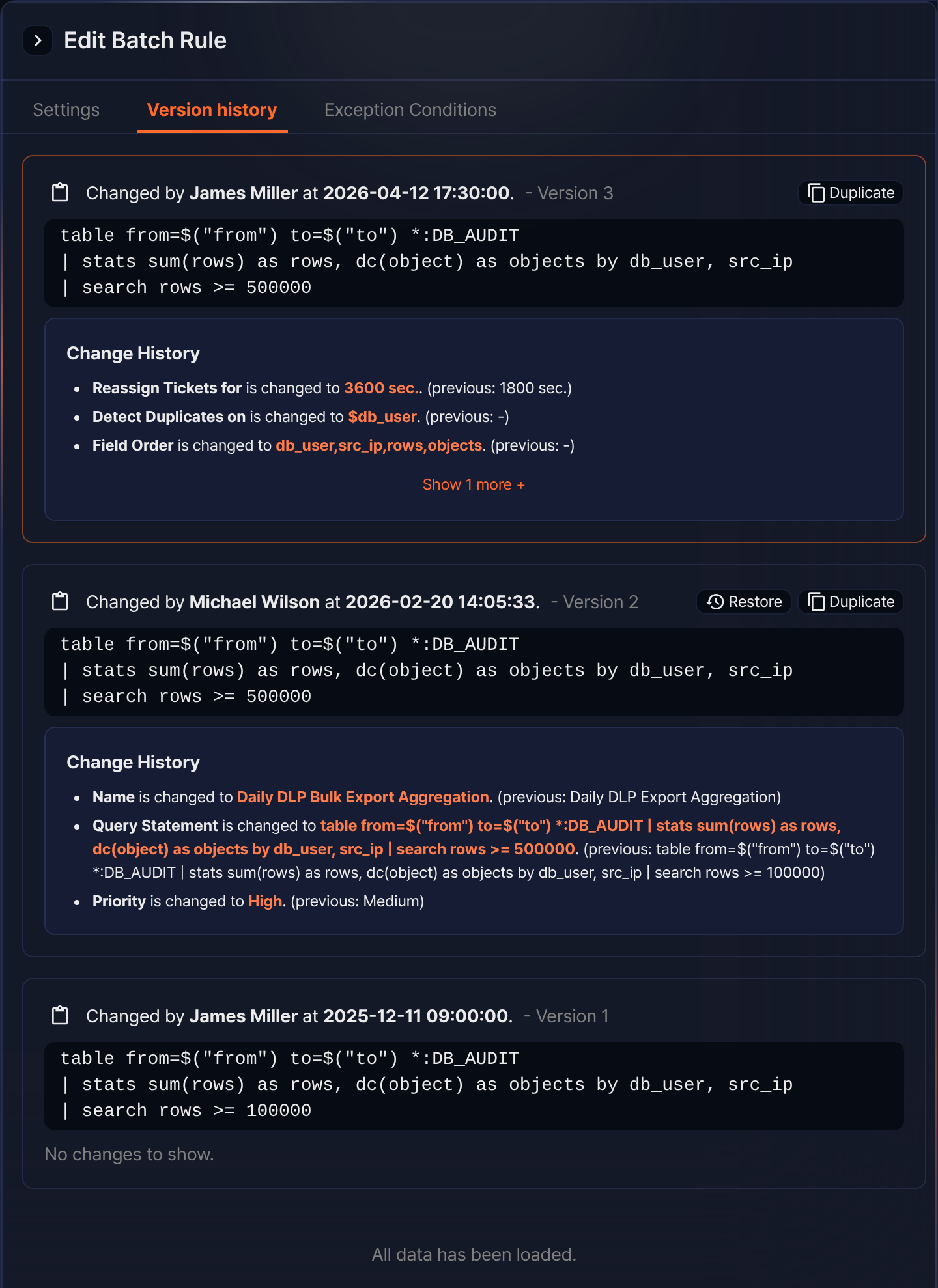
Each version card shows the following information:
- The time the version was changed, the account that made the change, and the version number (for example,
Changed by James Miller at 2026-04-12 17:30:00. - Version 3) - The batch query body at that version
- Change History: The items changed compared to the previous version, in the format
Item is changed to New value. (previous: Previous value). When more than three items changed, click Show N more + to expand the full list and Show Less to fold it again. If nothing changed, it showsNo changes to show. - If the version was created by a restore, the base version number next to the Change History heading (for example,
Restored to version 2.)
Restore a previous version
To roll a rule back to a previous version's settings:
- On the Version history tab, find the card of the version you want to restore. The card of the version currently in use, and any version with no changes, does not show a Restore button.
- Click Restore on the card.
- In the confirmation dialog, review the version to restore and proceed with the restore.
- On success, the restored settings are created as a new version, and you return to the Settings tab. If validation fails, a dialog with the failure reason is displayed; click Edit Scenario to load the settings you tried to restore into the Settings tab and edit them directly.
Duplicate a previous version as a new rule
To create a separate rule based on a previous version's settings:
- On the Version history tab, click Duplicate on the card of the version you want to duplicate. Versions with no changes do not show a Duplicate button.
- In the Clone Scenario dialog, enter a name for the new rule and proceed with the duplication. The default name is Clone of rule name Version N.
- The new rule is added to the list with the name you entered. It keeps the enabled state of the duplicated version, so check the Enabled column in the list.
Manage exception conditions for a batch rule
To exclude events that match a specific condition from detection, register an exception condition. Exception conditions are managed per rule and apply only during the validity period you set.
-
In the batch rule list, click the name of the rule whose exception conditions you want to manage.
-
Click the Exception Conditions tab at the top of the edit screen.
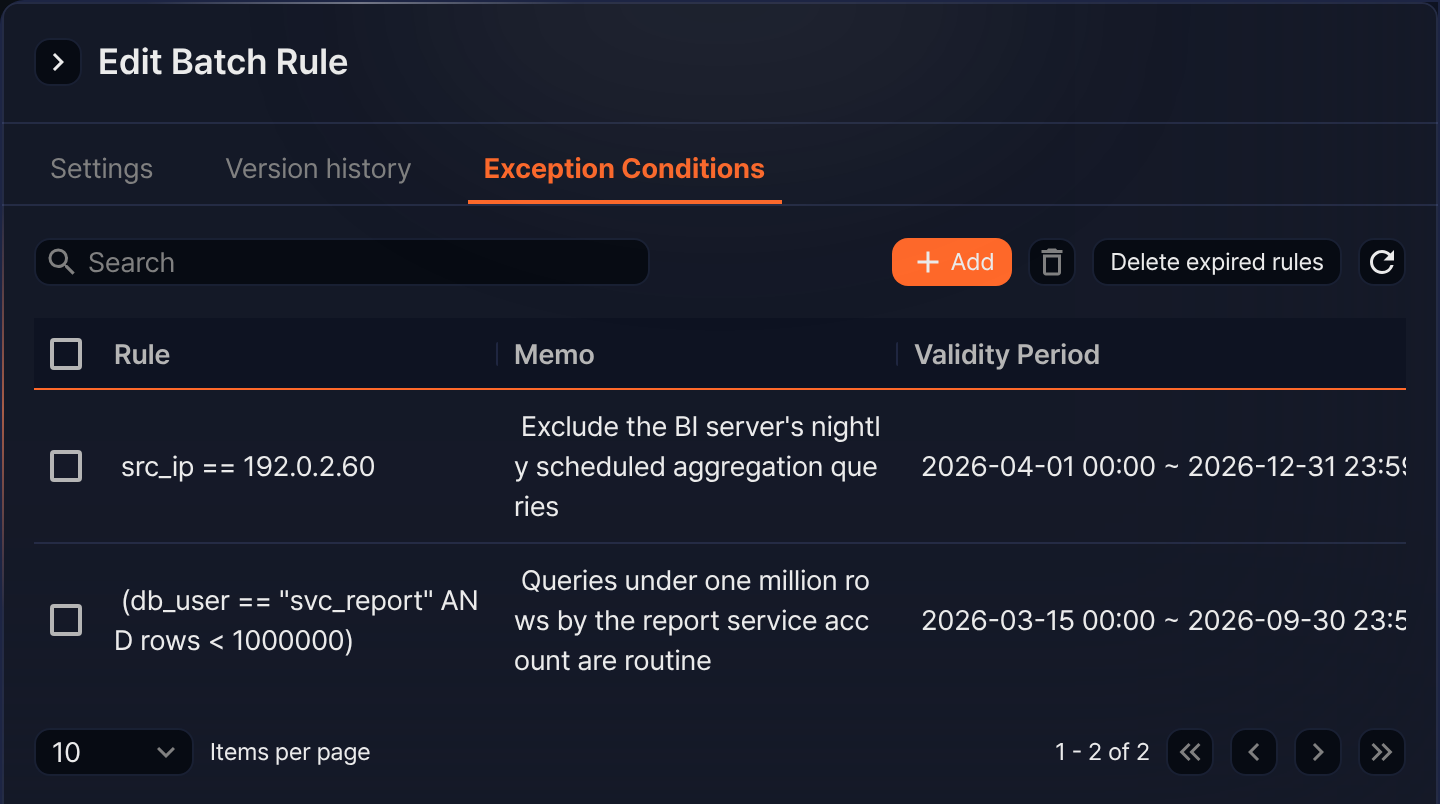
- Rule: The registered exception condition. The stored condition is shown as a string made up of the field, operator, and value, and several conditions are grouped with AND or OR.
- Memo: A description, such as why you registered the exception.
- Validity Period: The start and end date and time during which the exception applies.
- Author: The account that registered the exception condition. This column sits at the far right of the table, so depending on the panel width you must scroll horizontally to see it.
Enter a keyword in the search box to filter the list by Memo and by the stored condition. The search matches the stored condition rather than the rule string shown on screen, so characters that exist only in the display, such as comparison operator symbols, find nothing.
Add an exception condition
The dialog for adding an exception condition is the same as for stream rules.
-
On the Exception Conditions tab, click Add.
-
In the dialog, select Type.
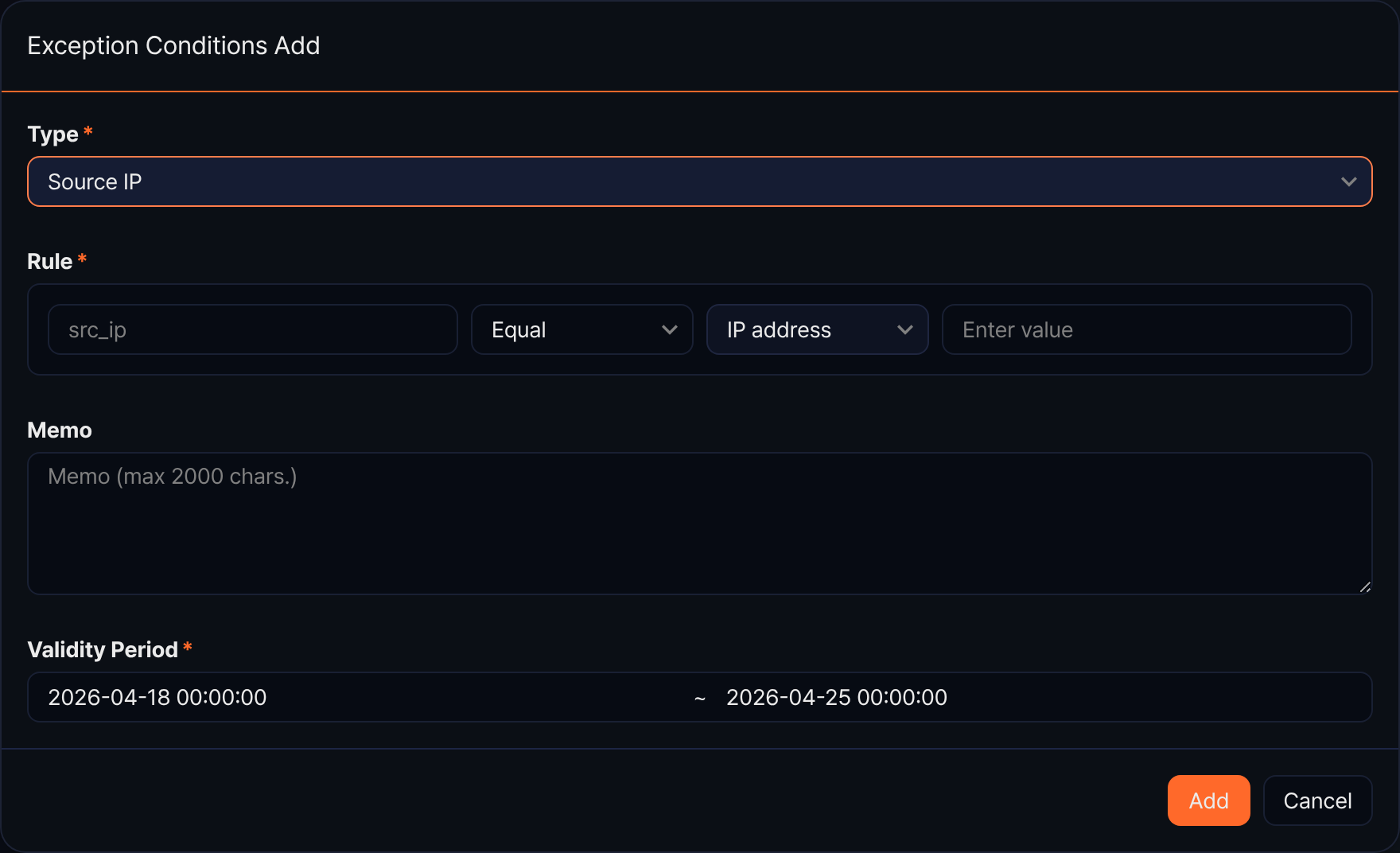
- Source IP: Builds a condition on the source IP address field alone.
- Destination IP: Builds a condition on the destination IP address field alone.
- Source IP / Destination IP: Combines conditions on both fields with AND.
- Custom: Lets you build fields and conditions yourself in the condition builder.
-
Enter the condition in Rule. Selecting Custom shows the condition builder.
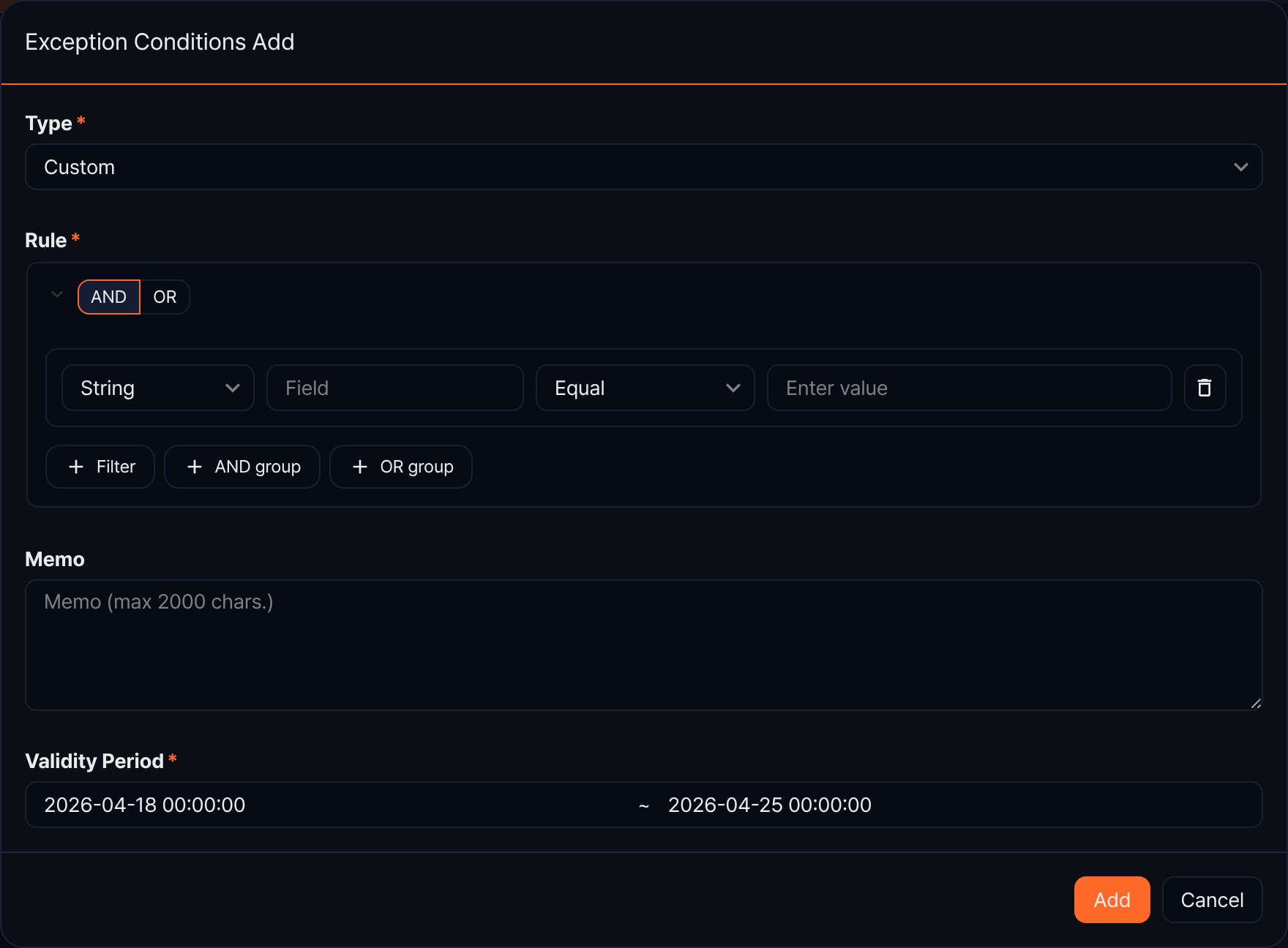
- Click AND or OR on a group to set how its child conditions combine.
- A filter row consists of a value type (String, Number, Boolean, IP address), a field name, a comparison, and a value. The field name must match a field of the query result.
- Click Filter to add a condition to the same group, or AND group or OR group to create a nested group. Groups can be nested up to three levels, with at most 50 filter conditions and 10 groups.
-
In Memo, enter why you registered the exception (up to 2,000 characters).
-
In Validity Period, set the start and end date and time (default: today plus seven days). The end cannot be earlier than the start and must be later than the current time.
-
Click Add. To cancel, click Cancel.
Delete exception conditions
- To delete individual conditions, select their checkboxes in the list and click
 on the toolbar.
 - To clear every condition whose validity period has passed, click Delete expired rules. Review the list of targets in the confirmation dialog and proceed with the deletion.
Delete batch rules
To delete batch rules:
- In the batch rule list, select the checkboxes of the rules you want to delete.
- The action menu appears in the toolbar. Click Delete.
- In the Delete batch rule(s) dialog, review the selected rules and click Delete. To cancel, click Cancel.