Port groups
Overview
A port group collects port numbers that serve the same purpose so you can manage them together. Under Policies > Port Groups, organize ports of a similar nature — database ports, file-sharing ports, or web service ports — into a single group.
A port group consists of a name, a description, and the list of ports registered in it. Each port entry has a protocol (TCP or UDP), a port range (start-end), and a description; registering the same value for start and end creates a single port.
At installation, two port groups are created. 데이터베이스 포트 (database ports) holds five ports — MySQL (3306), Oracle (1521), Postgres (5432), MS SQL (1433), and MongoDB (27017) — and the built-in stream rule 데이터베이스 포트 스캔 시도 (database port scan attempt) matches the destination port against this group. 파일공유 포트 (file-sharing ports) holds 26 port entries used by file-sharing, P2P, messenger, and remote-access programs such as FTP, SMB, BitTorrent, eDonkey, Telegram, IRC, and VNC, and the built-in stream rule 미허가 파일공유 포트 접속 (unauthorized file-sharing port access) matches against this group. Both rules are disabled right after installation. The product installs these names in Korean regardless of the language chosen at installation or the console language, so the English console shows them in Korean as well; the English in parentheses is an explanation added by this document.
Port groups are used by the scenario builder of stream rules, the matchport command, and the matchport() function. Batch rules have no scenario builder, so you write the matchport command or function directly in the query of a batch rule. See Use port groups for the details.
The Policies > Port Groups menu appears for the Cluster Administrator, Administrator, and User roles, and all three can view port groups and the ports inside them. Only the Cluster Administrator and Administrator roles can add, edit, and delete port groups or register, edit, and delete the ports in a group; accounts with the User role do not see Add, Save, Port Add, or the delete tools. See Account permissions for the permissions of each role.
View and search port groups
You can view or search the port group list under Policies > Port Groups. The list has no defined sort order, and you cannot sort it by clicking a column header. One page shows 15 groups by default, and you can change the page size with the selector below the list.

- Name: Name of the port group
- Description: Description of the port group
- Owner: Name of the account that added the port group or last clicked Save in its edit panel. When another account saves the group, the owner changes to that account. Regardless of the owner, every account in the same company sees all port groups.
- Modified At: Date and time the group was last saved in its edit panel. Adding, editing, or deleting ports in the group does not change it.
To find a port group, type a keyword in the search box in the toolbar and press Enter. If you enter several words separated by spaces, each word must appear in either Name or Description. The search ignores case and matches partial strings.
The following example searches for 파일공유. Only 파일공유 포트, whose name contains that word, remains.

Download the list
To download the port group list to a file, click  in the toolbar. The Download Port Groups dialog box opens.
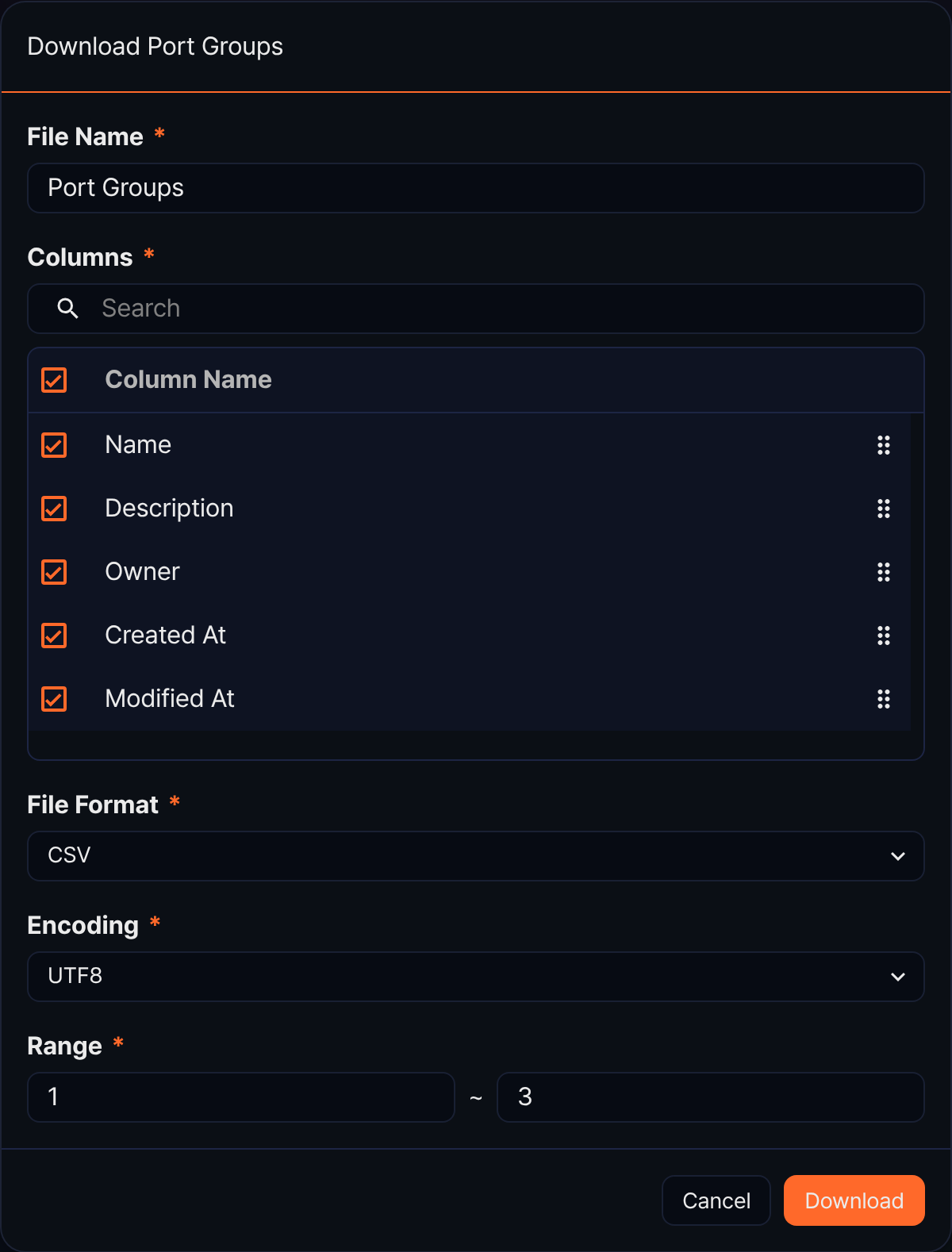
- File Name (required): Name of the file to download (default: Port Groups, up to 200 characters)
- Columns (required): Columns to include in the file. All five columns — the four shown in the list plus Created At — are selected by default; clear a checkbox to exclude a column, or drag the handle on the right to reorder them.
- File Format (required): Format of the downloaded file. Choose from CSV (default), XML, Microsoft Word, HTML, JSON, and PDF.
- Encoding (required): File encoding. Shown only when the file format is CSV or JSON; the available values depend on the web console language. The English console offers UTF8 (default), UTF16, and Latin 1.
- Range (required): Start and end row numbers to download (defaults to the first row of the current page through the total count)
Click Download when you are done. If you filtered the list with a search, the download includes only the filtered rows. The download icon is disabled when the list is empty.
Refresh the list
To reload the port group list, click  in the toolbar.
Add a port group
To create a port group to match against in a detection scenario or query:
-
Under Policies > Port Groups, click Add in the toolbar.
-
In the New Port Group panel, enter the group information.

- Name (required): Name of the port group. Up to 50 characters.
- Description: Description of the port group. Up to 2,000 characters.
-
Click Save at the top right of the panel. Saving closes the panel and adds the new port group to the list.
Edit a port group
To change the name or description of a port group:
-
In the port group list, click the row of the port group you want to edit. The Edit Port Group panel opens.

-
Change the Name or Description, then click Save at the top right of the panel. Saving closes the panel and refreshes the list.
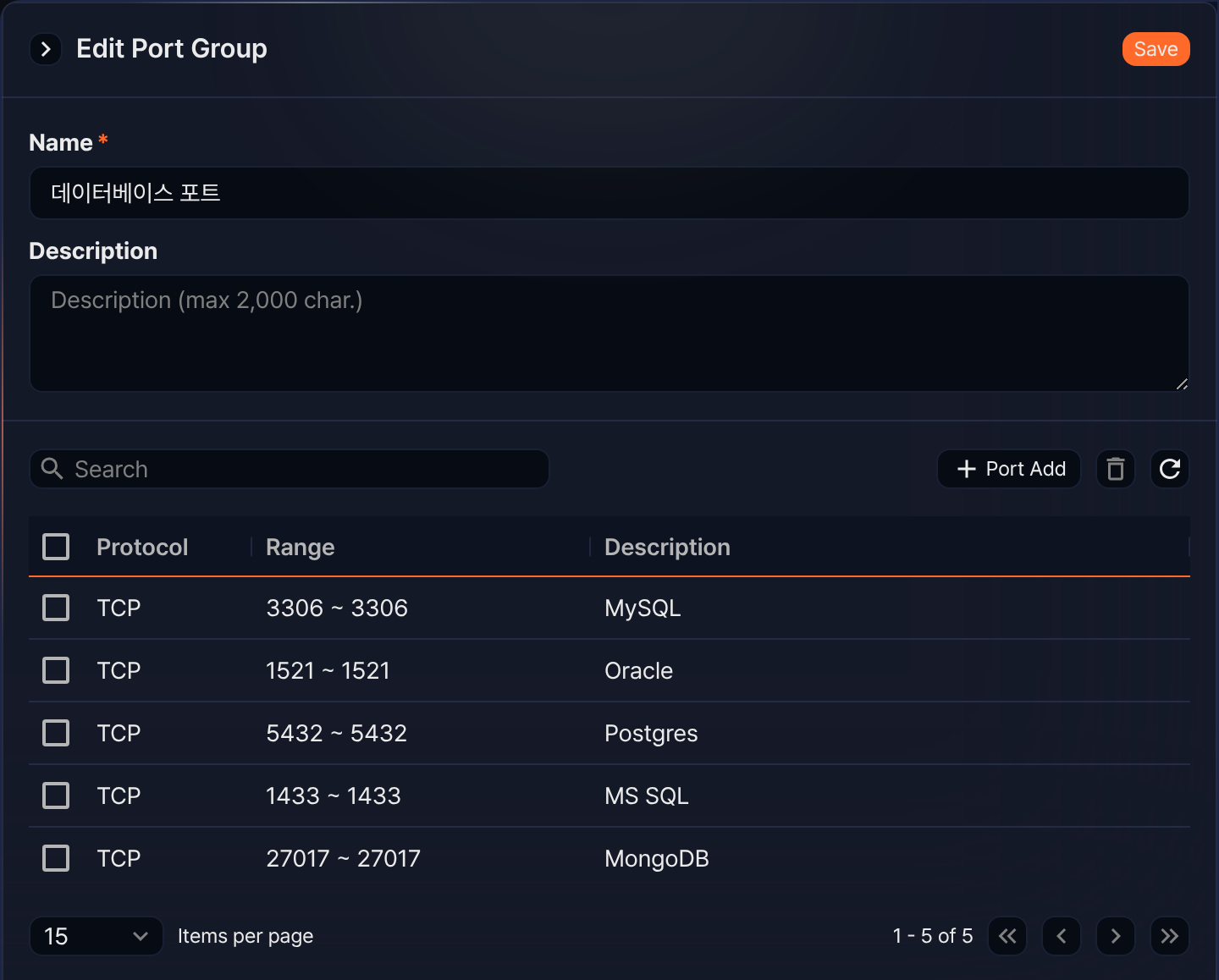
The lower part of the panel is the list of ports registered in the group. Registering, editing, and deleting a port applies immediately, so Save only commits the name and description.
View and search ports
You can review the ports registered in a group from the port list in the Edit a port group panel. One page shows 15 ports by default, and you can change the page size with the selector below the list. The list has no defined sort order, so its display order may not stay the same — use the search box instead of paging through it to find a specific port.
- Protocol: Transport layer protocol of the port entry (TCP or UDP)
- Range: The start and end ports joined by a tilde (for example, 3306 ~ 3306). A single port also shows the same number twice.
- Description: Description of the port entry
To find a specific port, type a keyword in the search box of the port list and press Enter. A word matches a partial string in Description; if you enter several words separated by spaces, all of them must appear in Description. If the entire search term is a number, the search also finds ports whose range (start-end) contains that number. For example, entering 1521 finds the Oracle port whose start and end are both 1521 even though its description does not contain that number.
Add a port
To register a port range in a port group:
-
In the port group list, click the row of the port group you want to edit.
-
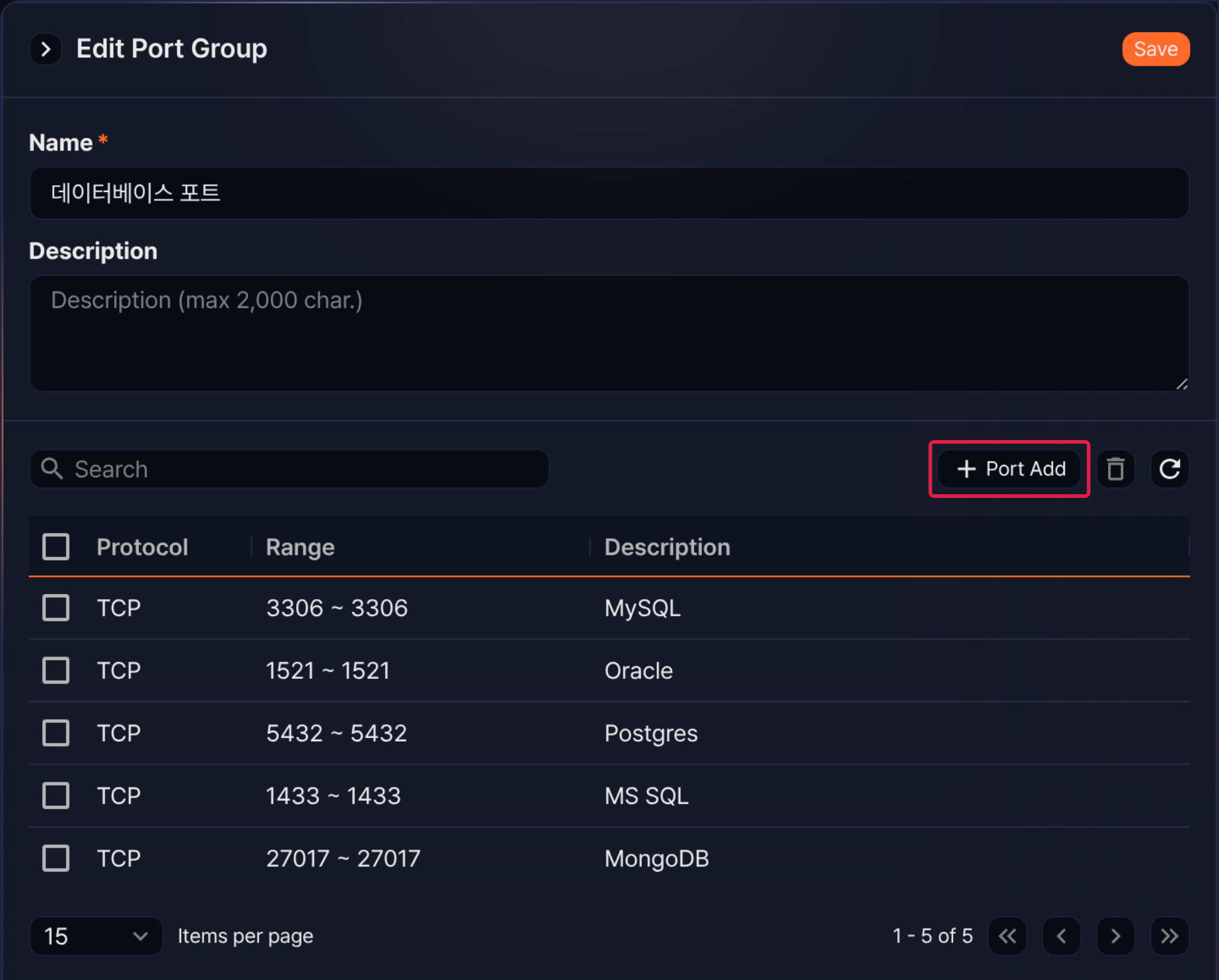
In the port list toolbar of the edit panel, click Port Add.
-
In the Port Add dialog box, enter the port information.
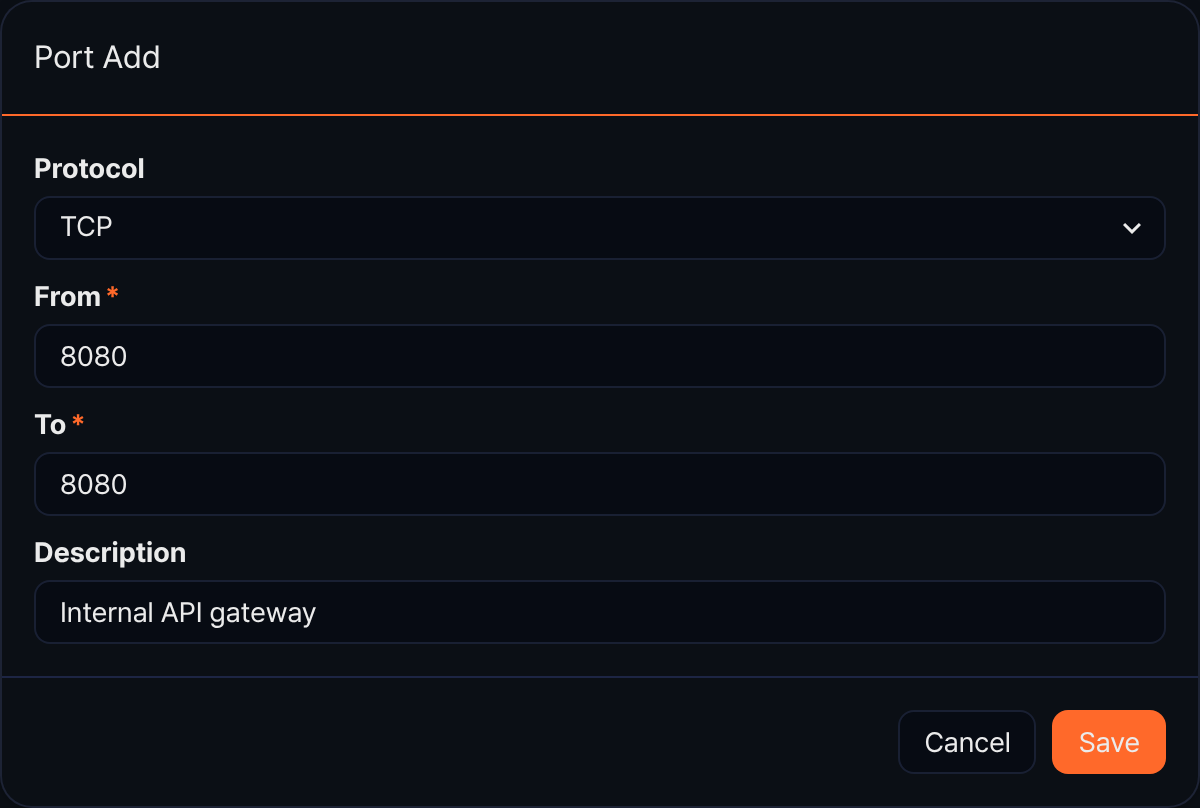
- Protocol: Protocol of the port (default TCP; options: TCP, UDP)
- From (required): Starting port number (range: 0-65,535)
- To (required): Ending port number (range: 0-65,535). To register a single port, enter the same number in both From and To.
- Description: Description of the port entry. Up to 255 characters.
-
Review your entries, then click Save.
Edit a port
To edit a registered port entry:
-
In the port group list, click the row of the port group you want to edit.
-
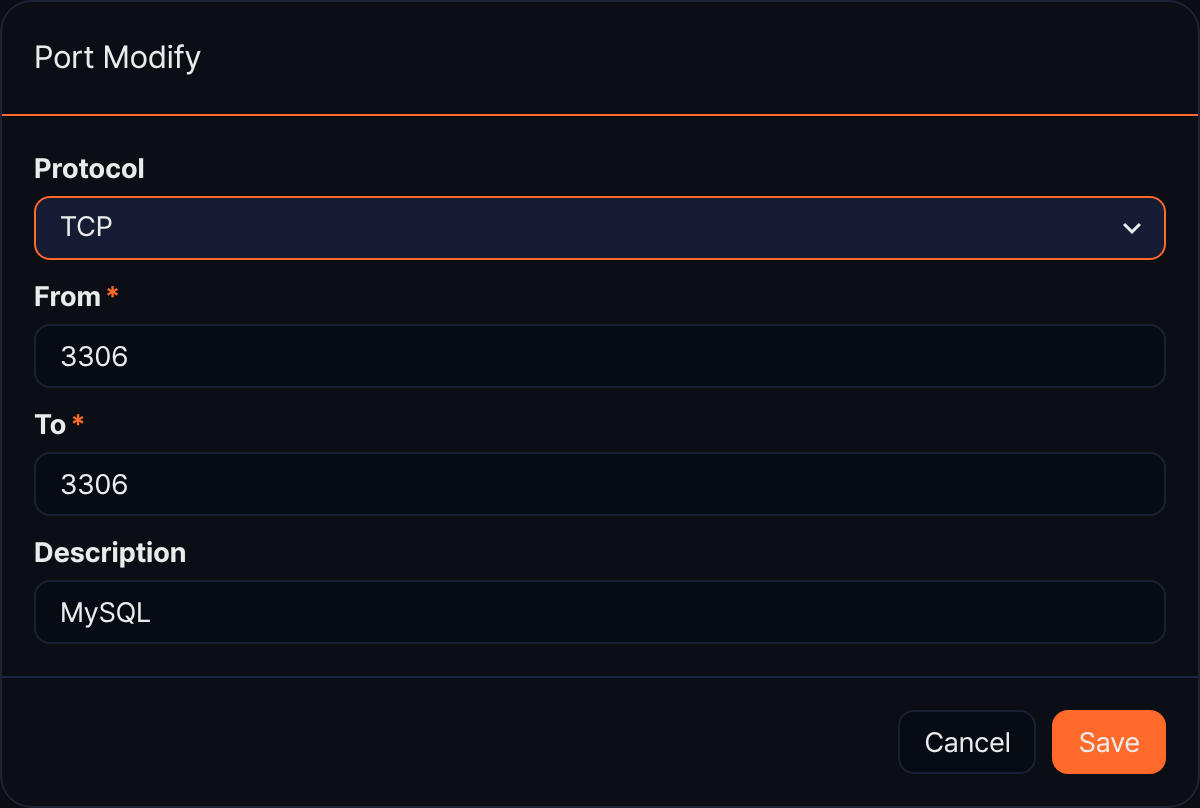
In the port list of the edit panel, click the row of the port you want to modify. The Port Modify dialog box opens.
-
Change the values, then click Save.
The Port Modify dialog box has the same fields as the Add a port dialog box, pre-filled with the registered values.
Delete a port
To remove a port entry the group no longer needs:
-
In the port group list, click the row of the port group that has the port you want to delete.
-
Select the checkbox of the port to delete, then click
 in the toolbar. The icon is disabled while no port is selected.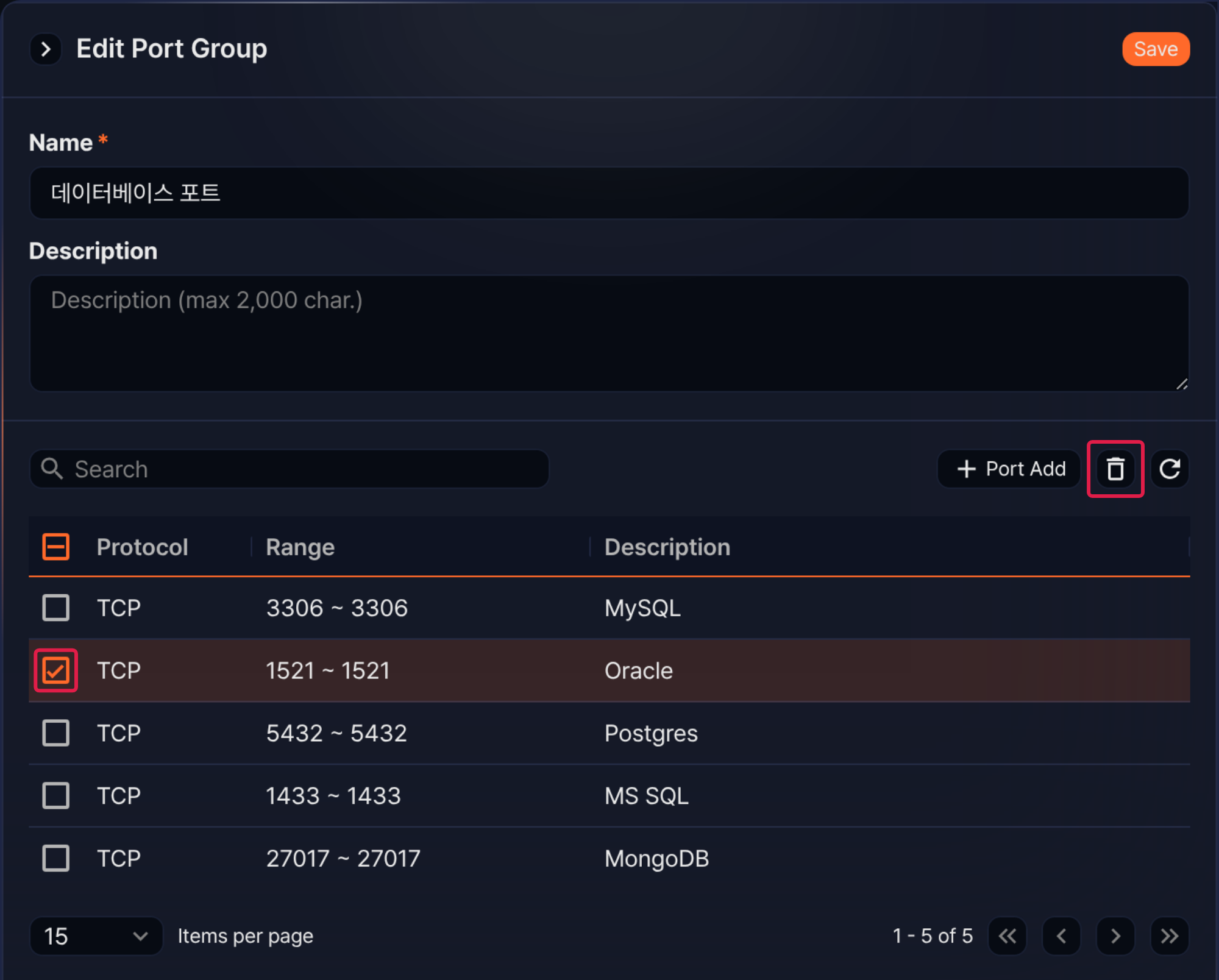
-
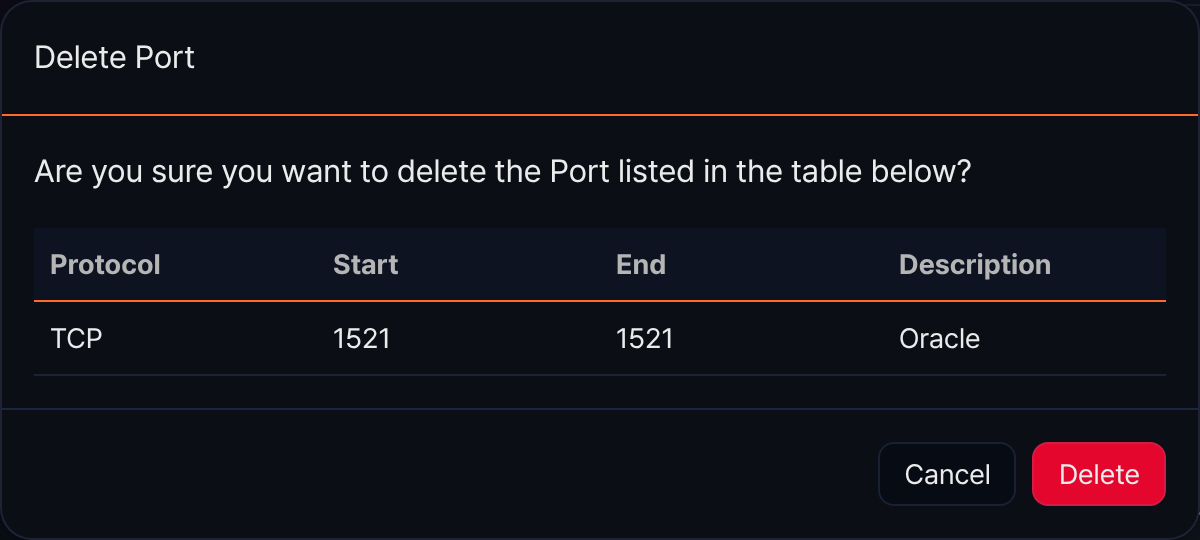
In the Delete Port dialog box, review the entries to delete, then click Delete.
Use port groups
A registered port group can be used in the following ways.
Scenario builder
In the scenario builder of stream rules, you can use whether a port number in an input field falls inside a port group as a condition. This lets you classify events by a set of ports that share a purpose, such as web service ports, remote management ports, or database ports.
Choose a PORT-type field in Field, then choose 포트 그룹에 포함 (included in port group) in Rule to reveal the port_group selection box below it. Choose the port group to match against, then click  to register the rule. The selection box defaults to the first port group in the list.
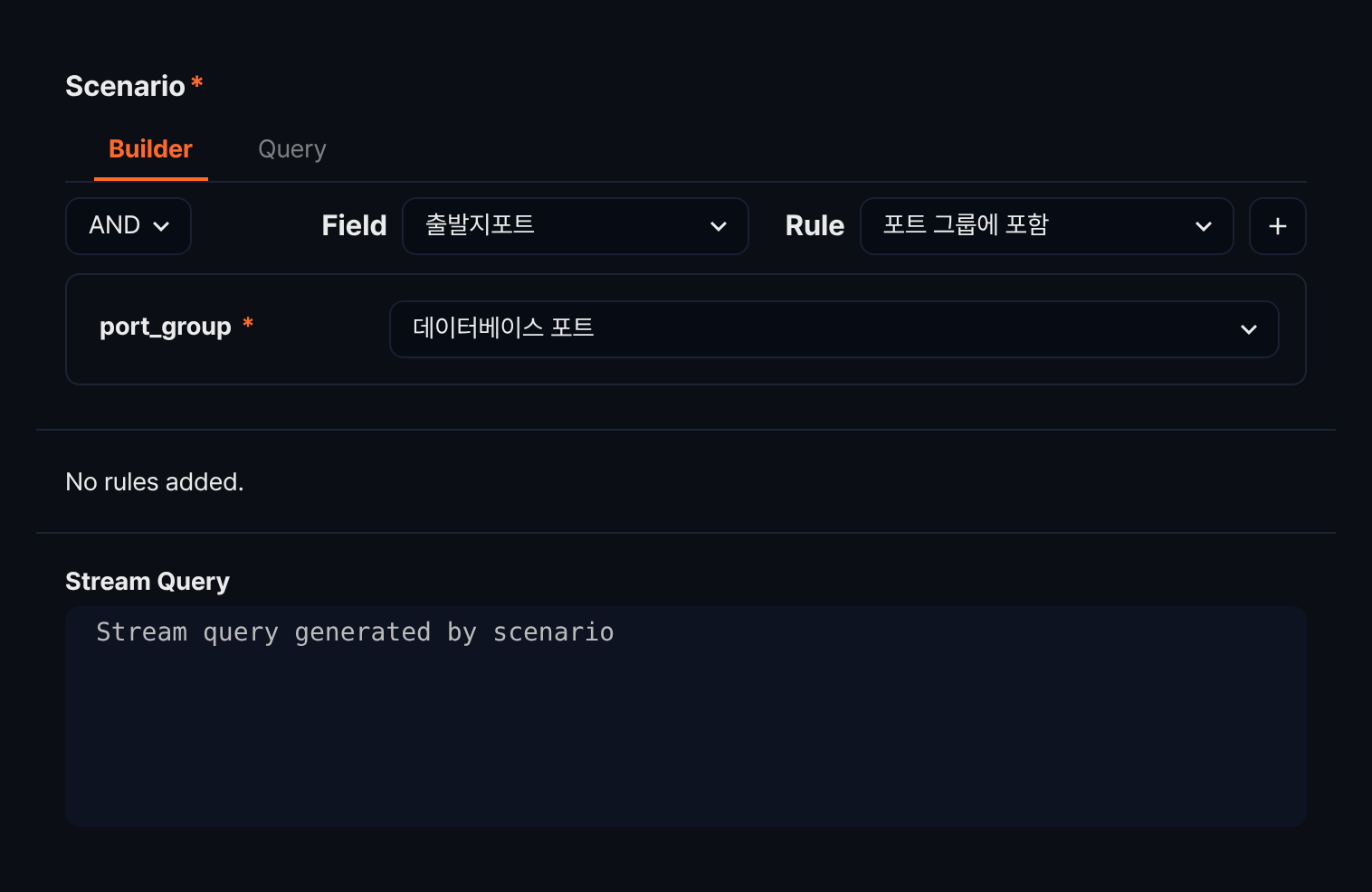
The rule name comes from a database seed rather than the console's translation strings, so it stays in Korean even in the English console. The seed defines no English display name for the parameter, so the console shows its internal name, port_group.
The condition this rule builds also checks the log's protocol field (TCP or UDP) along with the port number. A record without a string protocol field never passes the rule, whether or not its port is in the group, and switching the condition to NOT does not change that.
The query the scenario builder generates uses the port group's GUID rather than the name shown on screen. See Rules and parameters by field type for the rules and parameters available for each field type.
Query
In a query, the matchport command and the matchport() function determine whether a field's port number and protocol fall inside a port group. The matchport() function identifies the port group by its GUID; see the matchport command documentation for the options it uses to identify a target. A port group's GUID is the value after /port-group/ in the browser's address bar when you open that group's edit panel.
The following example selects records from a firewall log whose destination port falls inside 데이터베이스 포트 (database ports).
table duration=1d *:FW_FLOW | matchport guid="305839a6-d095-4c56-98fb-e0f129544401" port=dst_port
To see only records whose port does not fall inside the group, add invert=t.
Delete a port group
To remove a port group you no longer use:
-
In the port group list, select the checkbox of the port group to delete. Selecting one or more rows switches the left side of the toolbar to ask what to do with the selected items.

-
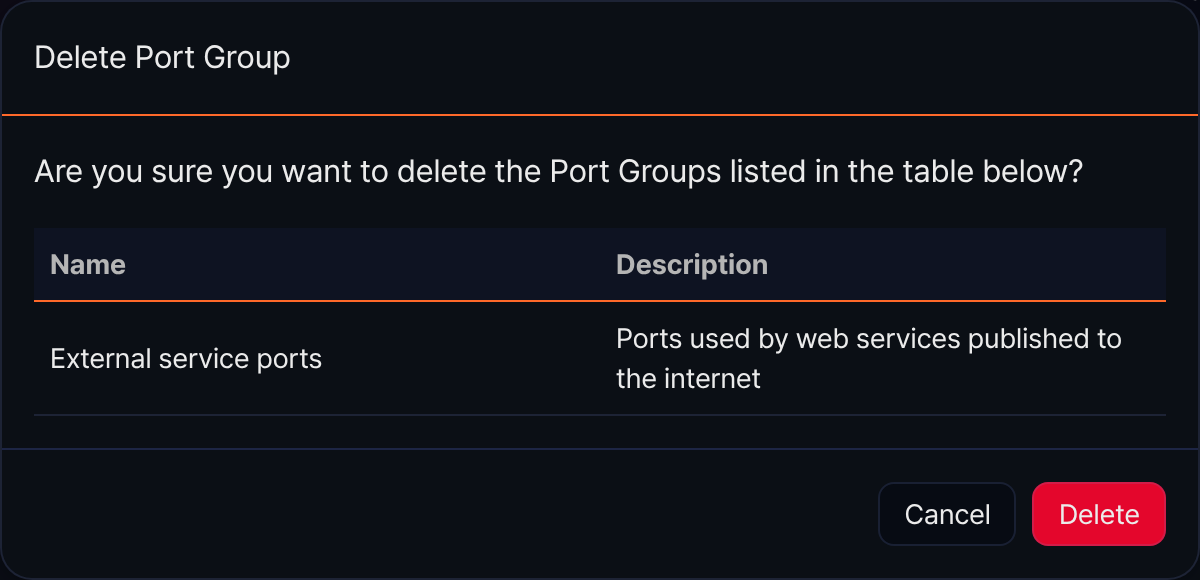
Click Delete. To undo the selection, click Deselect.
-
In the Delete Port Group dialog box, review the port groups to delete, then click Delete.