
Treemap
Overview
The treemap widget displays hierarchical data as nested rectangles of varying sizes and colors. The size of each rectangle represents one value (size value) and the color represents another value (color value). It is suitable for intuitively understanding the importance of items by combining two metrics, such as simultaneously visualizing access counts and threat scores by source IP. It supports up to 3 levels of hierarchy.
For general information about query widgets, see Query widget.
Chart settings
Select Treemap as the chart type in the pivot table editor and click the chart settings button.
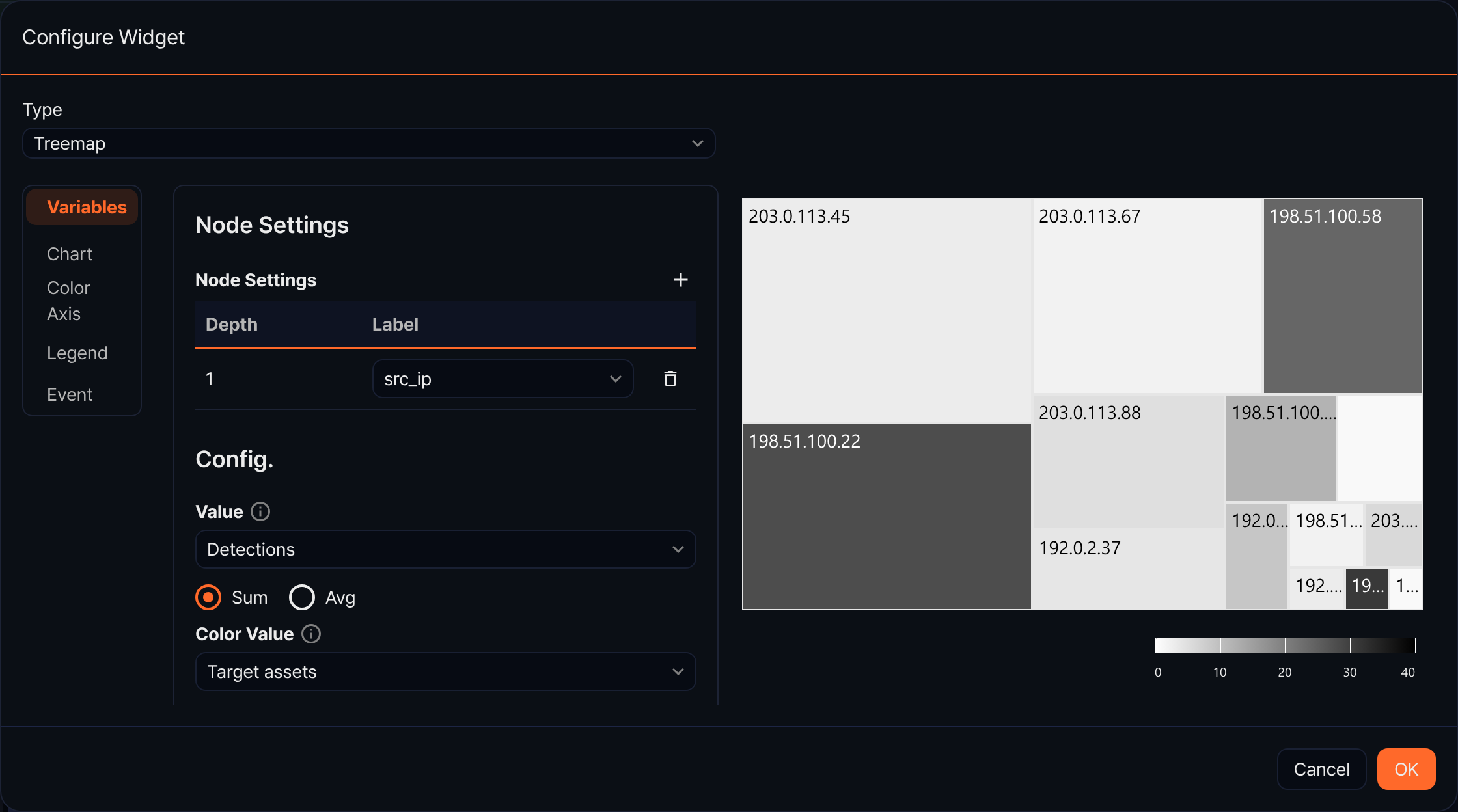
Variables
Node settings
Define the hierarchy structure of the treemap. Use the + button to add nodes, up to a maximum of 3 levels. When you define two or more levels, the widget draws only the top-level nodes; lower levels appear when you click a node to drill down.
| Column | Description |
|---|---|
| Depth | The hierarchy level of the node (1st, 2nd, 3rd) |
| Label | Select the field to use as the node label at each level. |
| Delete | Remove the node at that level. |
Settings
- Value: Select the numeric field that determines the size of nodes. You can also select the aggregation method (Sum/Avg).
- Color Value: Select the numeric field that determines the color intensity of nodes. You can also select the aggregation method (Sum/Avg).
- Tooltip Format: Select the content to display in the tooltip on mouse hover (options: All, Value, Color Value).
- Label Size: Enter the font size of labels displayed inside nodes (default: 14).
Chart
- Headline: Enter a chart title and subtitle.
- Chart Area: Set the background color, border thickness, and border color.
Color axis
Set the color range based on color values.
- Preset: Select and apply a predefined color gradient preset.
- Legend Preview: Preview the current color range settings.
- Minimum Color: Set the color for the minimum value of the color range.
- Maximum Color: Set the color for the maximum value of the color range.
- Minimum Value: Specify the minimum value of the color axis manually.
- Maximum Value: Specify the maximum value of the color axis manually.
Legend
- Show: Set whether to display the legend.
- Legend Arrangement: Options: Horizontal, Vertical.
- Horizontal Align / Vertical Align: Set the legend position.
Event
Configure node click events.