Connect profiles
Overview
A connect profile is an object that holds the identification and authentication information needed to connect to external databases, FTP, SSH, and TAXII servers, and more. Connect profiles are used when running query commands that integrate with external systems, or when running loggers that directly access external servers to collect data. For example, natural-language queries through Logpresso AI Assistant authenticate with the API key registered in a connect profile, and the GeoIP country lookup in address groups works with the GeoIP license registered in a connect profile.
Logpresso Sonar provides nine built-in types: FTP, LDAP, SSH, TAXII, Database, Logpresso CTI, Logpresso AI Assistant, GeoIP, and SNMPv3. Installing an app can add more types.
Account permissions
| Action | Cluster Administrator | Administrator | User |
|---|---|---|---|
| View the list | ✔ | ✔ | — |
| Add, edit, delete | ✔ | ✔ | — |
| Recreate SSH key | ✔ | — | — |
The User role does not have this menu.
Search connect profiles
You can view the list of connect profiles in Settings > Connect Profiles.
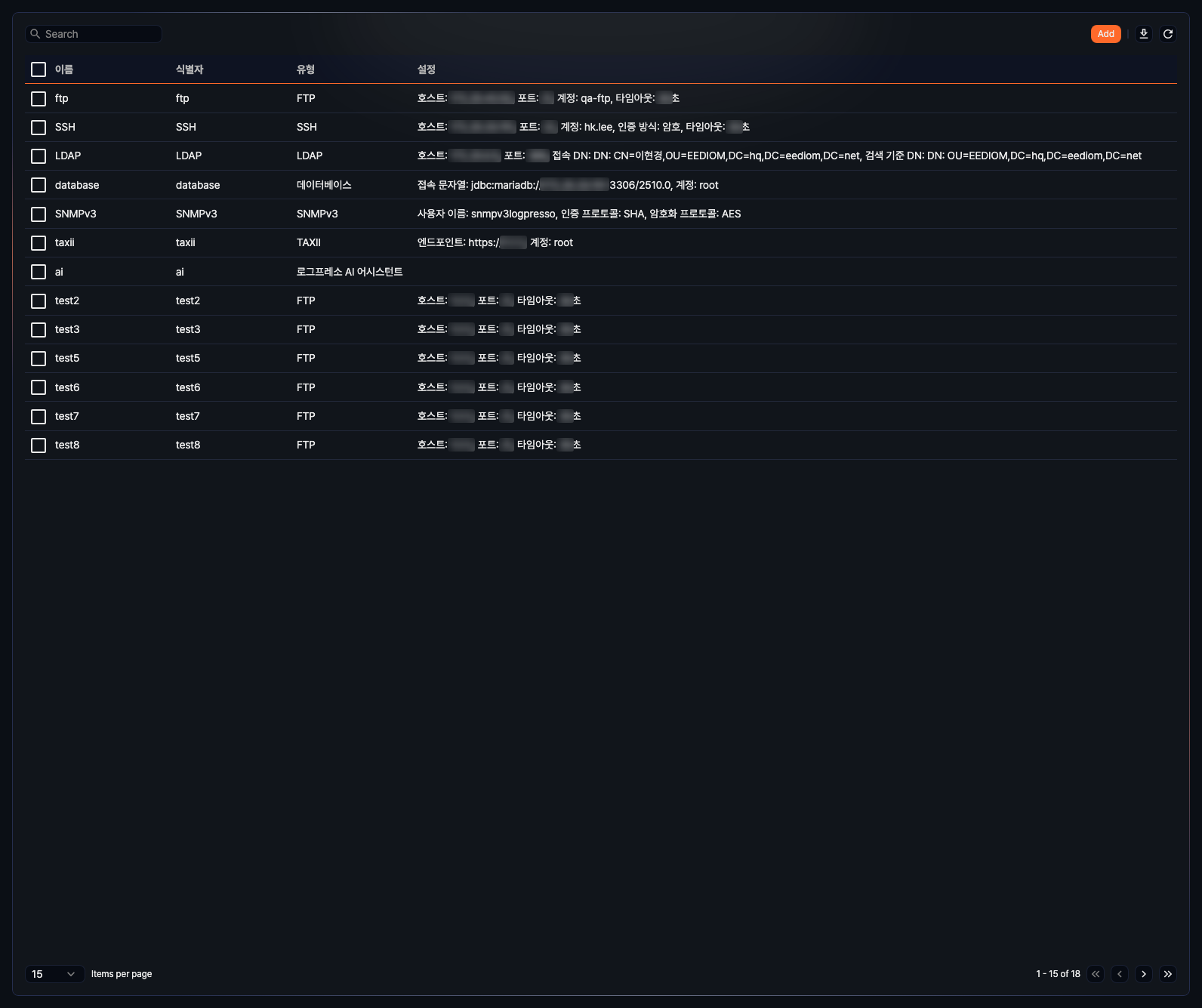
- Name: The name of the connect profile.
- Identifier: The identifier used to reference the connect profile in loggers or query commands (unique within the same type).
- Type: The type of the connect profile.
- Config: A summary of the connect profile's configuration values.
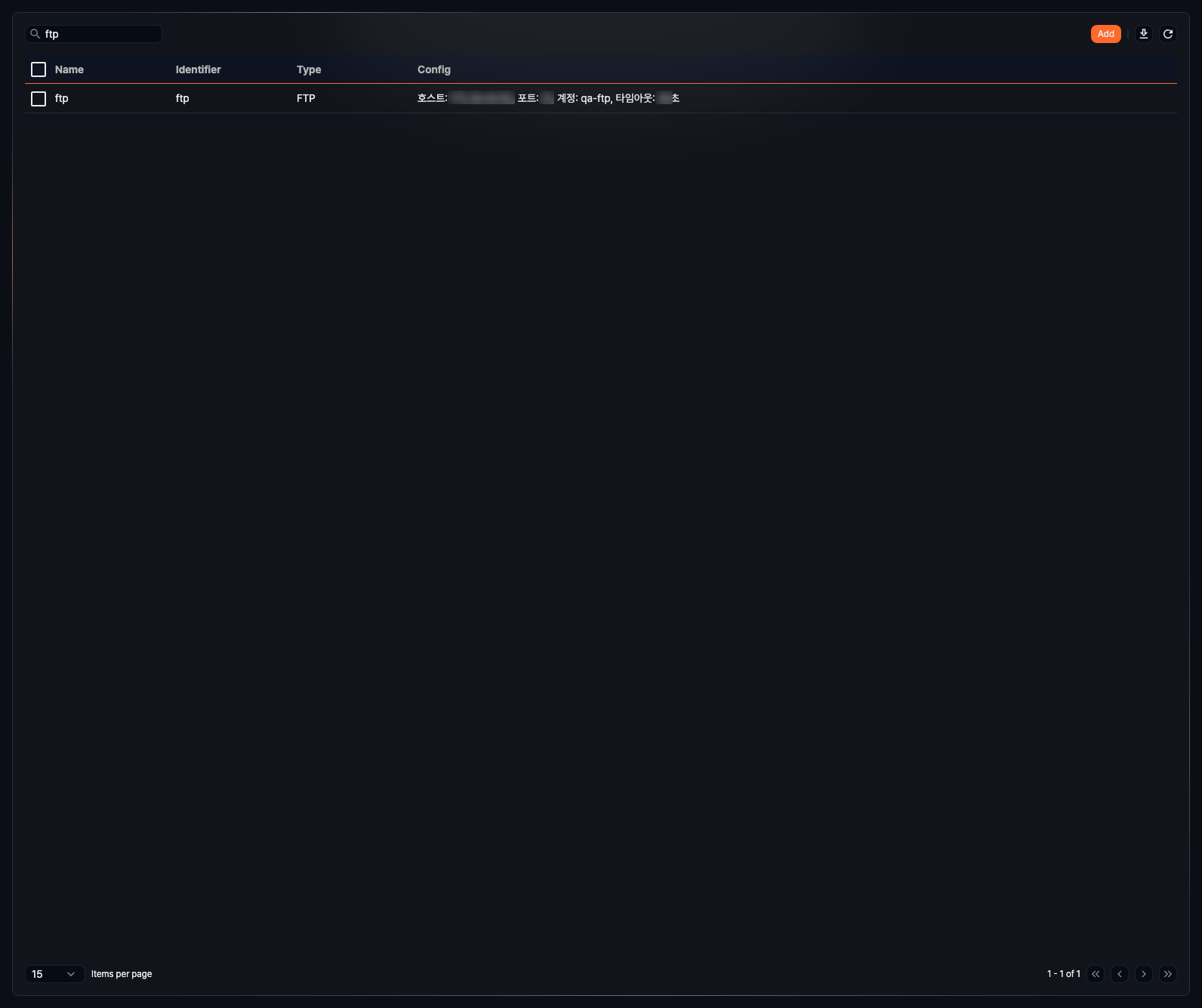
To find a specific connect profile, use the Search field at the top left of the list. Items are returned only if every word in your keyword, split on spaces, appears somewhere in Name, Identifier, Description, or Config. The search is not case-sensitive.
Download the list
Click  at the top right of the list to download the connect profile list as a file.
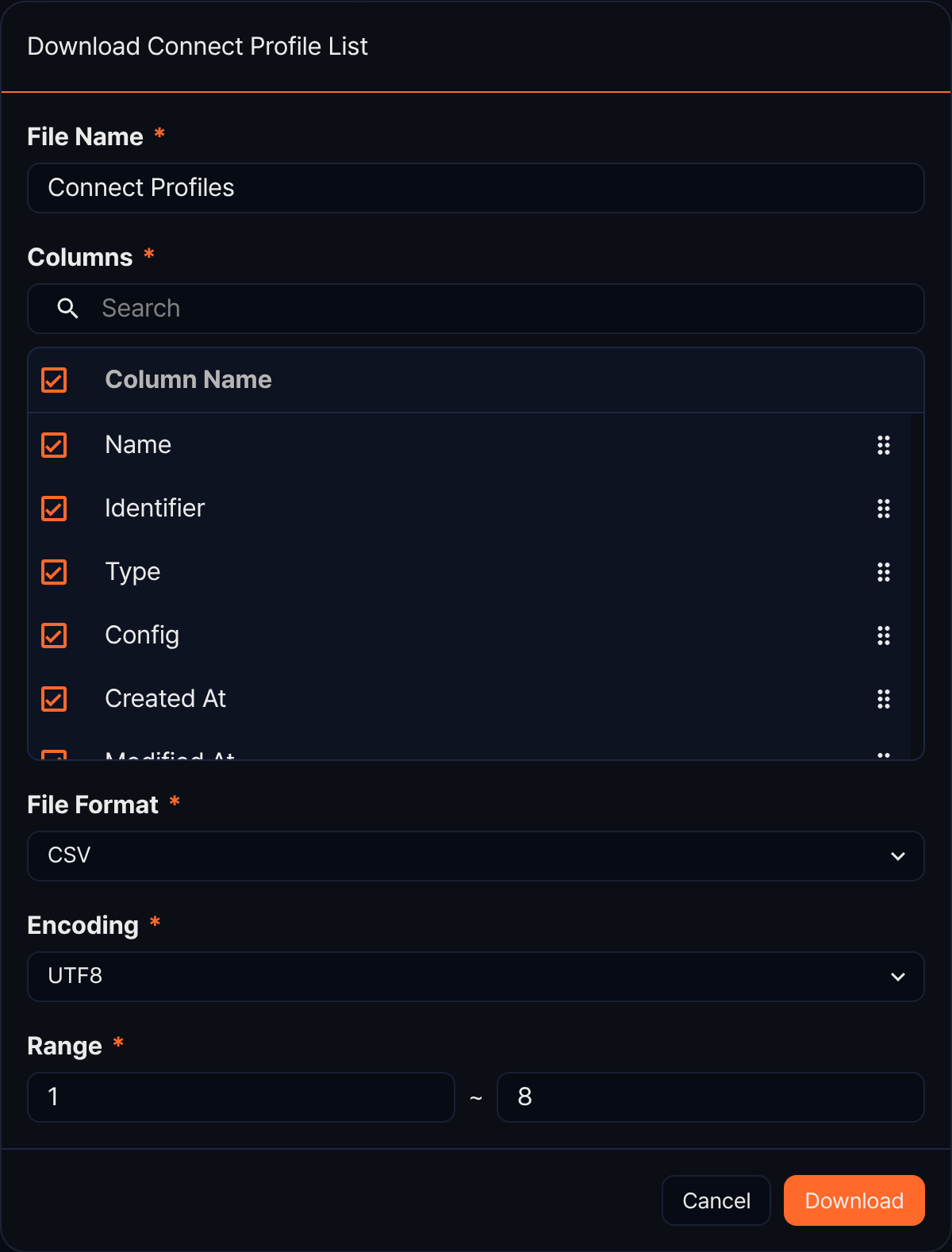
- File Name (required): The name of the file to download (default: Connect Profiles).
- Columns (required): The columns to include in the file. Name, Identifier, Type, Config, Created At, and Modified At are all selected by default — clear the check box for any column you want to leave out.
- File Format (required): Choose from CSV (default), XML, Microsoft Word, HTML, JSON, or PDF.
- Encoding (required): The character encoding of the file. This appears only when File Format is CSV or JSON. The English web console offers UTF8, UTF16, or Latin 1, and the default is always UTF8.
- Range (required): The starting and ending row number to download (default: from the first row of the current page through the total count).
After you check the values, click the Download button. Click the Cancel button to cancel the download.
Refresh the list
Click  at the top right of the list to refresh the connect profile list.
Add a connect profile
-
In Settings > Connect Profiles, click the Add button at the top right of the list.

-
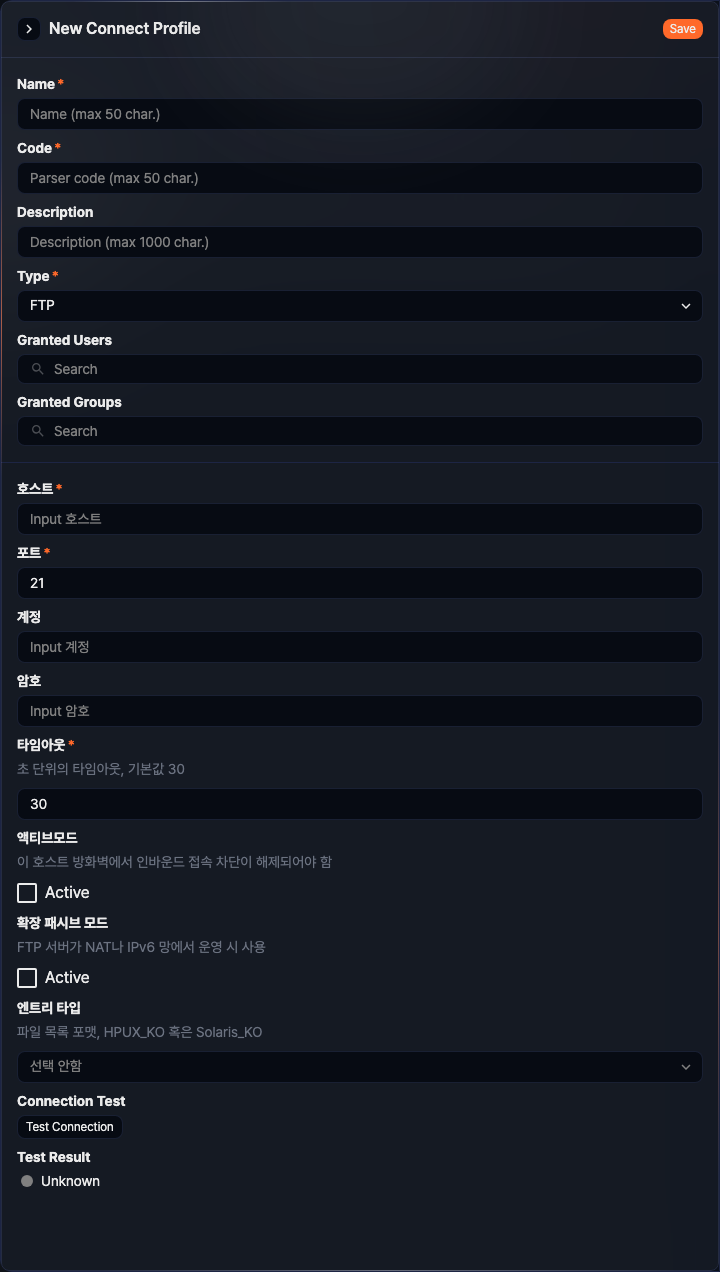
On the New Connect Profile screen, enter the common settings and type-specific settings. Fields marked with an asterisk (*) are required.
-
After verifying the values, click the Save button at the top right of the screen to create the connect profile.
Common settings
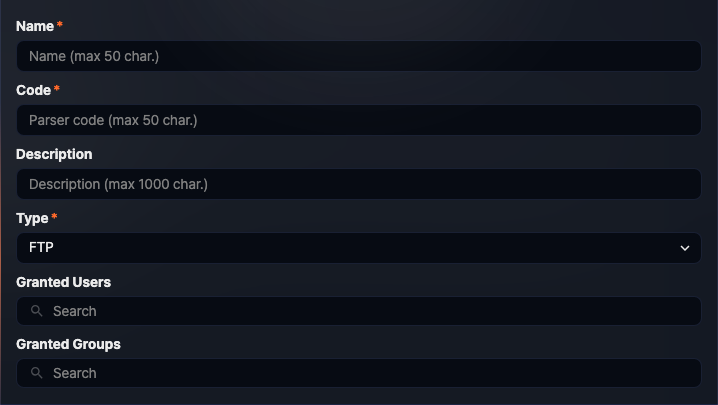
Common settings include the attributes needed to identify and use the connect profile.
-
Name (required): The name used to identify the connect profile (max 50 characters). You can use letters, numbers, Korean characters, and special characters.
-
Code (required): The identifier used to reference the connect profile in loggers or query commands (max 50 characters, unique within the same type). Only letters, numbers, and underscores (
_) are allowed.You cannot use
sonaras the identifier, regardless of type. The profile is not saved if another connect profile of the same type already uses the identifier. -
Description (optional): A description of the connect profile (max 1,000 characters).
-
Type (required): The type of the connect profile. Connect profile types provided by apps are also listed here. The type-specific settings change depending on the selected type.
-
Granted Users (optional): Accounts that can use this connect profile. Click the field to open a list of candidates, and type a keyword to narrow it down. Select the account you want.

-
Granted Groups (optional): Account groups that can use this connect profile. Click the field to open a list of candidates, and type a keyword to narrow it down. Select the account group you want.

Type-specific settings
The type-specific settings change based on the Type selected in the common settings. In addition to the built-in types provided at installation, Logpresso Sonar may include additional types provided by apps.
This document covers only the built-in type settings. For connect profile types provided by apps, refer to the installation guide for the relevant app on the Logpresso Store.
FTP
The type-specific settings when the type is FTP are as follows.
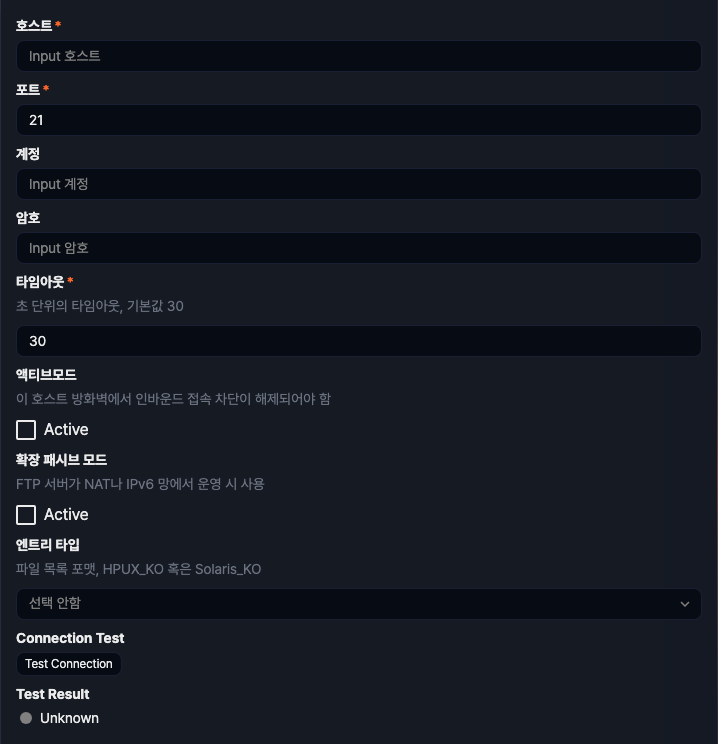
- Host (required): Enter the IP address or hostname of the FTP server to connect to.
- Port (required): Enter the service port number of the FTP server (default: 21).
- User (optional): Enter the login account ID for the FTP server. You can omit this if the server supports anonymous login.
- Password (optional): Enter the password for the login account. You can omit this if the server supports anonymous login.
- Timeout (required): Enter the maximum time (in seconds) to wait when connecting (default: 30 seconds).
- Active Mode (optional): Check this if the FTP server uses active mode transfer (default: unchecked). Using active mode requires this host's firewall to allow inbound connections.
- Extended Passive Mode (optional): Check this if the FTP server runs in a NAT or IPv6 environment (default: unchecked).
- Entry Type (optional): Select the file listing format of the FTP server. Select Solaris Korean if the FTP server runs Solaris, or HP-UX Korean if it runs HP-UX (default: none selected).
If both Active Mode and Extended Passive Mode are unchecked, the connection defaults to passive mode.
LDAP
The type-specific settings when the type is LDAP are as follows.
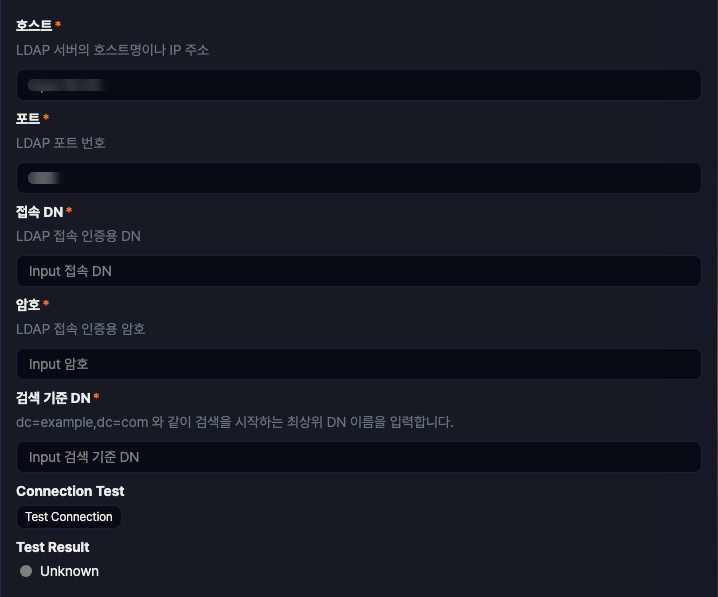
- Host (required): Enter the IP address or hostname of the LDAP server to connect to.
- Port (required): Enter the service port number of the LDAP server (default: 389).
- Bind DN (required): Enter the DN (Distinguished Name) to use for LDAP authentication.
- Password (required): Enter the authentication password for the bind DN.
- Base DN (required): Enter the top-level DN to use as the base for LDAP searches (e.g.,
dc=example,dc=com).
SSH
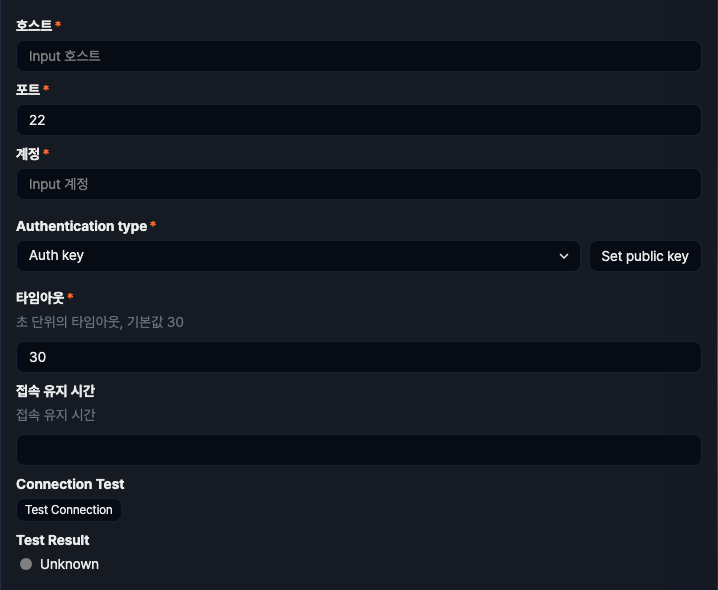
The type-specific settings when the type is SSH are as follows. SSH connect profiles are used for SFTP or SSH connections.
-
Host (required): Enter the IP address or hostname of the SSH server to connect to.
-
Port (required): Enter the service port number of the SSH server (default: 22).
-
User (required): Enter the user account ID to log in to the SSH server.
-
Authentication type (required): Select Auth key or Password (default: Auth key).
-
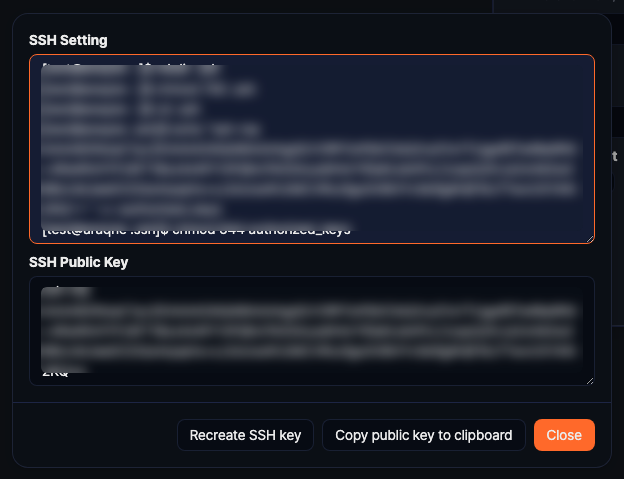
If you select Auth key, click Set public key. The dialog shows an example shell command for registering the public key on the server, and the SSH public key of this Sonar node. Click Copy public key to clipboard to copy the key. Click Recreate SSH key to renew or replace the SSH key. A message notes that you'll need to re-register the public key on every system where you registered it, and clicking Recreate regenerates the SSH key. Only a cluster administrator can recreate the SSH key.
-
If you select Password, enter the password for the login account.
-
-
Timeout (required): Enter the maximum time (in seconds) to wait when establishing the SSH connection (default: 30 seconds).
-
Keep-Alive Interval (optional): Enter the interval for sending keep-alive packets, in milliseconds (range: 0-60000). If left blank, 60000 (60 seconds) is used.
TAXII
The type-specific settings when the type is TAXII are as follows.
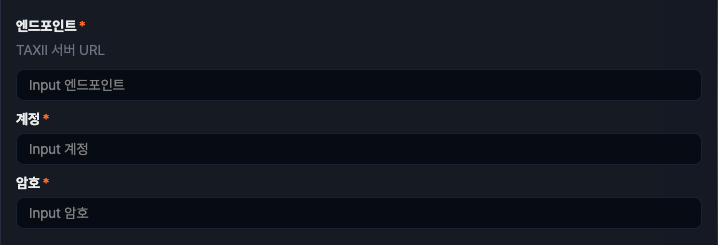
- Endpoint (required): Enter the URL of the TAXII server to connect to (e.g.,
https://taxii.example.com/). Do not include the API root path here; you enter it separately when you configure a target in Response Targets, or with theapirootoption of the taxii-collections command. - User (required): Enter the account ID to use for logging in to the TAXII service.
- Password (required): Enter the password to use for authenticating with the TAXII service.
Database
The type-specific settings when the type is Database are as follows.
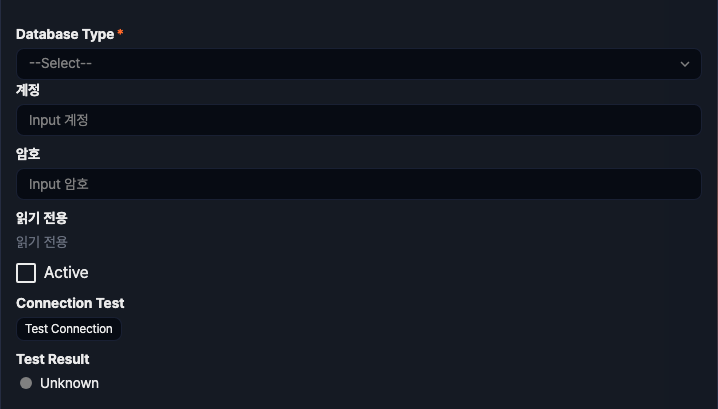
- Database Type (required): Select the type of database to connect to. The list shows only the types for which a JDBC driver is installed. A default installation lets you choose Oracle DB, MariaDB, MySQL, Tibero, or Hyper SQL. Teradata ASTER and Apache HIVE appear once the matching driver app is installed. To connect to a database that isn't listed (such as PostgreSQL, Db2, or SQLite), or to enter a JDBC connection string directly, select Custom.
- Host (required): Enter the IP address or hostname of the database server. Hyper SQL shows a File Name field instead of this one.
- Port Number (required): Enter the port number of the database server. A default value is set automatically when you select a database type, and you can modify it.
- Database Name (optional): Enter the name of the database to connect to. If left blank, the connection string won't include a database name. (Apache HIVE has no field for this.)
- File Name (required): Appears instead of Host, Port Number, and Database Name when Database Type is Hyper SQL. Enter the path to the database file to connect to.
- Access string (required): If Database Type is Custom, enter the JDBC connection string directly. Click the link below the field to see example connection strings from the installed JDBC drivers. Selecting one from the list fills in the field automatically, and you can modify it as needed.
- User (optional): Enter the account ID to use for logging in to the database.
- Password (optional): Enter the account password.
- Read Only (optional): Check this to set the database connection to read-only (default: unchecked).
Database Type, Host, Port Number, and Database Name are shown as separate fields only on screen. They are actually all stored together as a single JDBC connection string.
If you've installed a driver app for a database that isn't in the list, select Custom and enter the connection string for that database.
Logpresso CTI
The type-specific settings when the type is Logpresso CTI are as follows.
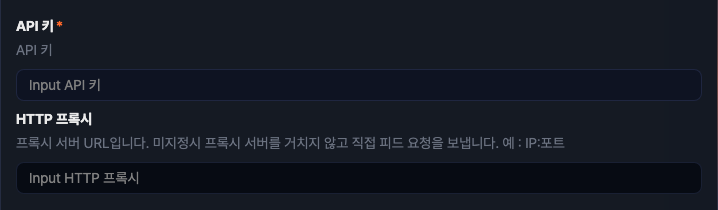
- API Key (required): Enter the API key required to use Logpresso CTI.
- HTTP Proxy (optional): Enter the proxy server address (e.g.,
IP:PORT). If left blank, feed requests are sent directly without going through a proxy server.
Logpresso AI Assistant
The type-specific settings when the type is Logpresso AI Assistant are as follows.
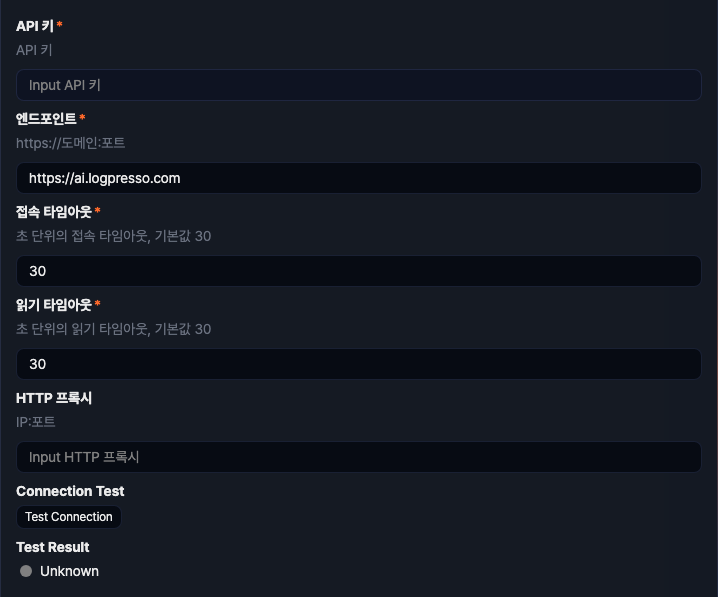
- API Key (required): Enter the API key to use the Logpresso AI Assistant service.
- Endpoint (required): Enter the address of the Logpresso AI Assistant service (default:
https://ai.logpresso.com). - Connect Timeout (required): Enter the maximum time (in seconds) to wait when connecting to the service (default: 30 seconds).
- Read Timeout (required): Enter the maximum time (in seconds) to wait when reading the response (default: 30 seconds).
- HTTP Proxy (optional): Enter the IP address and port number of the HTTP proxy server.
GeoIP
The type-specific settings when the type is GeoIP are as follows. This connect profile is used by the GeoIP country lookup feature in address groups.
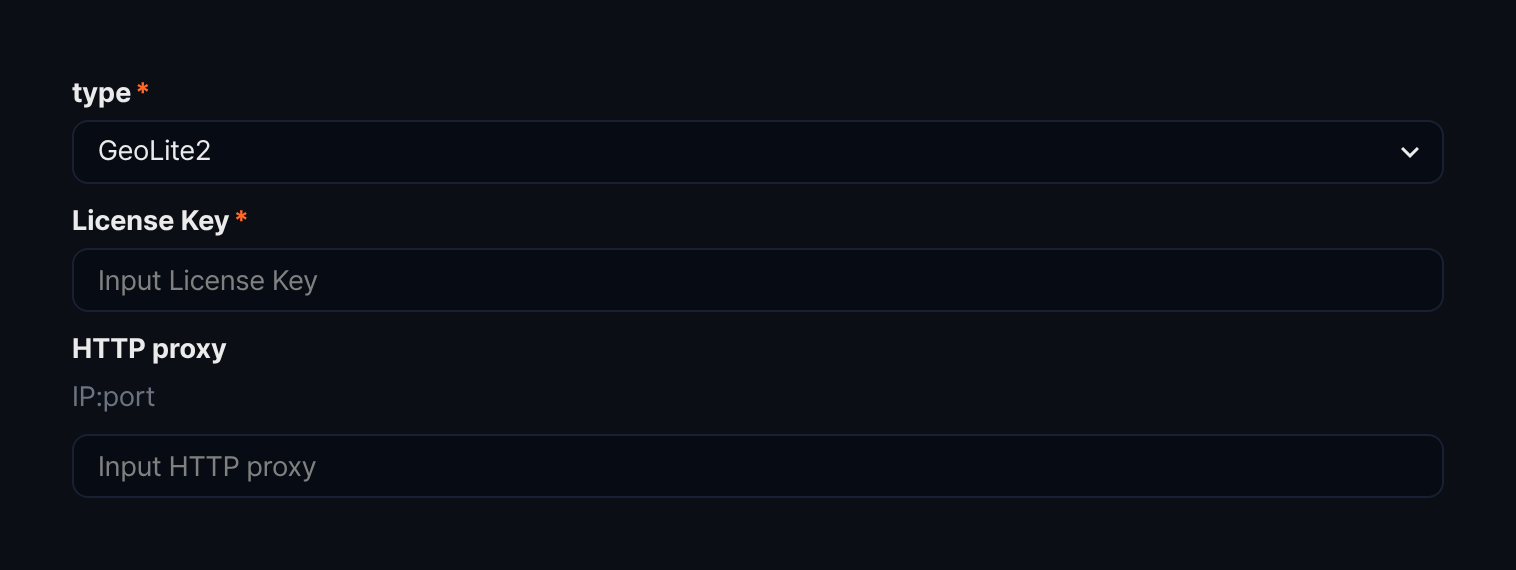
- type (required): Select the kind of GeoIP license, GeoLite2 or GeoIP2 (default: GeoLite2).
- License Key (required): Enter the license key issued by the GeoIP database provider.
- HTTP proxy (optional): Enter the IP address and port number of the HTTP proxy server.
SNMPv3
The type-specific settings when the type is SNMPv3 are as follows.
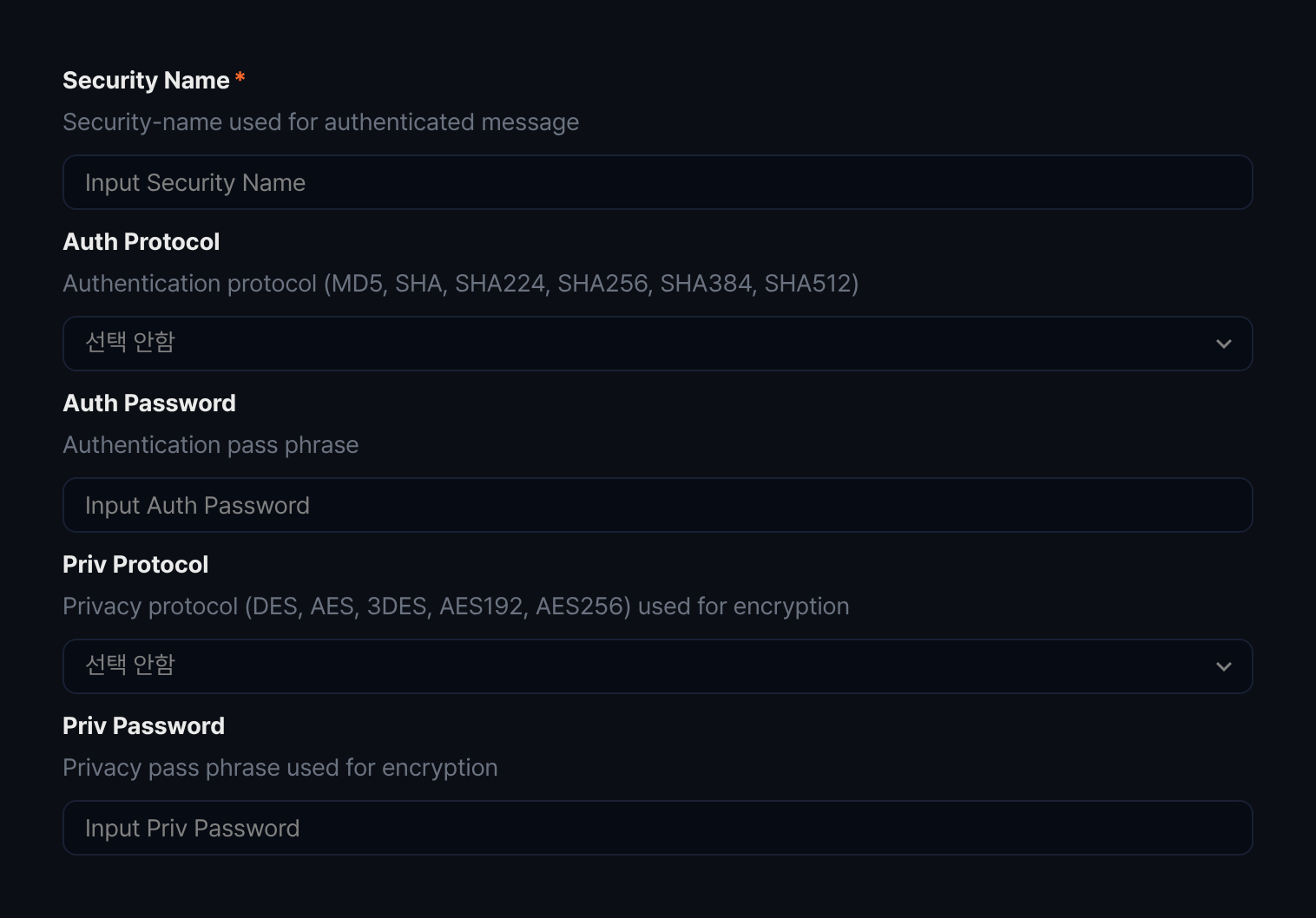
- Security Name (required): Enter the security name to use for authenticated SNMPv3 messages.
- Auth Protocol (optional): Select the authentication protocol from SHA, MD5, SHA224, SHA256, SHA384, or SHA512.
- Auth Password (optional): Enter the passphrase to use with the authentication protocol.
- Priv Protocol (optional): Select the privacy (encryption) protocol from AES, DES, 3DES, AES192, or AES256.
- Priv Password (optional): Enter the passphrase to use with the privacy protocol.
Connection test
For the FTP, LDAP, SSH, Database, and Logpresso AI Assistant types, you can verify that the connection settings are correct right away, without saving. The TAXII, Logpresso CTI, GeoIP, and SNMPv3 types do not have a connection test.
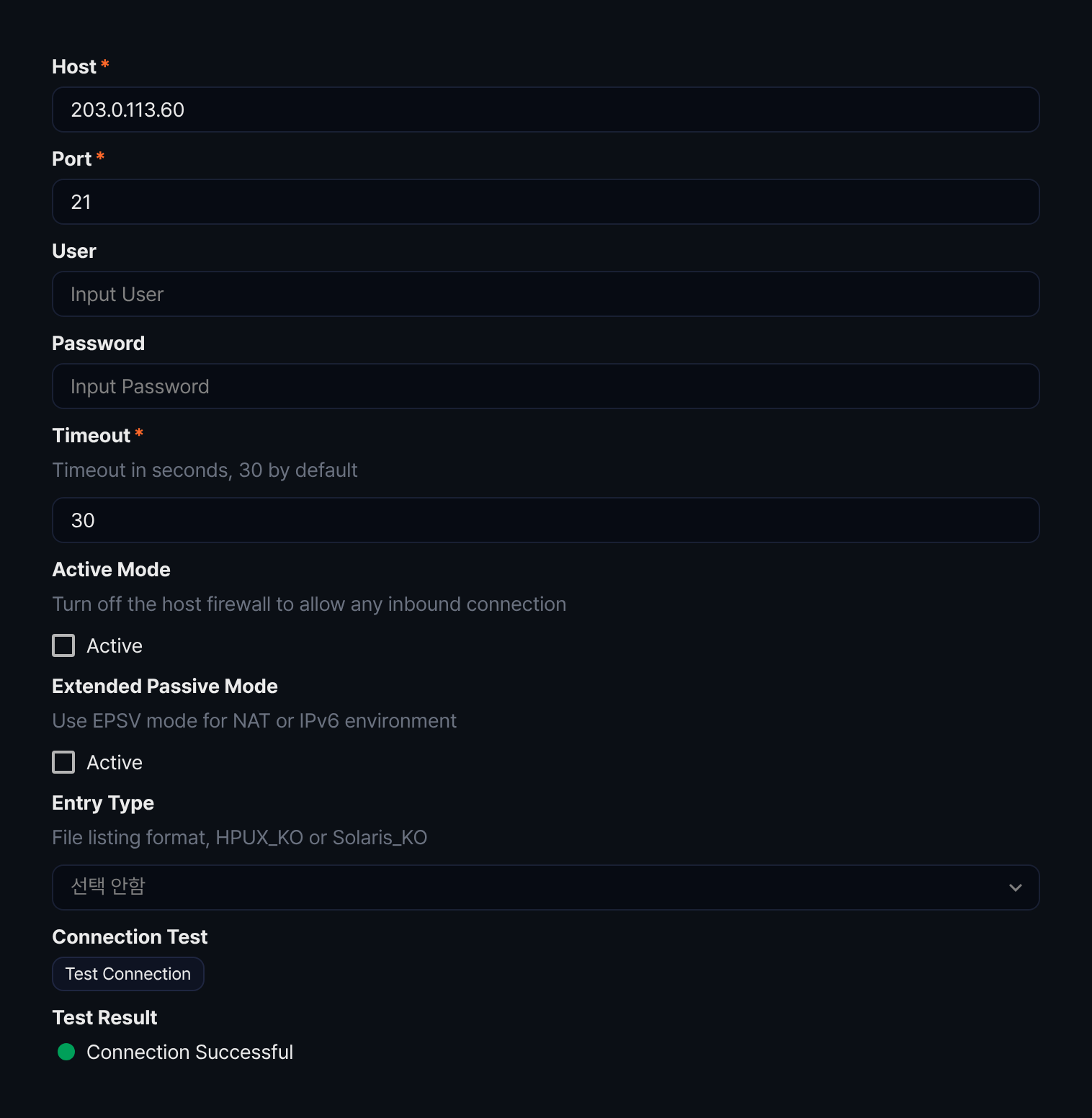
Click the Test Connection button to attempt a connection with the entered settings, and the result appears below.
- Unknown: The connection test has not been run yet.
- Connecting: The connection attempt is in progress.
- Connection Successful: The connection succeeded with the entered settings.
- Connection Failure: The connection failed. The reason for the failure is shown as well.
Edit a connect profile
-
In the Connect Profiles list, click the row of the connect profile you want to edit.
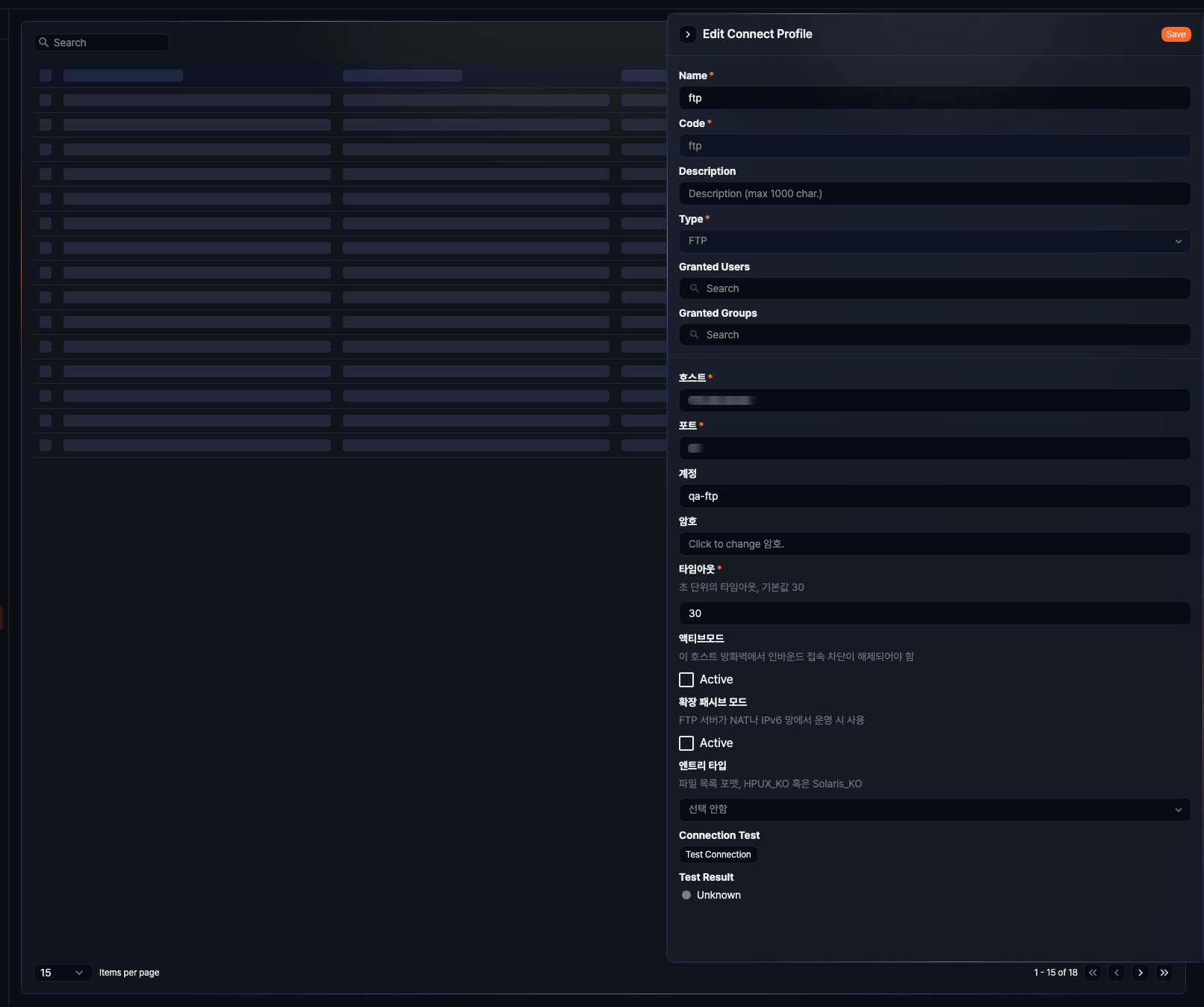
-
On the Edit Connect Profile screen, update the fields you need, then click the Save button at the top right. The Code and Type fields cannot be edited. For descriptions of editable fields, see Add a connect profile.
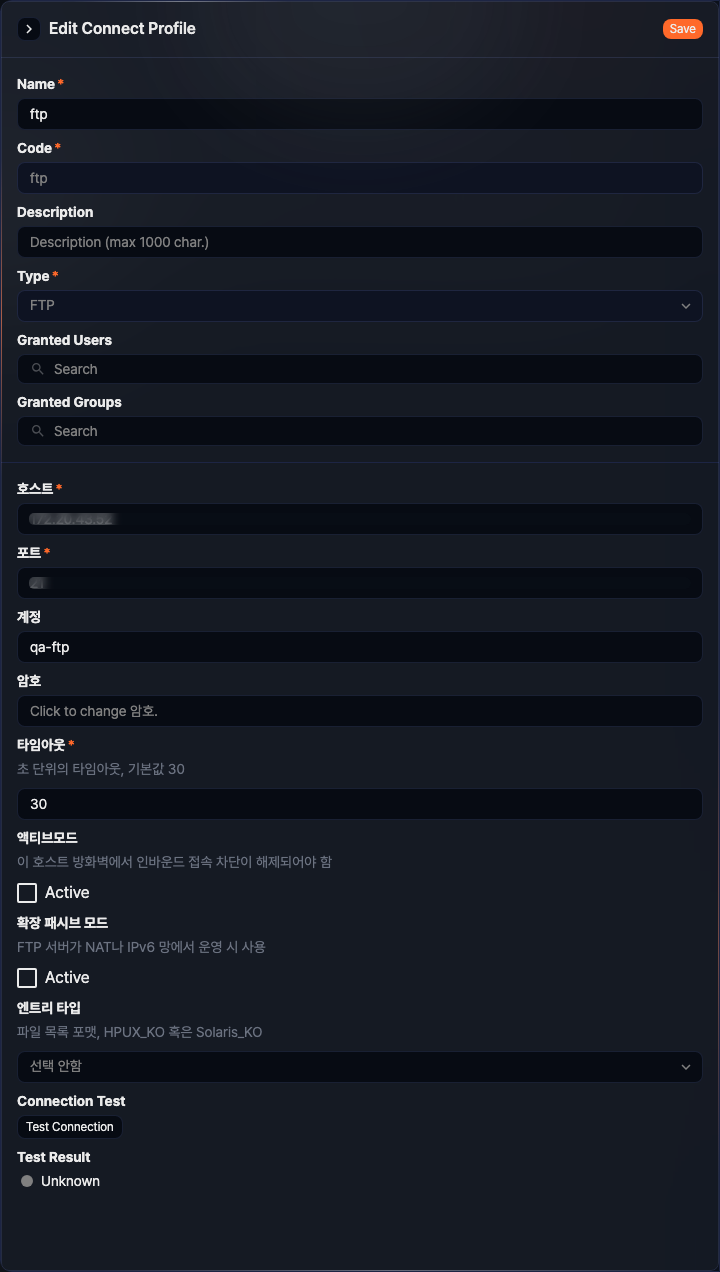
Protected fields such as passwords don't show the stored value. A required field is shown as dots, and an optional field is shown blank. Click the field to change its value. Once the field clears, enter a new value; to discard the change and restore the original value, click the Undo button that appears next to it. However, for the SSH type's Password field, clicking it immediately clears the field so you can enter a new value; to discard the change, click the Cancel button instead.
Delete connect profiles
-
In the Connect Profiles list, select the check box for the connect profiles you want to delete.
-
In the selection bar that appears above the list, click Delete.

-
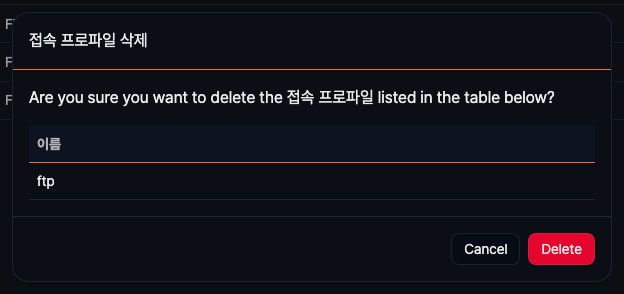
In the Delete Connect Profile dialog, review the items to delete, then click the Delete button. Click the Cancel button to cancel the deletion.