
Input control
Overview
Input controls add user input elements to a dashboard and pass the entered values to user-defined variables in query widgets. For example, changing the time range with a date input control or selecting a specific asset group with a list input control causes linked query widgets to re-query data with the updated conditions. Use input controls to build interactive dashboards where users can explore data by adjusting conditions directly.
Only administrators and accounts with the Dashboard Admin or Widget Edit permission can add or modify input controls. An account with only the Widget View permission can view settings but cannot make changes.
Input control types
| Type | Description |
|---|---|
| Date Input Control | Select a date or date range and pass it to a Date-type variable |
| Text Input Control | Enter text directly and pass it to a variable (usually a string-type variable) |
| List Input Control | Select a value from a predefined list and pass it to a variable |
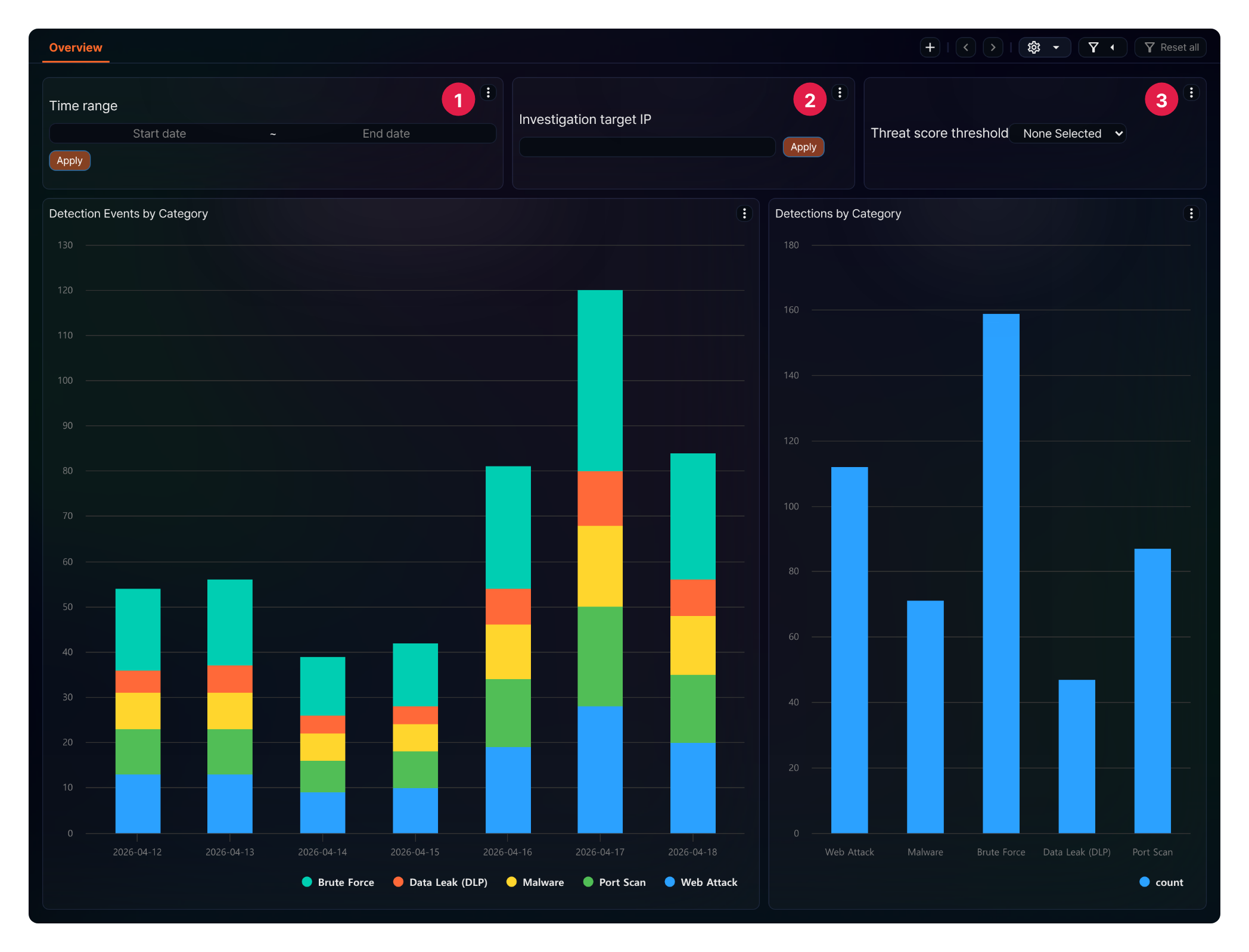
The following dashboard shows the three types of input controls. ① Date input control ② Text input control ③ List input control
Common settings
All input controls share the following common settings:
- Name: Widget name (required, up to 50 characters)
- Description: Widget description (optional, up to 2,000 characters)
- Refresh (sec.): Interval at which the widget is automatically refreshed (in seconds, required, default: 10, range: 0-2,147,483)
- Account: Select the accounts to share this widget with.
- Account Group: Select the account groups to share this widget with.
- Title: Title displayed inside the widget on the dashboard
- Verical: Vertical position of the input control within the widget (options: Top / Middle / Bottom)
- Horizontal: Horizontal position of the input control within the widget (options: Left / Center / Right)
For type-specific settings, refer to the corresponding input control page.