First login
Logpresso Sonar (hereinafter "the server") provides a web service-based user interface. This web interface is called the "web console", and you can easily explore and use the various features of Logpresso Sonar through the web console.
Accessing the web console
The Logpresso Sonar web console complies with HTML5 standards and is accessible from most web browsers. If the server uses the default HTTPS port (443), you can omit the port number (e.g., https://192.0.2.1, https://sonar.example.com, https://sonar).
Logpresso Sonar uses a private certificate for server authentication, so your web browser will display a security warning. Verify that the server address you entered is correct, then bypass the security warning and proceed to connect.
Allowing web browser notification messages
When you access the web console, a message appears in the lower right corner of the screen indicating that the web browser has blocked notifications.
Change your web browser notification settings to "Allow" so that you can receive notifications from the server in the web console.
Login
You can use the web console after verifying your identity through password authentication, two-factor authentication (2FA), or SSO (single sign-on).
Password authentication
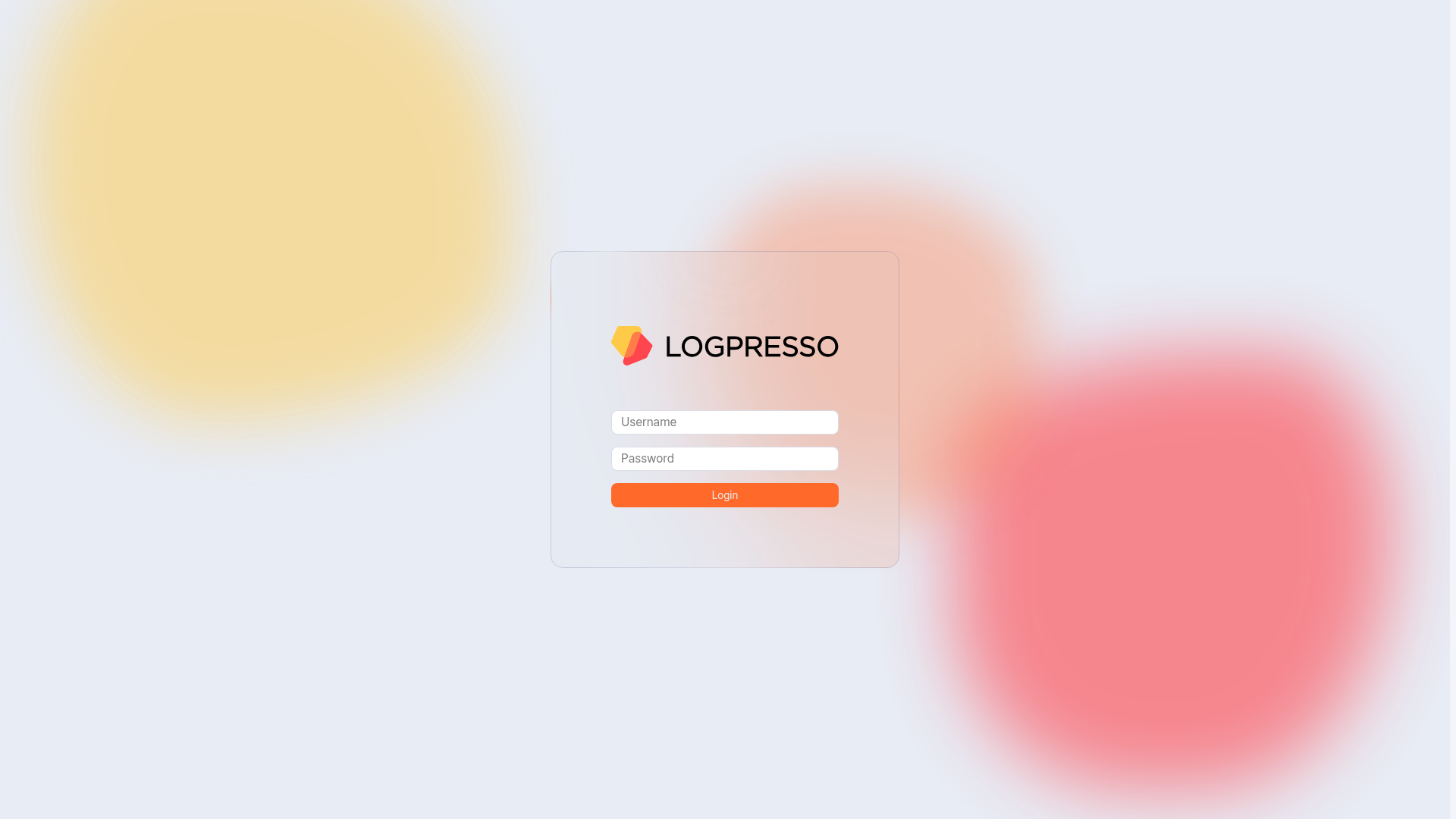
Enter your login name and password, then click the Login button.
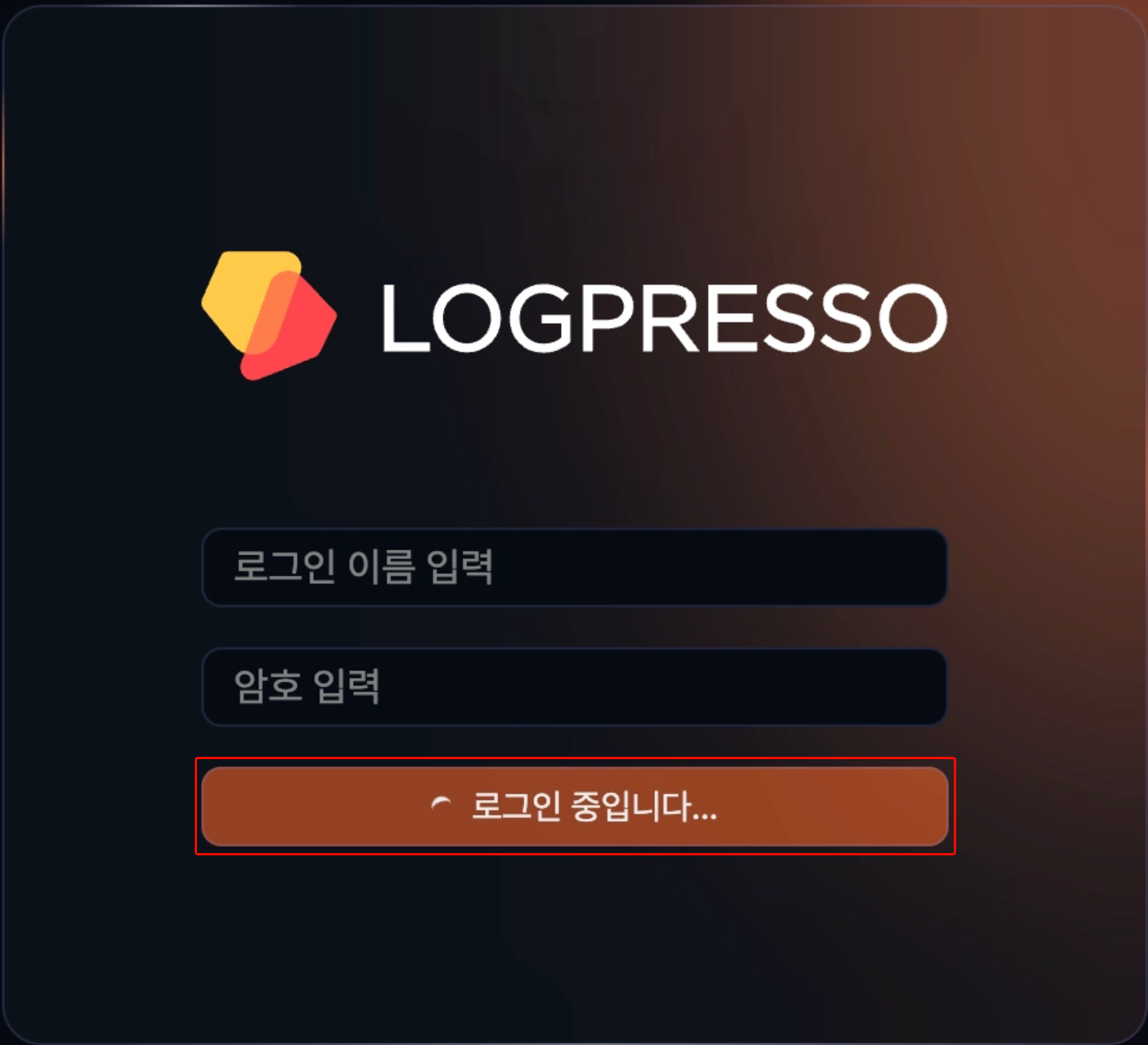
While the login request is being processed, the Login button shows its progress (Logging in...). This lets you clearly confirm that login is in progress even in environments where authentication takes longer because an external authentication server such as LDAP is used.
Two-factor authentication (2FA)
Accounts with 2FA enabled must complete an additional authentication step after entering the password. Logpresso Sonar supports two authentication methods: OTP (one-time password) and email. For instructions on enabling 2FA and configuring the authentication method in the account management screen, refer to this document.
Registering OTP authentication
When you first log in with an account that has OTP configured, you are directed to a screen to register your authentication method.
-
Install an OTP app on your mobile device. Select your mobile operating system, then scan the QR code generated below to navigate to the Google Authenticator download page. You may also use any other OTP app that complies with RFC 6238. If the OTP app is already installed, click the Next button.
-
Open the OTP app and scan the QR code displayed on the screen to set up OTP. If you cannot use your mobile device's camera due to security policies, click the View setup key link below the QR code and manually enter the setup key to register OTP. Once the setup is complete, click the Done button to finish OTP registration.
OTP authentication
-
On the Two-step verification screen, enter the 6-digit OTP code generated by the OTP app, then click the Verify button.
-
If authentication fails or a problem occurs, click Can't authenticate with OTP? to navigate to the 2FA reset request screen. Click the Send button to request a 2FA reset from the administrator.
Email authentication
When you log in with an account that has email authentication configured, a 6-digit verification code is automatically sent to the registered email address.
-
Enter the 6-digit verification code received via email, then click the Verify button. The verification code expires 5 minutes after it is sent. You can check the remaining time using the timer displayed to the right of the input field.
-
If you did not receive the verification code or it has expired, click the Resend verification code link to receive a new code.
-
If a problem occurs with authentication, click the Having trouble with authentication? link to send an inquiry email to the administrator.
SSO login
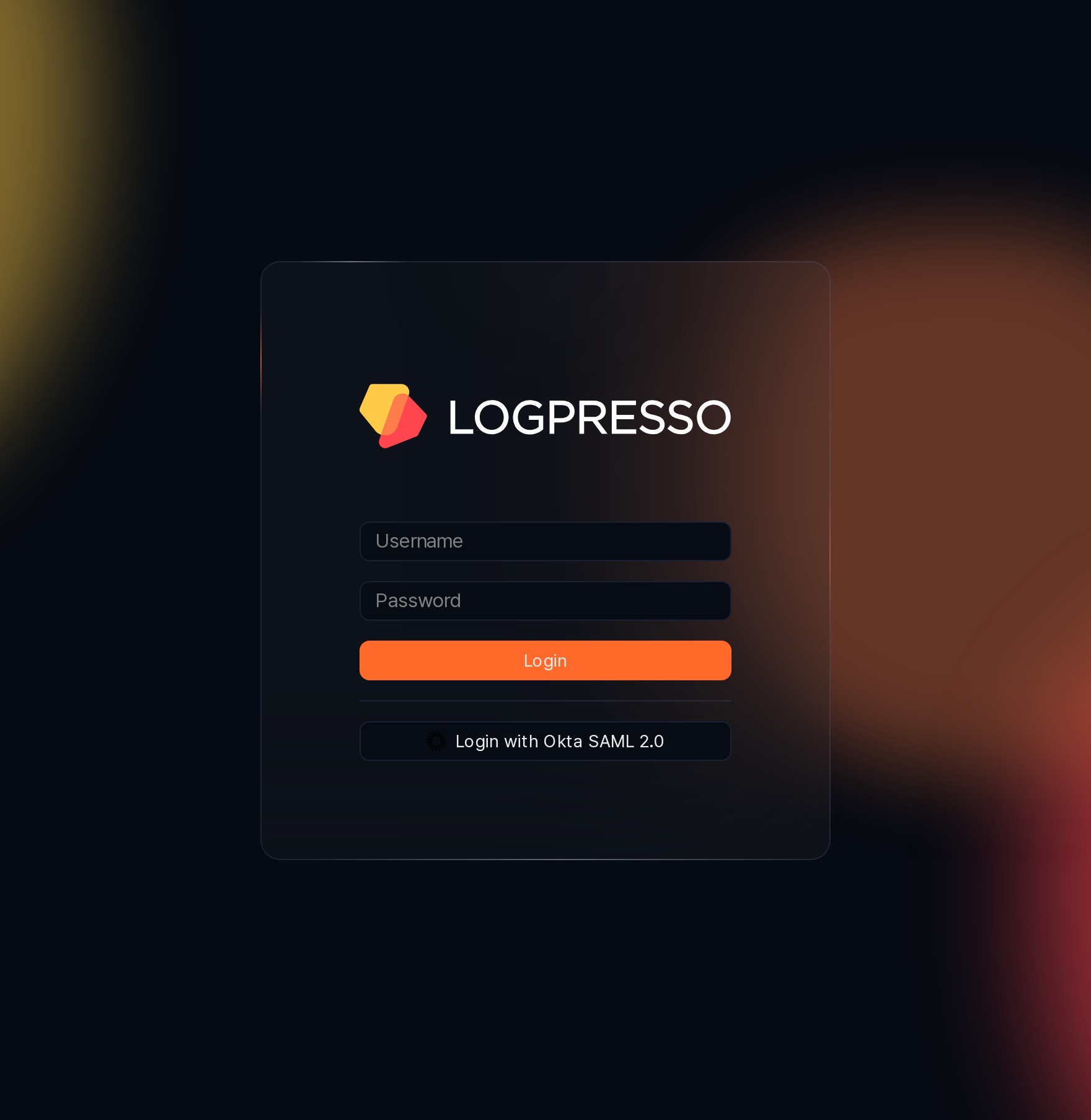
With SSO (single sign-on), you can log in to Logpresso Sonar with an account from an external authentication service already in use in your organization. When an administrator configures and enables SSO, a login button for each authentication service appears on the login screen.
-
On the login screen, below the password login form, click the login button for the authentication service you want to use (for example, Login with Okta SAML 2.0). This button is separate from the Login button used for password authentication.
-
On the authentication service's login page, sign in with your organization account. After successful authentication, you return to the web console and are logged in automatically.
To use SSO login, an SSO app that supports the authentication service must first be installed on Sonar. For how to install the app and configure SSO, refer to SSO.
Changing password
To change your login password:
-
Click the
 icon in the upper right corner of the web console, then click your login name in the dropdown menu.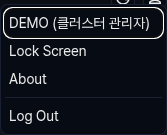
-
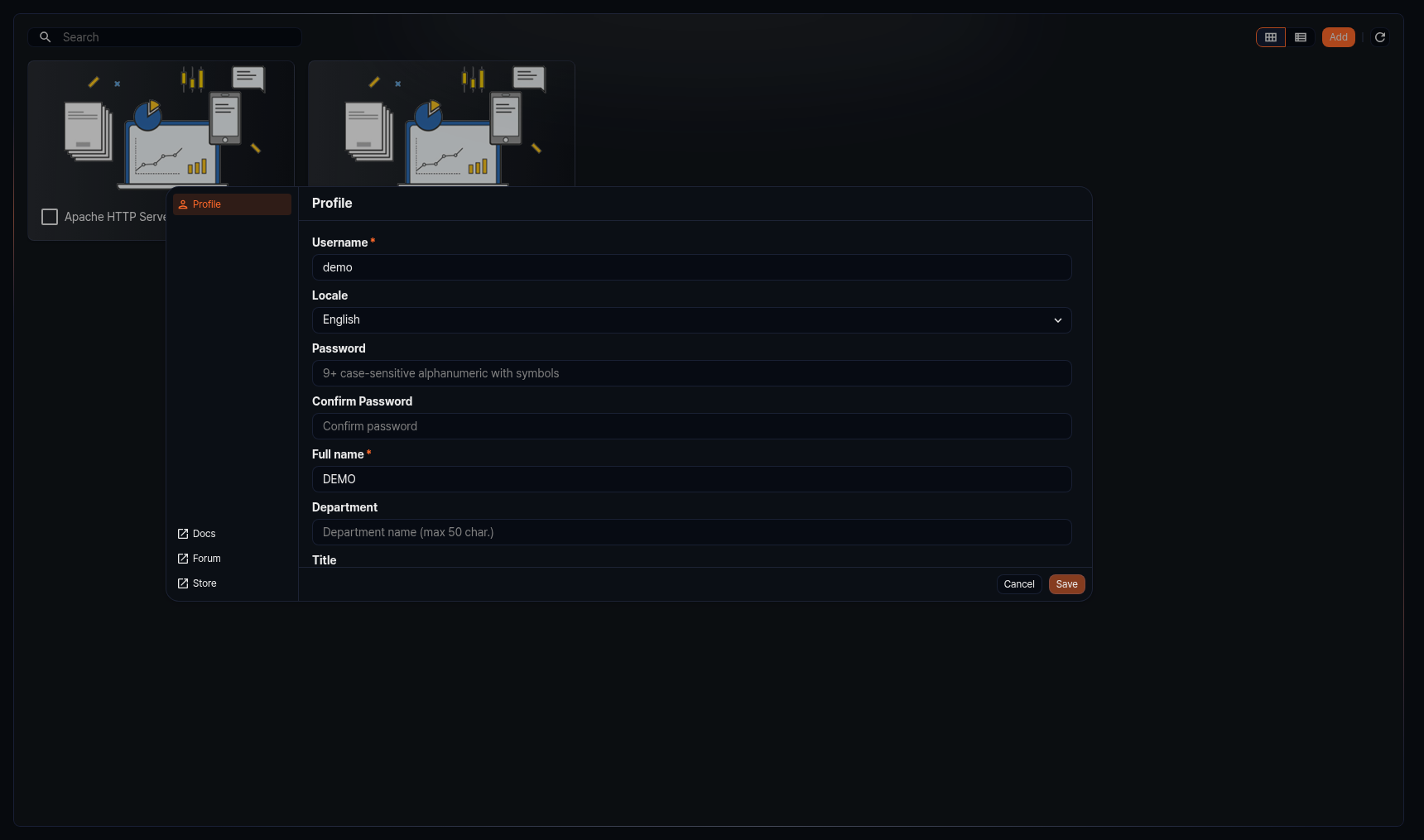
On the Profile screen, enter the new password in both the Password and Confirm password fields, then click the Save button in the lower right corner to save the changes.
Change theme
You can change the web console theme to Light, Dark, or System. The default theme is Dark. When System is selected, the theme follows the operating system setting automatically.
The upper right corner of the web console holds the theme toggle, user, and ticket buttons, from left to right.

Click the theme toggle button to open the dropdown menu. The icon of the theme toggle button changes depending on the currently applied theme. Select the desired theme.

Ticket shortcut
Click the ticket icon at the right end of the top menu to navigate directly to the Tickets screen.
The icon appears based on the applied license:
- SONAR or MAE license: shown
- LIGHT or LIGHT HA license: hidden (the ticket feature is not included)
See Functional scope by license for the full feature scope.
Screen lock and unlock
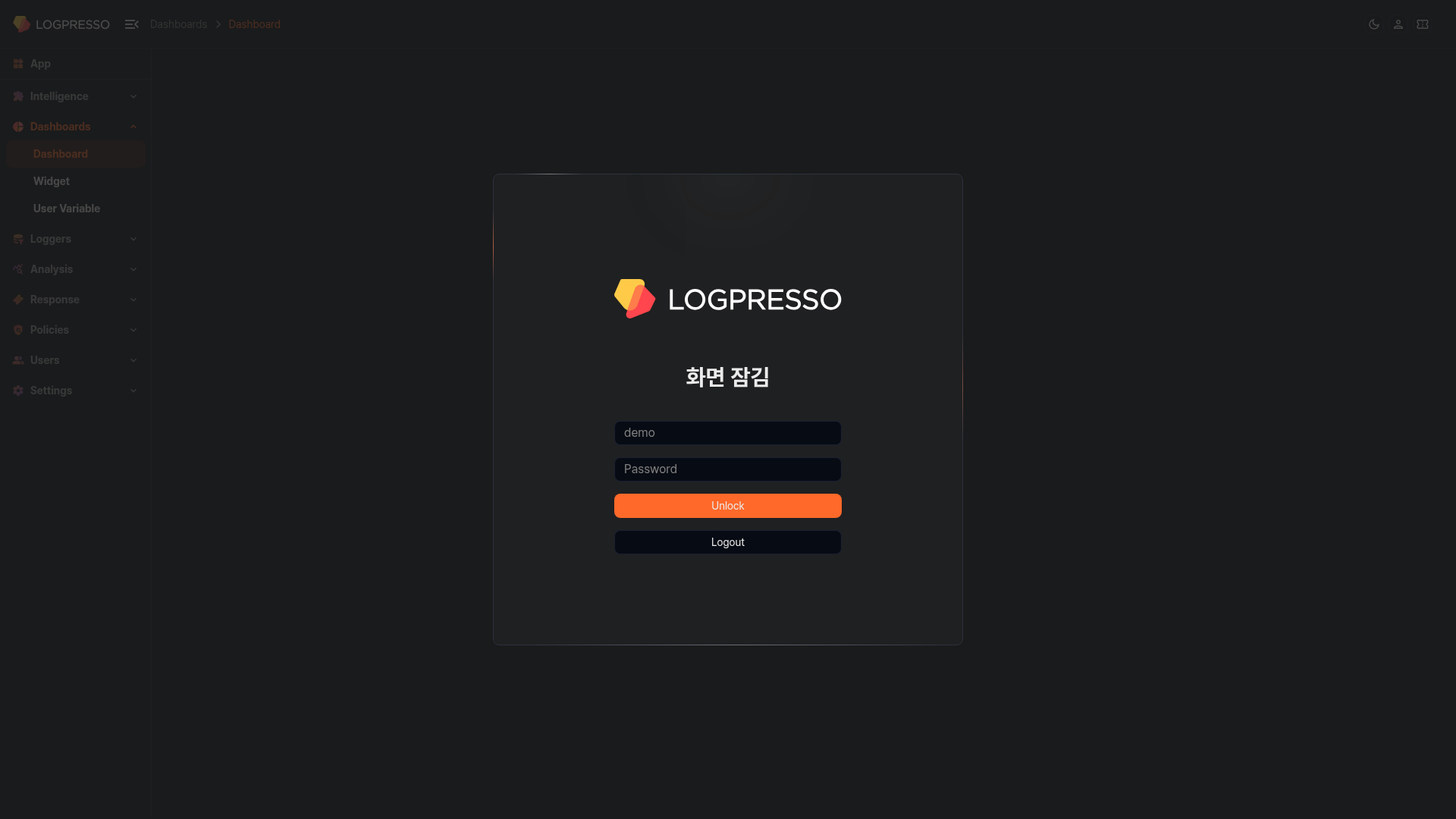
If you are logged into the web console and remain inactive for a certain period, or if you click the icon in the upper right corner and select Lock screen from the dropdown menu, the screen will be locked.
After the screen is locked, you must authenticate to use the web console again. Depending on your account settings, you may need to enter only your password, or you may also need to enter an OTP or email verification code.
Logout
To log out of the web console, click the icon in the upper right corner of the web console, then select Logout from the dropdown menu.
Logpresso Sonar version information
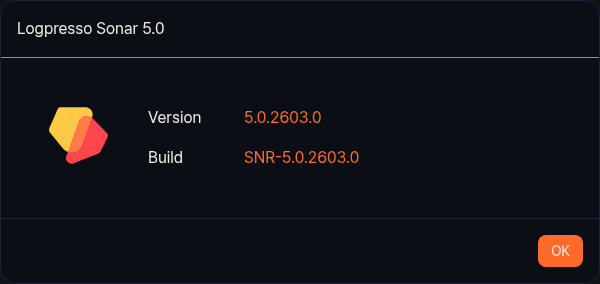
Click the icon in the upper right corner of the web console, then select About from the dropdown menu to view the version information of Logpresso Sonar.