
Certificates
Overview
Certificates are used to verify the identity of a communication partner and to safely exchange the keys needed for encrypted communication. The trustworthiness of a certificate is guaranteed by a CA (Certificate Authority), which works much like a central bank issuing currency to maintain trust.
The Logpresso server operates as a self-signed CA. This means it can issue its own CA certificate and directly manage the web server certificate, RPC certificate, and Sentry certificates without relying on an external public authority.
- CA Certificate - The root certificate generated by the Logpresso server. It is the basis of trust for web browsers and Sentries, and every certificate signed with this CA's private key is validated through it.
- Web Server Certificate - Used for TLS communication (TCP 443) between the control node and the user's web browser.
- RPC Certificate - The server certificate used for RPC communication (TCP 7140) between control, data, and forwarder nodes, or between a forwarder or data node and a Sentry.
- Sentry Certificate - The client certificate a Sentry uses for RPC communication (TCP 7140) with a forwarder or data node.
When a cluster administrator (one of the user roles) first logs in to Logpresso Sonar, the web installer runs. Entering the certificate validity period and certificate password during system setup generates the CA certificate, web server certificate, and RPC certificate. The Sentry certificate is issued when you Add a Sentry. You can manage all issued certificates in Settings > Certificates.
Only cluster administrators can use this menu.
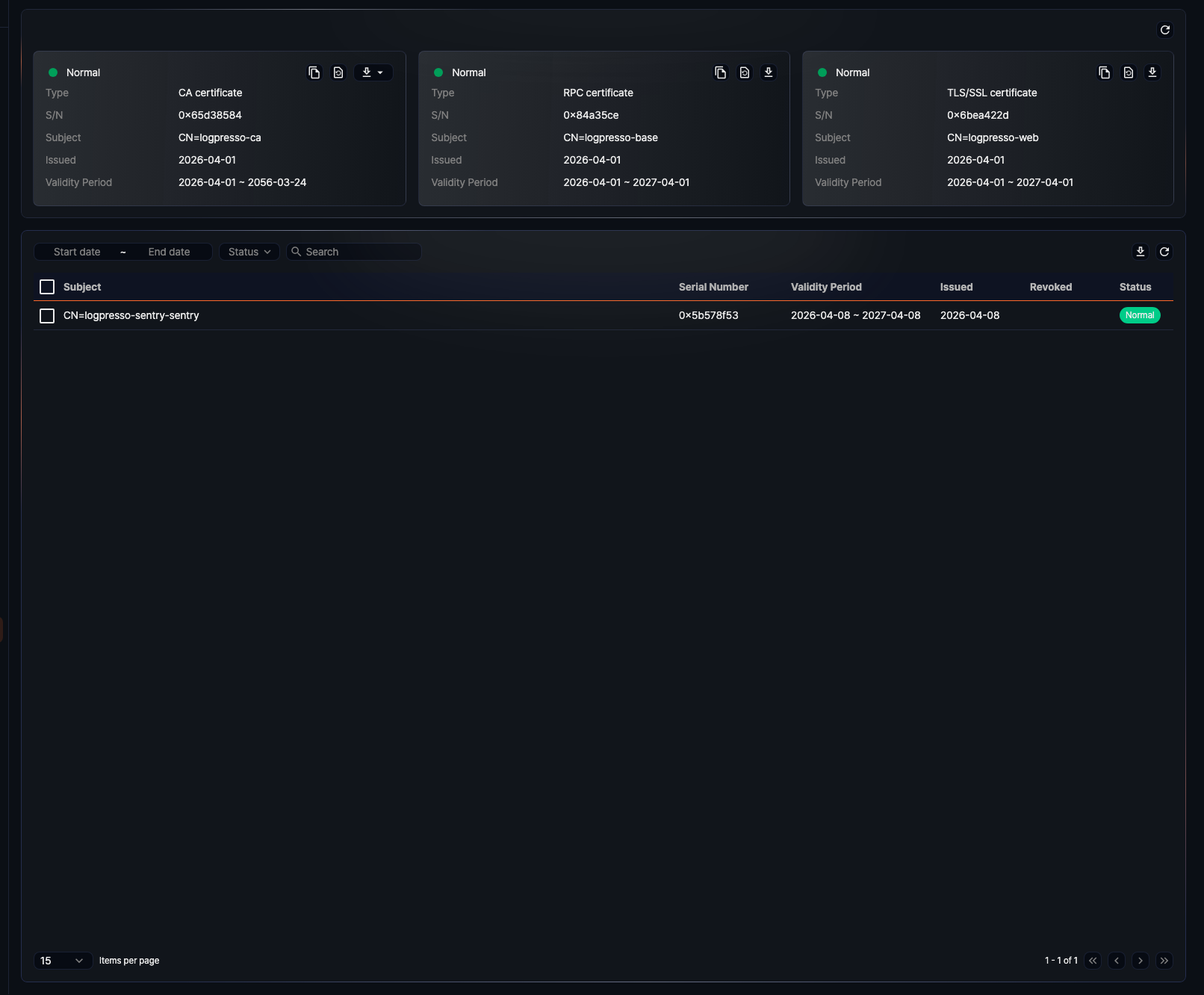
Server certificate
Every node in Logpresso Sonar uses the CA certificate, RPC certificate, and web server certificate as a server. You can check each server certificate's information in Settings > Certificates.

- Type: The certificate type (CA Certificate, RPC Certificate, or TLS/SSL Certificate — the console label for the web server certificate).
- S/N: The unique hexadecimal serial number assigned when the certificate was issued.
- Subject: Identification information of the certificate holder (CN, Common Name).
- Issued: The date the certificate was issued.
- Validity Period: The period during which the certificate is valid.
The top-left of each certificate card shows the certificate's status with a color: green for a valid certificate, red for a revoked one, and an expired certificate is labeled Expired. The top-right of each card has, from left to right, the Copy To Clipboard, Reissue, and Download icon buttons (the button names appear when you hover over them).
Copy certificate information
Click Copy To Clipboard to copy the certificate's key information to the clipboard: Type, Serial, Subject, Not Before, and Not After.
Reissue Certificate
The initial server certificates are generated when the web installer runs. Server certificates are used for communication with the user's web browser or with a Sentry, and because they have a validity period, they must be reissued before they expire.
- Reissuing the RPC certificate or the web server certificate replaces only that certificate.
- Reissuing the CA certificate also reissues every server certificate and Sentry certificate signed by that CA, except those that are already revoked or expired.
To reissue a server certificate:
-
Click the Reissue icon on the certificate card.
-
In the Reissue Certificate dialog, enter the Expired at(d) and Password, then click OK.
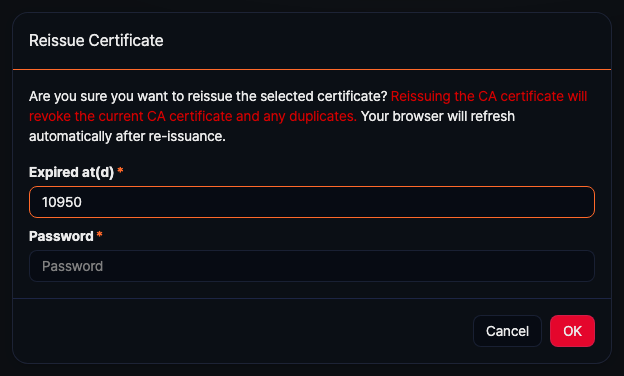
- Default and maximum expiration for the CA certificate: 10950 days (30 years).
- Default and maximum expiration for the RPC and web server certificates: 365 days (1 year).
- Password requirements: 9-127 characters, including letters, numbers, and special characters, with no character repeated three times in a row.
When you reissue a certificate, the connections using it are disconnected briefly and then reconnected using the new certificate.
Download Certificate
Click the Download icon to save the certificate as a file. The available file format depends on the certificate type.
- CA certificate: choose between JKS and DER (clicking the download icon opens a dropdown to choose the format).
- RPC and web server certificates: PFX format (clicking the download icon downloads the file immediately, with no format choice).

- A DER file encodes the CA certificate (including its public key) in DER (Distinguished Encoding Rules) format, for use with tools such as
openssl.
Sentry certificate
A Sentry communicates with a forwarder or data node over RPC using TLS encryption. The certificate a Sentry uses for this is generated when you Add a Sentry to the Logpresso server. You can view the resulting Sentry certificates in the Sentry certificate list under Settings > Certificates. This list shows both issued and revoked certificates.
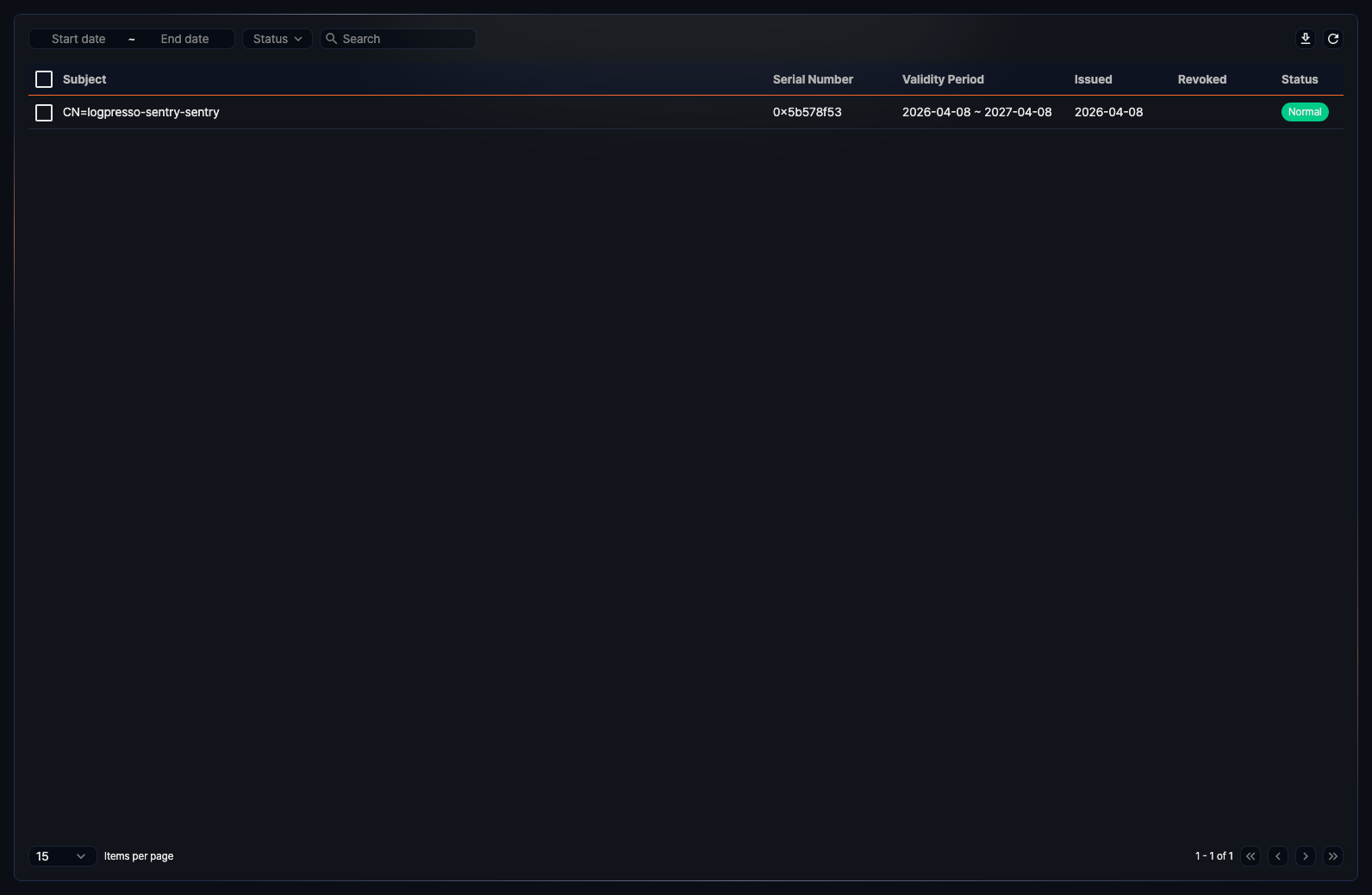
- Subject: Identification information of the Sentry that uses the certificate (CN, Common Name).
- Serial Number: The unique hexadecimal serial number assigned when the certificate was issued.
- Validity Period: The period during which the certificate is valid.
- Issued: The date the certificate was issued.
- Revoked: The date the certificate was revoked (blank if it hasn't been revoked).
- Status: A badge showing the certificate's status. It reads Normal (green) or Revoked (red); an expired certificate is also shown as Revoked in this table.
Search certificate
You can search the Sentry certificate list for a specific certificate.
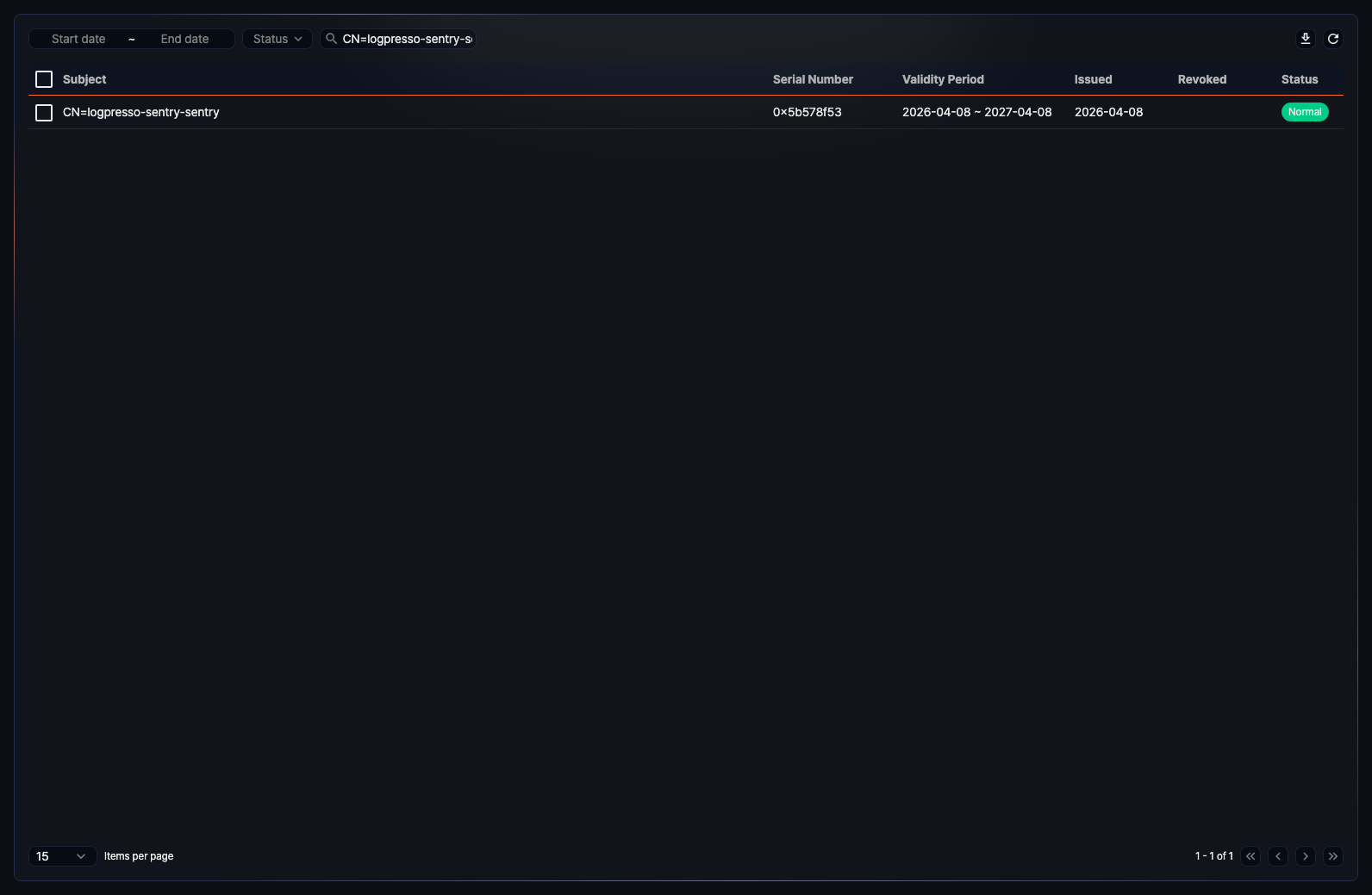
- Start date, End date: Search for certificates that expire within the specified period.
- Status: Filter by certificate status (Normal, Revoked, or Expired).
- Search: Match a keyword contained in the certificate subject.
Reissue Sentry certificate
To reissue a Sentry certificate:
-
Select the certificate to reissue from the Sentry certificate list.
-
Click Reissue at the top left of the list.
-
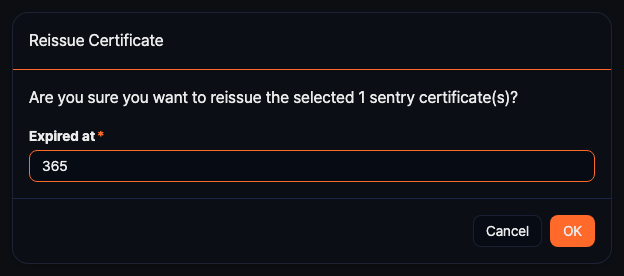
In the Reissue Certificate dialog, enter the Expired at (default: 365 days) and click OK. Clicking OK issues a new certificate, sends it to the Sentry, and revokes the old one; the Sentry that receives the new certificate restarts automatically.
-
Check the Sentry's connection status in Settings > Sentries.
Revoke Certificate
To manually revoke a Sentry certificate:
-
Select the certificate to revoke from the Sentry certificate list.
-
Click Delete at the top left of the list.
-
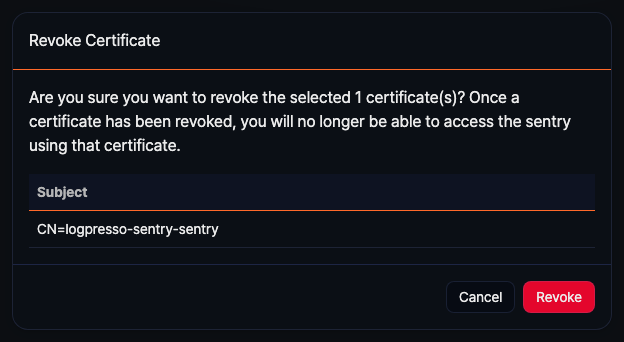
In the Revoke Certificate dialog, click Revoke to revoke the certificate. Click Cancel if you want to stop.
-
Check in Settings > Sentries that the Sentry's connection has been dropped. If necessary, Delete a Sentry from the list.
Download Sentry certificate
To download a Sentry certificate:
-
Select the certificate(s) to download from the Sentry certificate list. Clicking the checkbox at the top of the list selects every certificate on the current page.
-
Click Download Certificate at the top left of the list.
-
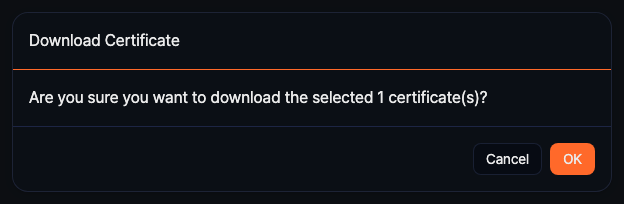
In the Download Certificate dialog, click OK.
- The downloaded file is a ZIP archive containing the selected Sentry certificate(s) in PFX format.
- Even if you select only one certificate, it is still delivered as a ZIP file.
Download Certificate List
To download the Sentry certificate list as a file:
-
Click the
 icon at the top right of the list.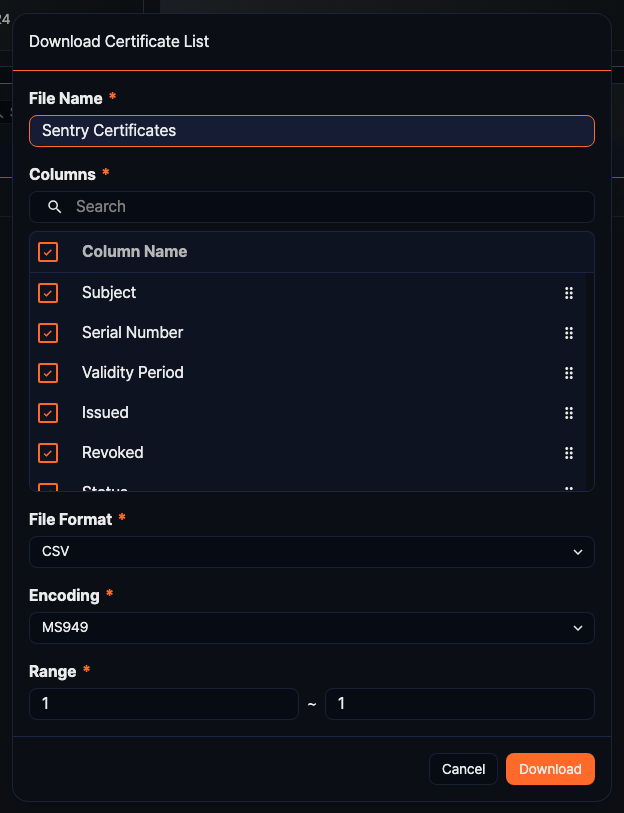
-
In the Download Certificate List dialog, specify the File Name, Columns, File Format, Encoding (default: UTF8), and Range, then click Download.