
ML models
Overview
ML Models learn log patterns from an ML dataset and then classify incoming data or judge whether it is anomalous. Manage models under Policies > ML Models, and apply trained models to stream detection, batch detection, and query analysis with the rforest and anomalies query commands.
Logpresso Sonar creates a model from one of the model types the server provides. The default configuration offers the unsupervised Isolation Forest and the supervised Random Forest. The Type list on the screen may vary depending on the machine learning modules installed on the server.
Accounts with the Cluster Administrator or Administrator role can view ML models and add, edit, delete, export, and import them. Accounts with the User role can only view the list and model details and download the list. See Account permissions for the permissions of each role.
Machine learning modeling process
The full steps for creating and using an ML model are as follows.
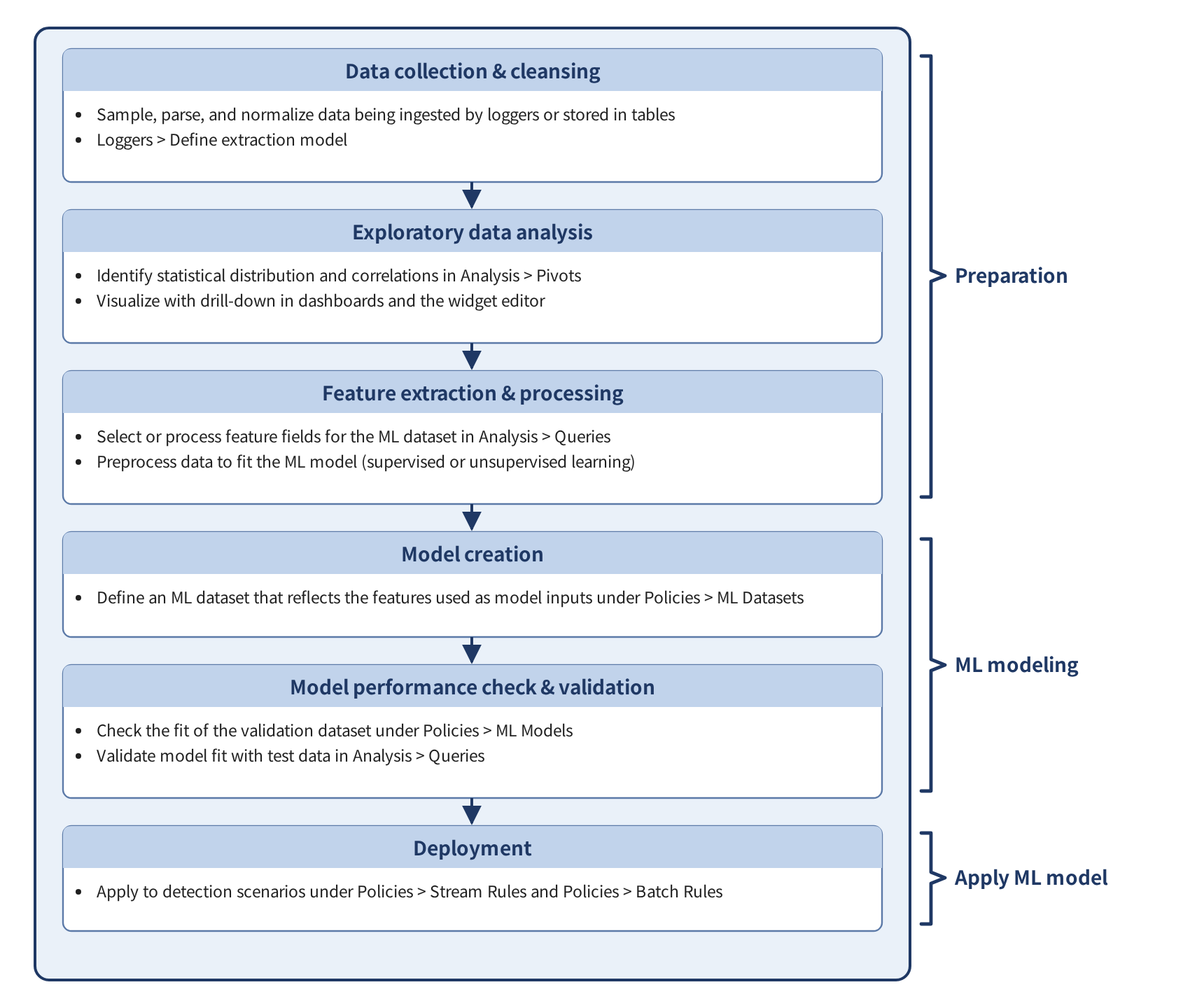
The data collection and preprocessing steps involve fetching data from the data source, then analyzing it in Analysis > Queries and Analysis > Pivots to understand statistical distributions and correlations. ML models work best with numerical data. If field values are strings, you need to convert them to categorized numbers (e.g., 0, 1, 2) or use one-hot encoding to transform them into numerical vectors. For string values that cannot be categorized, consider TF-IDF vectorization. TF stands for term frequency and IDF stands for inverse document frequency.
After these preparation steps, you can build an ML dataset from the prepared data and create an ML model from it.
The ML models provided by Logpresso Sonar include both supervised and unsupervised learning.
Supervised learning: Random Forest
The supervised learning model provided by Logpresso Sonar is Random Forest. Random Forest is a type of ensemble learning that uses multiple decision trees to make predictions. Compared to a single decision tree, it is more resistant to overfitting and can reduce the bias and variance of individual models, improving generalization. Random Forest's strong predictive performance makes it well suited for detecting anomalous behavior by analyzing complex, multi-dimensional data such as logs.
Random Forest is primarily used to solve classification and regression problems. The prediction aggregation method is as follows:
- Classification: The most frequently predicted class among all trees is selected as the final prediction.
- Regression: The predictions from all trees are averaged to produce the final prediction.
The Random Forest workflow is as follows.
- Prepare the ML dataset
-
The fields in the ML dataset are divided into feature fields and a target variable field.
- Feature: An attribute of the data to analyze, that is, a data field in a log. Collected log data falls into this category. For example, log data collected from a system uses attributes such as IP address, event time, and event type as features.
- Target variable: The data field that represents the category each data point belongs to. Also called a label. This is typically the field whose value the ML model should predict. It can be expressed as a number, boolean, or string depending on the data characteristics. The target variable values in the ML dataset serve as guidance for the model, helping it learn to classify log patterns.
-
In supervised learning, the target variable values typically need to be converted to numbers for easier model training. Binary classification based on boolean values such as
1/0ortrue/falseis the most common approach. Other options include multi-class classification expressed as numbers (e.g.,0,1,2) or strings (e.g.,Normal,Warning,Critical), or regression values expressed as floating-point numbers. - Train the model
-
The random forest model is trained using data that includes the target variable field. The trained model gains the ability to predict the value of the target variable field for new incoming data.
- Predict and detect
-
The trained model analyzes new log data arriving in real time and detects abnormal patterns. For example, if an abnormally large number of login attempts from a specific IP address occurs within a short time, the model flags it as abnormal and sends an alert. This detection process enables rapid response.
Unsupervised learning: Isolation Forest
The unsupervised learning model provided by Logpresso Sonar is Isolation Forest. Isolation Forest is a variant of the Random Forest algorithm designed to detect anomalies or abnormal data. It is useful for anomaly detection problems such as fraudulent transactions, network intrusion detection, and credit card fraud detection. Unsupervised learning involves learning the patterns or structure of data without predefined labels.
Isolation Forest training works by averaging the isolation depth (the number of splits needed to isolate an individual data point) across individual trees to compute an anomaly score, then using that score to determine whether data is anomalous. A lower average isolation depth indicates a higher likelihood that the data is an anomaly. The anomaly score is expressed as a value between 0 and 1. The closer the value is to 1, the more likely it is to be an anomaly. Data above a certain threshold is classified as anomalous.
The Isolation Forest workflow is as follows.
- Prepare the ML dataset
- Because Isolation Forest is an unsupervised learning method, you do not need to pre-label the data with target variables (normal/abnormal). Instead, training proceeds directly using the raw log data collected from the system.
- Train the model
- Isolation Forest trains by repeatedly and randomly splitting the given data sample to isolate each data point. Abnormal data is typically sparse, so it can often be isolated with fewer splits. By contrast, normal data requires more splits to isolate, so abnormal data is easier to detect with fewer iterations.
- Predict and detect
- The trained Isolation Forest model analyzes new log data and detects abnormal patterns. The model assigns a score to each log based on how quickly it is isolated, and data with a high score is considered abnormal. For example, when analyzing normal network traffic alongside rare traffic patterns at specific times, Isolation Forest identifies situations such as an abnormally large volume of traffic from a specific IP or unauthorized device access as abnormal. When such abnormal patterns are detected, the system immediately sends a notification and enables a response.
Prerequisites
You need an ML dataset before you can create an ML model. Read ML Datasets and prepare a dataset. The input variables and target variable of a model are chosen from the fields of the selected dataset.
View/search ML models
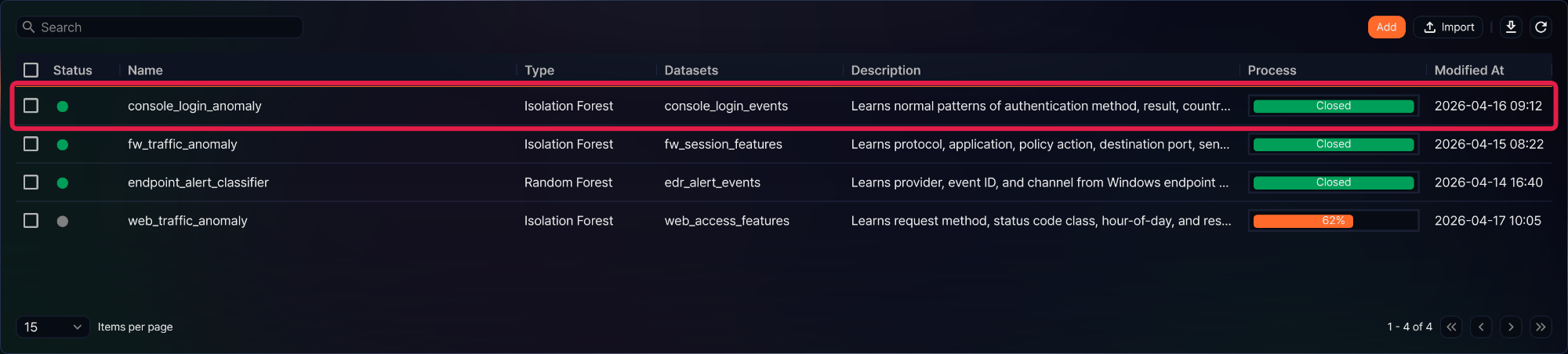
You can view or search the list of ML models under Policies > ML Models. The list shows models in the order they were registered, and you cannot change the sort order from the column headers. Each page shows 15 models by default, and you can change the page size in the selector below the list.
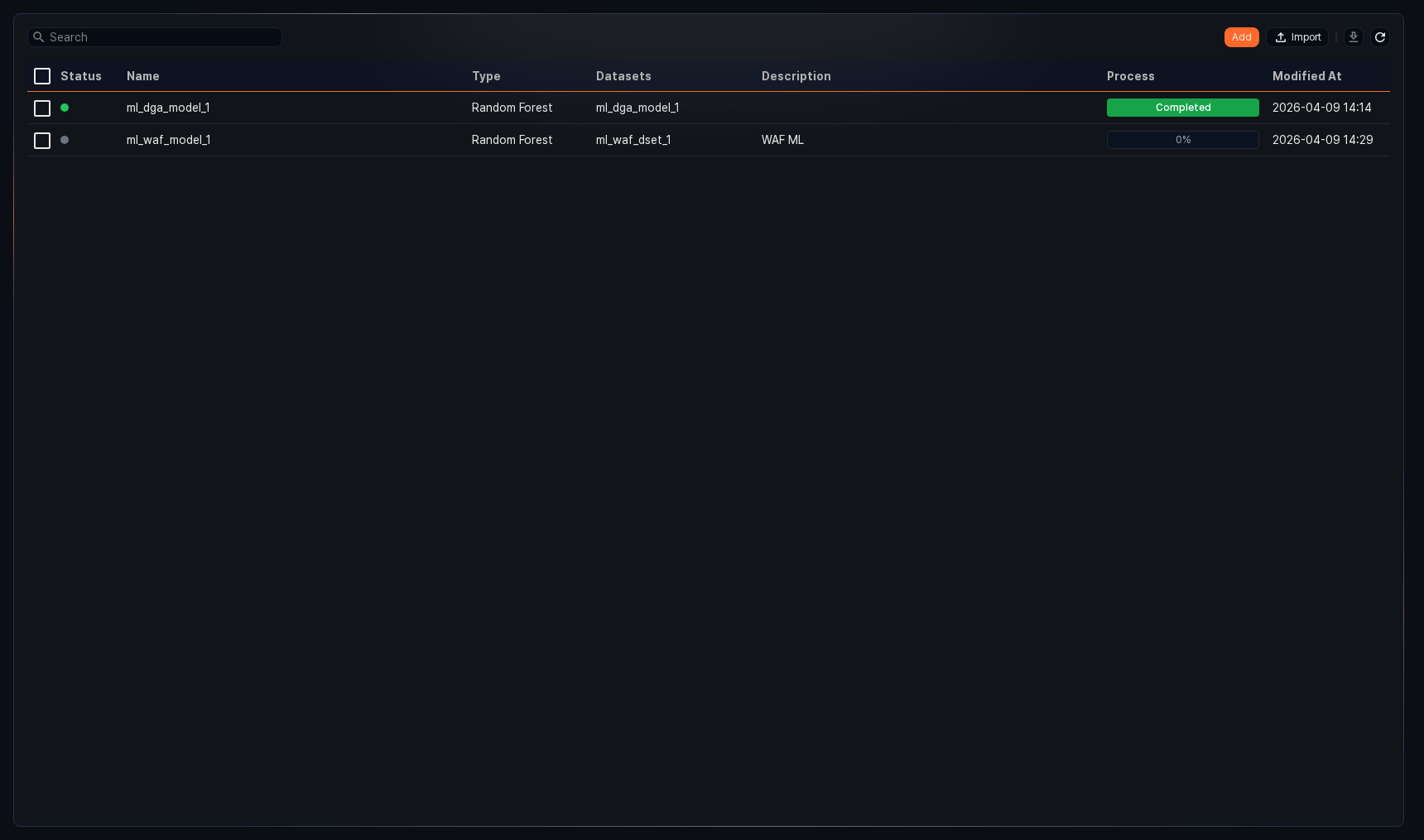
- Status: The training status of the model. A trained model is shown in green, and a model that is still training or has not finished training is shown in gray. You cannot use a model in queries or detection rules until training finishes.
- Name: The name of the ML model. Query commands refer to the model by this name.
- Type: The model type (Isolation Forest or Random Forest).
- Datasets: The name of the ML dataset used to train the model.
- Description: Additional information about the model.
- Process: The training progress. A model that is training shows a percentage, and a trained model shows Closed.
- Modified At: The date and time the model was last modified.
To find a specific model in the list, enter a keyword in the search box in the toolbar. The search matches partial text in Name and Description. If you enter several words separated by spaces, only models containing all of them are shown.
Select items
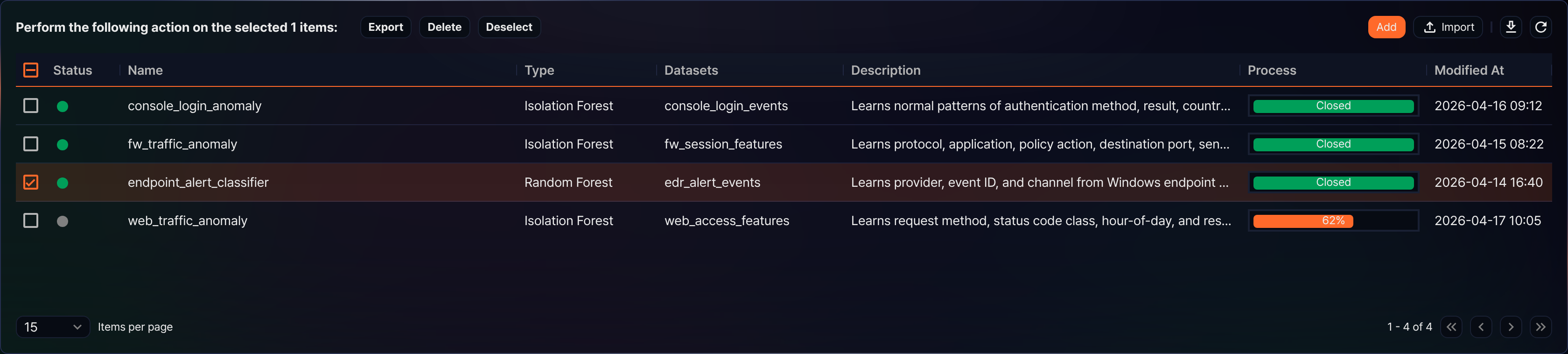
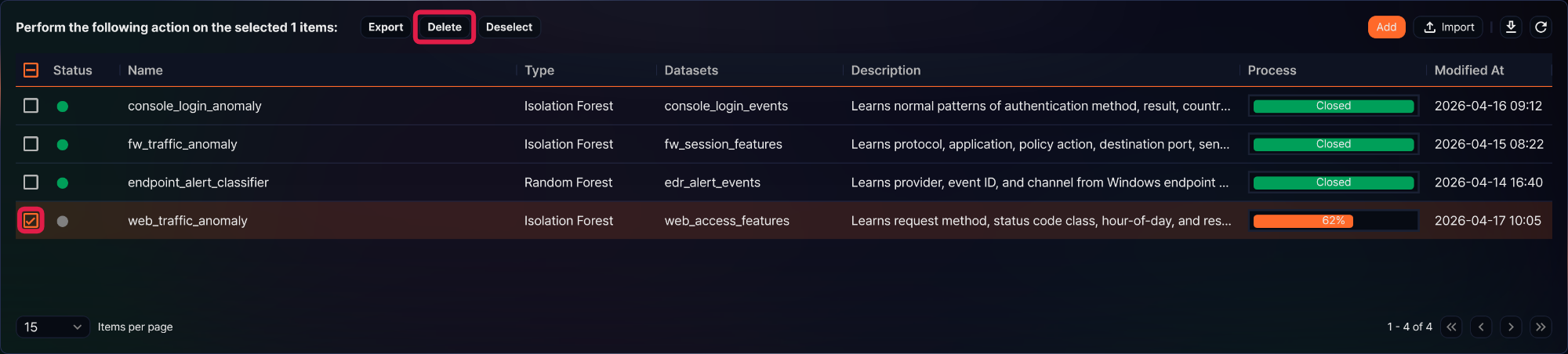
When you select the checkbox of a model row, the search box in the toolbar is replaced by the number of selected items and the selected-item action buttons (Export, Delete, and Deselect). Exporting and deleting models start from this state. Select the checkbox in the header to select every model on the current page, and click Deselect to clear the selection. The Add and Import buttons, the row checkboxes, and the selected-item action buttons appear only for the Administrator role or higher.
Download the list
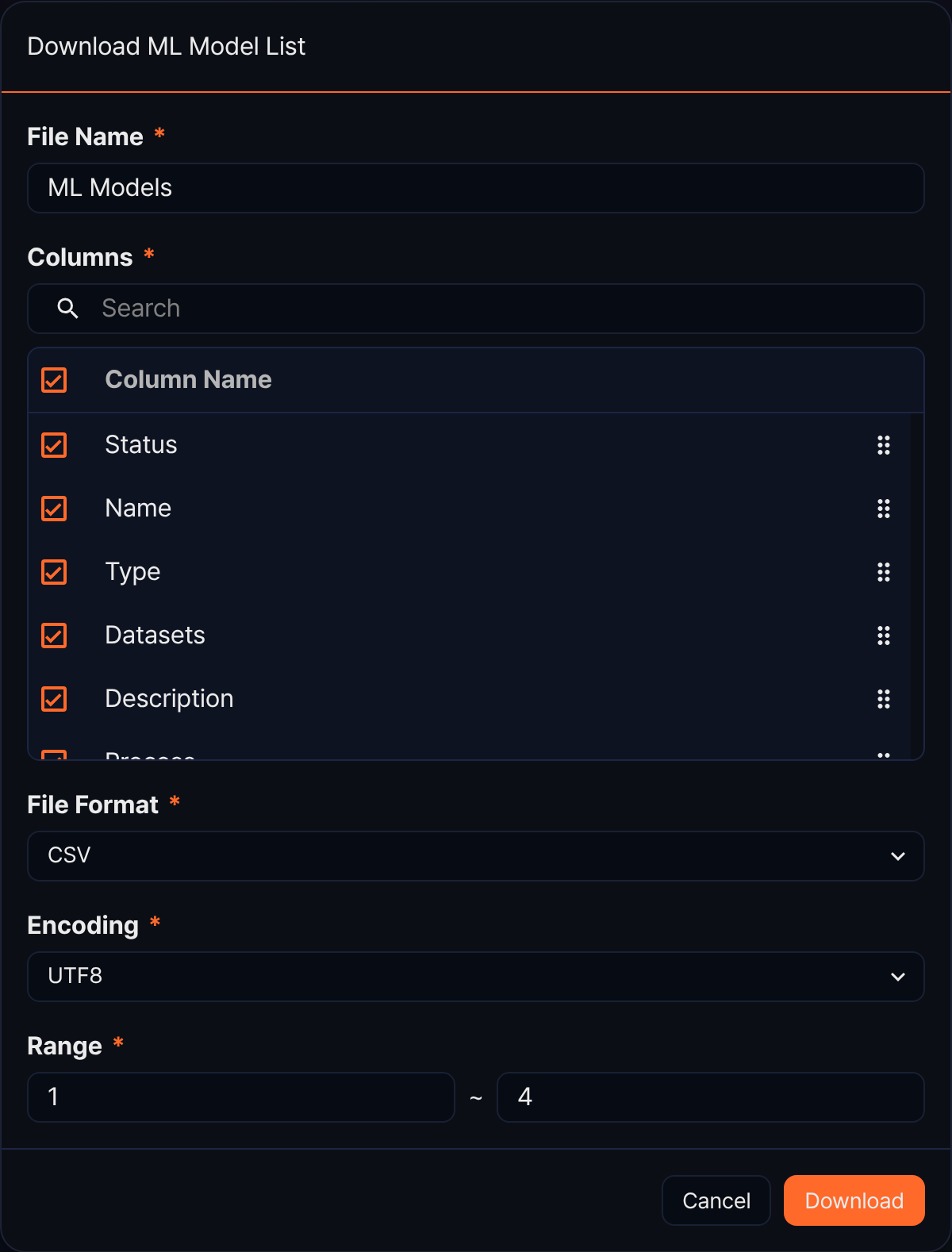
To save the list of ML models to your local PC, click  in the toolbar, then set File Name, the Columns to include, File Format, Encoding, and Range in the Download ML Model List dialog and click Download. The columns can include values that the list does not show: Accuracy, Precision, Recall, F1 score, and Created At.
Refresh the list
To refresh the ML model list with the latest data, click  in the toolbar. The progress of models that are training is also updated when you refresh.
Export/import ML models
You can export ML models to a file or import them from a file. Use this to back up models or move them to another Logpresso Sonar. Exported files have the .mlmodel extension, and only files with this extension can be imported.
To export ML models:
-
Select the checkboxes of the model rows you want to export in the list. If you select several models, they are exported to a single file.
-
Click Export among the selected-item action buttons in the toolbar.
-
In the Export ML Model dialog, check or change the file name and click Export. The default file name is ML Models followed by an underscore and today's date, and the
.mlmodelextension is added automatically. The file name cannot contain reserved words or the special characters\ / : * ? " < > |, and it cannot start with a period (.).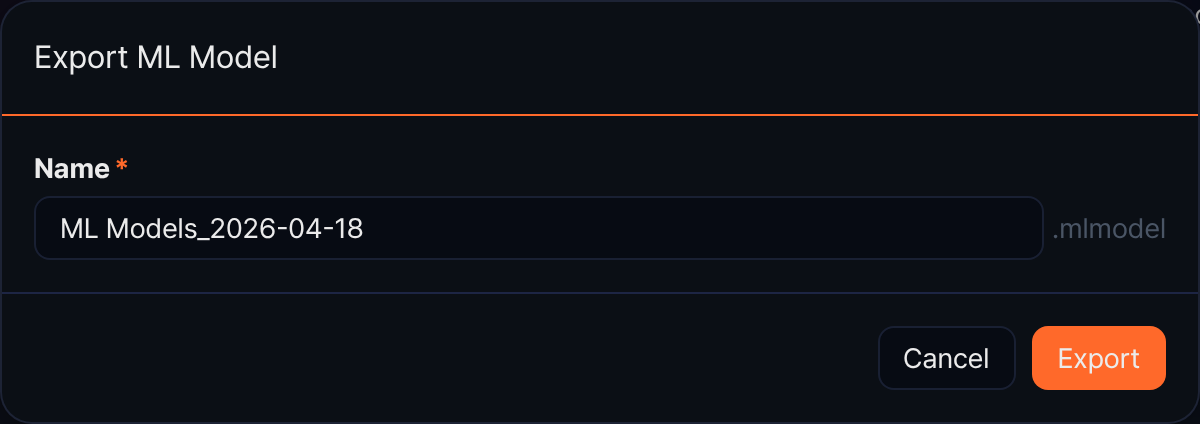
To import an ML model:
-
Click Import in the toolbar.
-
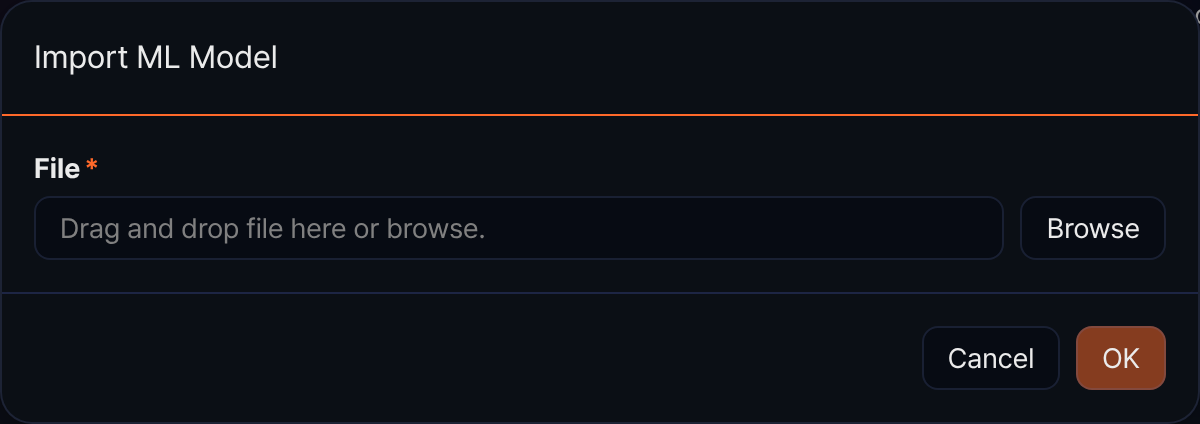
In the Import ML Model dialog, click Browse and select a
.mlmodelfile, or drag the file onto the input box. The file cannot be larger than 100MB. -
Click OK. OK stays disabled until you select a file. When the import finishes, the list is reloaded and shows the imported model.
Add an ML model
To add an ML model:
-
Under Policies > ML Models, click Add in the toolbar.
-
On the New ML Model panel, enter or select the required values, then click Save.
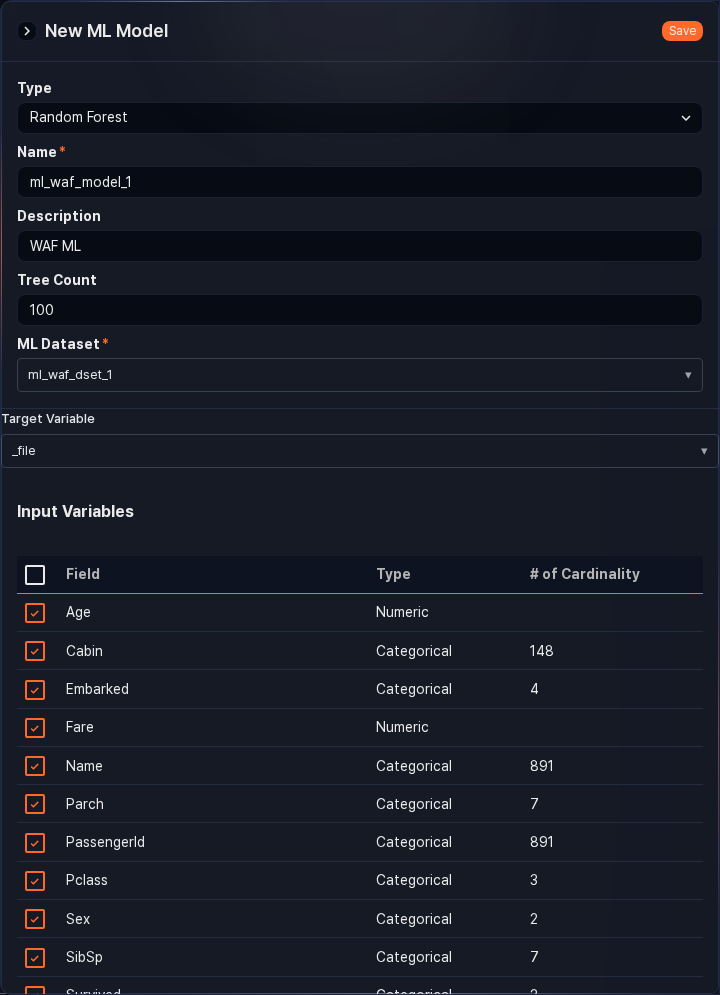
- Type: The model type. Select Isolation Forest for anomaly detection or Random Forest for classification. When the panel opens, the first item in the type list is selected.
- Name: The model name (required, up to 50 characters). It cannot be the same as another model's name. Because the name is used as-is in the
modeloption of query commands, we recommend letters, digits, and underscores (_) without spaces. - Description: A description of the model (up to 2,000 characters).
- Tree Count: The number of decision trees stored with the model (default 100, range 1-500). In the current release, both model types train with 100 trees regardless of this value.
- ML Dataset: The ML dataset to train on (required). When the panel opens, the first dataset in the list is selected, and changing the dataset replaces the Input Variables table below with that dataset's fields. If no dataset is registered, the message No ML datasets registered Please add a training dataset from the Training Dataset menu. appears instead of the list, so add a dataset under ML Datasets first.
- Target Variable: Shown only when Type is Random Forest. Select the field whose value the model will predict from the fields of the ML dataset. When you switch the type to Random Forest, the first field in name order is selected by default. For example, for a model that classifies the severity of endpoint events, set the severity field as the target variable. The field you choose as the target variable is removed from the Input Variables table.
- Input Variables: Select the fields to train on with the checkboxes. The table lists the fields of the selected dataset in name order, excluding the
_idand_tablefields. The Type column shows whether a field is numeric or categorical (displayed as 수치형 or 범주형), and the # of Cardinality column shows the number of distinct values of a categorical field. No field is selected at first. Select the checkbox in the header to select all fields at once.
After you save, the server starts training immediately, and you can follow the progress in the Process column of the list. When training finishes, Status turns green. If you save with a name that already exists, the message Duplicate name. appears and the model is not saved.
View an ML model
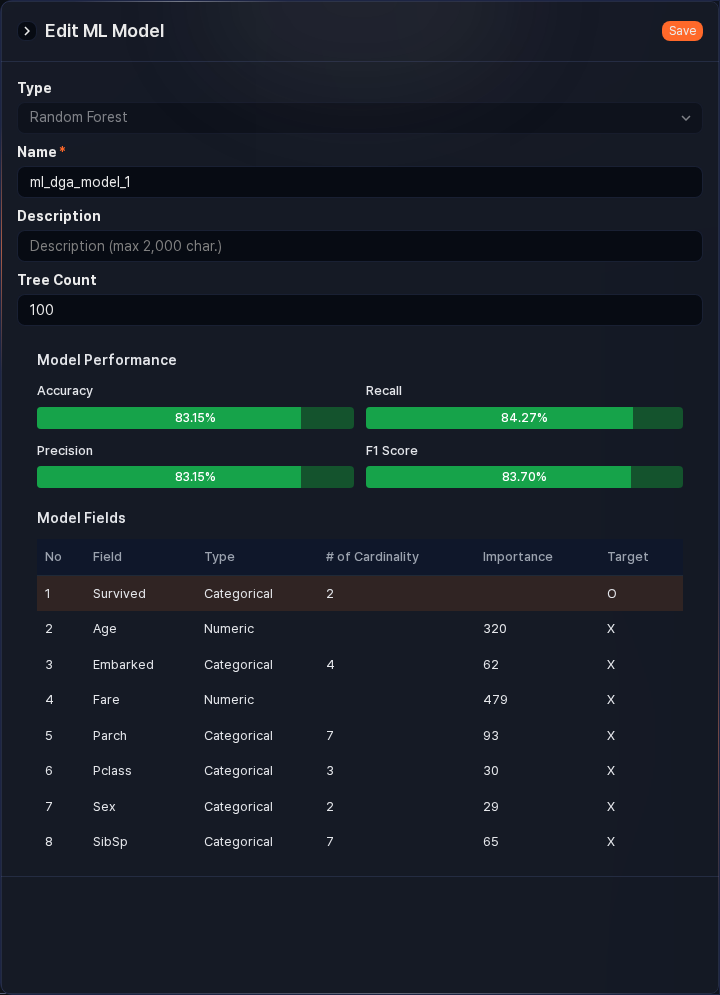
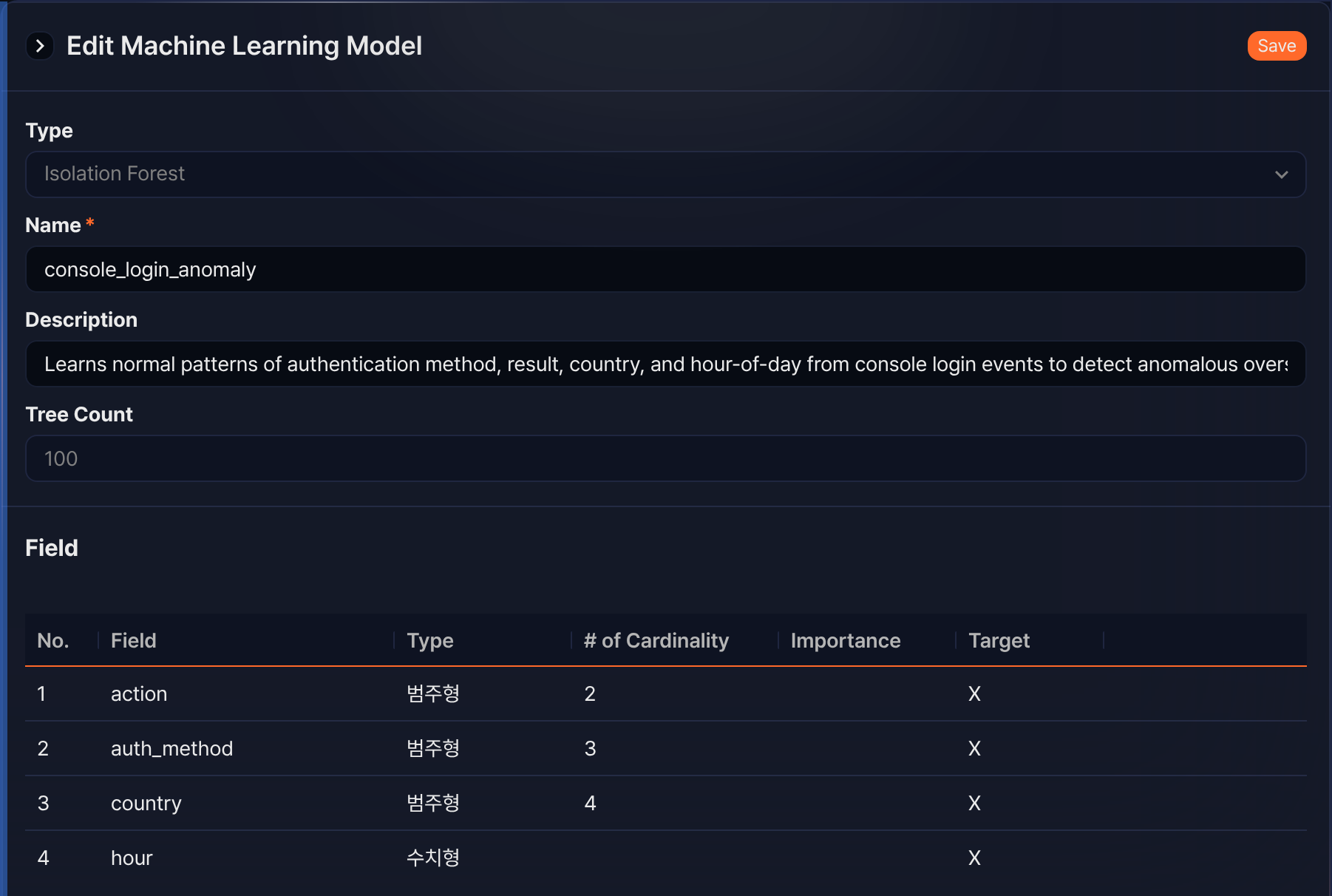
Click a model row in the list to open the Edit Machine Learning Model panel. There is no separate view screen. The Field table is shown for every model regardless of its type and training status, and Performance appears only for a trained random forest model.
- Performance
- Shown only for a trained random forest model. It shows, as percentages, the prediction results on the test data set aside during training (20% of the dataset).
- Accuracy: The proportion of all test data that the model predicted correctly. Be careful with imbalanced class distributions, where accuracy alone is a poor indicator of performance.
- Recall: The proportion of data that actually belongs to a class and that the model predicted as that class. This metric matters when you want to reduce false negatives.
- Precision: The proportion of data that the model predicted as a class and that actually belongs to that class. This metric matters when you want to reduce false positives.
- F1 Score: The harmonic mean of precision and recall. It is high only when both are high, so refer to the F1 score if you need a single metric.
Recall and precision are the per-class values averaged with each class's prediction count as the weight. Binary classification with only two classes is computed the same way.
- Field
- The list of fields the model learned. It has the No., Field, Type (numeric or categorical, displayed as 수치형 or 범주형), # of Cardinality, Importance, and Target columns. The field set as the target variable shows O in the Target column and is highlighted at the top of the table, and the other fields show X and are listed in name order. An isolation forest model has no target variable, so every row shows X. Importance indicates how much the random forest relied on each input field when predicting and is filled in only for a trained random forest model.
Edit an ML model
To edit an ML model:
-
Click the row of the model you want to edit in the list.
-
On the Edit Machine Learning Model panel, change Name and Description, then click Save. Type and Tree Count are shown disabled. The ML dataset is not shown on the edit panel, so check the Datasets column in the list instead, and tell the target variable from the input variables by the Target column of the Field table.
If you rename a model, also update the model option of the queries and detection rules that refer to it. If you change the name to one that another model already uses, the message Duplicate name. appears and the change is not saved.
Use ML models
You use a trained ML model in Logpresso queries by giving its name in the model option of the rforest or anomalies command. Use rforest to apply a random forest model and anomalies to apply an isolation forest model. Both commands are available only when your license includes the machine learning feature.
The input records must contain, with the same names, every field whose Target column is X in the Field table (the input variables); the target variable field is not required. If the names differ, align them before the command, for example with the rename command. Extra fields that the model does not have do not affect the prediction, but a missing input variable is treated as a missing value and the prediction proceeds without an error, so be careful. The following query predicts the severity with the endpoint_alert_classifier model, which was trained with the provider, event ID, and channel of endpoint events as input variables. The rforest command outputs the prediction in the _guess field, and the anomalies command outputs the anomaly score in the _score field.
table *:WIN_ENDPOINT
| rforest model=endpoint_alert_classifier
| fields _time, provider, event_id, channel, _guess
Queries written this way can also be used as the query of a stream rule or a batch rule. If you delete or rename the model, queries that refer to the old name fail with a model-not-found error.
Delete ML models
To delete ML models:
-
Select the checkboxes of the model rows you want to delete in the list.
-
Click Delete among the selected-item action buttons in the toolbar.
-
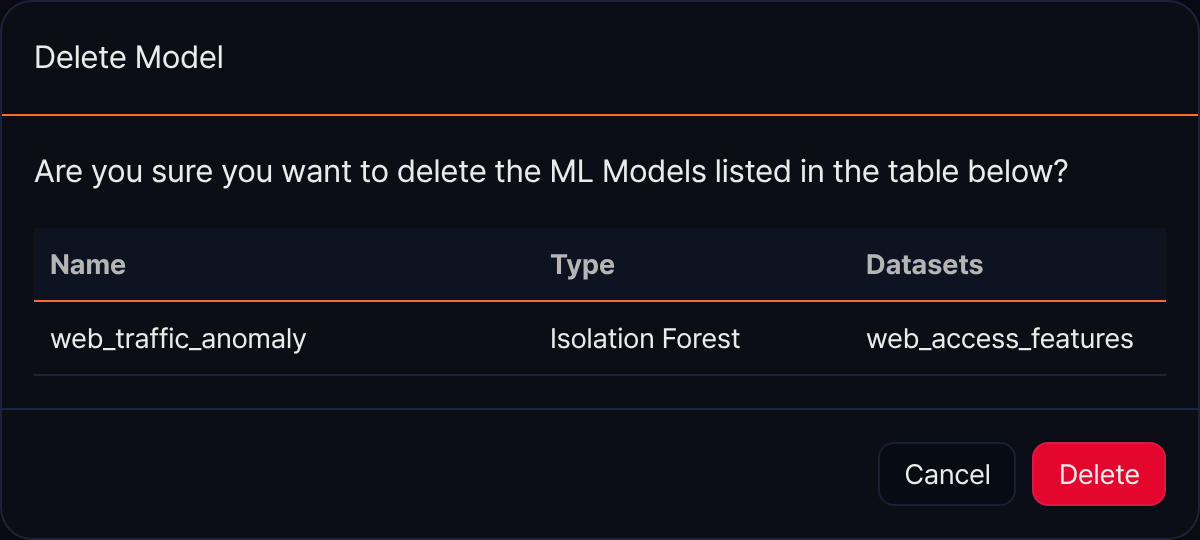
In the Delete Model dialog, check the name, type, and dataset of the models to delete, then click Delete. Click Cancel to abort.
Deleting a model does not clean up the queries or detection rules that refer to it. Make sure nothing refers to the model before you delete it.