
Scatter
Overview
The scatter widget plots each data point using two numeric variables (X-axis, Y-axis) as coordinates. Use it to visually identify correlations between two variables, data distribution patterns, and outliers. For example, it is suitable for analyzing the relationship between response time and request size, or the correlation between port frequency and threat score.
For general information about query widgets, see Query widget.
Chart settings
Select Scatterplot as the chart type in the pivot table editor and click the chart settings button.
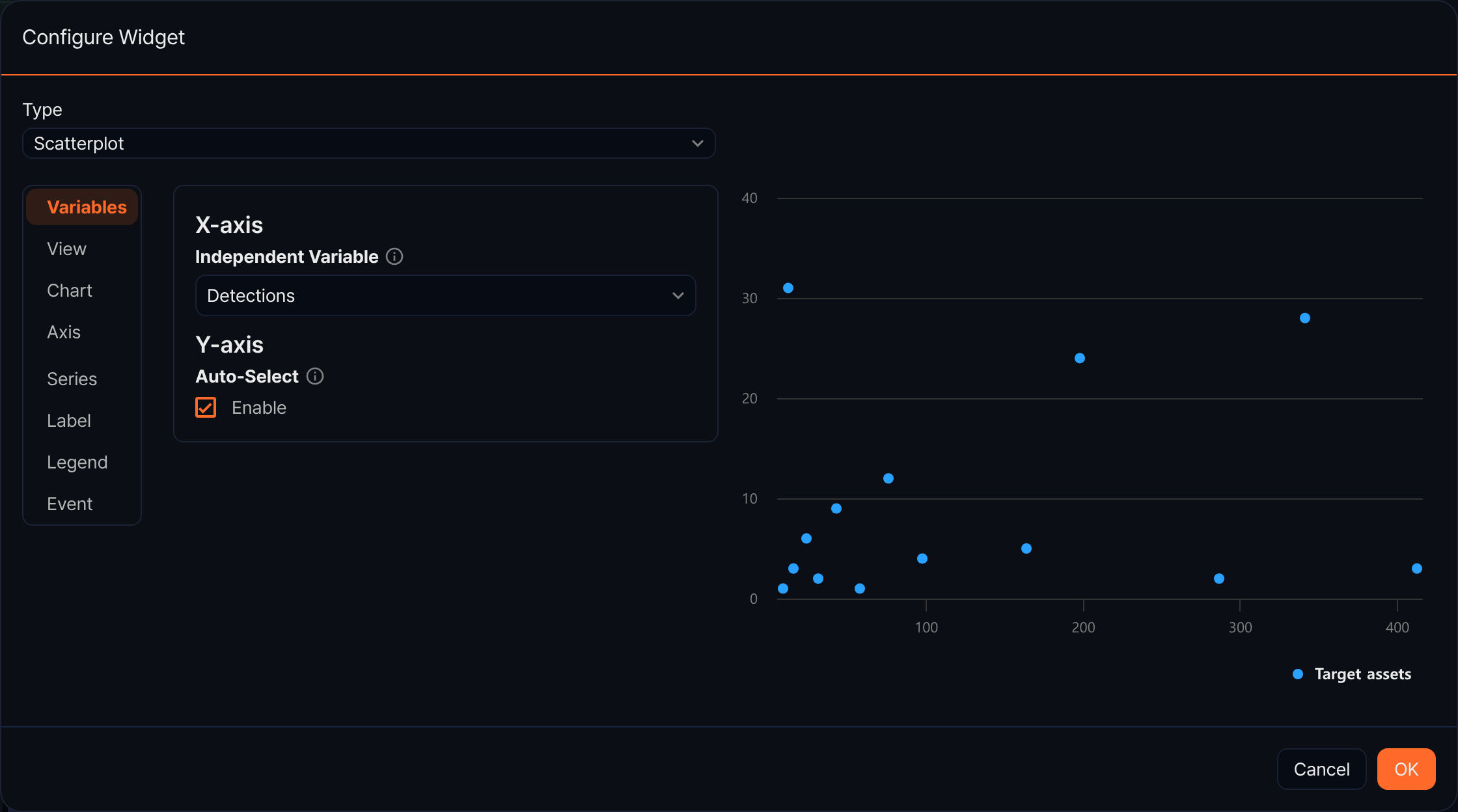
Variables
- X-axis
- Independent Variable: Select the field to display on the X-axis.
- Y-axis
- Auto-Select: Automatically select all numeric fields as dependent variables.
- Dependent Variable(s): Specify dependent variables manually.
View
- Zoom-In: Select the direction for drag-to-zoom (default: None, options: x, y, xy).
- Concatenate Empty Values: Set how to handle empty value intervals.
Chart
- Headline: Enter a chart title and subtitle.
- Chart Area: Set the background color, border thickness, and border color.
Axis
- X-axis: Set the title and format.
- Y-axis: Set the title, format, min, and max.
Series
- Chart Type: Override the series chart type (default: Auto-Select). Changing the series type allows mixing other chart types such as lines with the scatter plot, and the Border Style option appears as well.
- Series Color: Set the series color.
- Show Point Marker: Set whether to display data point markers. When enabled, you can select the Marker Shape.
Label
- Label All Series: Display values above data points.
Legend
- Show: Set whether to display the legend.
- Legend Arrangement: Options: Horizontal, Vertical.
- Horizontal Align / Vertical Align: Set the legend position.
Event
Configure click events.