Playbook properties
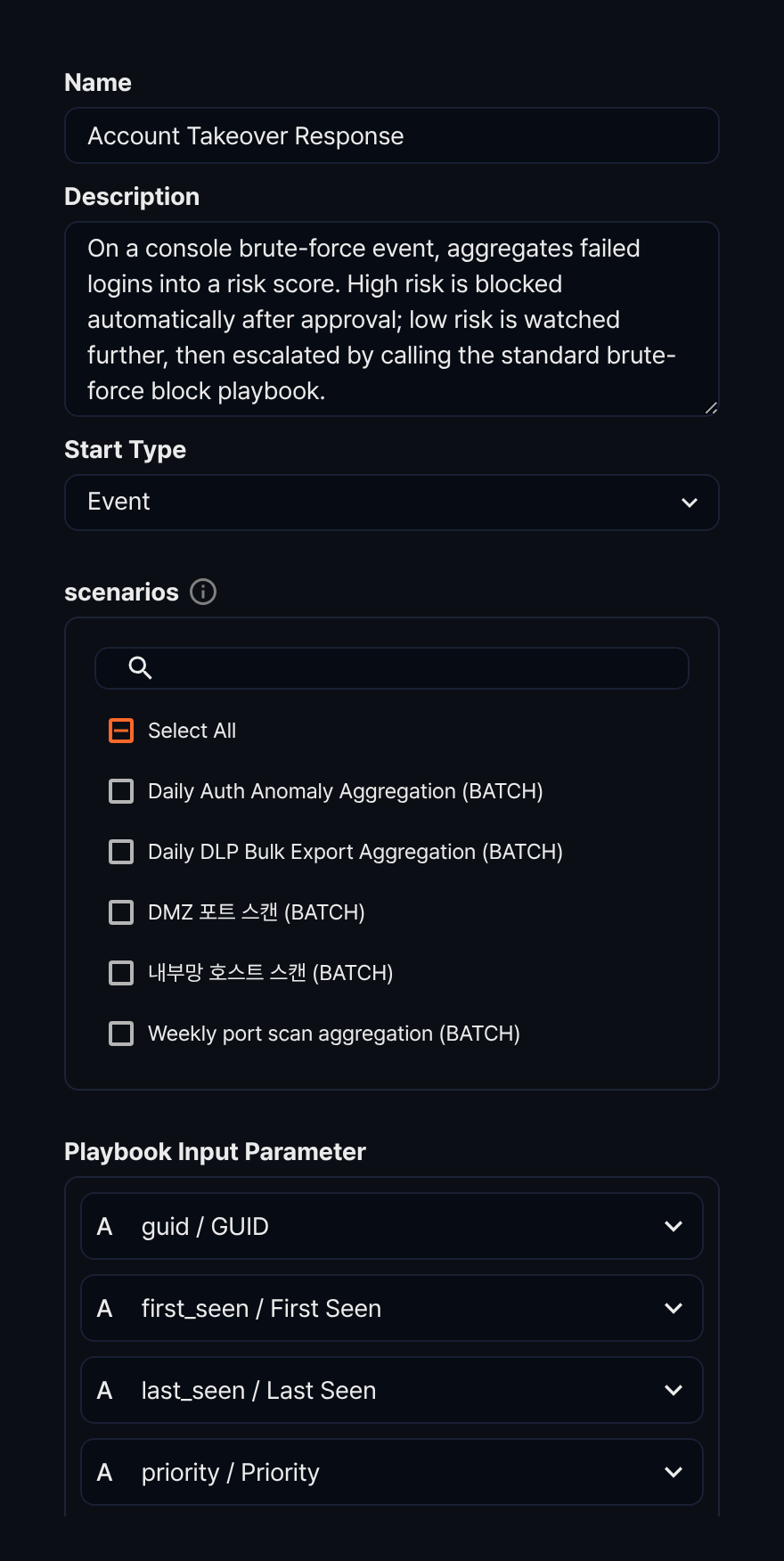
Every playbook has common properties. All properties except GUID can be viewed and changed in the properties panel.
GUID
The GUID is a unique playbook property that is not visible in the properties panel. It is automatically assigned when the playbook is created and appears in the web browser's address bar in the format /playbook/<GUID>.
GUIDs are unique values. Playbooks with the same GUID are considered identical, even if they have different names. Playbooks provided through Apps have pre-defined GUIDs assigned.
Name
A playbook name is a required property.
Description
A playbook description cannot exceed 2,000 characters.
Start type
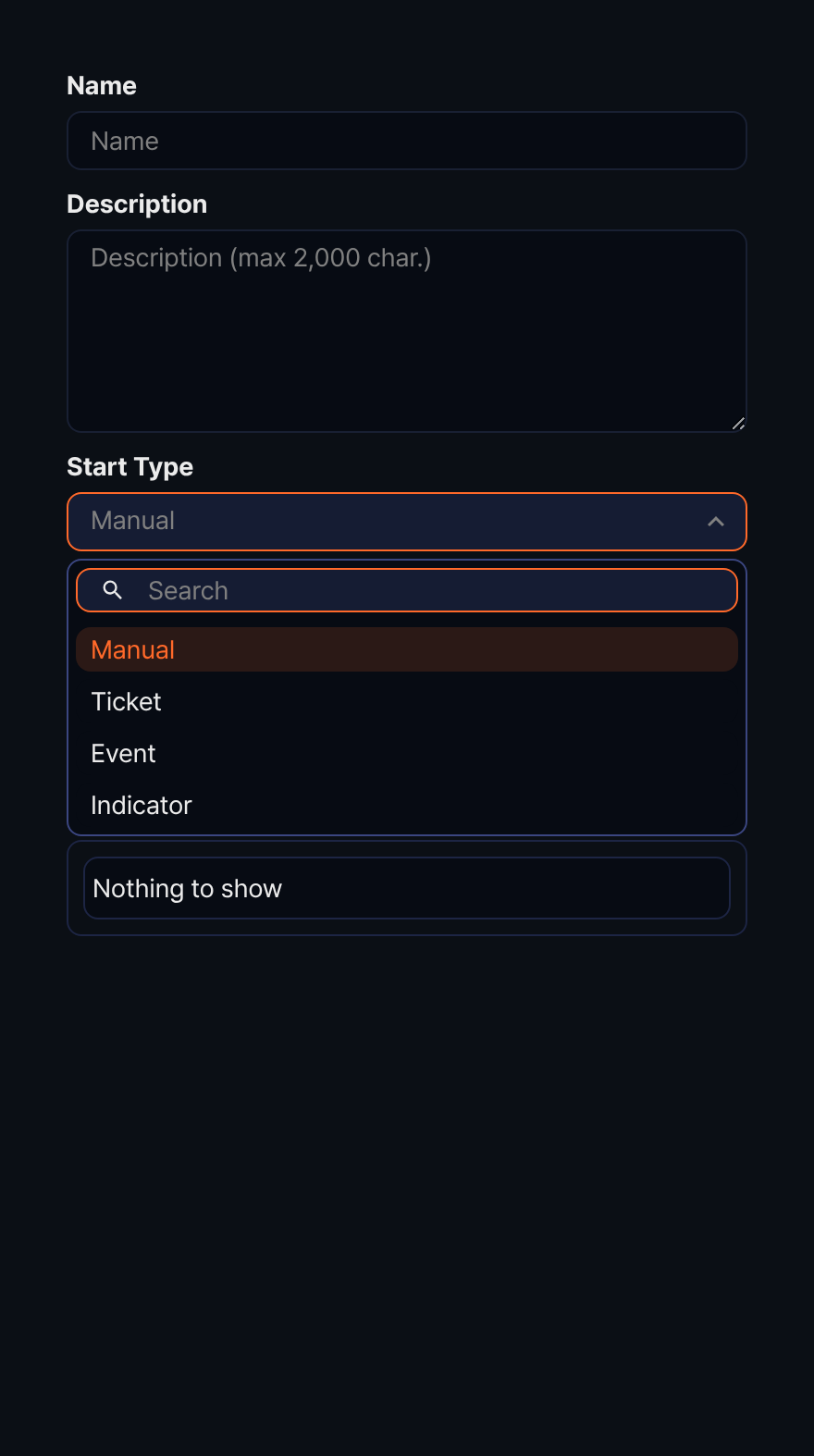
The start type specifies when the playbook runs. Regardless of the start type, users can always run a playbook manually.
| Start type | Related properties | Description |
|---|---|---|
| Manual | Input/output parameters | The user runs the playbook directly, or it is called by another playbook |
| Ticket | Scenario list | Runs the playbook when a ticket is created by one or more specified scenarios |
| Event | Scenario list | Runs the playbook when an event occurs in one or more specified scenarios |
| Indicator | Start condition | Runs the playbook when a specific indicator is added |
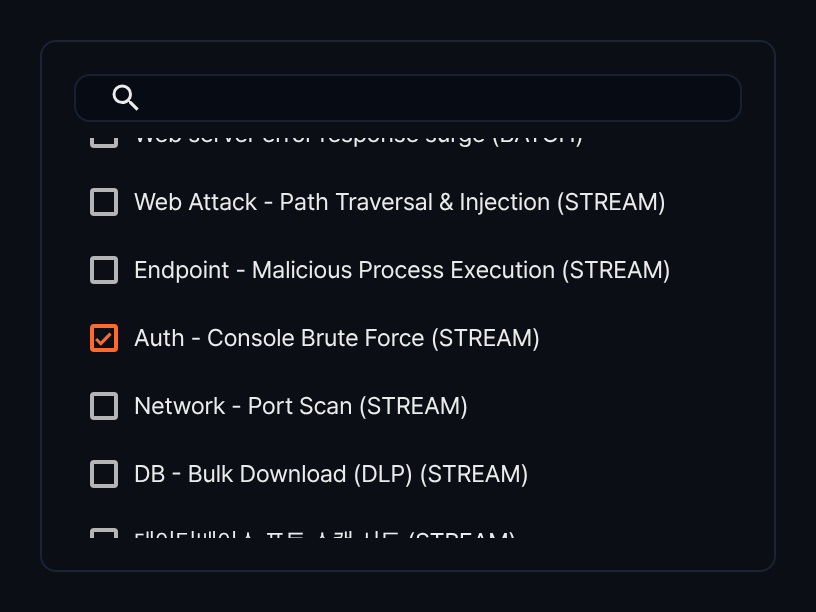
Scenario list
The scenario list is a property defined when the Start Type is Ticket or Event. Select the scenarios that should trigger the playbook.
Input/output parameters
Playbook Input Parameter and Playbook Output Parameter play important roles in the task flow.
- Playbook Input Parameter: Used as input to the task flow.
- Playbook Output Parameter: Used to return values after all tasks complete.
Input parameters
When the start type is Ticket, Event, or Indicator, the input parameters are as follows:
| Input parameter | Name | Ticket | Event | Indicator |
|---|---|---|---|---|
| guid | GUID | O | O | |
| title | Title | O | ||
| first_seen | First seen | O | O | |
| last_seen | Last seen | O | O | |
| priority | Priority | O | O | |
| src_ip | Source IP | O | O | |
| src_port | Source port | O | O | |
| dst_ip | Destination IP | O | O | |
| dst_port | Destination port | O | O | |
| protocol | Protocol | O | O | |
| user | user | O | O | |
| host_ip | Host | O | O | |
| mail_from | Mail sender | O | O | |
| mail_to | Mail receiver | O | O | |
| mail_cc | Mail CC | O | O | |
| url | URL | O | O | |
| md5 | MD5 | O | O | |
| URL | URL | O | ||
| MD5 | MD5 | O | ||
| IP | IP | O | ||
| Domain | Domain | O | ||
| O |
When the start type is Manual, you must define input parameters yourself. To add an input parameter, click the add (+) icon in the playbook input parameters section of the properties panel.
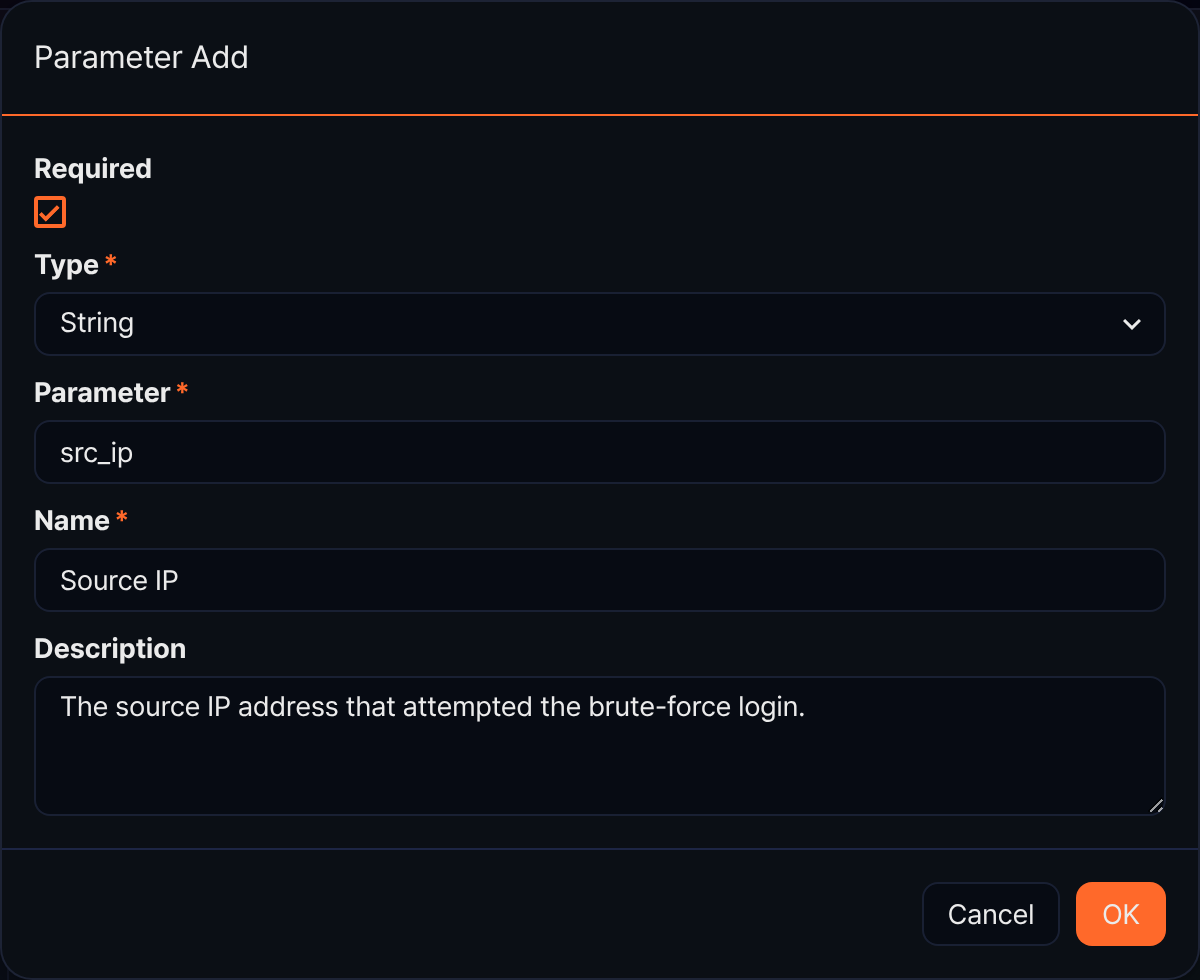
- Required: Select to mark the parameter as required.
- Type: Data type (options: String, Date, Integer, Double, IP address, Boolean)
- Parameter: The field name to use as the parameter.
- Name: Display name of the parameter.
- Description: A description of the parameter.
To edit an input parameter, click its Name.
To reorder input parameters, click the up or down arrow button in the parameter row in the desired direction.
To delete an input parameter, select the checkbox in the parameter row you want to delete and click the delete (trash can) icon.
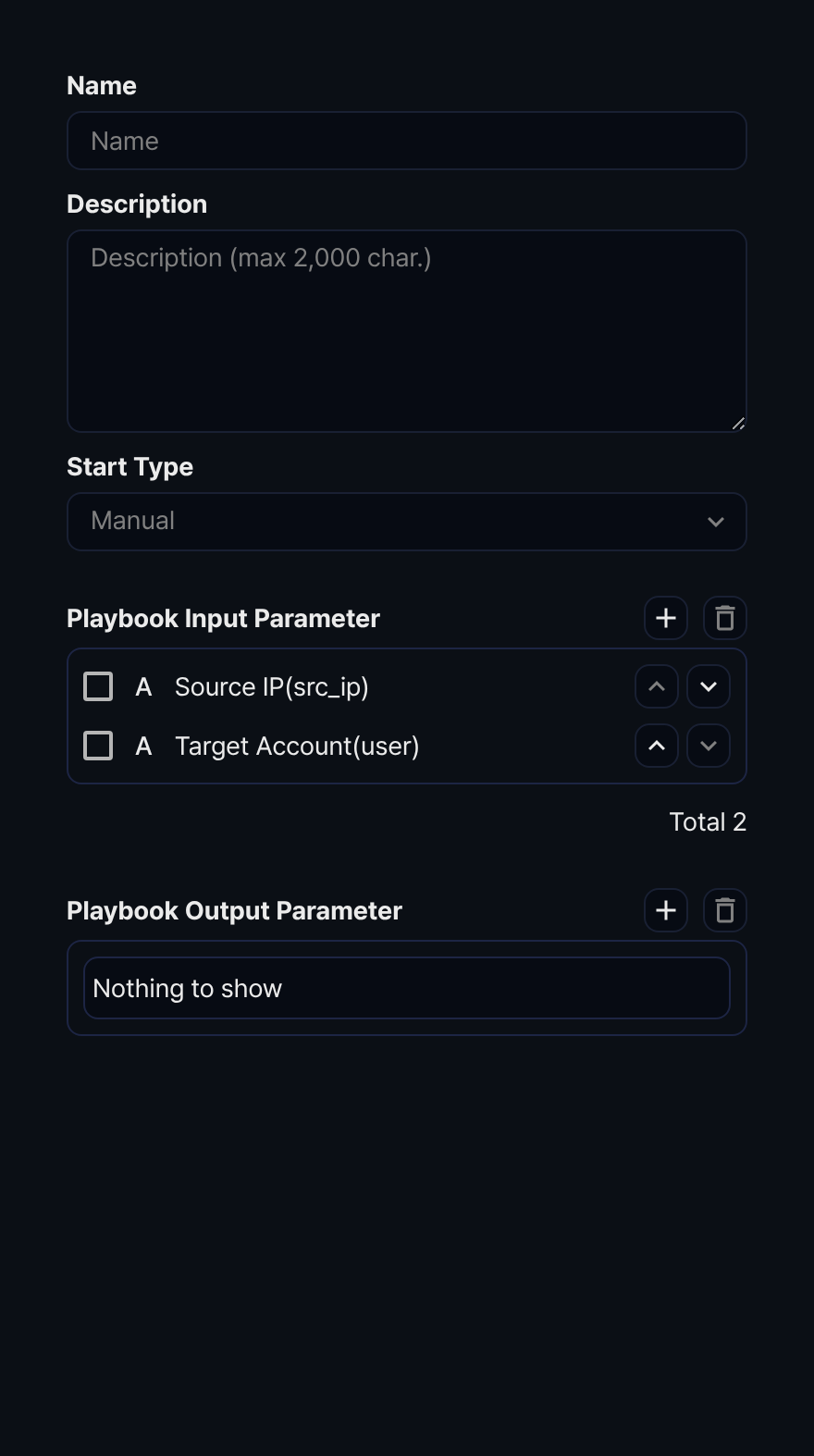
Output parameters
Output parameters are chosen from the output variables of tasks in the playbook (if the playbook has no tasks, the selection list is empty). To add an output parameter, click the add (+) icon in the playbook output parameters section of the properties panel.
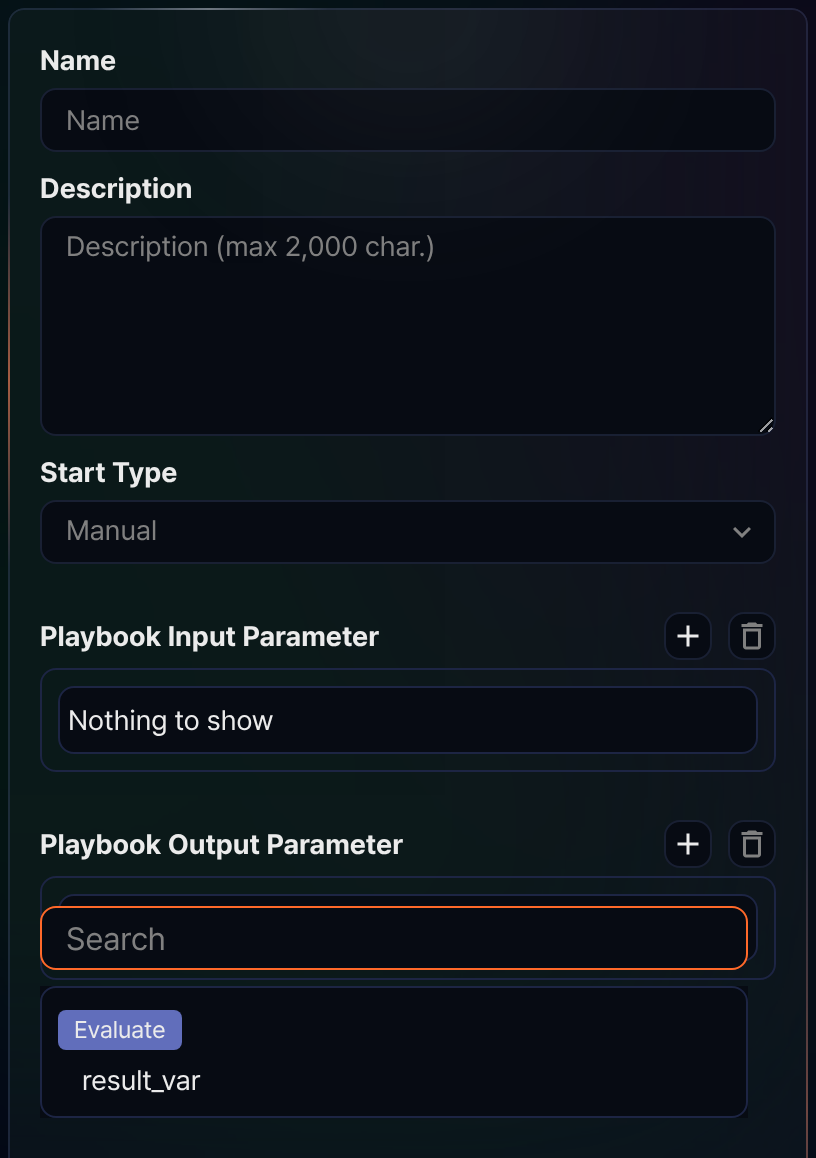
Output parameters cannot be edited—they can only be deleted. To delete an output parameter, select the checkbox in the parameter row you want to delete and click the delete (trash can) icon.
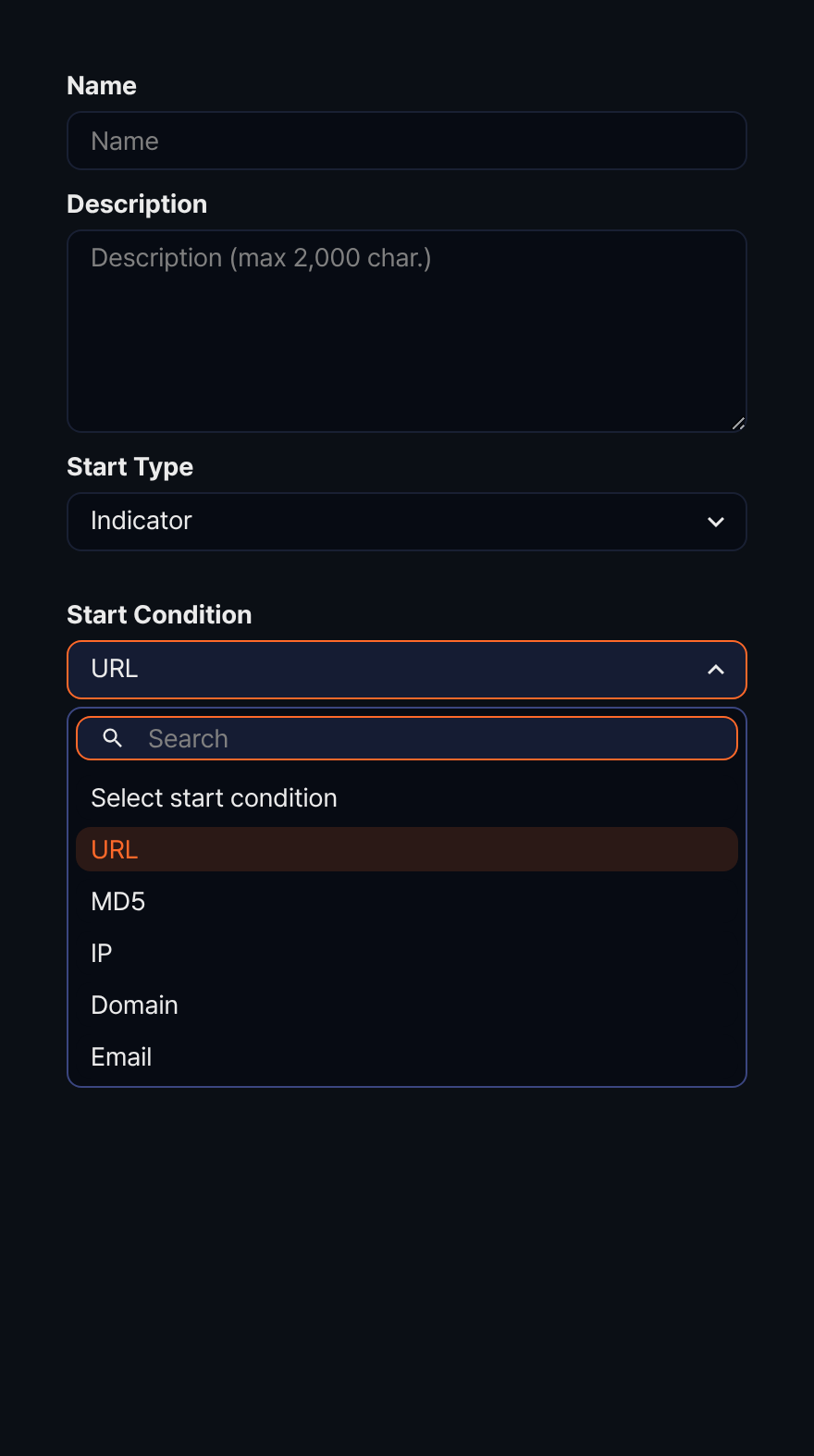
Start condition
The start condition is a property defined when the Start Type is Indicator. Select one of the indicator types from the list (URL, MD5, IP, Domain, Email). The playbook runs automatically when an indicator of the matching type is registered.