Response targets
Overview
Response targets let Logpresso Sonar forward the IP addresses of attackers detected through stream or batch detection scenarios to a target device (for example, a security device or service such as a firewall or IPS) so that the address is blocked automatically.
When you configure a response target in Sonar, detected IP addresses are automatically registered in the specified address group, and the target integrated with that address group blocks those IP addresses automatically. Register and manage response targets that forward detected IP addresses to security devices in Settings > Response Targets.
A playbook can automate blocking through the Add blacklist action.
To use this feature, you must first define a connect profile so that Sonar can communicate with the target device.
The Response Targets menu is available to Cluster Administrators and Administrators. Both roles can view the list and add, edit, delete, and toggle response targets.
View and search response targets
You can view and search the list of response targets in Settings > Response Targets.

- On/Off.: Toggle switch showing whether the response target is enabled. In the image above, an orange toggle means the target is enabled, and a gray toggle (
TAXII Web Attack Sharing) means it is disabled. Clicking the toggle changes the state immediately without a confirmation step. - Name: The unique name of the response target.
- Response Model: Defines how to communicate with the integrated device. The TAXII model is provided by default, and installing an app that supports a response model adds the model to this list.
- Address group: The address group used to block IP addresses on the target device.
- Modified At: The date and time the response target was last added, edited, or toggled.
Use the search bar in the toolbar to find response targets by Name or Description. Searches are case-insensitive, and entering multiple keywords separated by spaces returns only targets that contain every keyword.
Download the list
To save the response target list to your local PC, click  in the toolbar. The Download Response Target List dialog opens.
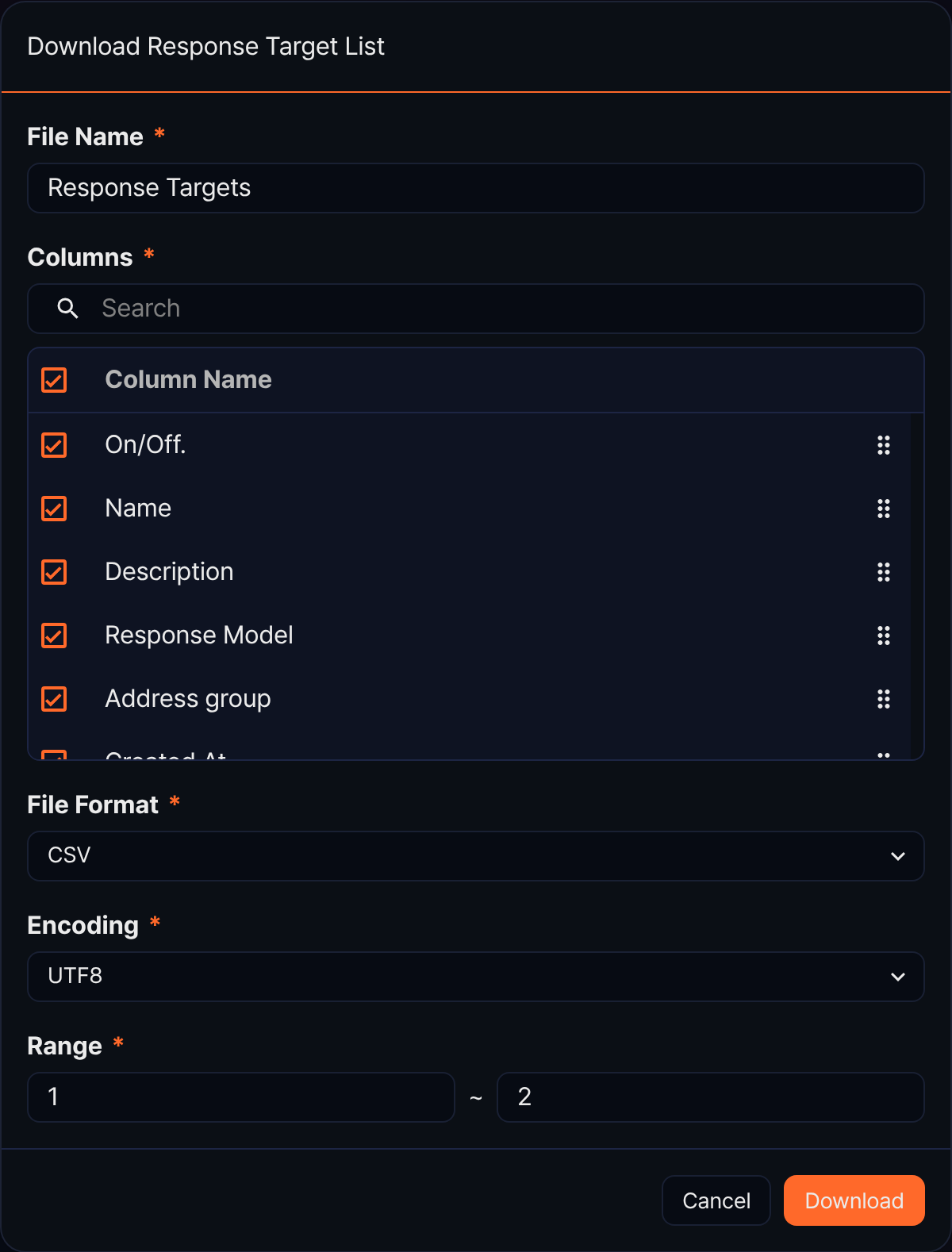
- File Name (required): The name of the file to download (default Response Targets, up to 200 characters).
- Columns (required): The columns to include in the file. The five columns shown in the list (On/Off, Name, Response Model, Address group, Modified At) plus Description and Created At are selected by default — seven in total. Clear the checkbox to exclude a column, or drag the handle on the right to reorder columns.
- File Format (required): Choose from CSV (default), XML, Microsoft Word, HTML, JSON, or PDF.
- Encoding (required): File encoding. Shown only when File Format is CSV or JSON; the available options depend on the web console language. In the English web console, choose from UTF8, UTF16, or Latin 1 (default: UTF8).
- Range (required): The starting and ending row numbers to download (defaults to the first row of the current page through the total count).
Click Download when you are done. If you narrowed the list with a search keyword, the downloaded file reflects the filtered list. The download icon is disabled when the list is empty.
Refresh the list
To reload the response target list with the latest information, click  in the toolbar.
Add a response target
To add a response target:
-
Go to Settings > Response Targets and click Add in the toolbar.

-
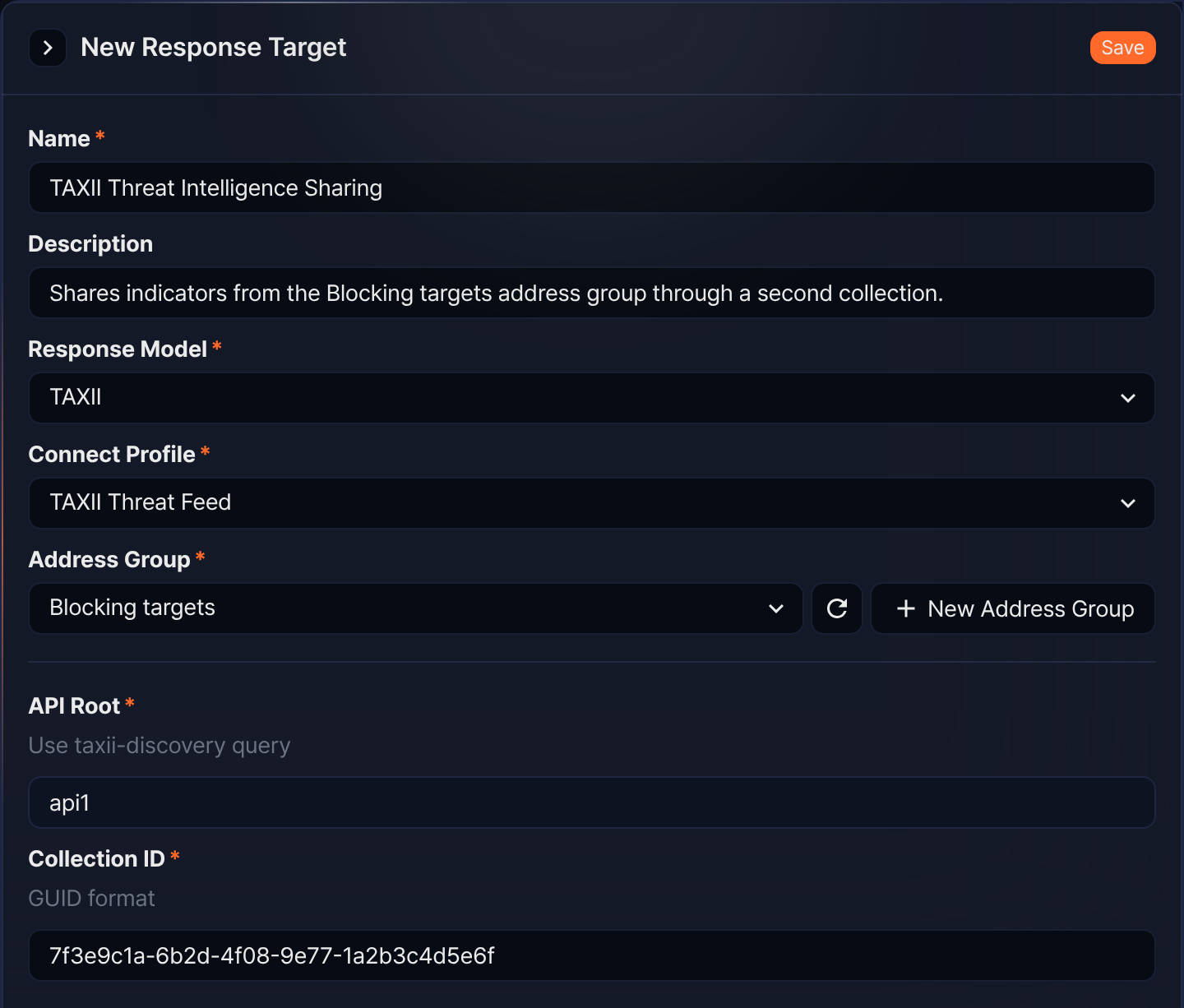
In the New Response Target screen, enter or select the required information:
-
Name: A unique name to identify the response target (up to 50 characters).
-
Description: Description of the target configuration (max 2,000 characters).
-
Response Model: Select a model that defines how to communicate with the integrated device. When an app supporting response targets is installed, its response model becomes available in the list.
-
Connect Profile: Select from the connect profiles whose type matches the selected model. The first matching profile is selected by default. If no matching profile exists, a message is shown instead of the dropdown.
-
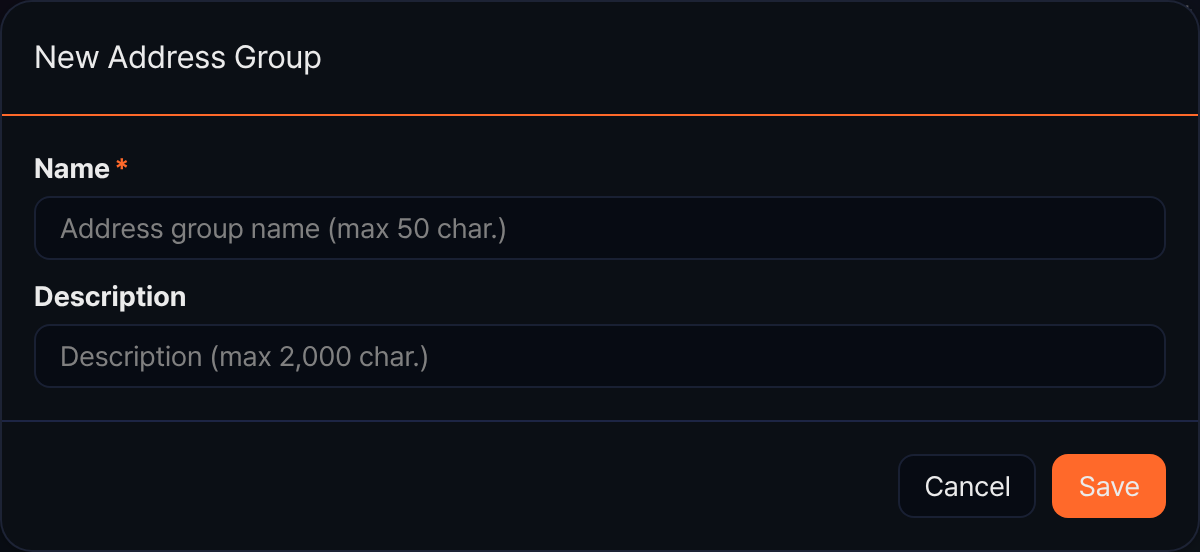
Address Group: Choose the address group to register the blocked IP addresses in. Click the refresh icon next to the dropdown to reload the list, including groups added from other screens, or click New Address Group to create one on the spot with only a name and a description — the new group is selected immediately.
-
-
After selecting the response model, the settings that the model needs appear below a divider. Complete these settings and click Save.
A newly added response target is saved in the enabled state. If you do not want it to send block commands to the target right away, turn off the On/Off toggle for it in the list.
Edit a response target
To modify a response target:
-
In View and search response targets, click the name of the target you want to edit.
-
On the Edit Response Target screen, modify the information and click Save in the upper-right corner. The image below shows an example for editing
TAXII Threat Intelligence.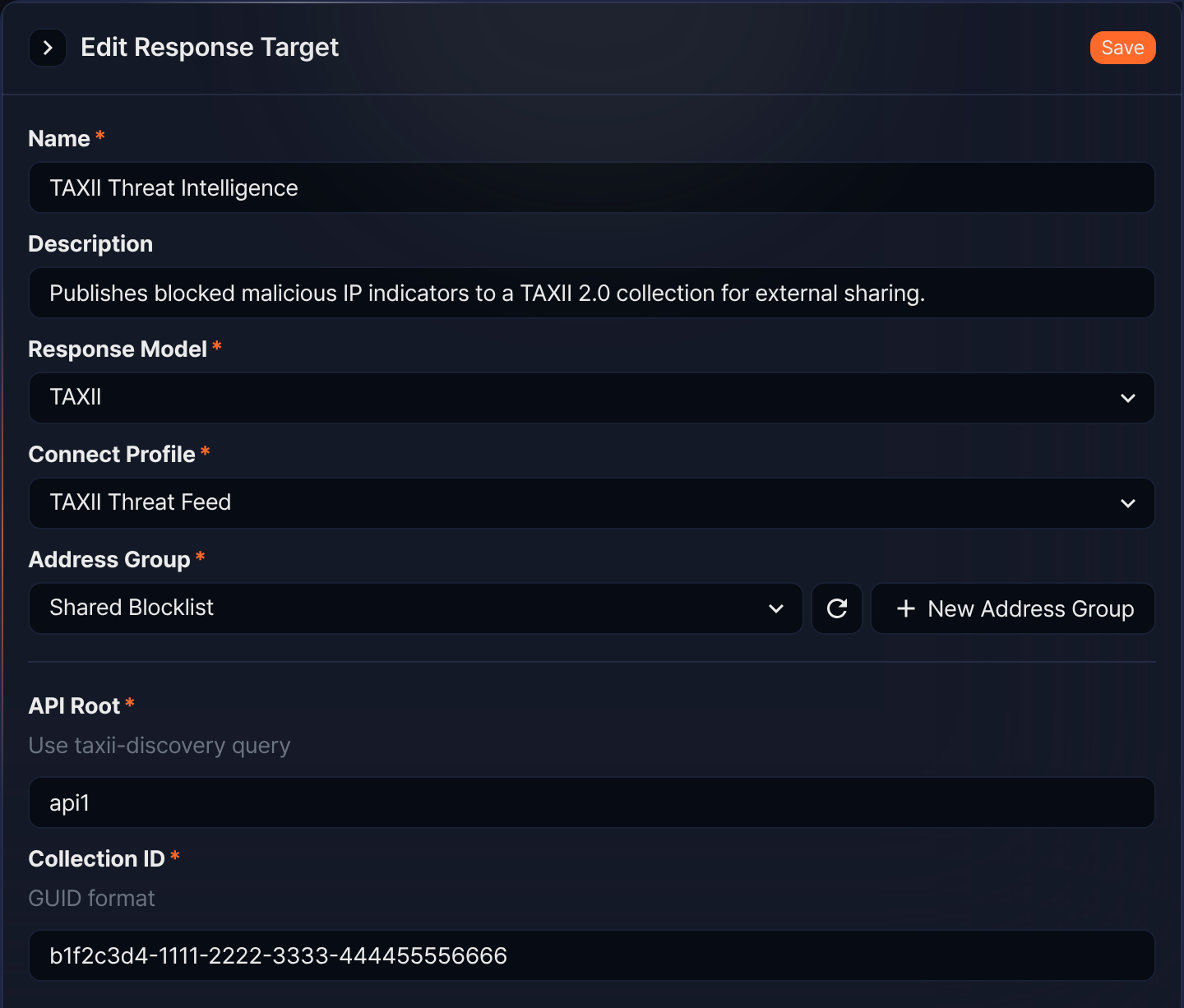
Delete a response target
To delete a response target:
-
In View and search response targets, check the box next to the target you wish to delete.

-
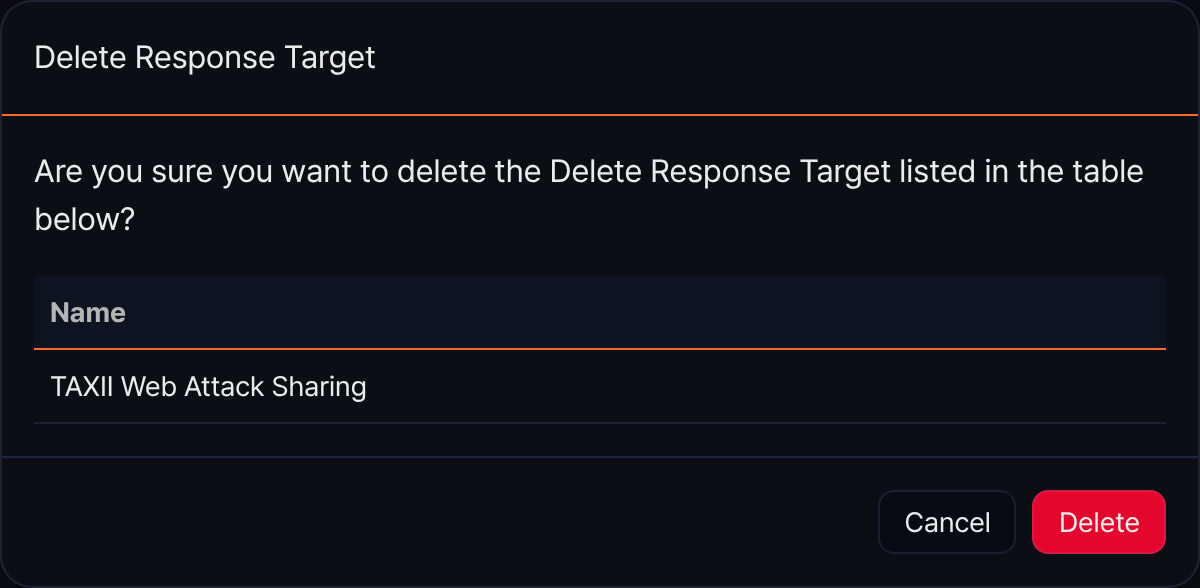
Click Delete in the toolbar.
-
In the confirmation dialog, review the targets selected for deletion and click Delete to proceed. Click Cancel if you do not wish to delete.