
Explanations
In cases where an explanation is required for a security violation, security personnel can request an explanation from the anomalous actor. By generating an explanation based on a ticket or by directly drafting the explanation content, the anomalous actor will receive an explanation request email at the email address registered in the Employees menu. By clicking the link in the explanation request email to draft the explanation, the reviewer will assess whether the explanation content is valid or constitutes a security violation. The process can be illustrated as follows:
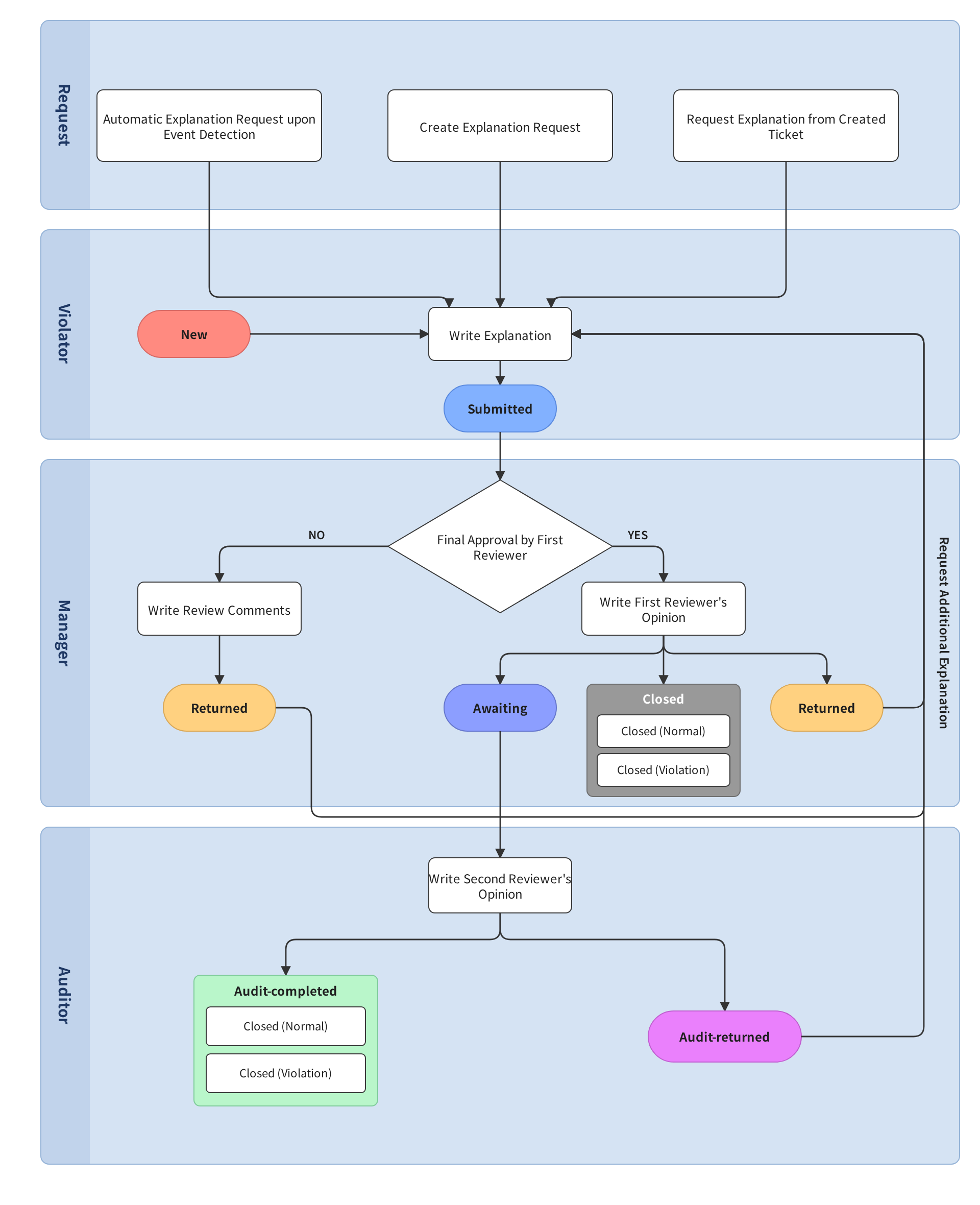
For the explanation process to function smoothly, employee information must be registered in the Employees menu, and an explanation template must be configured.
Explanation list
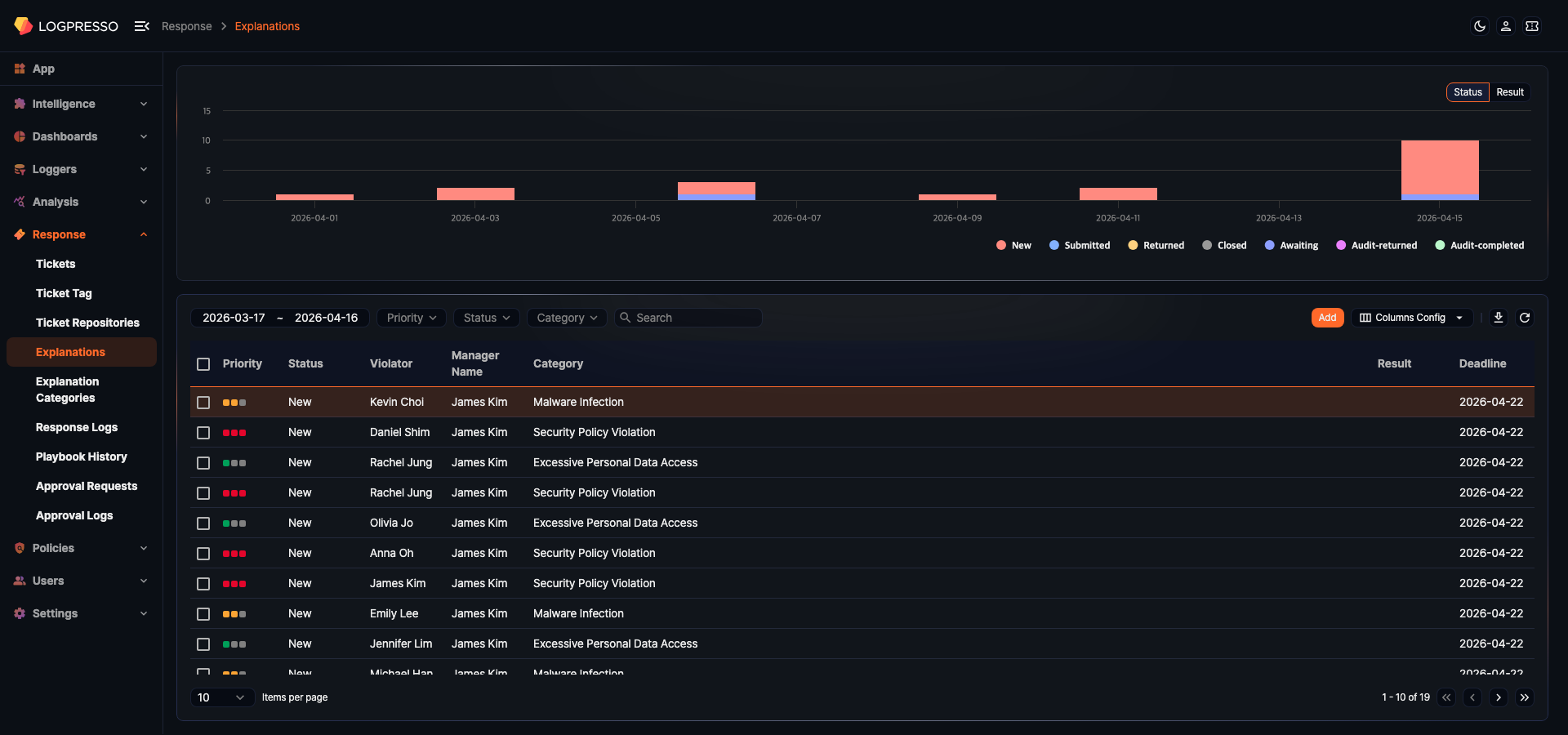
Click Response > Explanations to navigate to the explanation list. The top of the screen shows an explanation trend chart, and the bottom shows the list of explanation requests. Explanations can be automatically created by detection rules, or manually added from the ticket or explanation screen.
With the default roles, cluster administrators, administrators, and users can all view explanations and review or delete them. For the permissions of each role, see Account permissions.
Explanation trend chart

The chart above the list stacks the number of explanations requested each day, based on the request date. Click Status or Result in the upper right of the chart to switch what the bars stack. The Status view stacks the seven explanation statuses, and the Result view stacks the Normal and Violation counts of closed explanations. Click an item in the legend to hide or show that series.
Viewing and searching explanations
The following columns are displayed in the list:
- Priority: Displays the explanation's priority (High/Medium/Low) as an indicator.
- Status: The current processing status of the explanation.
- New: The violator has not yet submitted an explanation.
- Submitted: The violator has submitted an explanation.
- Returned: The manager has returned the explanation.
- Closed: The manager processed the explanation without a secondary reviewer (self-approved).
- Awaiting: The manager approved the explanation and it is awaiting review by the auditor.
- Audit-returned: The auditor has returned the explanation.
- Audit-completed: The auditor has approved the explanation.
- Violator: The name of the employee who received the explanation request.
- Manager Name: The name of the primary reviewer.
- Auditor Name: The name of the secondary reviewer (auditor).
- Owner Name: The name of the user who created the explanation request. It is empty for explanations created automatically by a detection rule.
- Category: The category assigned to the explanation.
- Ticket Title: The ID and title of the linked ticket. Click to navigate to that ticket.
- Result: The final processing result (Normal/Violation). It appears only in the Closed and Audit-completed statuses.
- Request Date: The date and time when the explanation was created.
- Deadline: The submission deadline date.
The list shows the most recently requested explanations first, and you can change how many rows appear at a time in the pager.
Use the toolbar filters to search explanations:
- Date picker: Set the search period based on the request date. The default is the last 30 days.
- Priority: Show only explanations with a specific priority.
- Status: Show only explanations with a specific processing status.
- Category: Show only explanations in a specific category.
- Search: Search the violator, manager, auditor, and owner names and the ticket title. Separate multiple words with spaces to show explanations that match at least one of them.
Column settings
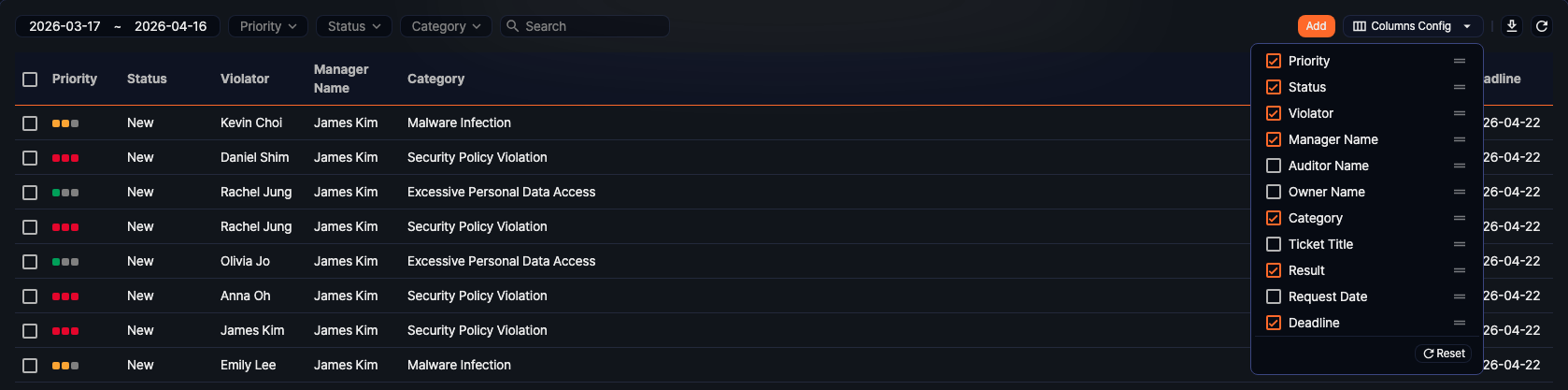
Click the Columns Config button in the toolbar to select which columns to display and reorder them. Changes are saved per user. Click Reset at the bottom of the column list to restore the default settings.
Downloading the explanation list
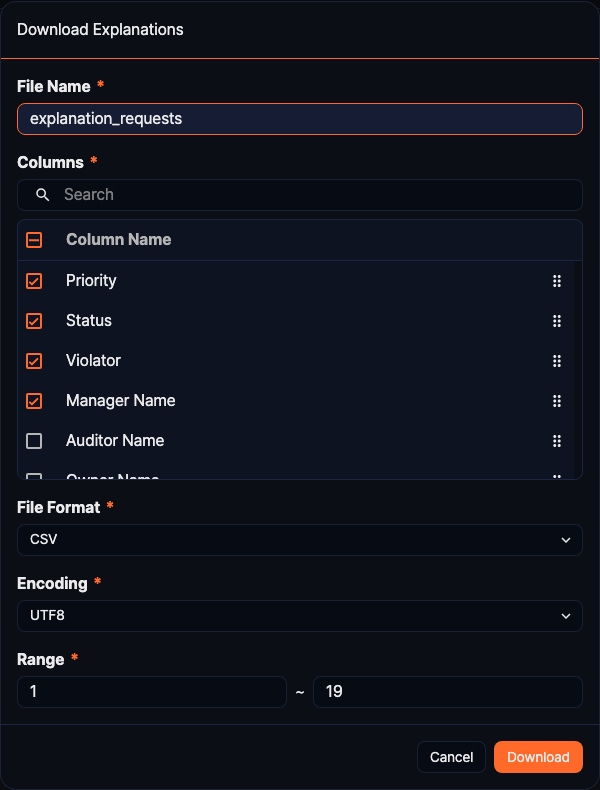
Click  in the toolbar to download the explanation list as a file.
- File Name: Enter the name for the saved file. The default is explanation_requests.
- Columns: Select the columns to include in the file and reorder them. Use the search field above the list to find a column by name. Available columns are Priority, Status, Violator, Manager Name, Auditor Name, Owner Name, Category, Ticket Title, Result, Request Date, and Deadline; the columns currently shown in the list are selected by default.
- File Format: Select the file format.
- Encoding: Select the file encoding.
- Range: Enter the first and last row numbers to download.
The period, priority, status, category, and search filters applied to the list also apply to the download.
Refreshing the explanation list
Click  in the toolbar to refresh the explanation list.
Bulk reviewing explanations

Selecting checkboxes in the list reveals bulk action buttons in the toolbar.
-
Review: Change the status of selected explanations in bulk. Click Review to open the review dialog.
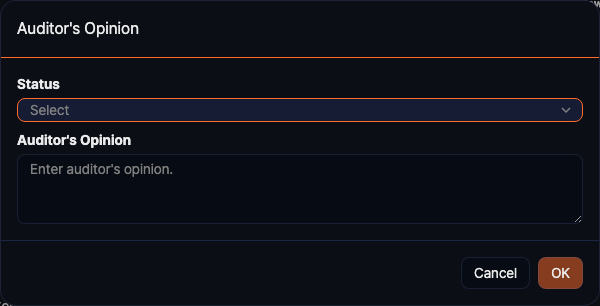
- Status: Select the status to apply. Choose from Confirm as Normal, Confirm as Violated, or Return.
- Auditor's Opinion: Enter a review comment.
Both fields are required: the OK button becomes available only after you choose a status and enter a comment.
NoteSelecting Confirm as Normal or Confirm as Violated records the result as Normal or Violation and changes the status to Audit-completed. Selecting Return changes the status back to New.
-
Delete: Delete the selected explanations. The confirmation dialog lists the category, ticket title, violator, and manager of each explanation to delete.
-
Deselect: Deselect all selected items.
Adding an explanation
Explanations can be automatically created by real-time or batch detection rules, requested from the ticket screen, or manually added by clicking Add in Response > Explanations.
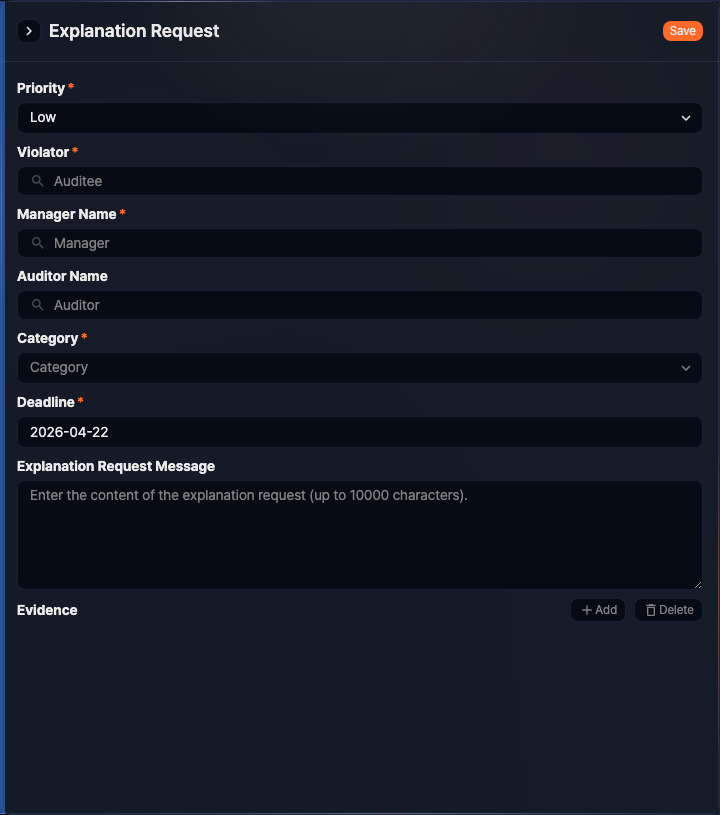
In the panel that opens on the right, configure the following:
- Priority: Select the explanation priority (required, default: Low, options: Low/Medium/High).
- Violator: Select the employee who will receive the explanation request (required, up to 1 person). Type a name or search to select. The Manager Name is automatically assigned when a violator is selected.
- Manager Name: Select the primary reviewer (required, up to 1 person). Automatically assigned when a violator is selected, but you can change it manually.
- Auditor Name: Select a secondary reviewer (auditor) to review after the primary reviewer approves (optional, up to 1 person). If no auditor is assigned, the primary reviewer processes the explanation as a final decision.
- Category: Select the explanation category (required). Manage categories in Response > Explanation Categories.
- Deadline: Select the submission deadline by which the violator must submit their explanation (required). The default is seven days from today.
- Explanation Request Message: Enter a message to send to the violator. The field's hint says 10,000 characters, but a message longer than 2,000 characters cannot be saved.
When you start the request from the ticket screen, Priority is set to the ticket's priority, the panel also shows a ticket information table, and the ticket's evidence is added automatically.
Automatic primary reviewer assignment
When a violator is selected, the primary reviewer is automatically assigned according to the following rules:
- If the violator's department has a department manager, that manager is assigned as the primary reviewer.
- If the violator's department has no manager, the manager of the parent department is assigned.
- If no manager is found up to the top-level department, an employee with administrator privileges is assigned.
If the violator is a department manager:
- If the violator's parent department has a manager, that parent department manager is assigned as the primary reviewer.
- If there is no parent department or no manager up to the top level, an employee with administrator privileges is assigned.
Adding evidence
In the Evidence section at the bottom of the panel, you can add log data to support the explanation request. Select a violator and click Add to open the Add Evidence dialog.
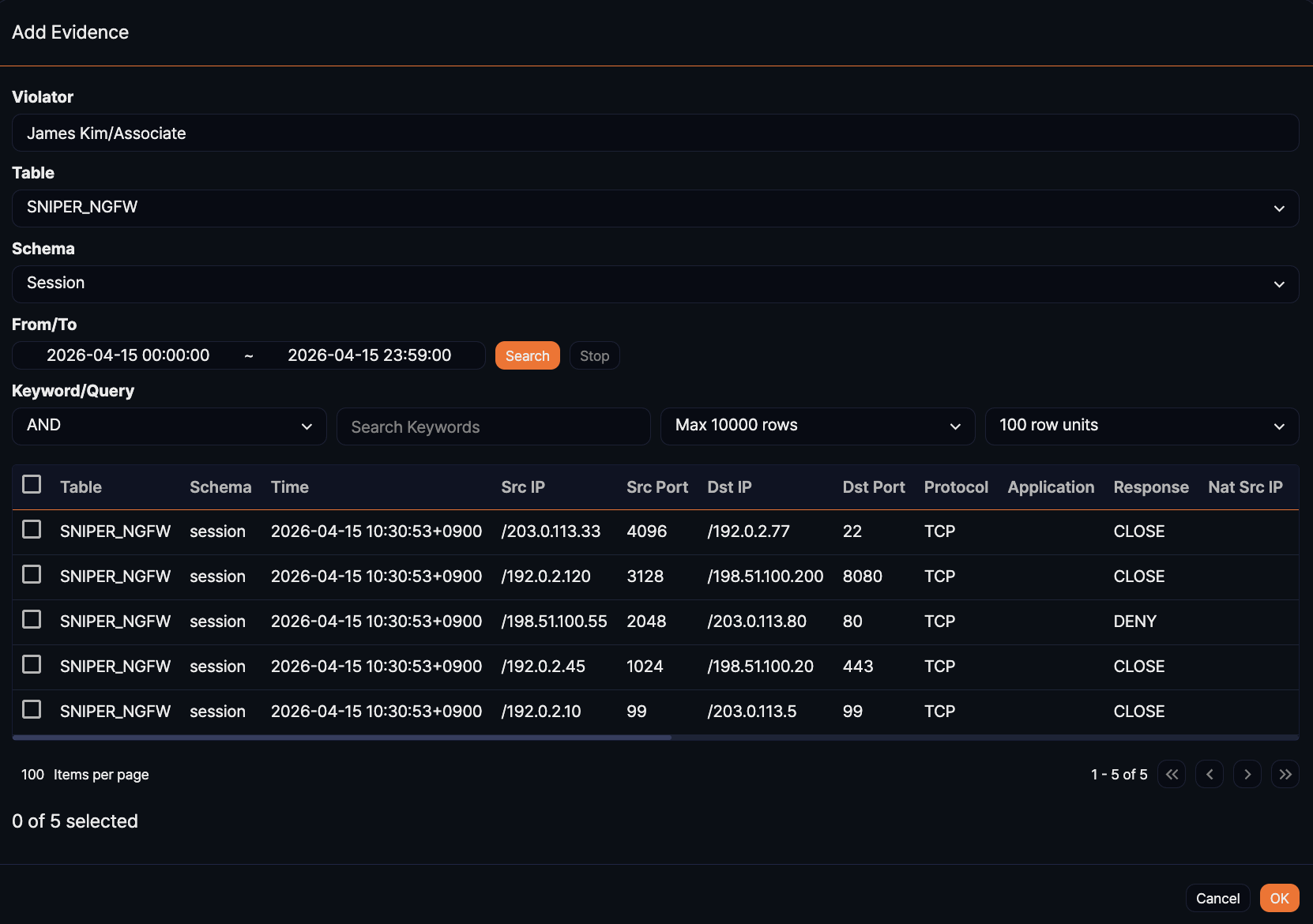
In the Add Evidence dialog, configure the following to search for evidence logs:
- Violator
- Shows the name and title of the violator. This field cannot be changed.
- Table
- Select the table that stores the evidence.
- Schema
- Select the log schema of the logger that collected the evidence. The search returns data normalized with the selected schema, and the results list the table and schema columns first, followed by the fields of that schema under their display names.
- From/To
- Enter the time range for the search. The default is today.
- Keyword/Query
- Choose the search mode and enter keywords. The maximum record count is fixed at 10,000 and the page size at 100. AND condition returns only records containing all keywords; OR condition returns records containing at least one keyword. Select the query expression option to enter a fulltext search boolean expression query directly.
The Search button becomes available only after you select both a table and a schema. If a search takes too long, click Stop to cancel it.
Select the logs you want from the search results and click OK to add them as evidence for the explanation request. You can add up to 1,000 logs at a time; beyond that a warning appears — "Maximum number of logs per upload exceeded." — and nothing is added.
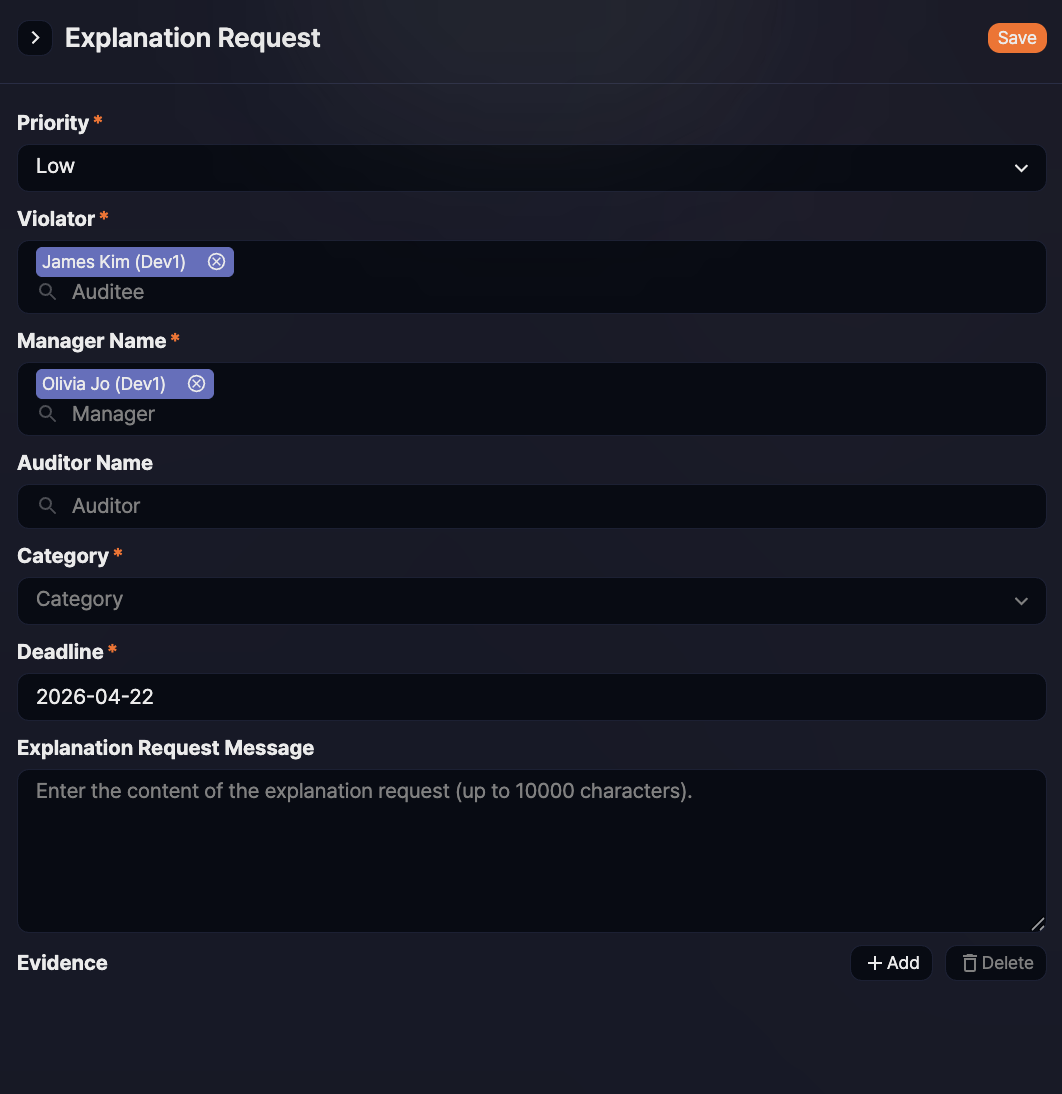
The evidence you added is grouped into tabs by log schema in the panel. To remove a row from the evidence, select it and click Delete.
After configuring all fields in the panel, click Save to create the explanation request and send an email to the violator.
Writing an explanation
When an explanation is automatically requested by a detection policy, or when an explanation request is created from the ticket or explanation screen, the violator receives an explanation request email at the email address registered in the employee database. You can configure the email format in Settings > Push Templates.
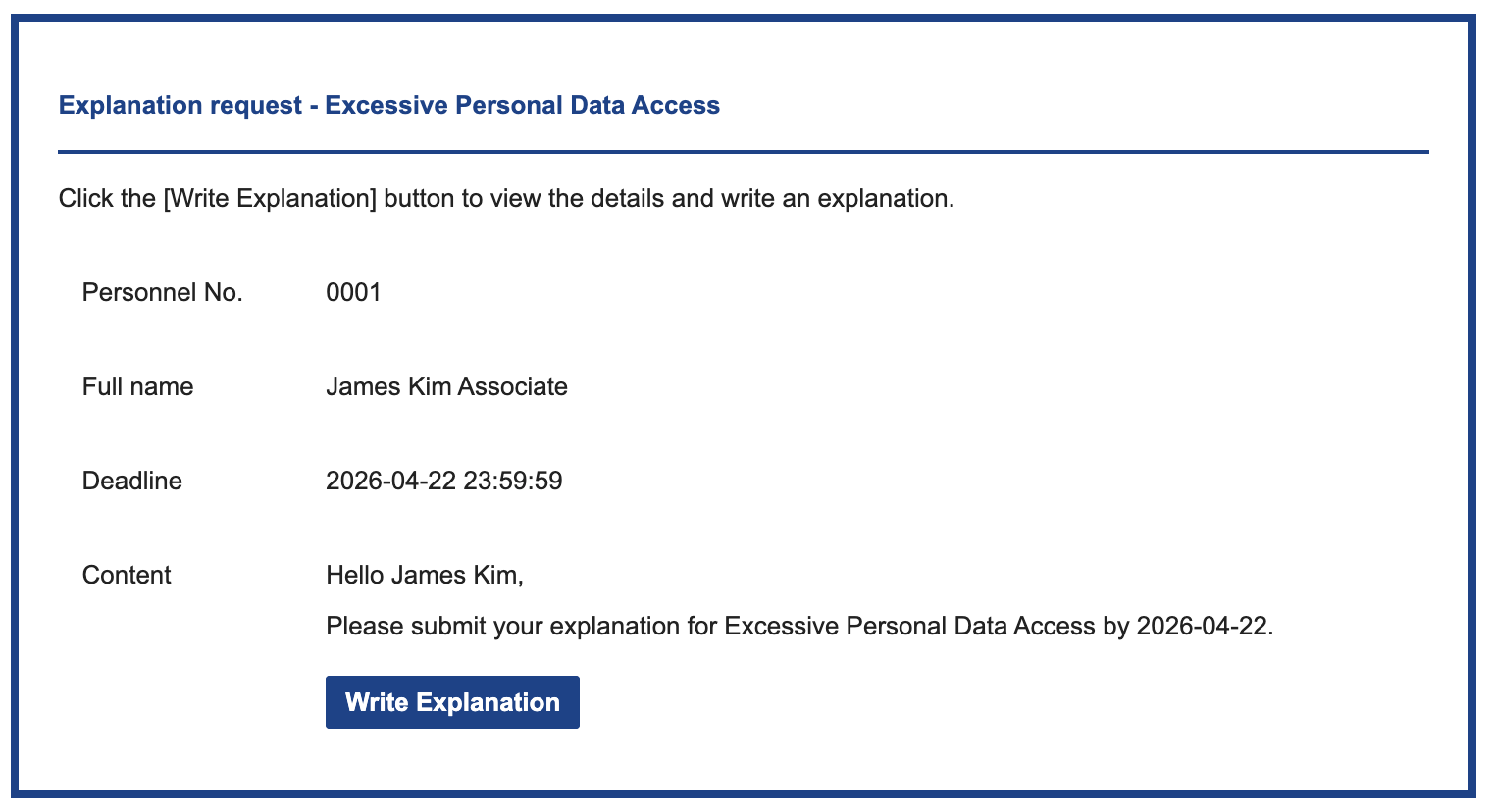
Click the explanation link in the email (Write Explanation in the default template) to open the explanation submission screen in a new window. Because a one-time login token is used, the violator can write their explanation without a Logpresso Sonar account. The screen uses the language registered for the employee.
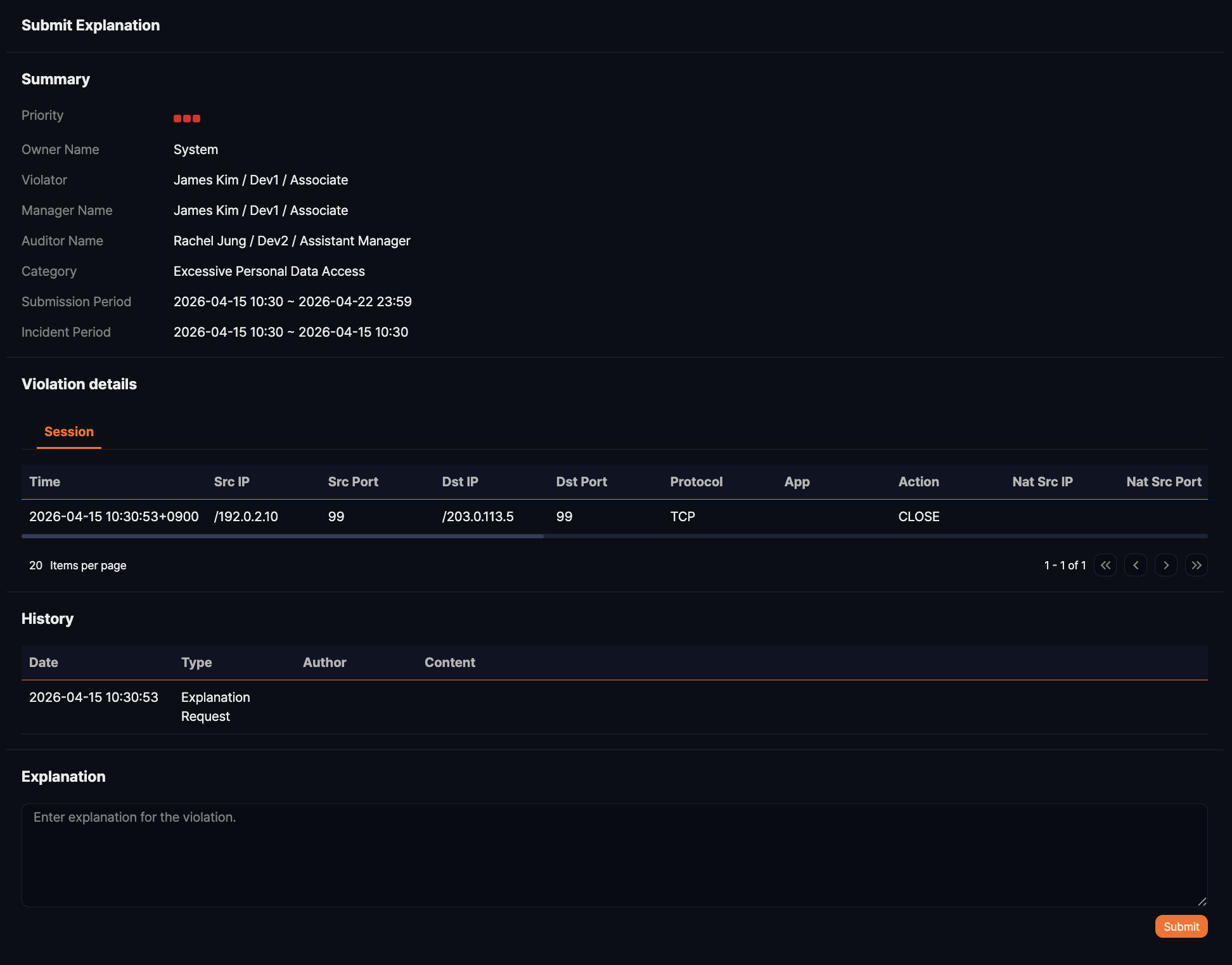
The explanation submission screen has three parts:
- Summary: Shows the priority, owner, violator, manager, auditor, category, submission period, incident period, and request message. When the owner is empty, the explanation was created by a detection rule and "System" is shown instead.
- Violation details: Shows the evidence attached to the explanation request, in tabs by log schema.
- History: Shows the explanation request together with any explanations and review comments already written, in chronological order.
Write your reason in the Explanation field at the bottom of the screen and click Submit. After the deadline, the message "Submission period has expired." appears and the explanation can no longer be submitted.
Token expiry example
- Explanation created: 2019-08-21 18:00:00
- Explanation deadline: 2019-08-27 23:59:59
- Current date: 2019-08-28 15:00:00
- Token expiry: 10 days
Although the deadline has passed, the token expiry is 2019-08-31 18:00:00, so submission is still possible.
Reviewing an explanation
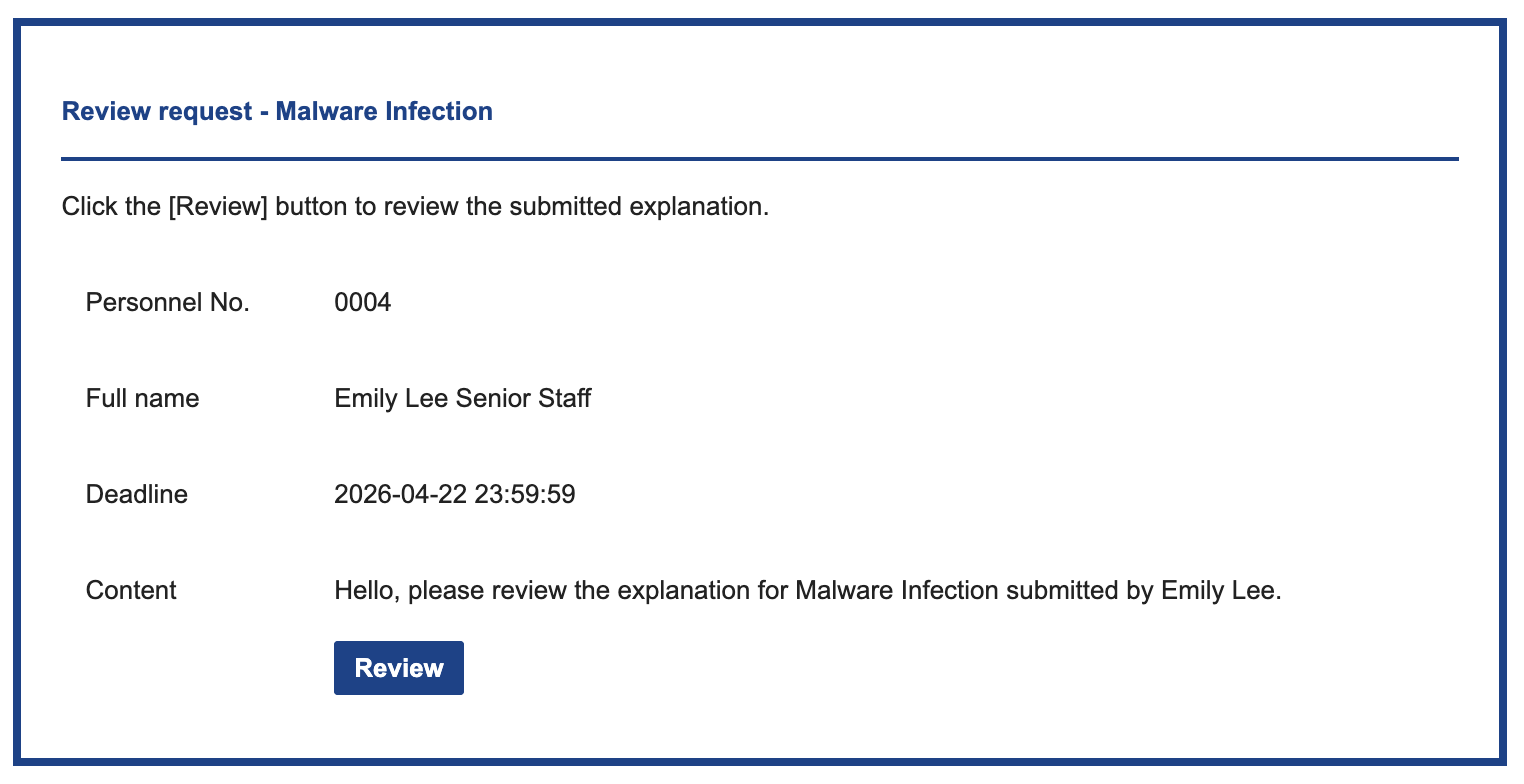
When the violator submits their explanation, a review request email is sent to the reviewer. The reviewer clicks the link in the email to open the explanation review screen.
The review screen shows the same Summary, Violation details, and History sections as the submission screen, with a review comment field and action buttons at the bottom.
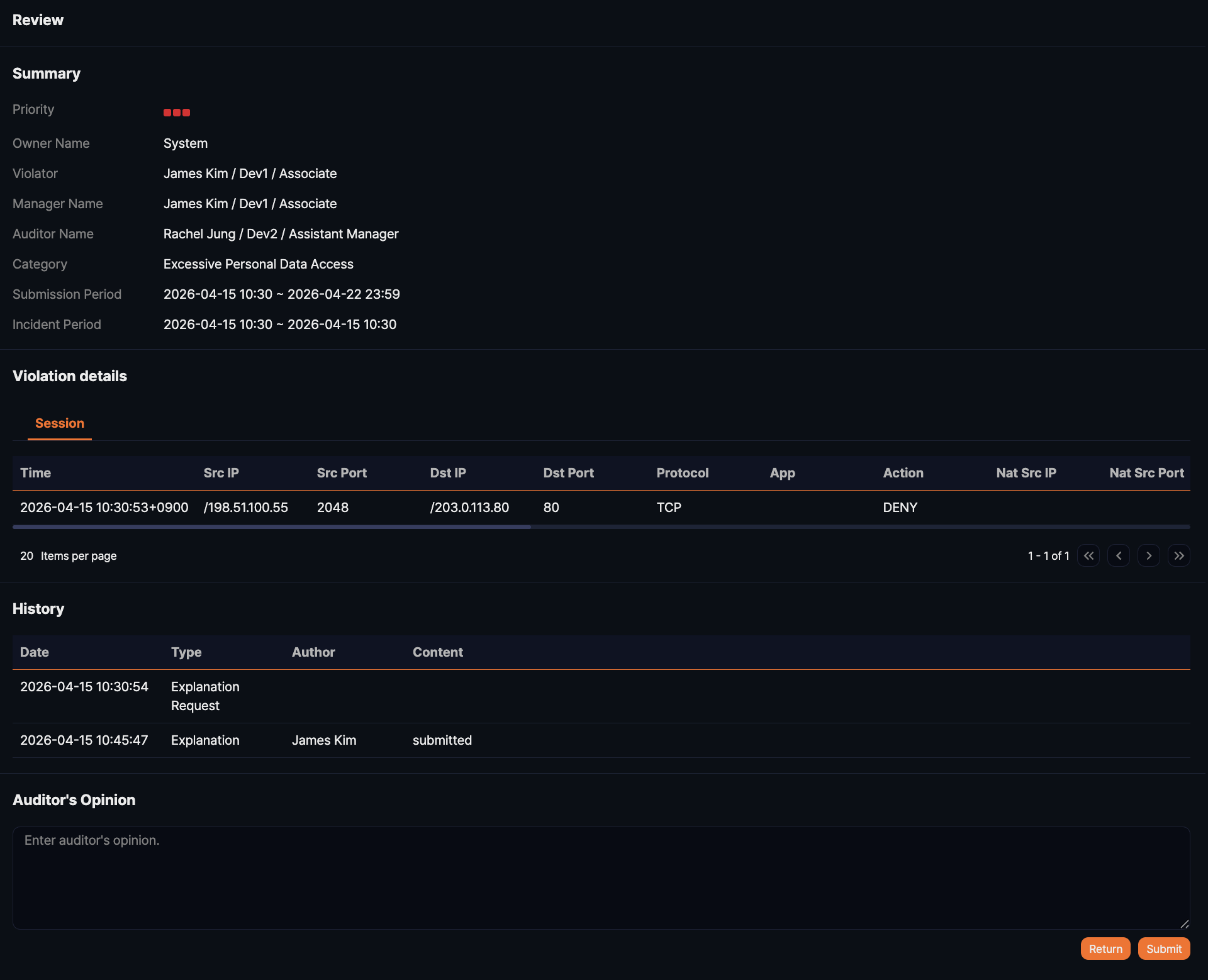
After reviewing the explanation details and evidence, enter your comment in the review field at the bottom of the screen and click an action button. Which buttons appear depends on whether an auditor is assigned.
When no auditor is assigned and the primary reviewer makes the final decision:
- Return: Return the explanation. The status changes to Returned, and the explanation request email is sent to the violator again.
- Approve (Confirm as Normal): Approve the explanation as normal. The status changes to Closed and the result is recorded as Normal.
- Approve (Confirm as Violated): Approve the explanation as a violation. The status changes to Closed and the result is recorded as Violation.
When an explanation closes as Closed or Audit-completed, a completion notice is emailed to the violator.
When an auditor is assigned, the primary reviewer sees only Return and Submit. Clicking Submit changes the status to Awaiting and hands the explanation to the auditor. The auditor then chooses Return, Confirm as Normal, or Confirm as Violated, which record the status as Audit-returned or Audit-completed. Like a first-review return, an audit return sends the explanation request email to the violator again.
Clicking a row in the explanation list opens the same review screen as a panel inside the console. That panel is the auditor's view, so it offers Confirm as Normal and Confirm as Violated, and adds Return only while the explanation is Awaiting. While the explanation is New, a Send Re-explanation Request button also appears so you can send the request email again; the first-reviewer screen opened from the email link never shows that button. Opening an explanation already closed as Closed or Audit-completed shows the notice "Explanation audit is completed." and no action buttons.